
Appearance
Resetting your password
If you've forgotten your password, this guide walks through asking Potato Diary to email you a reset link, then choosing a new password. It takes a couple of minutes.
Before you start
You'll need:
- Access to the inbox of the email address on your account. The reset link is emailed there.
- A new password. It must be at least 8 characters long, contain both upper- and lower-case letters and at least one number, and must not be a password that has appeared in a known data breach.
INFO
If you've been invited to Potato Diary but haven't accepted the invitation yet, you don't have a password to reset. Use the link in your invitation email instead, or ask your team admin to resend it.
Step 1 — Open the Forgot password page
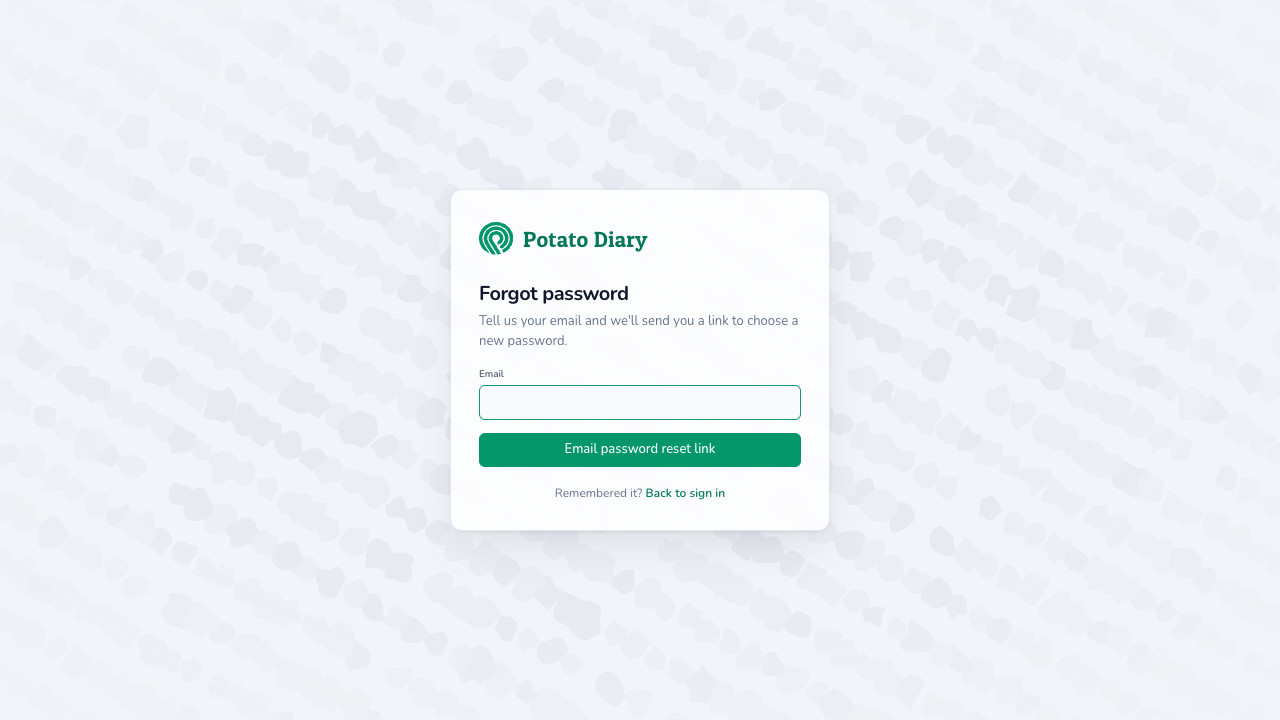
Go to potatodiary.com/login, then click the Forgotten password? link to the right of the Password label. You'll land on the Forgot password page.
TIP
You can also go straight to potatodiary.com/forgot-password.
Step 2 — Enter your email address
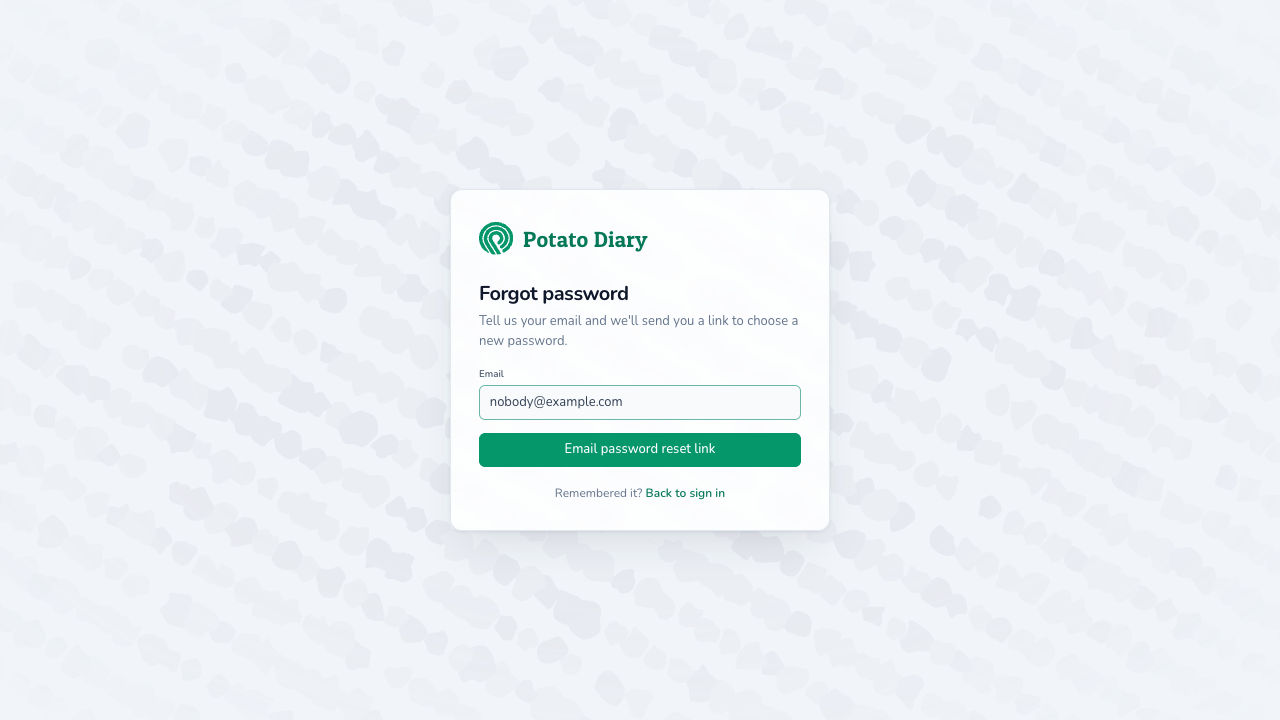
Type the email address on your account into the Email field.
Step 3 — Click Email password reset link
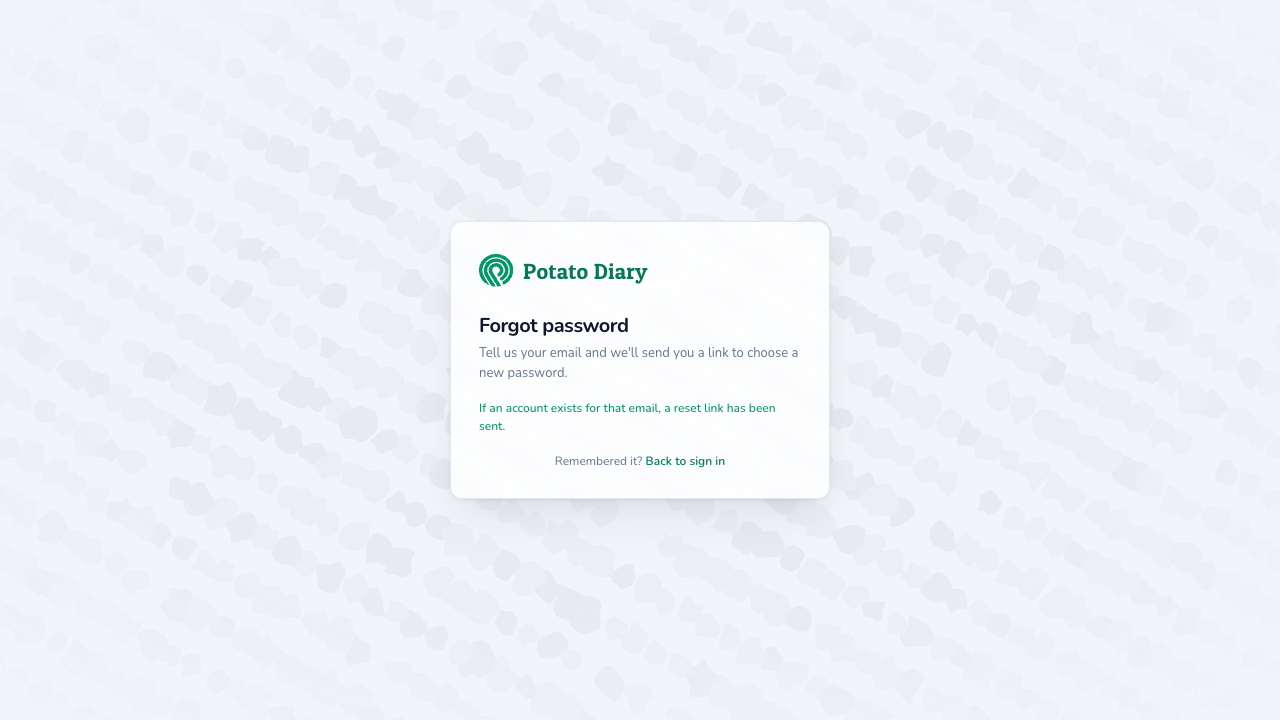
Click the green Email password reset link button. The form is replaced with the message If an account exists for that email, a reset link has been sent.
INFO
You'll see this same message whether or not the email address has an account. That stops anyone using the page to find out who has an account.
If no email arrives within a few minutes:
- Check your junk folder.
- Check the address you typed. Typos and old work addresses are the usual culprits.
- Wait a minute before asking again. A second request within 60 seconds of the first is ignored, even though the page shows the same message.
Step 4 — Open the reset link from your email
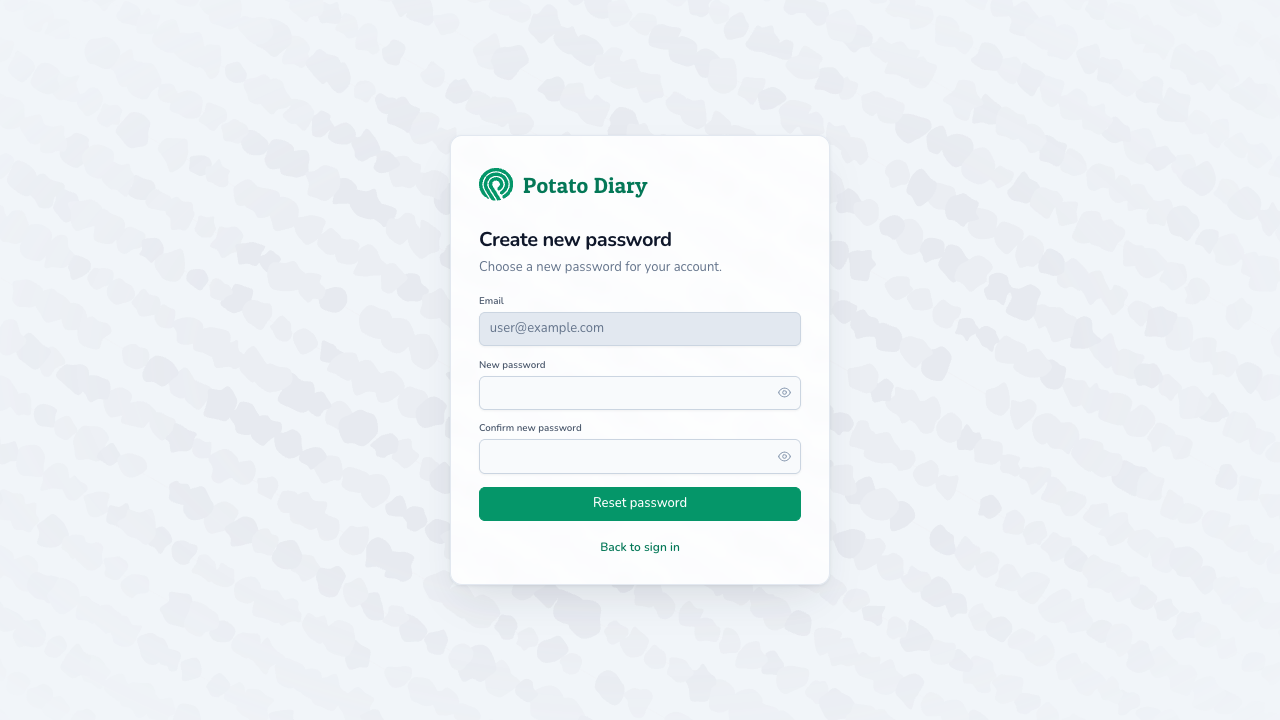
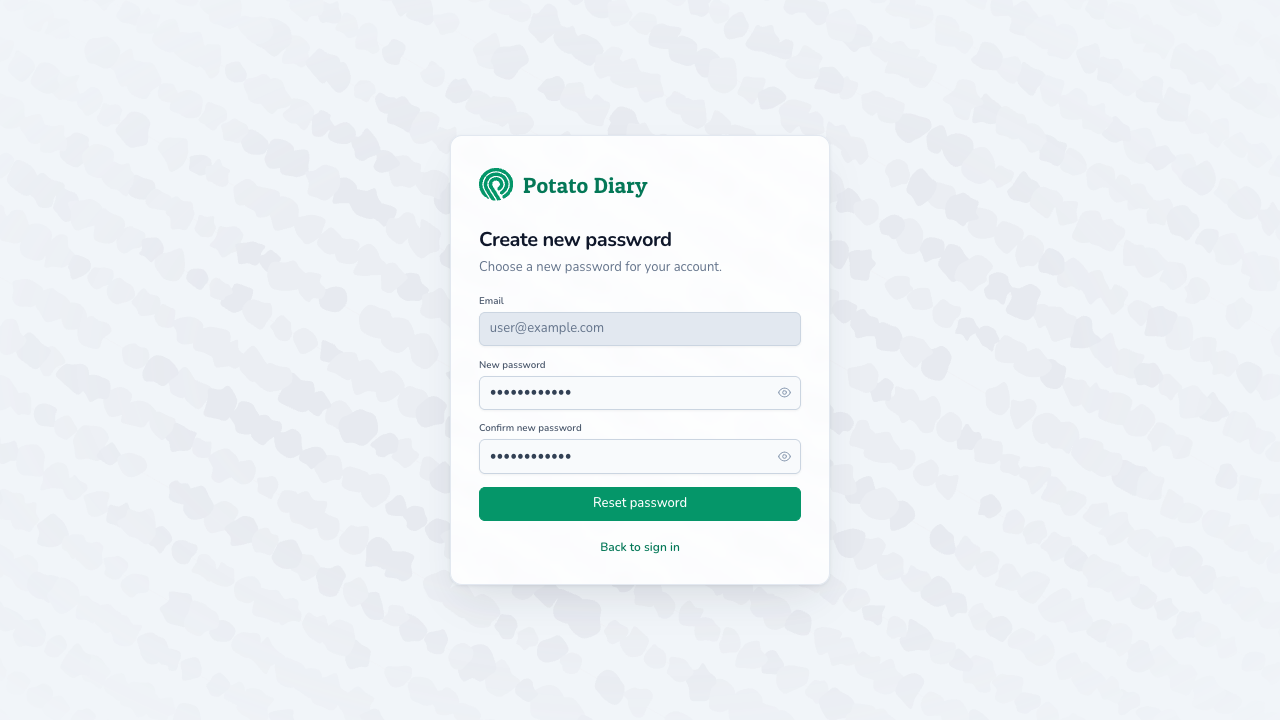
Open the email titled Reset Password Notification and click the Reset Password button inside it. The link opens the Create new password page in your browser, with your email address already filled in. You can't change the email on this page.
WARNING
The reset link expires after one hour and can only be used once. Asking for a new link also cancels any older link you haven't used yet.
Step 5 — Choose your new password
Type your new password into both the New password and Confirm new password fields. They have to match exactly. Click the eye icon on the right of either field to check what you've typed.
Step 6 — Click Reset password
Click the green Reset password button. If it works, your password is changed and you're taken back to the login page. Sign in with your email address and your new password.
If the reset doesn't go through, you stay on the page and a red message says why:
- A message under New password means the passwords don't match, or the new password doesn't meet the rules in Before you start. Fix it and click Reset password again.
- "This password reset token is invalid." under the form means the link has expired, has already been used, or has been replaced by a newer one. Go back to step 1 and request a new link.
What's next
- Updating your profile — Change the name your team sees you as.
- Logging in — Use your new password to sign in.