
Appearance
Updating your profile
Your profile name is how Potato Diary shows you to other people on your team: on visits, comments, the Team Users list and so on. This guide covers how to change it.
Step 1 — Open the user menu
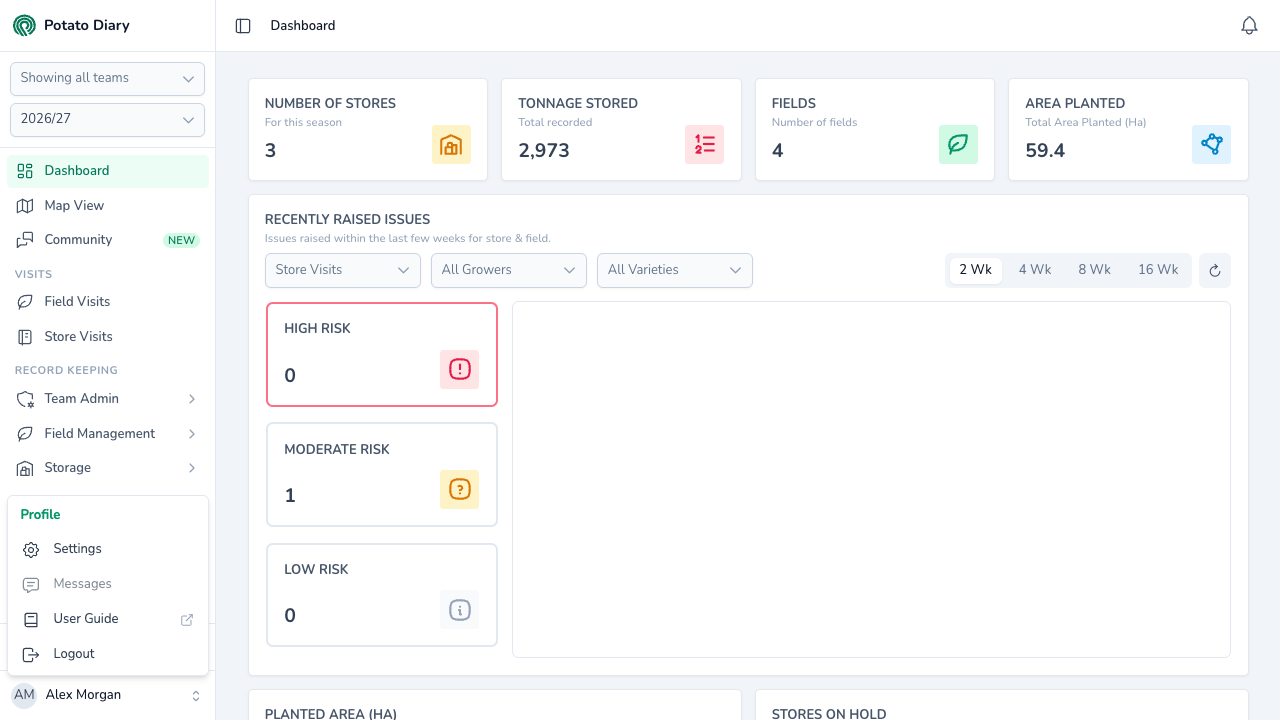
At the bottom of the sidebar, click your name. A menu headed Profile opens with Settings, Messages, User Guide and Logout. If AI is switched on for your account, there's also Ask AI.
TIP
If the sidebar is collapsed to icons, you'll only see your initials at the bottom. Click them to open the same menu.
Step 2 — Click Settings
Choosing Settings opens the Account Settings dialog on the My Details tab. That's the one you want.
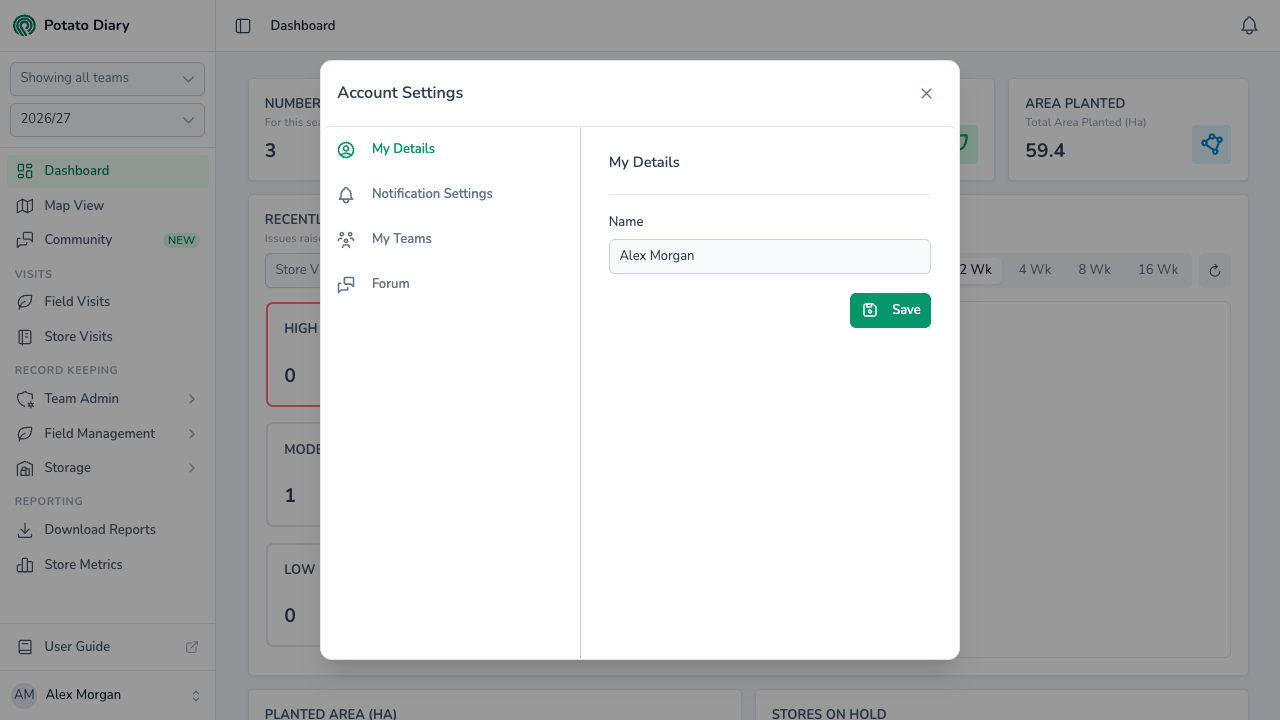
The tabs down the left of the dialog are:
- My Details: your name. Covered here.
- Notification Settings: which events notify you, and how. See Managing notification preferences.
- My Teams: a read-only list of the teams you belong to.
- Forum: only shown when the Community forum is switched on. Sets how you appear on forum posts: an optional Job title, Industry experience and Region, and whether to Show team name on posts. It has its own Save button.
Step 3 — Edit your name
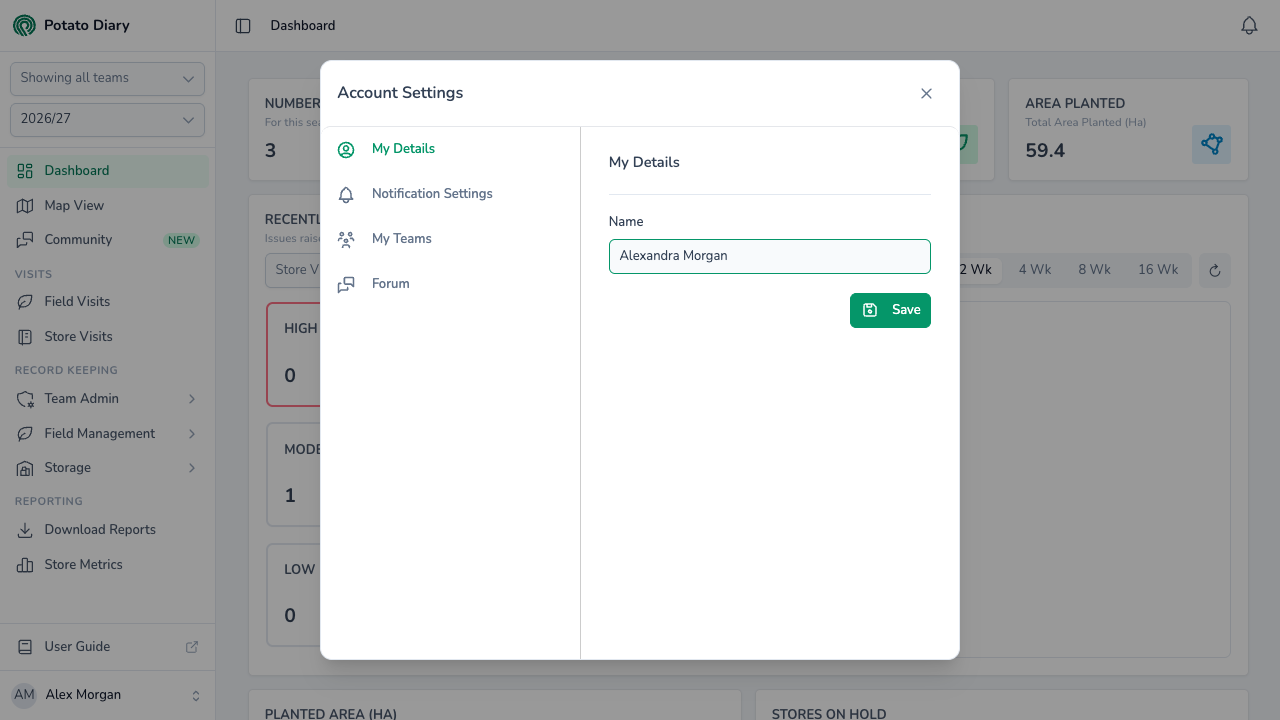
Click into the Name field and type your new name. Most people use their full name. It can be up to 255 characters, and it can't be left empty.
Step 4 — Click Save
Click the green Save button under the field. A Settings saved successfully. message pops up, and your new name shows straight away at the bottom of the sidebar.
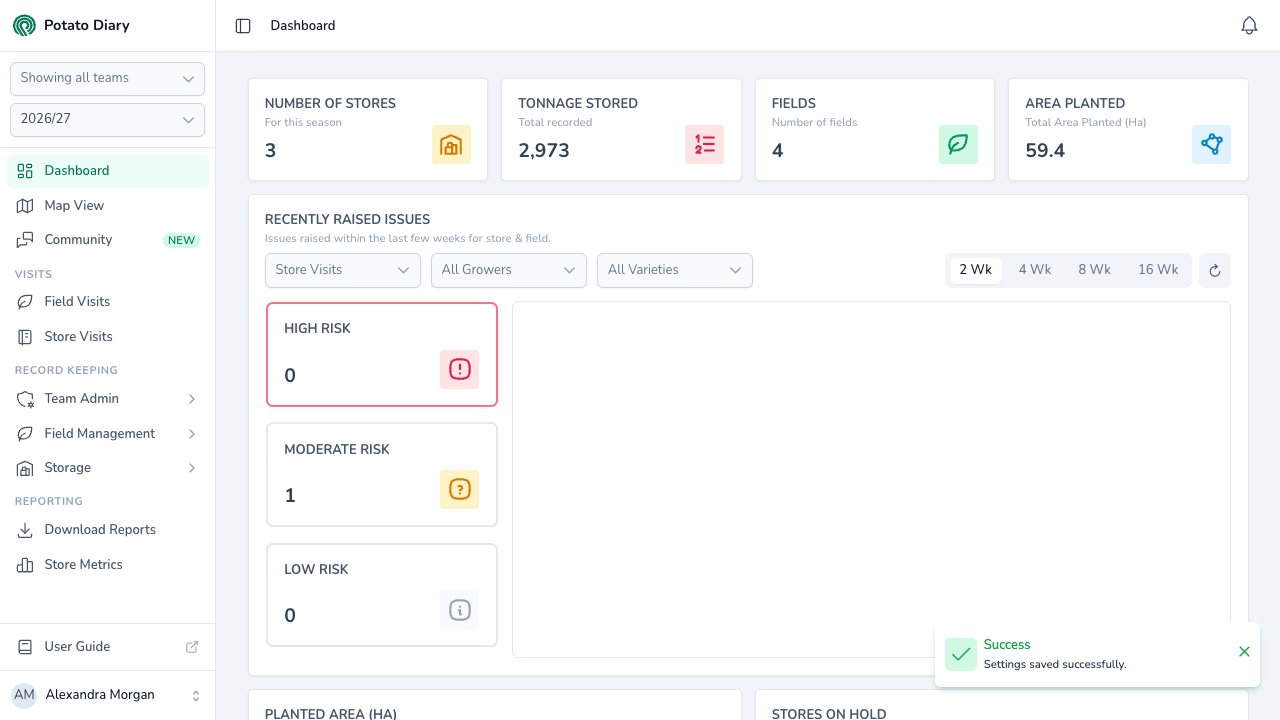
Visits, comments and other records you've already created show your new name too, because Potato Diary looks your name up rather than storing a copy. The exception is notifications that have already been sent, which keep the name they went out with.
What if I want to change my email address?
You can't change your email address from the Settings dialog. If you've moved to a new address, ask your team admin to invite the new address and remove the old one, or get in touch with Potato Diary support.
What's next
- Managing notification preferences — Pick which events alert you and how.
- Getting around the app — Find your way round the sidebar and top bar.