
Appearance
Getting around the app
Once you've signed in, everything in Potato Diary hangs off the sidebar on the left of the screen and the thin top bar above each page. This guide explains what's in each, so you can find any page and switch which team and season you're looking at.
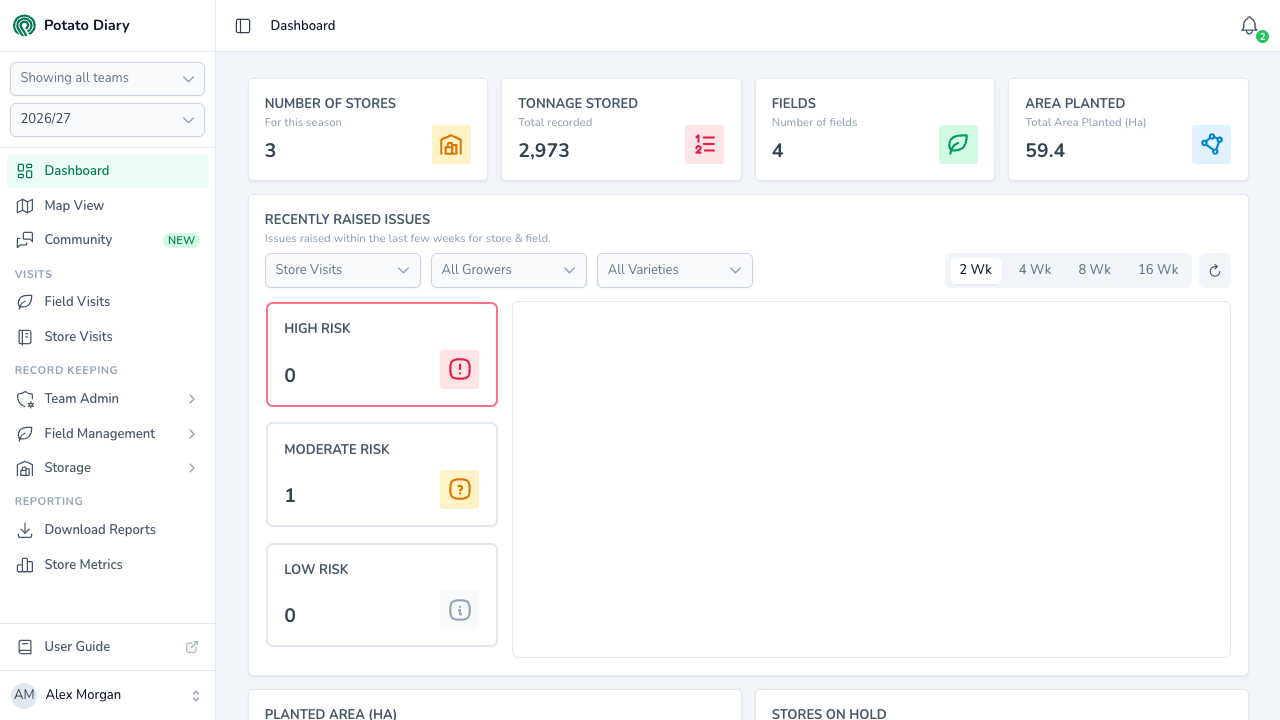
The sidebar
From top to bottom, the sidebar holds:
- The Potato Diary logo.
- The team picker and the season picker.
- The pages you can open, grouped under headings.
- A User Guide button, which opens this guide in a new browser tab.
- Your name and initials. Click them to open the user menu.
You only see the pages your team has switched on and that you have permission to open. If a colleague mentions a page you can't find, it's usually because your team doesn't have that module or your account doesn't have access to it. Ask your team admin.
Choosing teams and a season
The two boxes near the top decide which records you see across the whole app.
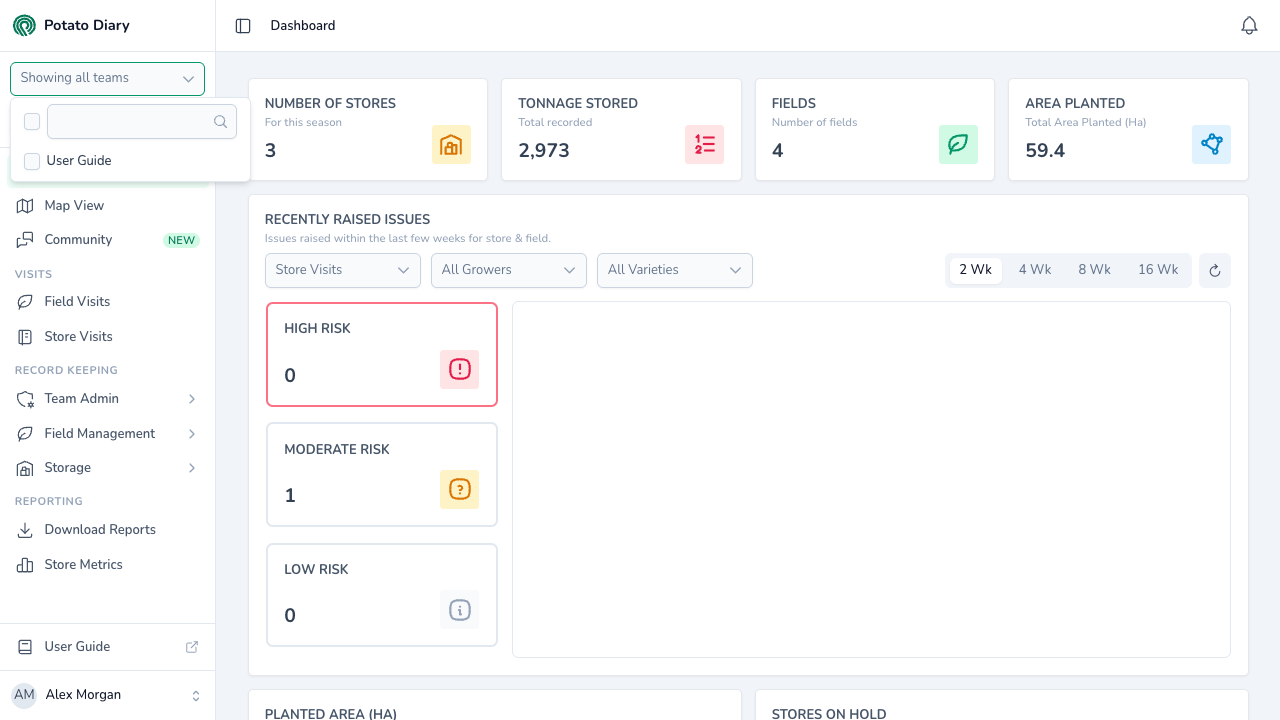
- Team picker. If you belong to more than one team, tick the teams you want to see. It reads Showing all teams when nothing is ticked, and 2 teams selected (or however many) when you've ticked more than one. Type in the box at the top of the list to search for a team. Your choice applies when you close the list, and the page reloads.
- Season picker. Pick the season you want to work in, such as 2025/26. The page reloads straight away. Lists across the app show records for the season you've picked.
The pages
Three pages sit at the top of the list:
- Dashboard: your team's summary page. This is where you land after signing in.
- Map View: a map of your fields. Shown when your team uses Field Management.
- Community: the Potato Diary grower forum, marked New. Shown when the forum is switched on.
Below them, the rest of the app is grouped under three headings:
| Heading | What's in it |
|---|---|
| Visits | Field Visits and Store Visits, the main lists of visits recorded across your team. See Field Visits and Store Visits. |
| Record Keeping | Four sections: Team Admin, Field Management, Storage and Quality Control. |
| Reporting | Download Reports and Store Metrics. |
Potato Diary administrators also see an extra Super Admin group. Most users never will.
Record Keeping sections
Each Record Keeping section holds several pages. Click a section, for example Team Admin, and two things happen:
- The first page in that section opens.
- A section panel opens beside the sidebar, listing every page in the section. Click any page in the panel to switch to it.
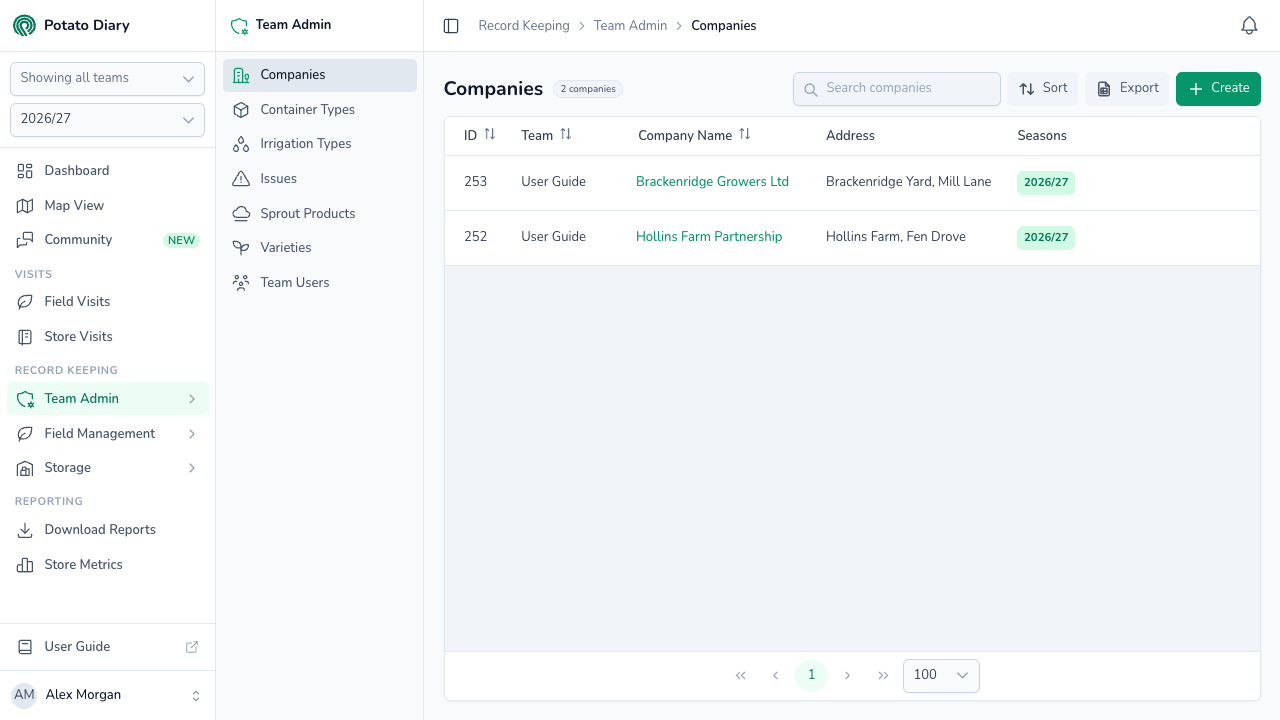
The panel stays open while you're on any page in that section, and closes when you move to a page outside it, such as the Dashboard.
| Section | Pages |
|---|---|
| Team Admin | Companies, Container Types, Irrigation Types, Issues, Sprout Products, Varieties, Team Users |
| Field Management | Fields, Plantings, Visits |
| Storage | Sites, Potato Stores, Store Inventory, Delivery Tickets, Visits, Cleaning Inspections |
| Quality Control | Your team's sample types, under Samples, and Defect Overview, under Reporting |
As with the rest of the sidebar, you only see the pages your team and your account give you access to.
Collapsing the sidebar
To get more room for the page, click the Toggle sidebar button at the far left of the top bar. The sidebar shrinks to a narrow strip of icons.
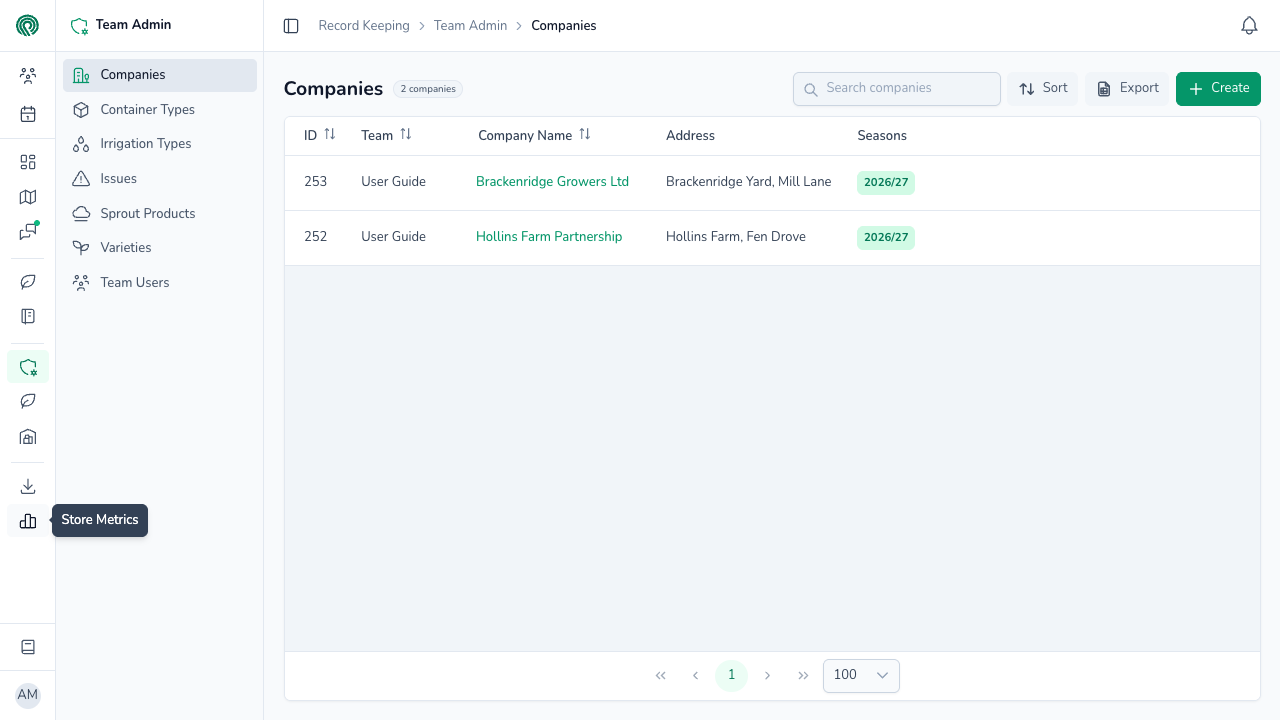
In the collapsed sidebar:
- Hover over any icon to see its name.
- The team and season pickers become two icon buttons, Teams and Season. Click one to open its picker.
- Group headings become thin dividers.
Click Toggle sidebar again to expand it. Potato Diary remembers your choice on that device.
On a phone or tablet
On screens narrower than a small laptop (below 1024 pixels wide), the sidebar is hidden to save space. Tap the Toggle sidebar button at the top left to slide it in from the left.
It works the same way as on a desktop, with two differences:
- It always shows full labels, never just icons.
- Record Keeping sections expand in place to list their pages, instead of opening a separate panel.
Tap a page and the sidebar closes again.
The top bar
The top bar runs across the top of every page.
- Toggle sidebar (far left): collapses or expands the sidebar, or opens it on a phone.
- Breadcrumbs: show where you are, for example Record Keeping › Team Admin › Companies. On a phone, only the current page name is shown.
- Ask AI (right): opens the Chat with an AI Agent panel, where you can ask general questions about potato storage. You only see this button if AI has been switched on for your account.
- Notifications (bell, far right): see below.
Notifications
When something happens that you've asked to hear about, the bell shows a green badge with the number of unread notifications. Click the bell to open the list.
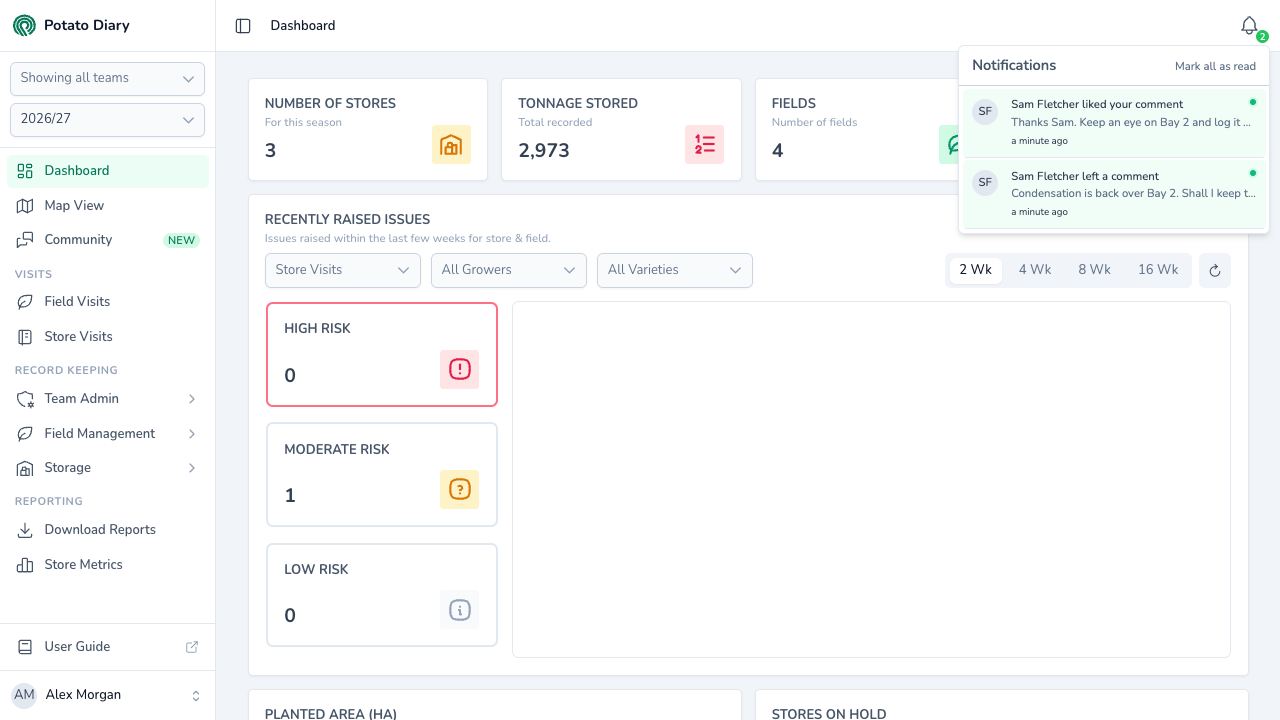
- Unread notifications have a green tint and a green dot.
- Each one shows who caused it, what happened and how long ago.
- Click a notification to mark it as read and open what it's about. Store visits and field visits open in a panel on the right of the page. Forum notifications take you to the thread.
- Click Mark all as read at the top of the list to clear the badge.
To choose which events reach the bell, see Managing notification preferences.
The user menu
Click your name at the bottom of the sidebar to open the user menu. It has:
- Settings: opens your Account Settings. See Updating your profile.
- Messages: greyed out; not available yet.
- Ask AI: the same chat panel as the top-bar button. Only shown if AI is switched on for your account.
- User Guide: opens this guide in a new tab.
- Logout: signs you out.
What's next
- Resetting your password — Request a reset link and choose a new password.
- Updating your profile — Change the name your team sees you as.
- Team Administration — Set up the reference data and people in the Team Admin section.