
Appearance
Field Visits and Store Visits
The two pages under Visits in the sidebar show your team's visits as a feed of cards, newest first. Field Visits has the visits to your plantings and to fields that aren't planted yet, and Store Visits has the visits to your potato stores. This is where the team reads what's been seen, talks about it, and spots which problems are turning up most.
They're the same visits as the tables under Record Keeping, shown a different way. See How the feeds relate to the Record Keeping tables.
Opening the feeds
In the sidebar, under Visits, click Field Visits or Store Visits. Field Visits is there when your team uses Field Management, and Store Visits when it uses Storage. You also need permission to see that kind of visit.
Both open the same Visits page. If you can see both kinds of visit, the Field Visits and Store Visits tabs at the top switch between them.
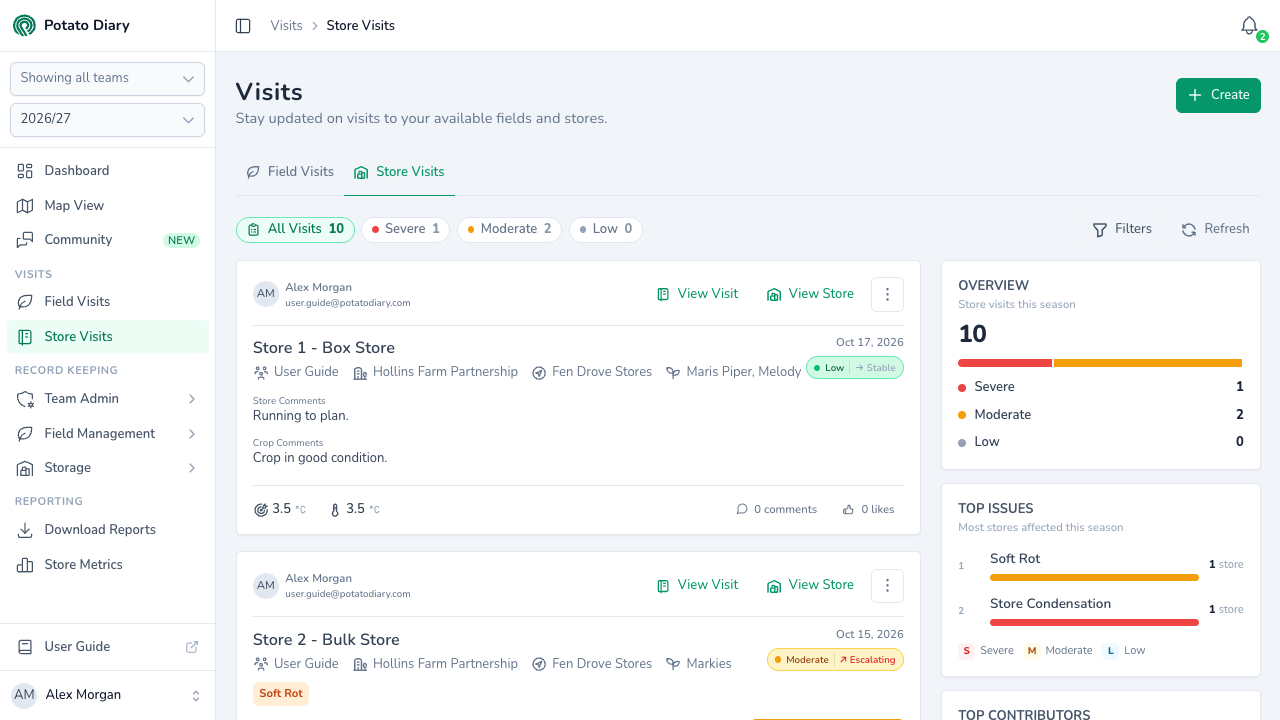
The page has four parts:
- the severity pills along the top, with Filters and Refresh to their right
- the feed of visit cards
- a summary down the right-hand side. On screens narrower than 1280 pixels, it moves below the cards.
- page controls at the bottom
The feed shows visits from the season and teams picked at the top of the sidebar. See Getting around the app. Refresh loads the feed again, to pick up visits added since you opened the page.
If you can add visits, Create at the top right opens the Create A Visit dialog for the feed you're on. See Recording a visit for field visits and Potato Store Visits for store visits.
What's on a store visit card
Each card on Store Visits shows:
- who recorded the visit, with their name and email
- the store's name, then its team (only when the team's name is different from the store's grower), grower, site and varieties. If the store holds more than two varieties, hover over & 1 more (or however many) to see the rest.
- the visit date and, if you can see storage risk, the store's risk band after the visit
- a tag for each issue found, coloured by severity: red for High, amber for Moderate and grey for Low
- the Store Comments, Crop Comments and Action Required / Taken notes
- a Latest Treatment box, if the store had been treated before the visit. It says whether the crop was safe to move at the time.
- up to six photos from the visit
- the target and average temperatures, bottom left. Hover over each to see which is which.
- the number of comments and a like button, bottom right
What's on a field visit card
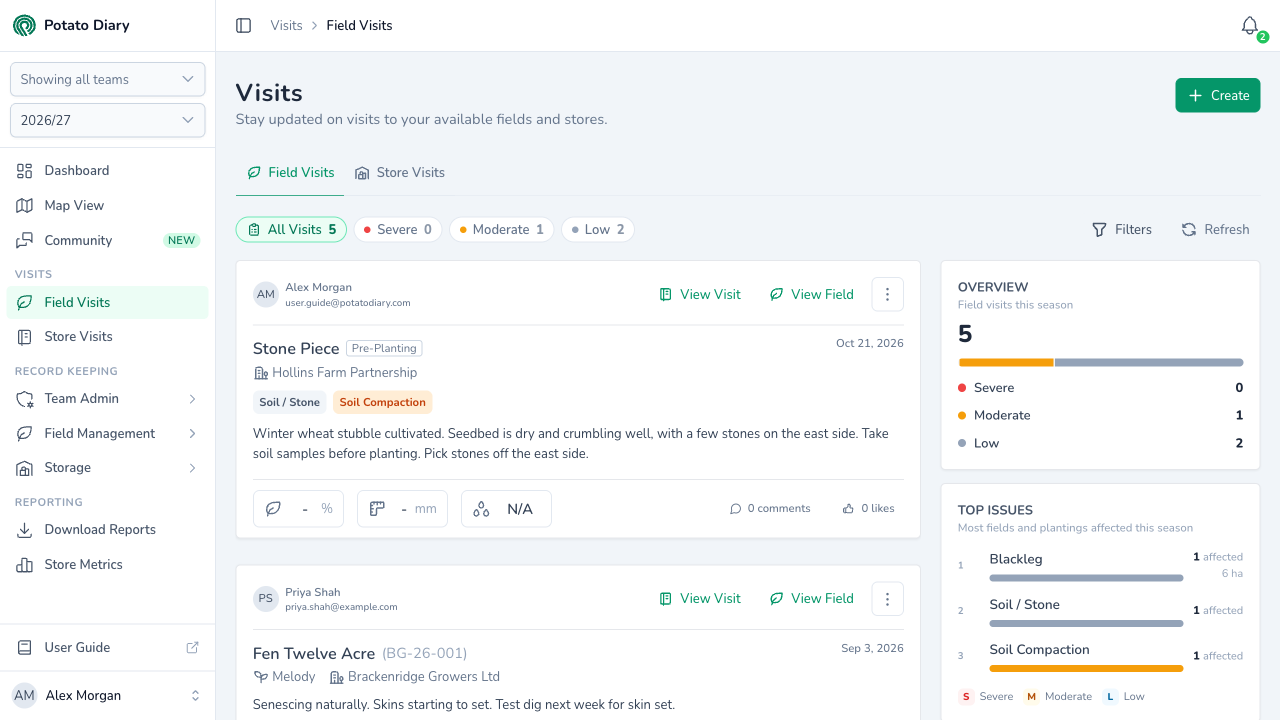
Each card on Field Visits shows:
- who recorded the visit, with their name and email
- the field's name with the planting's reference in brackets, then the variety and grower. A visit recorded before anything was planted has a Pre-Planting tag instead of the reference, and no variety.
- the visit date
- a tag for each issue found, coloured by severity in the same way
- the visit's crop comments and actions, run together as one paragraph
- up to six photos from the visit
- Canopy Cover (%), Leading Tuber (mm) and Soil Moisture, bottom left. A pre-planting visit shows none of these chips: they measure a crop, and there isn't one yet.
- the number of comments and a like button, bottom right
Photos
Click a photo on either kind of card to open it full screen. Use the arrows to move through all of the visit's photos, including any beyond the six on the card.
Opening a visit
Click View Visit at the top right of a card, or the comments button at the bottom, to open the visit in a panel on the right. The panel has the visit's readings, notes and photos, with the comments at the bottom. Click Edit at the top of the panel to change the visit, if you're allowed to. Click the arrow in the panel's top-right corner to close it.
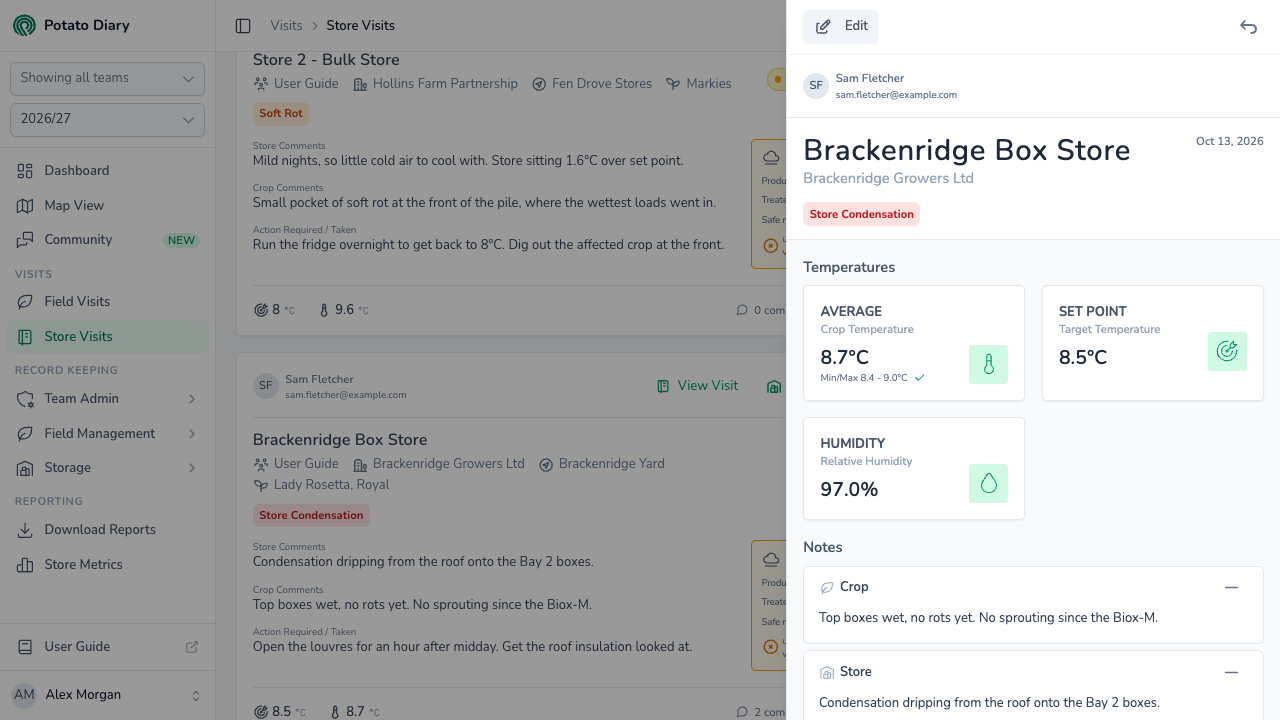
The panels are described in full on the store's and field's Visits tabs:
Next to View Visit:
- View Store opens the store's Details tab.
- View Field opens the field's Field Details tab.
The ⋮ button has the same options, plus:
- on store visits, Potato Store, with Details, Stocks, Treatments and Visits, to jump to that tab of the store
- Edit, with Edit, Copy and Delete. Copy is always greyed out.
On screens narrower than a tablet, View Visit, View Store and View Field are hidden. Use the ⋮ button instead.
Comments, likes and mentions
People talk about a visit in its comments. Click the comments button on a card to open the visit with its comments at the bottom of the panel. Click the like button (the thumbs-up) on the card to like the visit. In a comment, type @ and a name to mention someone, so they're notified.
How commenting, replying, liking and mentioning work, and who gets notified, is covered in Comments, likes and mentions. Clicking one of those notifications opens this page with the visit already open in the panel.
Narrowing the feed
The severity pills
The pills above the feed are All Visits, Severe, Moderate and Low, each with a count. Click Severe, Moderate or Low to show only visits with at least one issue tagged at that severity. Click All Visits to show everything again.
- A visit with a Severe issue and a Low issue counts under both pills.
- Visits with no issues only count under All Visits.
So the three severity counts don't add up to All Visits. The counts follow your filters, but don't change when you pick a pill.
The pill you pick is saved in the page's web address, so you can bookmark it or send it to a colleague. Switching between the Field Visits and Store Visits tabs goes back to All Visits.
Filters
Click Filters to open the filters panel on the right. The feed updates as you choose; there's no Apply button. Click the × at the top of the panel to close it.
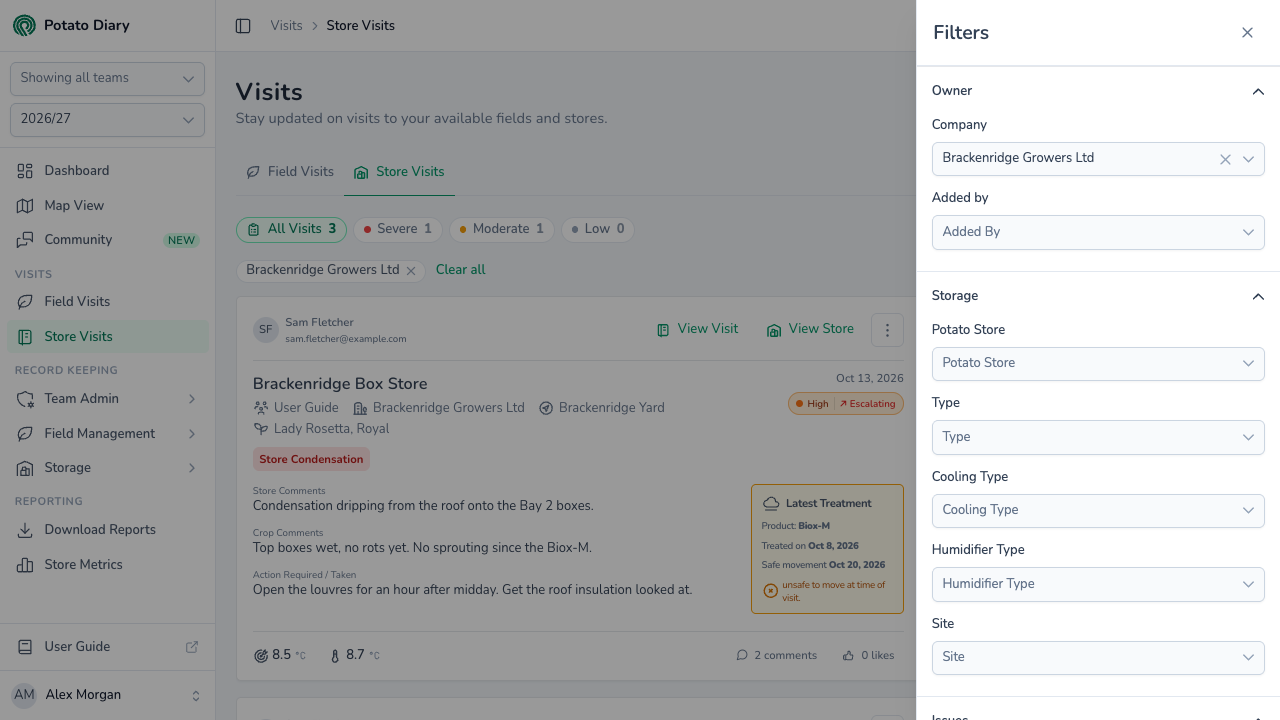
The panel has headings you can click to open and close. Owner and Issues start open.
| Heading | Filter | What it does |
|---|---|---|
| Owner | Team | Show one of the teams picked in the sidebar. Only shown if more than one is picked. Removing it goes back to all the teams picked in the sidebar. |
| Company | Show visits for one grower: the store's grower on Store Visits, the visit's grower on Field Visits. | |
| Added by | Show visits recorded by one person. | |
| Storage (Store Visits only) | Potato Store, Type, Cooling Type, Humidifier Type, Site | Show visits to one store, or to stores of one type, cooling type, humidifier type or site. |
| Fields (Field Visits only) | Customer Reference | Type part of a planting's reference. It also matches field names and the name of whoever recorded the visit. |
| Field, Variety | Show visits to one field, or to plantings of one variety. | |
| Issues | A tick box per issue | Show visits tagged with any of the issues you tick. On Field Visits the list leaves out issues in the Store category. |
A drop-down only appears when there's more than one option to choose from. When you use more than one filter, a visit has to match all of them. A visit recorded before planting has no variety, so choosing a Variety leaves it out.
Seeing and clearing your filters
While any filter is on, the Filters button turns green and shows how many are on. Each filter also appears as a chip under the pills.
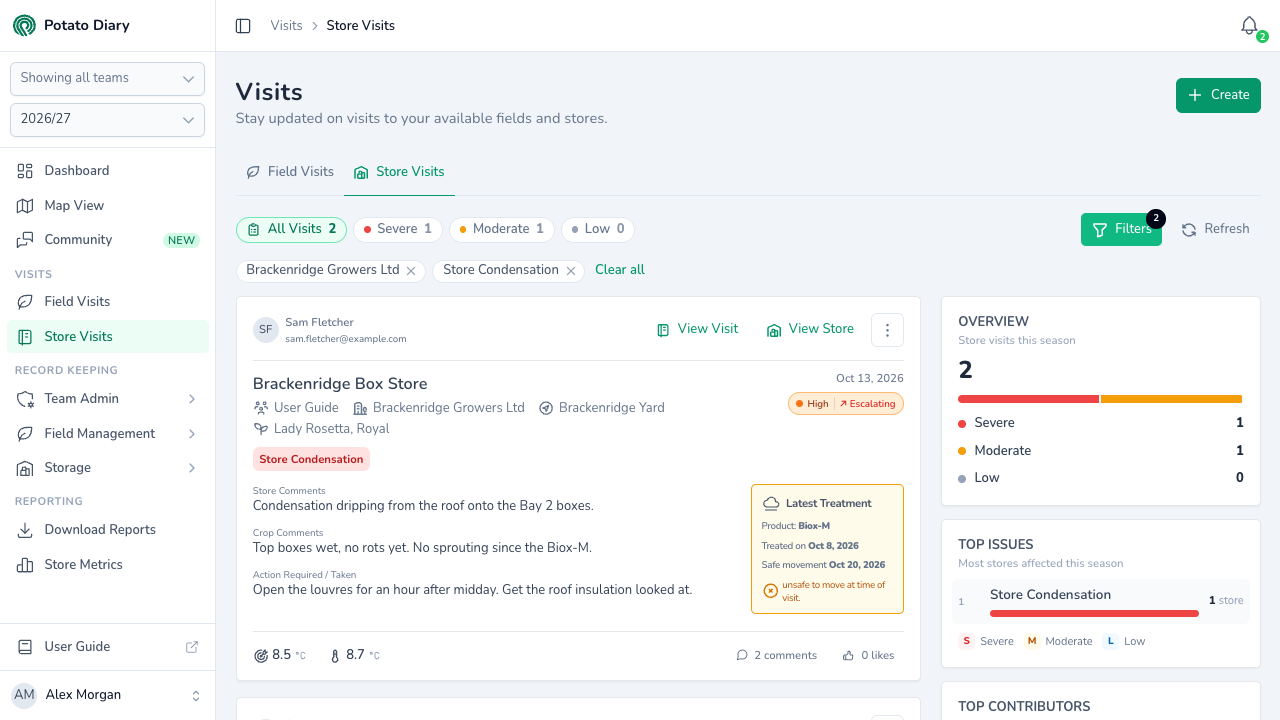
- Click a chip's × to remove that filter.
- Click Clear all to remove them all.
Switching between the Field Visits and Store Visits tabs clears your filters too.
The summary on the right
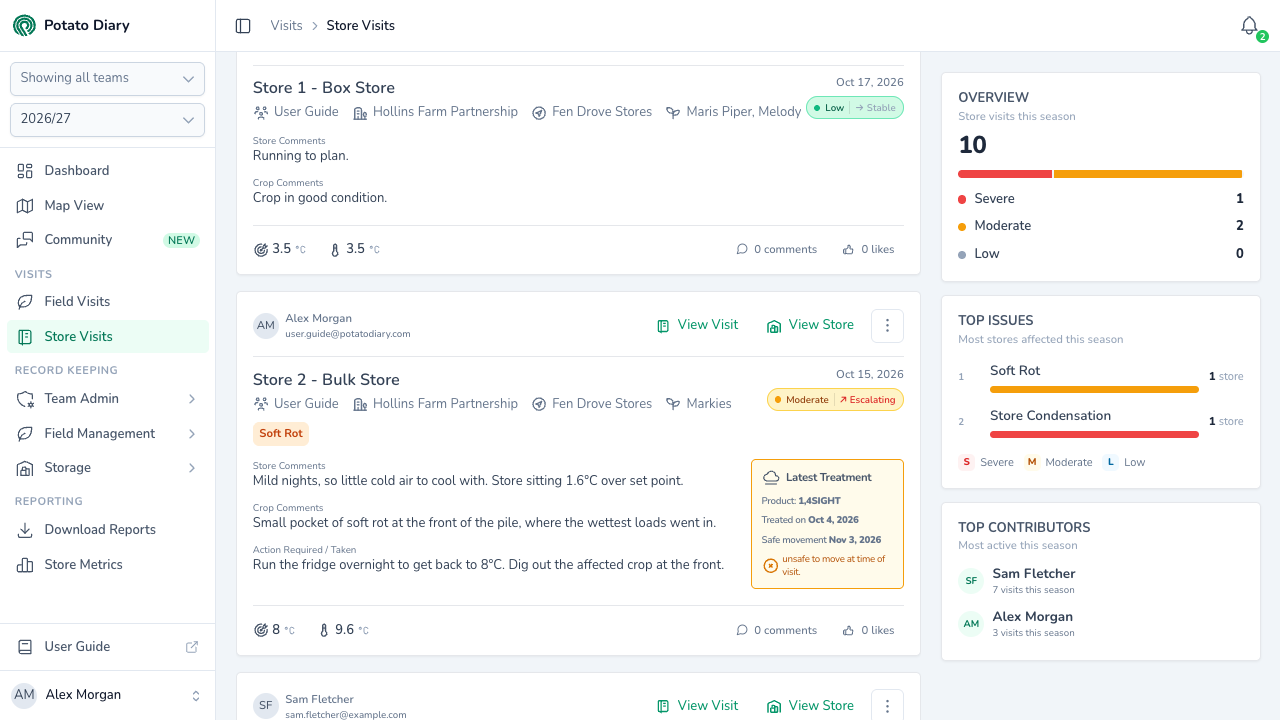
The summary has three cards. All of them follow your filters, and none of them change when you pick a severity pill.
Overview. How many visits match your filters this season, with a bar and counts showing how many have Severe, Moderate and Low issues. These are the same numbers as on the pills.
Top Issues. The five issues affecting the most fields and plantings (on Field Visits) or stores (on Store Visits).
- The count is of things affected, not visits. Twenty visits to one store that all tag Condensation count as one store.
- On Field Visits, the count is of plantings, plus fields for visits recorded before planting, because those visits have no planting. That's why each row says affected rather than plantings. A field adds nothing to the hectares.
- The bar's colours show how many of those were at each severity, using the worst severity recorded for them this season.
- On Field Visits, each issue also shows the planted area of the affected plantings, in hectares.
- Click an issue to show only visits tagged with it. It appears as a chip and the row is highlighted. Click it again to remove it.
- The list ignores the Issues filter, so you can still see the other issues while you're filtering on one.
Top Contributors. The five people who recorded the most visits, and how many each. Click a person to show only their visits; this sets the Added by filter. Click them again to remove it. The list ignores the Added by filter, so everyone stays listed.
Pages of visits
The feed shows 100 visits a page. To show fewer, pick 10, 20 or 50 in the page controls at the bottom. When there are more visits than fit on a page, use the page numbers to move between pages.
How the feeds relate to the Record Keeping tables
Every visit appears in both places: as a card here, and as a row in a table under Record Keeping. Adding, editing or deleting a visit in one shows in the other.
| Visits feeds | Record Keeping tables | |
|---|---|---|
| Where | Visits › Field Visits and Store Visits | Record Keeping › Field Management › Visits and Storage › Visits |
| Shows | Cards with issues, notes, photos, storage risk and the key readings | One row per visit, with the readings and notes in columns |
| Order | Newest first | Sort by ID, Visit Date or Team |
| Narrowing | Severity pills, the Filters panel and the summary | A search box and Filter |
| Comments and likes | On every card | View on the field visits table opens the same panel. On the store visits table, View doesn't open anything yet. |
| Export | None | Export downloads the current page as a CSV file |
Use the feeds to keep up with what's being seen and to discuss it. Use the tables to find a particular visit, compare readings side by side, or export them. See Recording a visit and Potato Store Visits.
The same cards, limited to one store or one field, are on the store's Visits tab and the field's Visits tab.
What's next
- Storage risk — What the risk bands on store visit cards mean.
- Comments, likes and mentions — Discuss visits with your team and get notified.
- Recording a visit — Record a field visit and tag the issues that show here.
- Potato Store Visits — Record a store visit and its readings.