
Appearance
Team Users
Team Users is where you invite people to your team and decide what each person can see and do. There are three layers, each on its own tab of the invite dialog:
- Roles: pre-built bundles of permissions, such as Store manager. Most people only need a role.
- Data Access: which companies, sites, potato stores, plantings and store inventory the person can see. Everyone except a Team Admin needs this as well as a role.
- Permissions: fine-tuning for everything else. Most teams never touch it.
Step 1 — Open the Team Users list
In the sidebar, under Record Keeping, click Team Admin. The section panel opens beside the sidebar; click Team Users. You'll see everyone who has been invited to your team, including yourself.
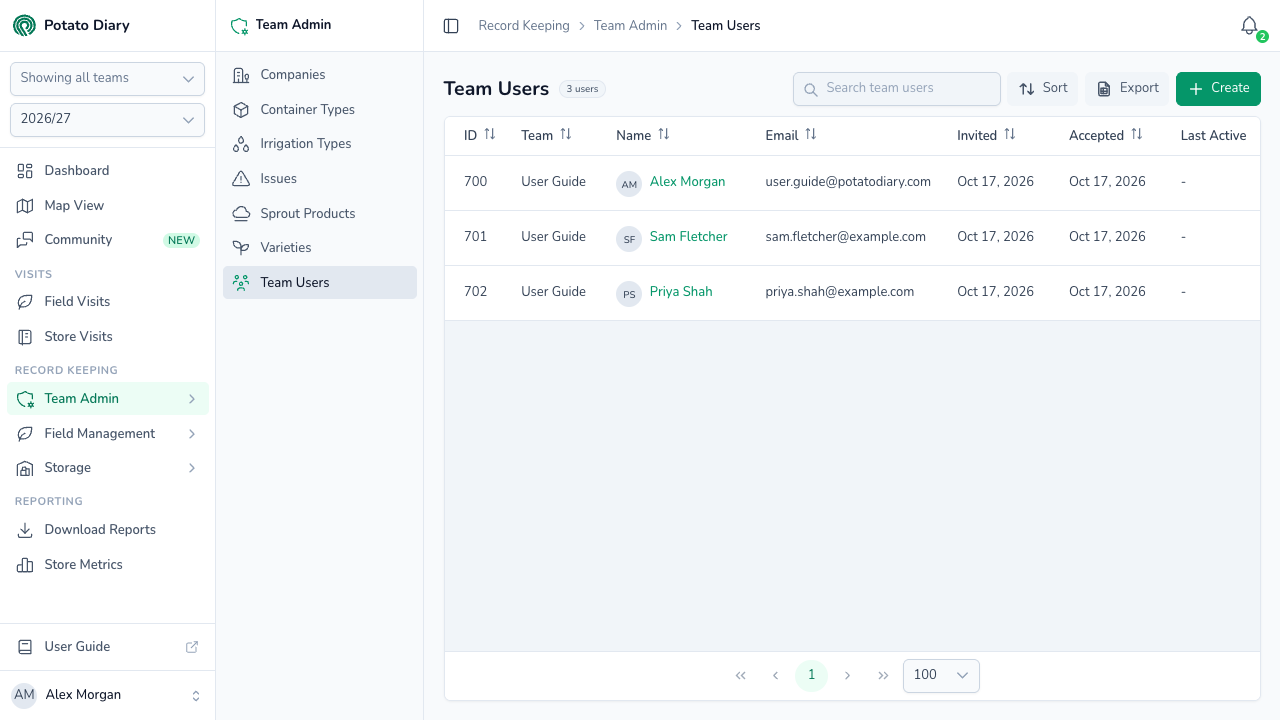
The columns show:
- ID: Potato Diary's internal reference.
- Team: which team the person belongs to.
- Name: the person's name, with their initials. Click it to open the action menu. Until someone accepts their invitation, this shows their email address.
- Email: the email address they were invited with.
- Invited: when they were added to the team.
- Accepted: when they accepted the invitation. Blank until they do.
- Last Active: when they last used Potato Diary.
You can sort by ID, Team, Name, Email, Invited or Accepted.
Step 2 — Click Create
At the top right of the page, click the green + Create button.
Step 3 — Enter the team and email
An Invite Team Member dialog opens. At the top, check the Team and type the person's Email. You can't change either of these after saving.
Below them are three tabs: Roles, Data Access and Permissions.
Step 4 — Choose roles
The Roles tab is open first. Tick one or more roles.
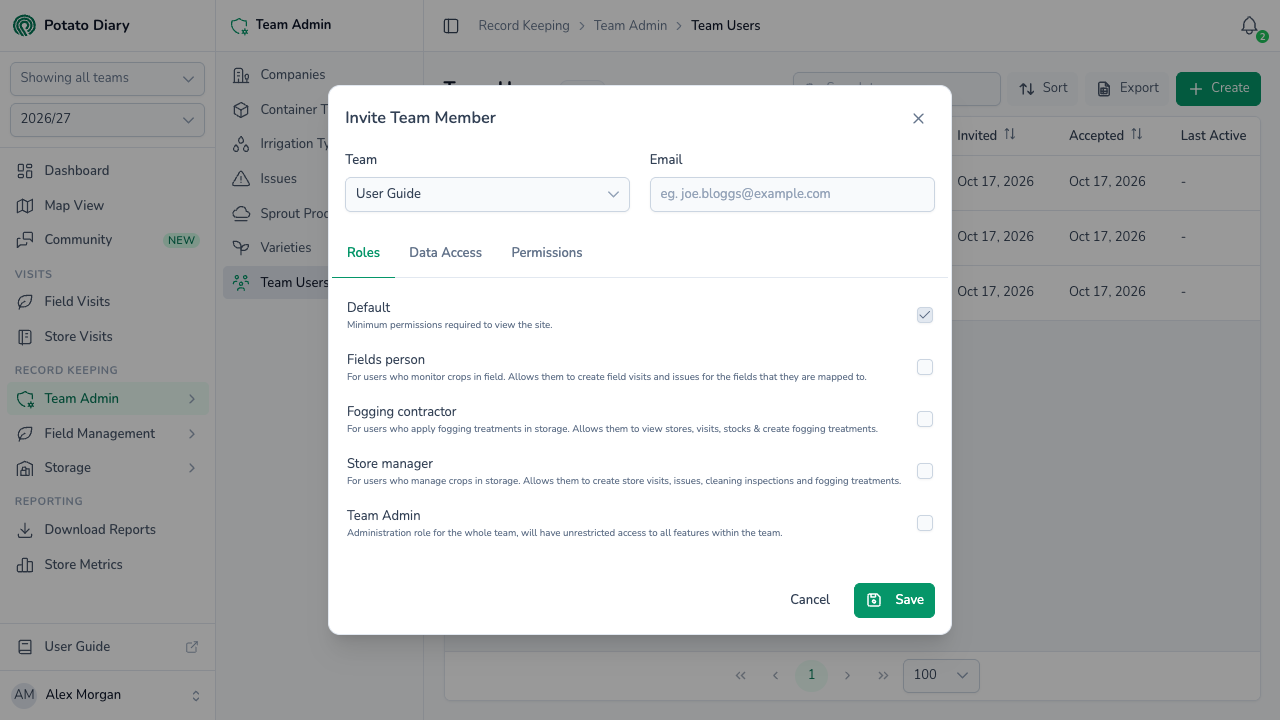
| Role | What it's for |
|---|---|
| Default | The minimum permissions needed to use the site. Always ticked; you can't untick it. |
| Fields person | For people who monitor crops in the field. They can create field visits and issues for the fields they're mapped to. |
| Fogging contractor | For people who apply fogging treatments in storage. They can view stores, visits and stocks, and create fogging treatments. |
| Store manager | For people who manage crops in storage. They can create store visits, issues, cleaning inspections and fogging treatments. |
| Team Admin | Unrestricted access to everything in the team. |
You only see the roles that fit your team's modules: Fields person needs Field Management, and Store manager and Fogging contractor need Storage. There are also Quality control manager and Delivery tickets roles, but only Potato Diary administrators can assign them. Contact support if someone needs one.
Step 5 — Grant data access
Unless you've ticked Team Admin, switch to the Data Access tab. This is where you decide which records the person can see.
WARNING
Roles other than Team Admin don't give access to any companies, sites, potato stores, plantings, fields or store inventory on their own. If you skip this tab, the person can sign in but those lists will be empty for them.
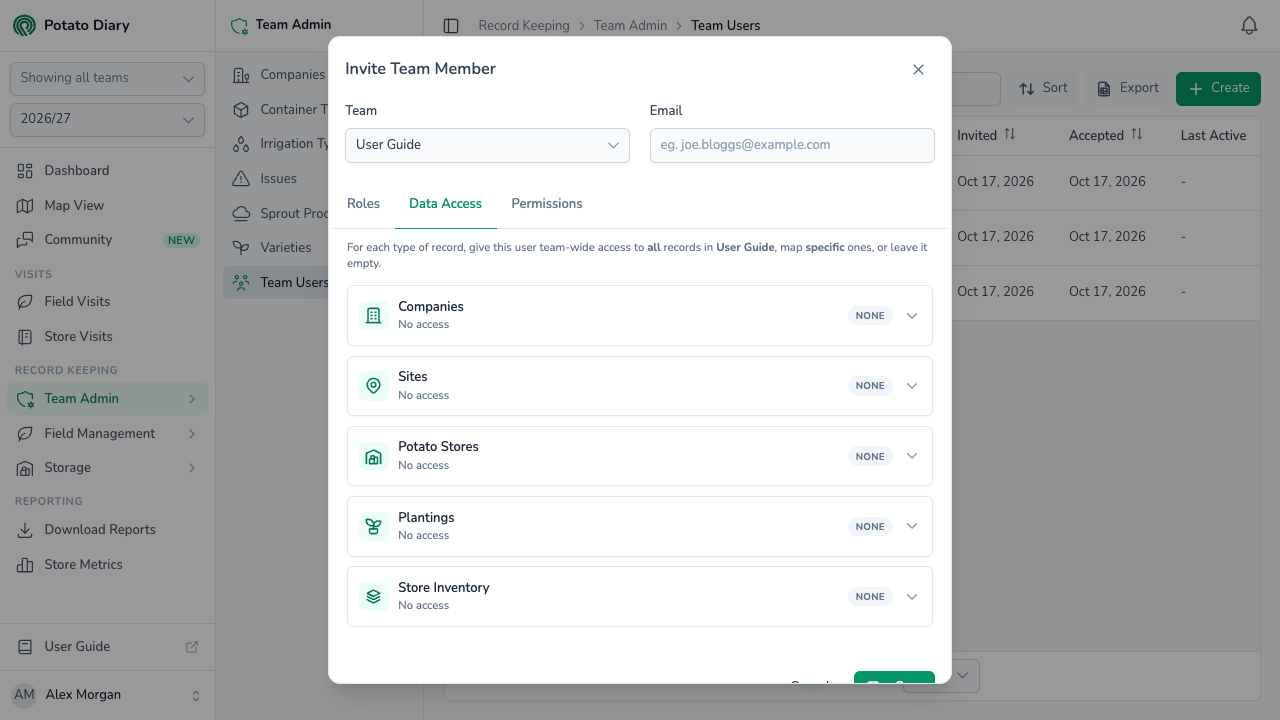
The tab has five cards, in this order: Companies, Sites, Potato Stores, Plantings and Store Inventory. Each card shows a short summary and a pill:
- None: no access.
- All: access to every record of that type in the team.
- 2 specific (or however many): access to those records only.
- All + 2: team-wide access, plus extra rights on specific records.
The Data Access tab name shows a count of the cards that grant something.
Click a card to open it.
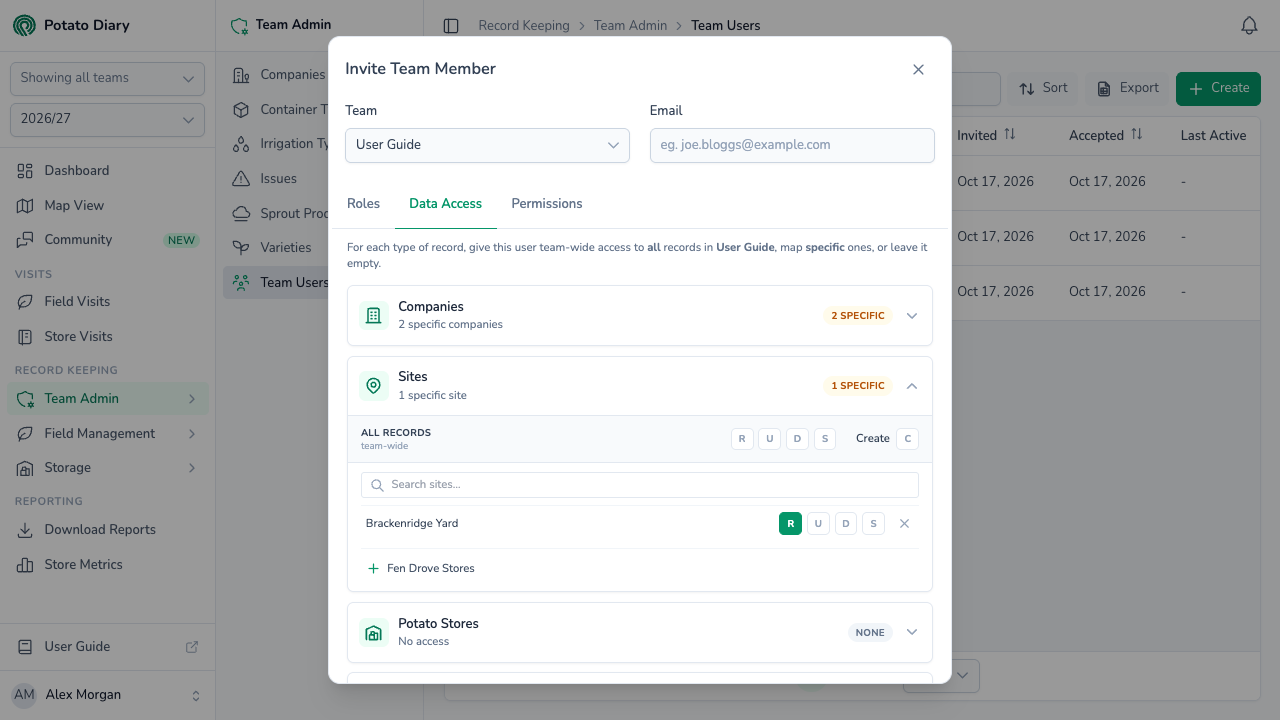
Giving access to every record
The top row of an open card is All records — team-wide. Click the letters to switch each right on (green) or off:
- R: Read. View the records and their details.
- U: Update. Edit them.
- D: Delete. Delete them.
- S: Selectable. Pick them from drop-down lists when filling in other forms, without seeing them on the list pages or opening their details.
The separate Create button on the right lets the person add new records of that type.
Rights that already come from a ticked role are shown switched on and greyed out. You can't switch those off here; change the role instead.
Giving access to specific records
Below the team-wide row is a search box and a list of records. Click a record to add it, then use its R, U, D and S letters to choose what the person can do with it. Click the × at the end of a row to remove it.
If a right is already granted team-wide, it shows switched on and greyed out on every record.
The cards build on each other:
- Sites only lists sites belonging to companies the person can access.
- Potato Stores only lists stores on sites they can access.
- Store Inventory only lists stock in stores they can access.
- Plantings only lists plantings belonging to companies they can access.
So work down the cards in order. If a card is empty, it says, for example, No sites available — grant this user access to a company first.
Fields don't have a card of their own. Granting access to a planting grants the same access to the field it's in.
INFO
The cards list records for the season picked in the sidebar. A record the person already has access to but that isn't in the current season shows as Unknown with not available in the current season or team. You can still remove it.
Step 6 — Adjust permissions, if needed
The Permissions tab is for fine-grained control of everything that isn't covered by Data Access, such as comments, container types or issues. Most people don't need it.
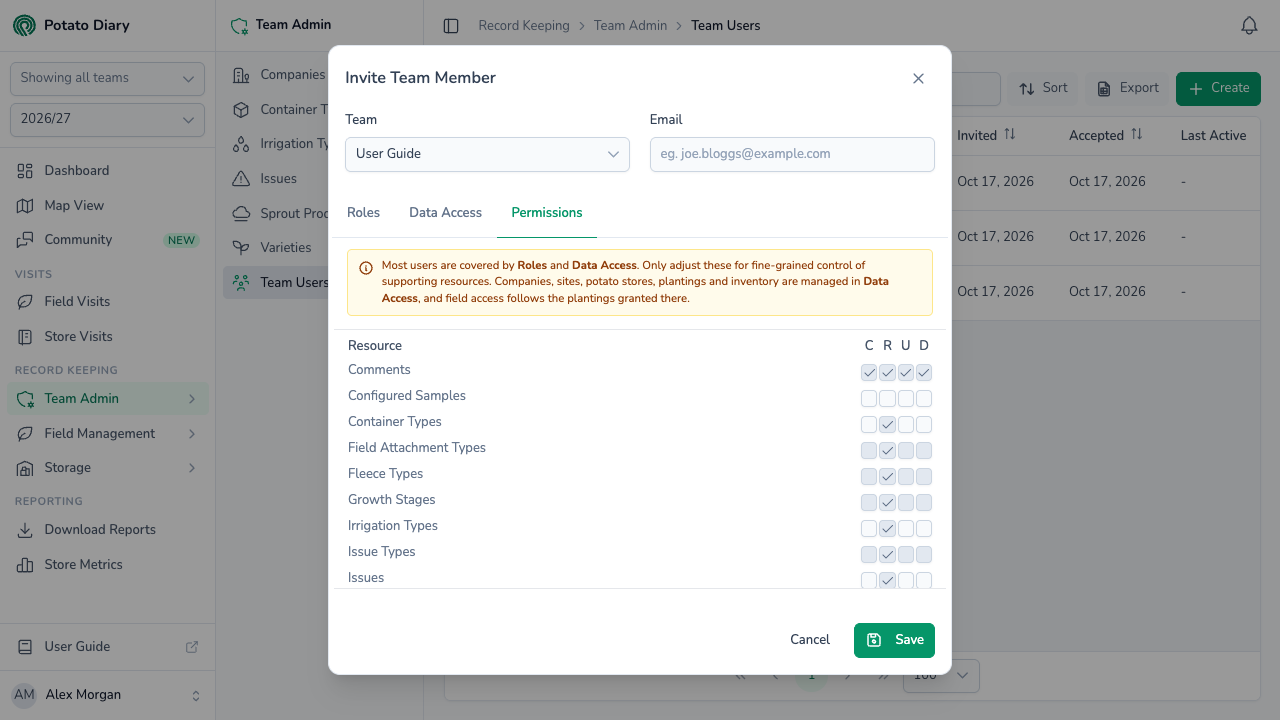
It's a grid with a row for each kind of record and four columns:
- C: Create
- R: Read
- U: Update
- D: Delete
There's no S column here; selectable access is only set on the Data Access tab.
Ticks that come from the person's roles are shown ticked and greyed out. For reference lists that people only ever read, such as products, varieties and issue types, only the R box can be ticked.
Step 7 — Click Save
What happens next depends on whether the email address already has a Potato Diary account:
- New to Potato Diary: they're sent an email titled Potato Diary: Accept Invitation. They appear in the list with Accepted blank until they follow the link and set up their account. The link works for 7 days.
- Already has an account, for example in another team: they're added straight away with today's date under Accepted. No email is sent, so let them know.
Managing an existing team user
Click the person's name in the list to open the action menu.
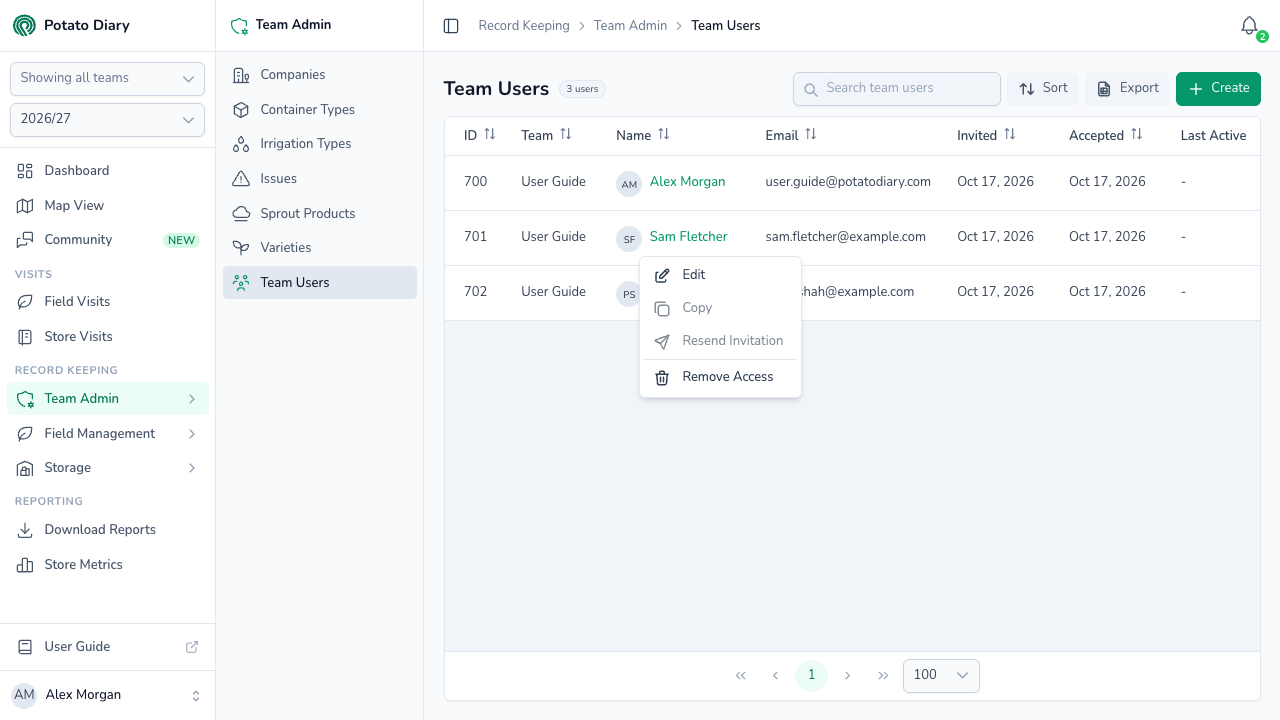
- Edit: reopens the dialog, titled Edit Team User, with the same three tabs. Team and Email are locked.
- Copy: greyed out. It isn't available yet.
- Resend Invitation: sends the invitation email again, with a fresh link. Only available until they accept. A Resend Registration Invite box asks you to confirm; click Send.
- Remove Access: takes the person off the team. A Remove Team User box asks you to confirm; click Delete. If they hadn't accepted yet, this withdraws the invitation: the old link no longer adds them to your team.
Potato Diary administrators also see an Impersonate option, which lets them view the app as that person to help with support.
WARNING
If you click Cancel in the Resend Registration Invite box, a red message says there was an error sending the invite. Nothing was sent and nothing went wrong; you can ignore it.
What's next
- Companies — Set up the companies you'll grant access to on the Data Access tab.
- Getting around the app — What your new team members will see when they sign in.