
Appearance
Issues
Issues are the catalogue of problems someone can tag a visit with: Aphids, Blackleg, Adhering Soil, Air Flow and so on. A tight list keeps observations consistent across the team and makes the dashboard's Recently Raised Issues panel useful.
Step 1 — Open the Issues list
In the sidebar, under Record Keeping, click Team Admin. The section panel opens beside the sidebar; click Issues.
Potato Diary ships with a shared starter list covering crop, store and in-field issues. You can't edit or delete these, but you can add your own alongside them.
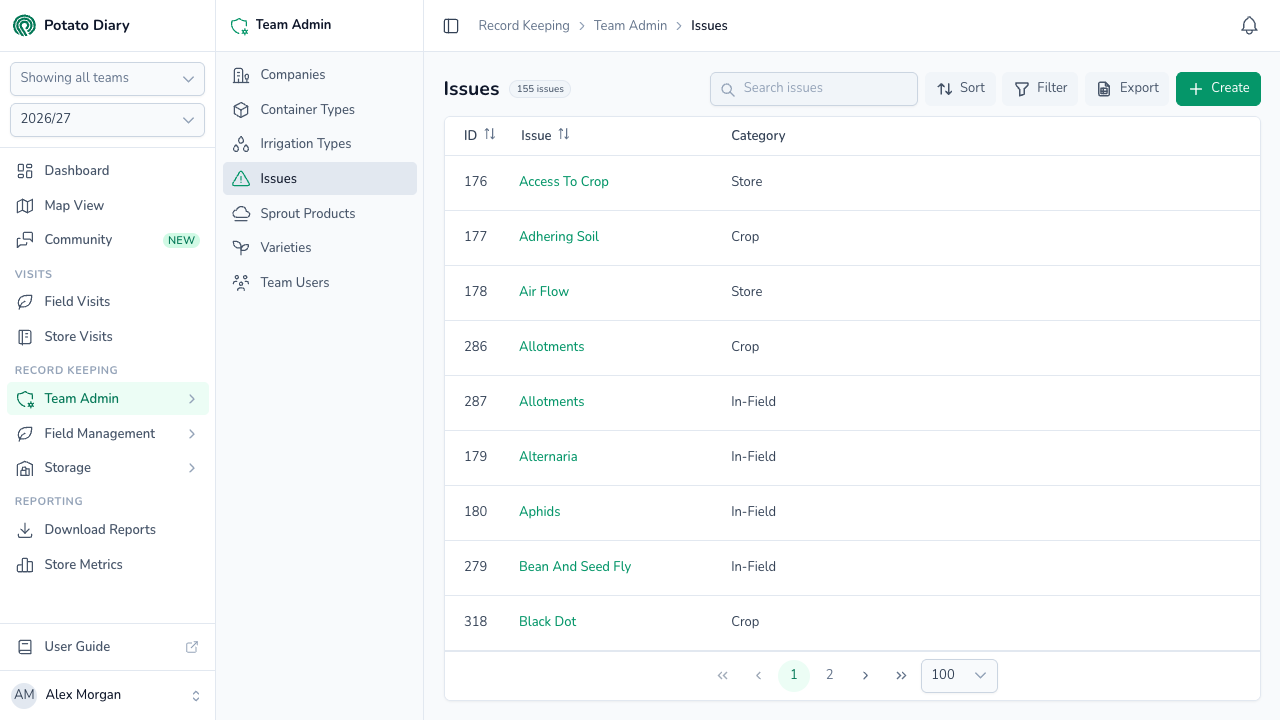
The columns show:
- ID: Potato Diary's internal reference.
- Issue: the name shown when someone tags a visit. Click it to open the action menu.
- Category: which group the issue belongs to: Crop, Store or In-Field.
There's no Team column on this page, so you can't tell the shared issues from your own at a glance. The quickest check is the action menu: Edit and Delete are greyed out for shared issues.
You can sort by ID, Name or Team.
Filtering by category
To show only some categories, click the Filter button beside Sort. A Filters panel slides in from the right.
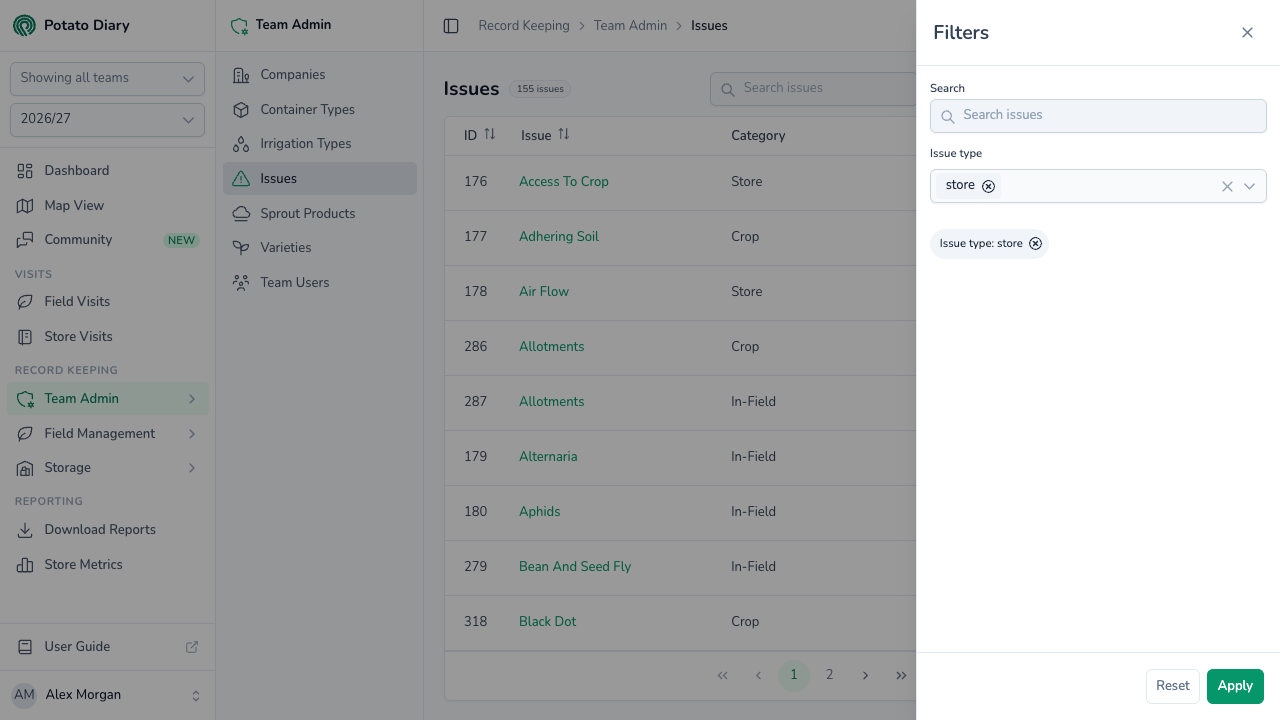
- Under Issue type, pick one or more categories.
- Click Apply.
The Filter button turns green and shows a count of active filters. On wide screens, each active filter also shows as a chip above the list; click the × on a chip to remove it. Click Reset in the panel to clear all filters.
Step 2 — Click Create
At the top right of the page, click the green + Create button.
Step 3 — Fill in the issue
A Create An Issue dialog opens. All three fields are required.
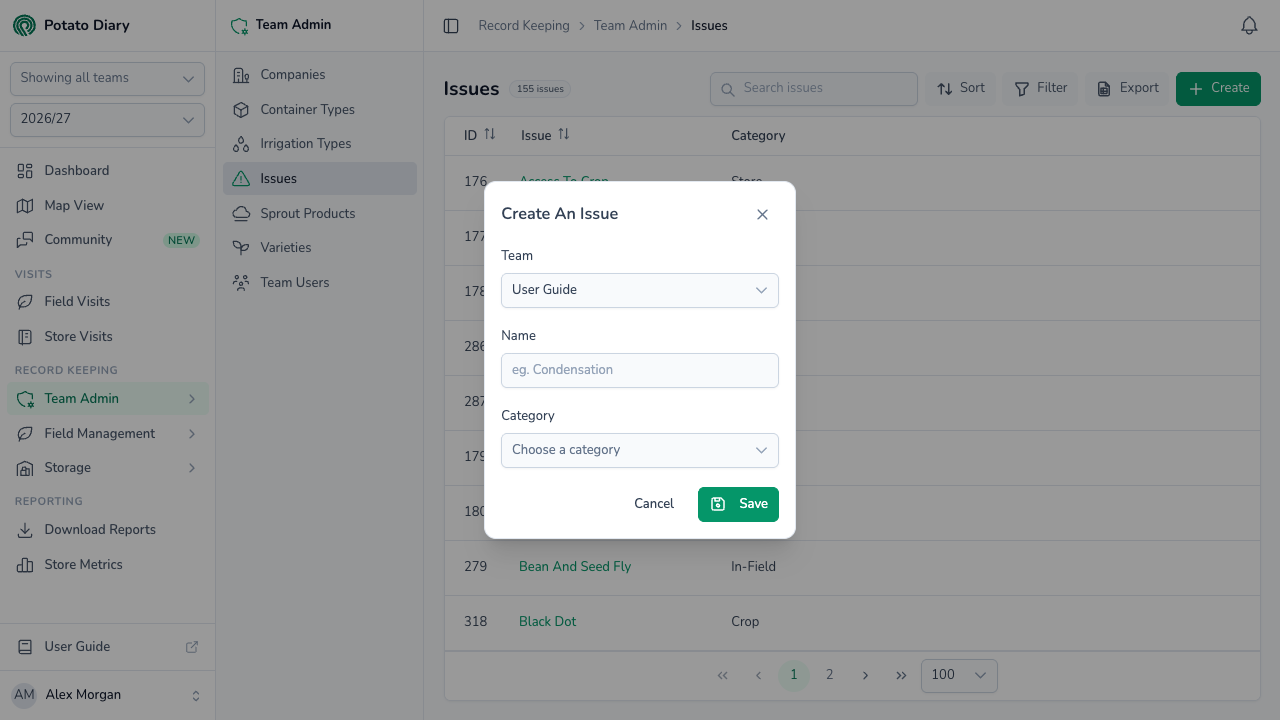
| Field | What to enter |
|---|---|
| Team | The team this issue belongs to. You can't change it later. |
| Name | A short, recognisable label, for example Condensation or Internal Bruising. Aim for something a field walker can pick from a list quickly. The name can't match an issue that already exists in the same category, including the shared ones. |
| Category | Pick crop, store or in-field (the picker shows them in lower case), so the issue is grouped correctly on dashboards and reports. |
Step 4 — Click Save
The new issue is added to the list and is available the next time someone tags a visit.
Editing or deleting an issue
Click an issue's name to open the action menu:
- Edit opens the same form. Team is locked.
- Copy is greyed out. It isn't available yet.
- Delete asks you to confirm.
Edit and Delete are always greyed out for the shared issues.
TIP
If two of your team's issues mean nearly the same thing, edit one to cover both and delete the other. Your dashboard is far more useful when the same problem is always tagged the same way. This only works for issues your team created; the shared ones can't be changed.
What's next
- Sprout Products — Manage the sprout-suppression products your stores use.
- Recording a field visit — Tag issues on a planting visit.
- Recording a store visit — Tag issues on a potato store visit.