
Appearance
The Attachments tab
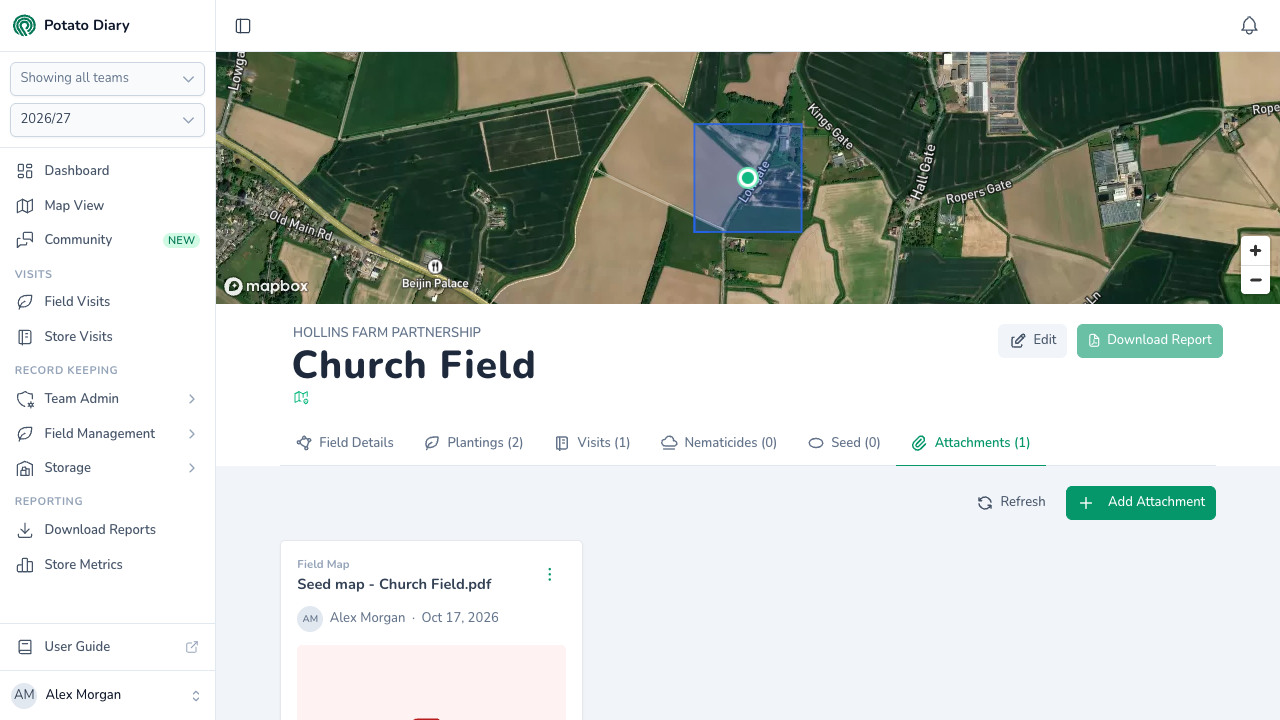
The Attachments tab on a field is where you keep the files that go with the field, such as seed maps, application records, field maps, shapefiles and photos. Each attachment is tagged with an Attachment Type so it's easy to see what each file is.
Opening the tab
Open the field, then click Attachments in the field's tab bar. The tab shows the field's attachments for the season you've picked.
INFO
Attachments belong to the field, not to individual plantings.
What's in each attachment card
Each attachment has a card showing its type (or Uncategorised), the file name, who uploaded it and when, and a preview:
- Images show the picture. Click it to see it full size.
- Shapefiles show a picture of the boundary.
- PDFs show a PDF icon. Click it to preview the file.
- Other files, such as spreadsheets, show an icon for the file type.
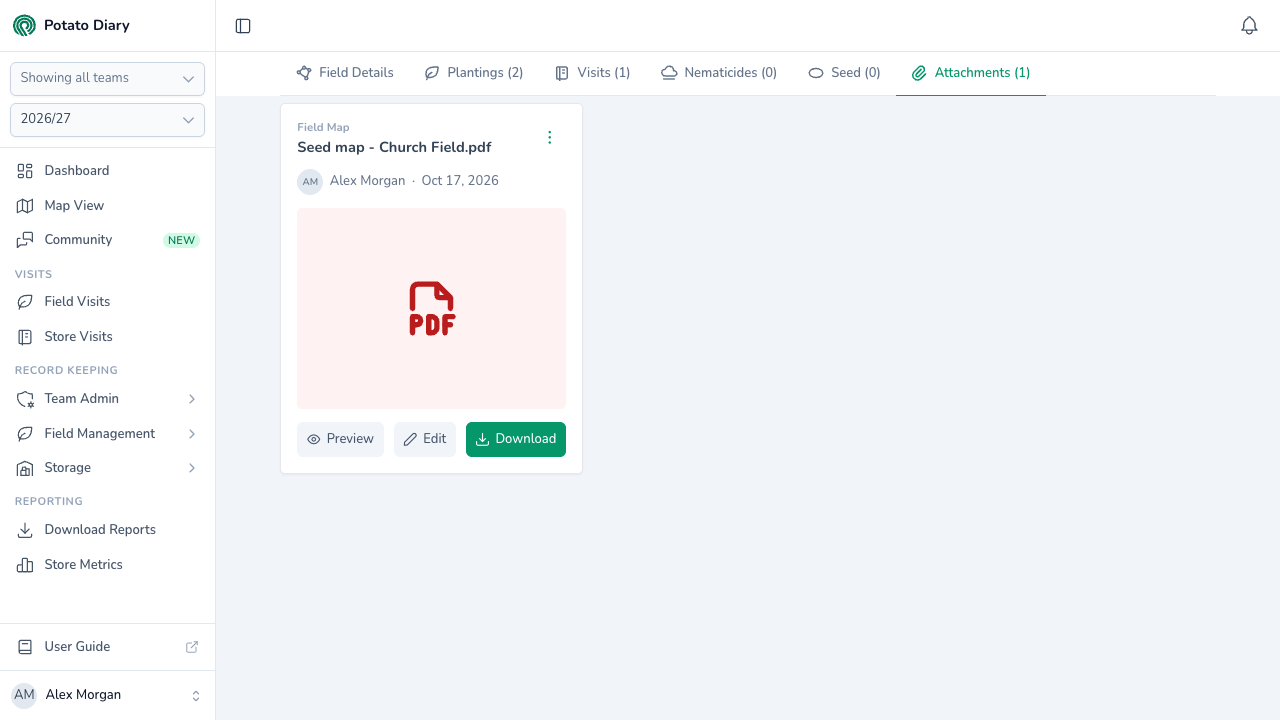
The buttons under the preview are:
- Preview: PDFs only. Opens the PDF in a viewer without downloading it.
- Edit: opens the Edit Attachment dialog, where you can change the Attachment Type. You can't change the file or its name: to replace a file, delete the attachment and upload the new file.
- Download: downloads the file.
The menu button (⋮) in the top-right of the card has Download, Edit and Delete.
WARNING
A deleted attachment can't be brought back from the app. Keep a copy elsewhere if you might need the file again.
Adding an attachment
Click Add Attachment in the top-right (next to Refresh) to open the Upload An Attachment dialog. The button is only shown if you can edit the field.
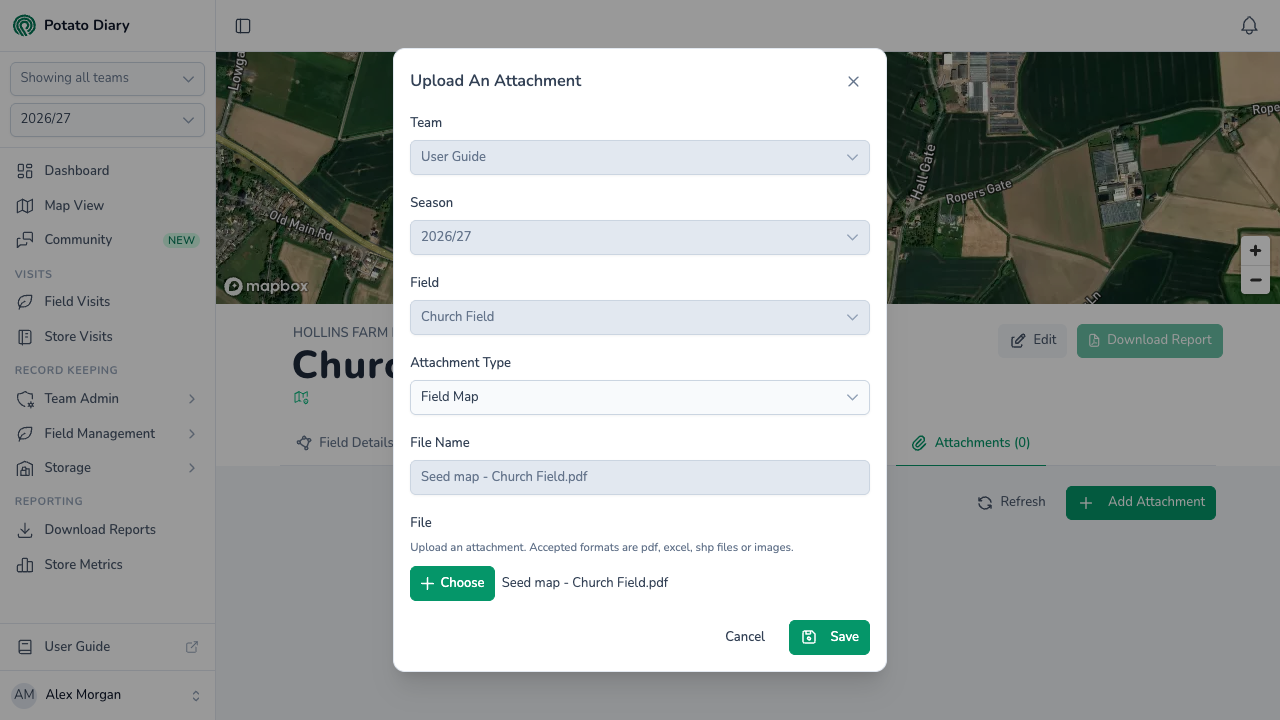
| Field | What to enter |
|---|---|
| Team / Season | Filled in for you. |
| Field | Filled in with the field you came from. |
| Attachment Type | What kind of file it is. Starts as General; change it to, for example, Application Records, Field Map, Seed Inspection or Operator Safety Report. |
| File Name | Filled in from the file you choose. You can't edit it. |
| File | Required. Click Choose and pick the file. PDF, Excel (.xlsx or .xls), CSV, shapefile (.shp) and image files are accepted, up to 5 MB. |
Click Save to upload the attachment.
What's next
- The Seed tab — Link each seed stock to the part of an uploaded seed map it relates to.
- The Field Details tab — Go back to the field's overview.