
Appearance
The Seed tab
The Seed tab on a field records which seed went into each planting: the certification number, the size grade and how much was used. It also records the treatments applied to that seed. Everything is grouped by planting, so the record stays tied to one crop.
Opening the tab
Open the field, then click Seed in the field's tab bar.
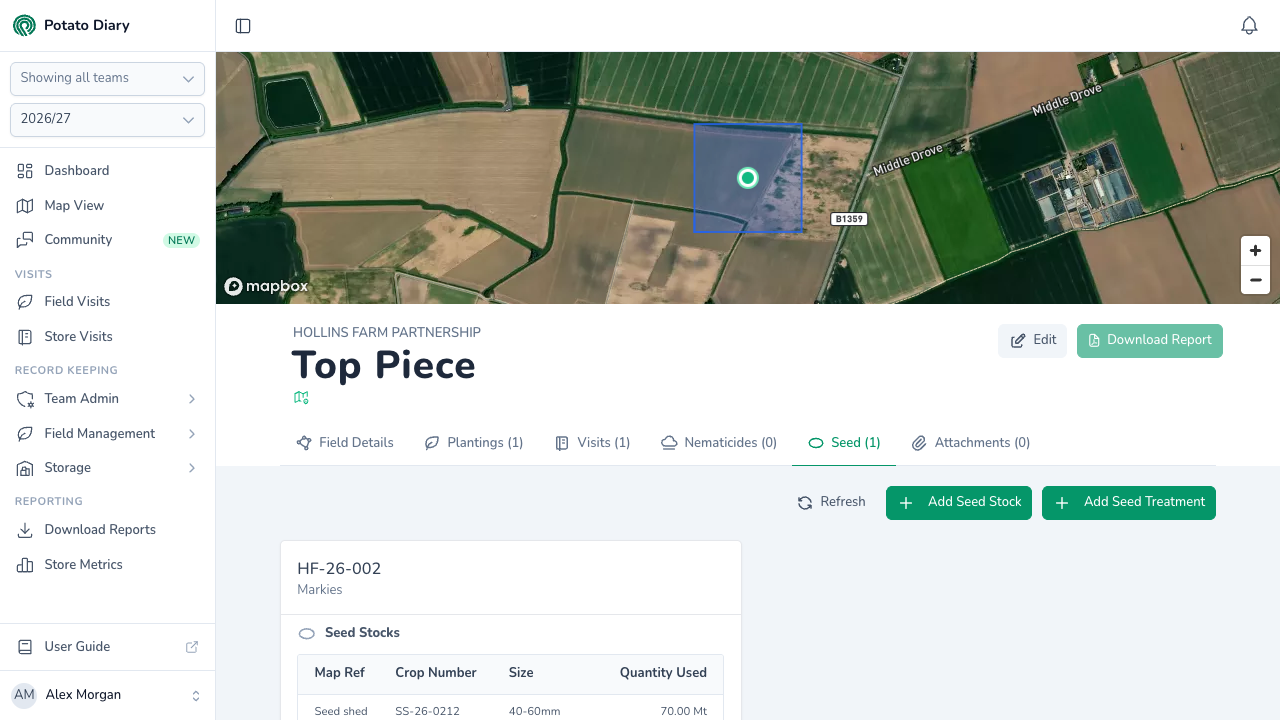
What each planting card contains
Each planting with at least one seed stock gets its own card, titled with the planting reference and variety.
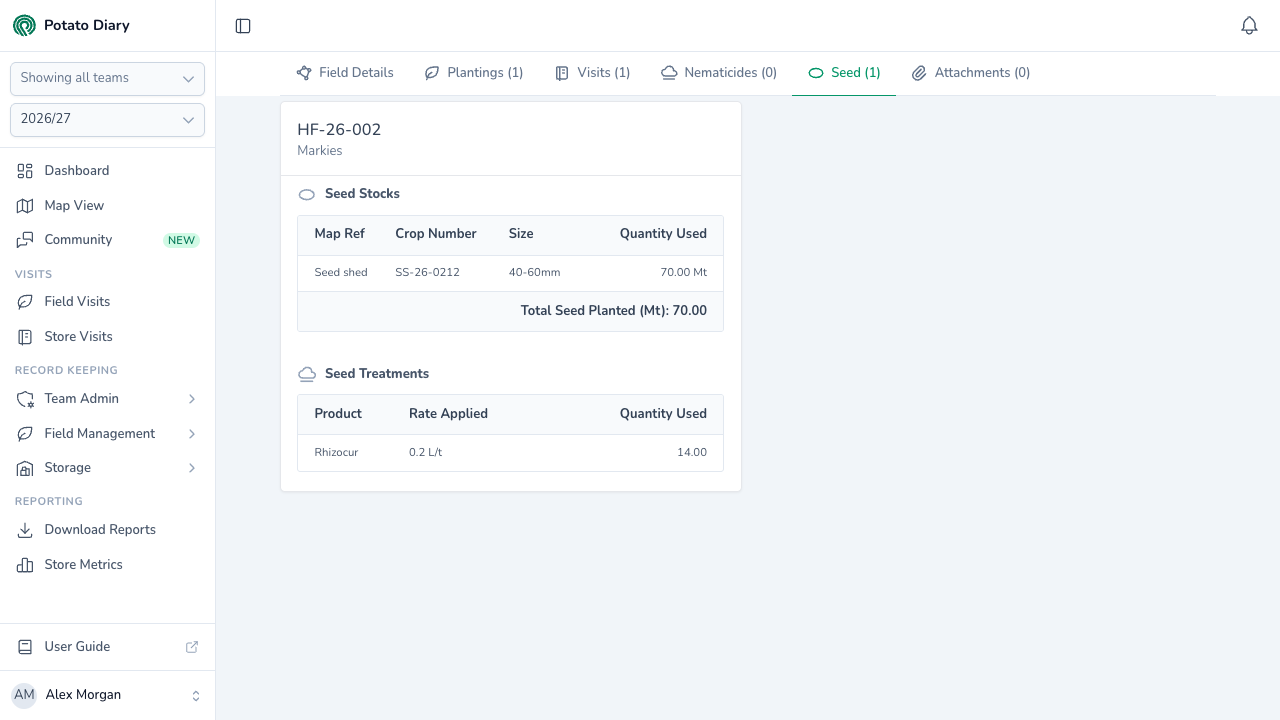
Seed Stocks
A row for each seed stock used on the planting:
- Map Ref: which part of the seed map this stock relates to, for example A or B. Useful when you've uploaded a seed map as an attachment.
- Crop Number: the seed certification number.
- Size: the size fraction, for example 35/45.
- Quantity Used: how much of this stock was planted, in tonnes.
Total Seed Planted (Mt) at the bottom adds up the quantity across the planting's stocks.
Seed Treatments
Shown once the planting has at least one seed treatment, with a row for each:
- Product: the seed treatment product used.
- Rate Applied: the rate, with its unit.
- Quantity Used: the total used.
WARNING
A planting only appears on this tab once it has at least one seed stock. A seed treatment saved against a planting with no seed stocks won't show here until you add a stock, so add the seed stock first.
Adding a seed stock
Click Add Seed Stock in the top-right to open the Add A Seed Stock dialog.
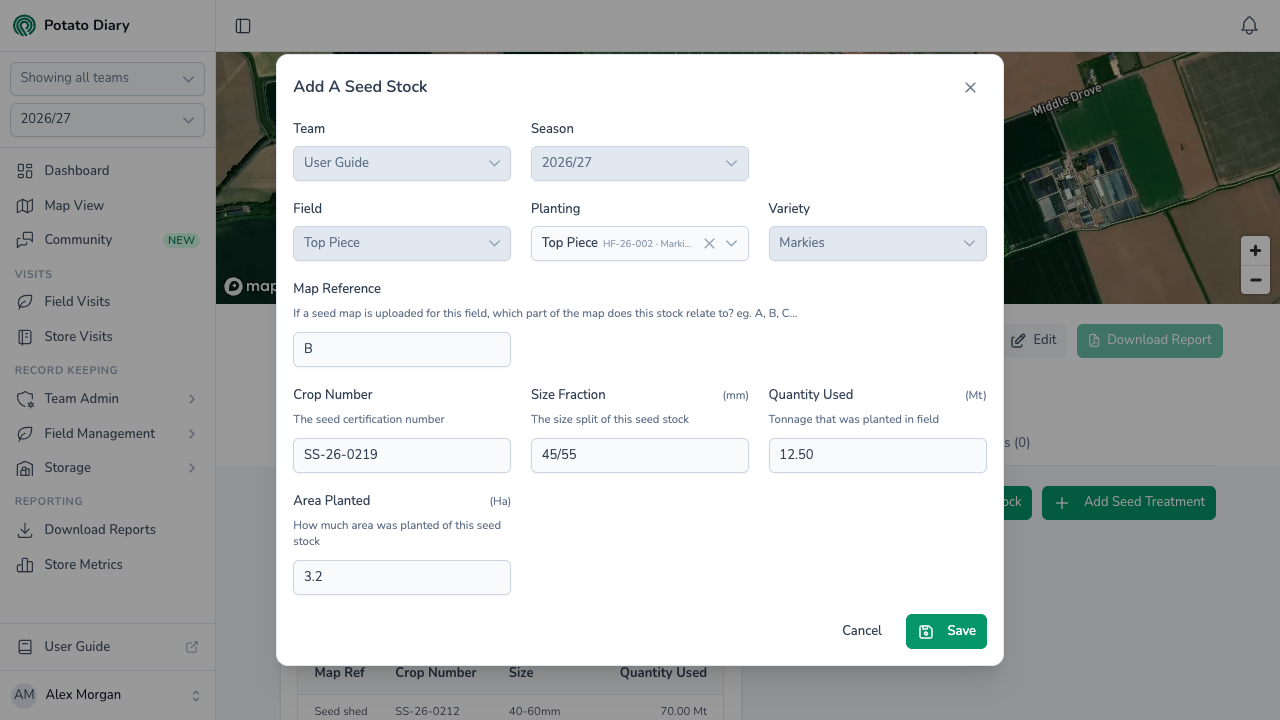
| Field | What to enter |
|---|---|
| Team / Season | Filled in for you. |
| Field | Filled in with the field you came from. |
| Planting | Required. Which of the field's plantings this stock was used on. |
| Variety | Filled in from the planting. |
| Map Reference | Optional. The part of the seed map this stock relates to, for example A, B or C. |
| Crop Number | Required. The seed certification number. |
| Size Fraction (mm) | Required. The size grade. Type it, or pick a suggestion such as 35/45 or 45/55. |
| Quantity Used (Mt) | Required. The tonnage planted. |
| Area Planted (Ha) | Optional. How much of the field this stock was planted on. |
Click Save to add the stock.
Adding a seed treatment
Click Add Seed Treatment in the top-right to open the Add A Seed Treatment dialog.
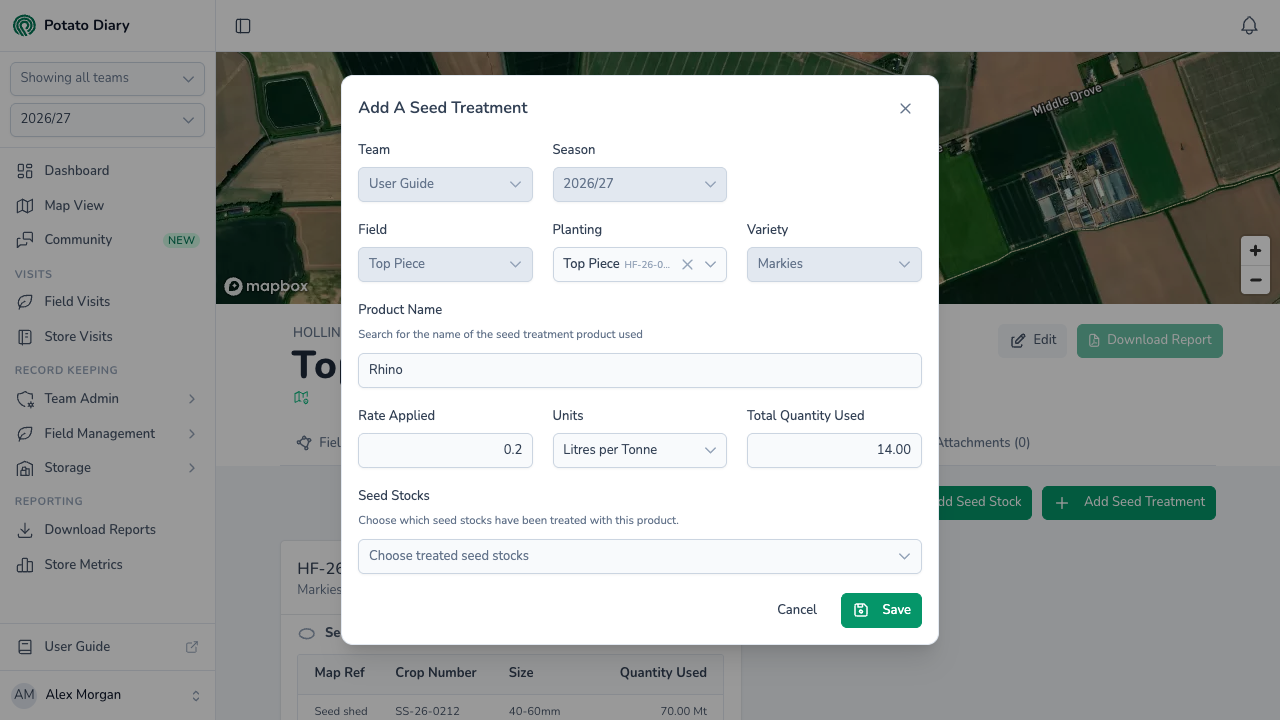
| Field | What to enter |
|---|---|
| Team / Season | Filled in for you. |
| Field | Filled in with the field you came from. |
| Planting | Required. Which of the field's plantings the treated seed was used on. |
| Variety | Filled in from the planting. |
| Product Name | Required. The seed treatment product used. Type it, or pick a suggestion: Allstar, Amistar, Rhino or Rhino DS. |
| Rate Applied | Required. The application rate, as a number. |
| Units | Required. Per hectare or per tonne, in kilos, litres or millilitres. |
| Total Quantity Used | Required. The total amount applied. |
| Seed Stocks | Optional. Pick which seed stocks were treated with this product. Every seed stock in the field is listed, by map reference and crop number, so check you've picked ones from the right planting. |
Click Save to add the treatment.
TIP
Pick several stocks under Seed Stocks when a whole batch was treated together.
Editing or deleting seed records
Click a row in a planting's Seed Stocks or Seed Treatments table to open it in the Edit Seed Stock or Edit Seed Treatment dialog. Change what you need and click Save, or click the red Delete button to delete the record after confirming.
What's next
- The Attachments tab — Upload the seed map that each stock's Map Reference points to.
- Planting Inventory report — Download your plantings and the seed used on them.