
Appearance
The Plantings tab
The Plantings tab on a field lists the plantings in that field for the season you've picked. It shows the same records as the Plantings list, but only for this field, with a progress bar for each of the planting's key dates.
Opening the tab
Open the field, then click Plantings in the field's tab bar.
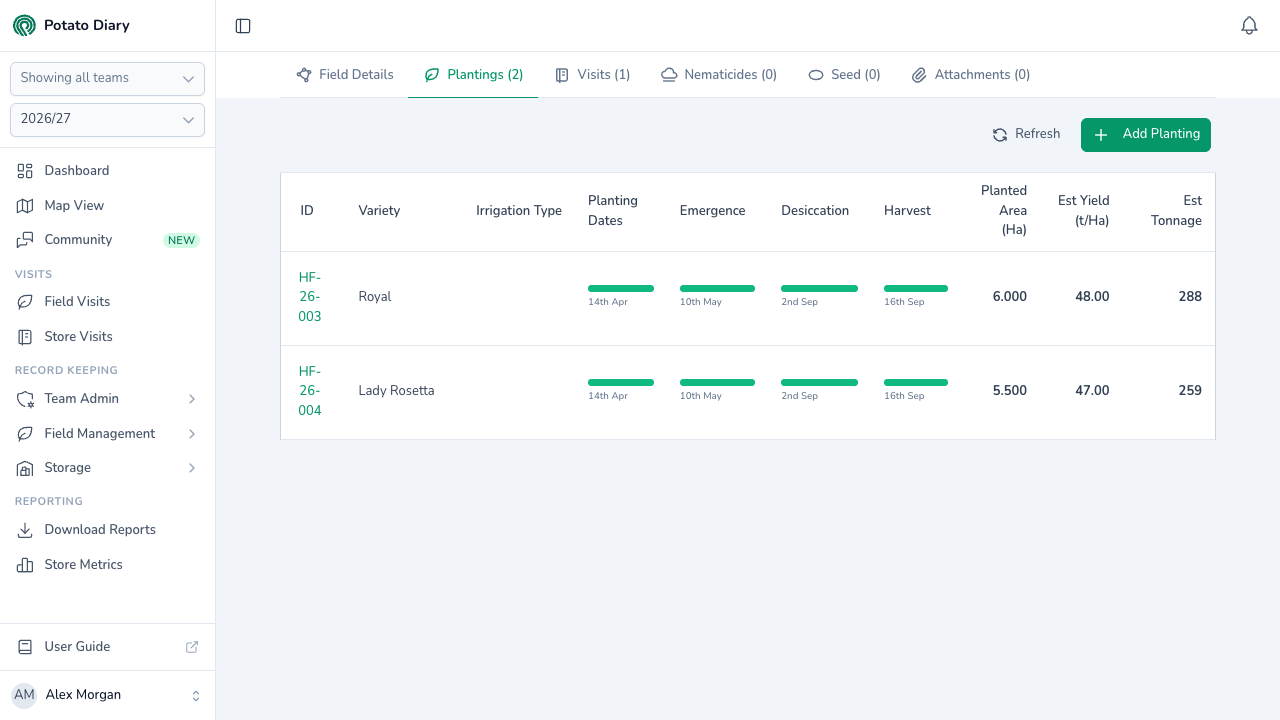
What's in the table
| Column | What it shows |
|---|---|
| ID | The planting's customer reference, or Planting # and its ID if it has none. Click it to open the planting's menu. |
| Variety | The variety being grown. |
| Irrigation Type | The irrigation method used. |
| Planting Dates | A bar filled to the highest percentage complete recorded on the planting's Key Dates tab, with the earliest and latest dates underneath. |
| Emergence | The same, for emergence dates. |
| Desiccation | The same, for desiccation dates. |
| Harvest | The same, for harvest dates. |
| Planted Area (Ha) | The planted area in hectares. |
| Est Yield (t/Ha) | The estimated yield per hectare. |
| Est Tonnage | The estimated tonnage: Planted Area × Est Yield. |
A date column shows - when no dates of that kind are recorded.
Editing or deleting a planting
Click a planting's ID to open its menu, then choose Edit or Delete. Edit opens the planting in the Create A Planting dialog. Delete asks you to confirm first.
The menu also lists Copy, which doesn't do anything yet.
Adding a planting
Click Add Planting in the top-right to open the Create A Planting dialog with this field already picked. The button is only shown if you can edit the field. Refresh next to it reloads the table.
What's next
- The Visits tab — See every visit recorded against the field, including any from before it was planted.
- The Seed tab — Record the seed stocks and seed treatments used for each planting.