
Appearance
The Field Details tab
The Field Details tab is the overview page for one field. It's the first tab you see when you open a field, and shows the latest visit photos, headline figures for the field's plantings, and charts comparing this crop's ground cover and tuber size with other crops.
Opening a field
On the Fields list, click the field's ID, then click View. You can also get here from View Field in a planting's menu on the Plantings list, or from View Field on a visit card under Visits › Field Visits.
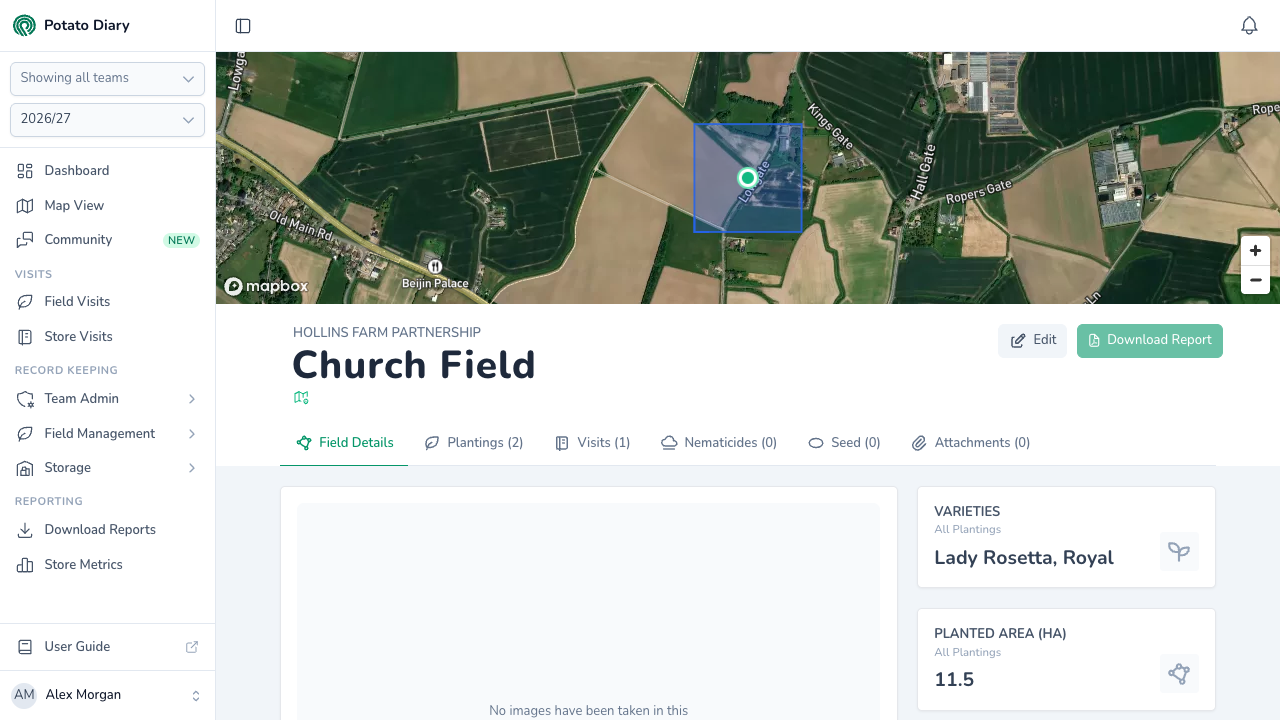
The top of the page is a satellite map centred on the field, marked with a large dot. The map also shows:
- the same grower's other fields this season, as smaller dots in the same colour
- other growers' fields within 10 km, as amber dots
- the boundary of any of these fields that has one
Click a dot to open that field's page.
Below the map are the grower's name, the field's name and the nearest place. Click the nearest place to open the field's What 3 Words location in a new tab.
On the right, Edit opens the field in the same dialog used to create a field. It's only shown if you can edit the field.
WARNING
The Download Report button next to Edit can't be used at the moment: it's always greyed out.
Under the header is the tab bar: Field Details, then Plantings, Visits, Nematicides, Seed and Attachments, each with the number of records in brackets.
The field's page doesn't open a section panel. To get back to the Fields list, use the sidebar or your browser's Back button.
Visit photos and summary cards
The left of the tab is a gallery of the photos taken on visits to the field in the season you've picked, most recent first. That includes visits to the field's plantings and any recorded before anything was planted. Each photo is captioned with the visit date, who recorded it, the planting reference and variety, and the visit's crop and actions comments; a photo from a visit recorded before planting carries the Pre-Planting tag in place of the reference and variety. Click a thumbnail under the main photo to show it. If there are no photos yet, the gallery reads No images have been taken in this field yet.
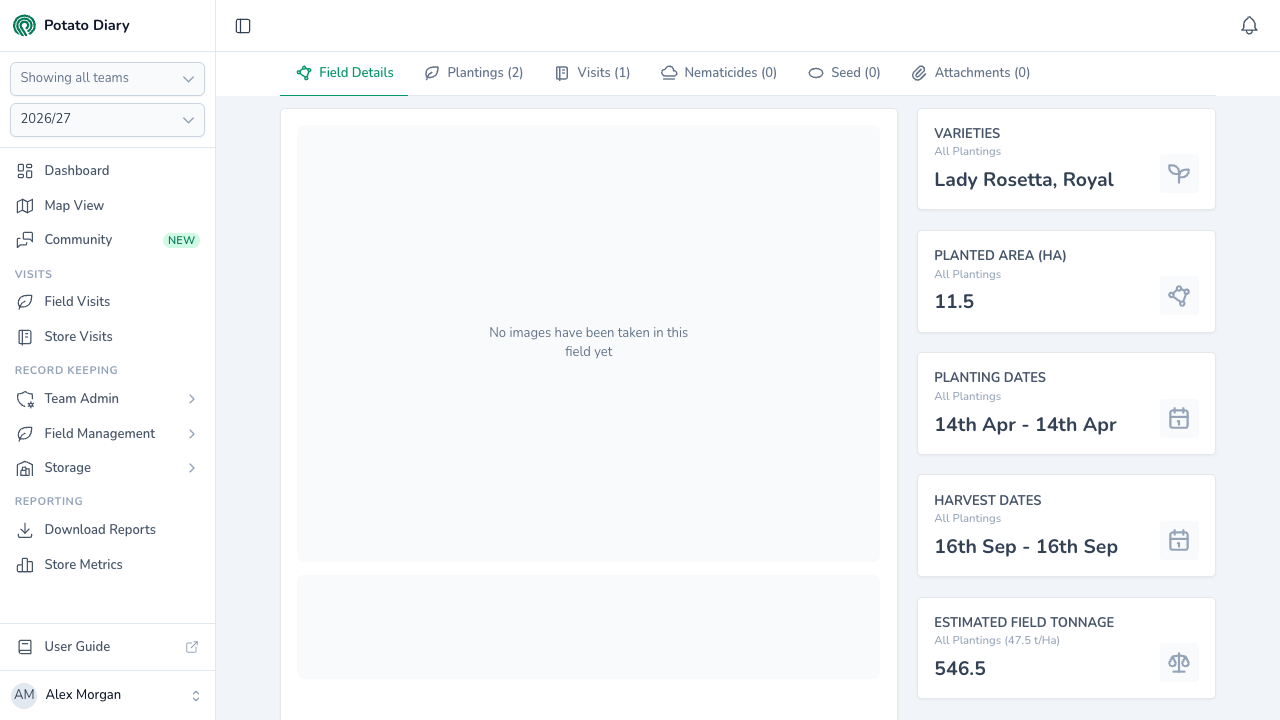
The cards on the right add up every planting in the field for the season. Each is labelled All Plantings.
- Variety: the variety planted. The card is titled Varieties and lists each one when there's more than one.
- Planted Area (Ha): the total planted area.
- Planting Date or Planting Dates: the earliest and latest planting dates recorded. Shows - when none are recorded.
- Harvest Date or Harvest Dates: the same for harvest dates.
- Estimated Field Tonnage: the total estimated tonnage, with the average tonnes per hectare in brackets.
Ground Cover and Leading Tuber charts
Below the photos and cards are two charts, Ground Cover (%) and Leading Tuber (mm). Each plots the measurements from one of the field's plantings over the season as a dashed line, against grey dots labelled All Crops. The grey dots are the measurements from every crop recorded in Potato Diary for the same season.
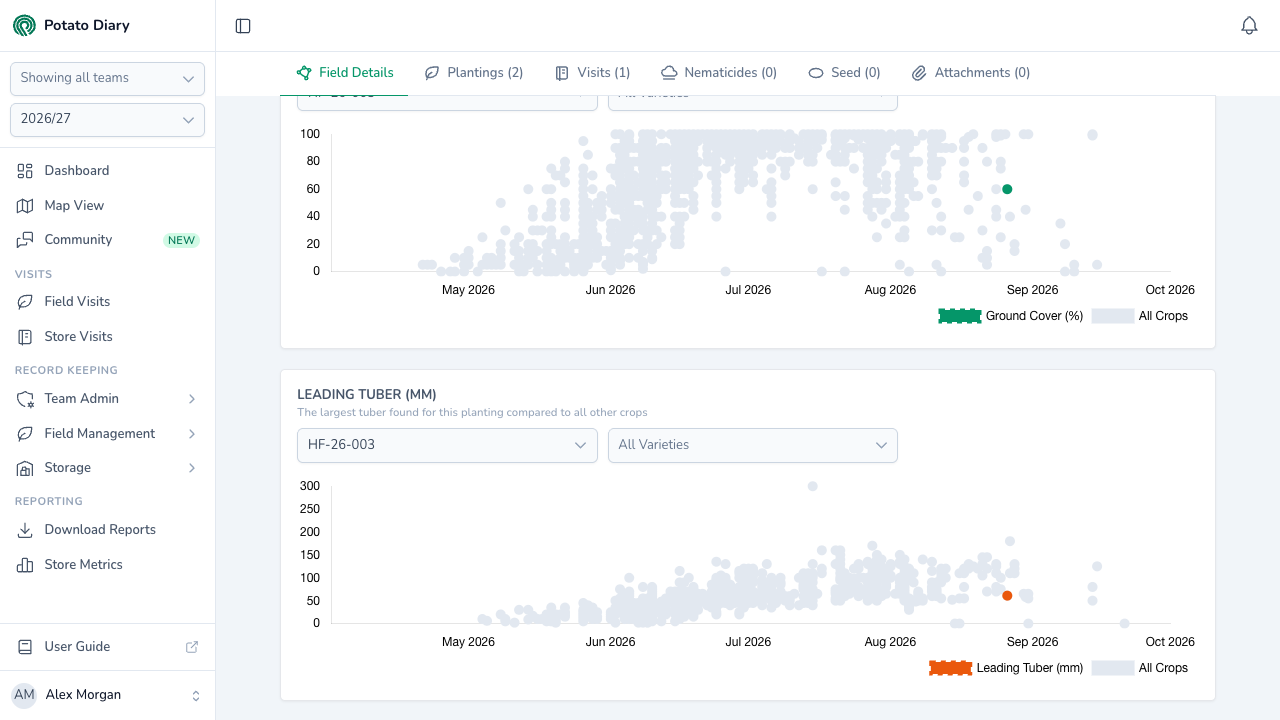
Each chart has two filters:
- Planting: which of the field's plantings to plot as the line. It starts on the field's first planting.
- All Varieties: narrow the grey dots to one or more of the varieties grown in this field.
TIP
The grey dots make it easy to see whether this crop is ahead of, behind or in line with other crops at the same point in the season.
What's next
- The Plantings tab — See each planting in the field with its key dates.
- The Visits tab — Read every visit recorded against the field.