
Appearance
Creating a planting
A planting is one variety grown in a field for one season. Most field records hang off a planting: visits, seed stocks and seed treatments, nematicide treatments, and the ground cover and leading tuber charts. Every planting must be linked to a field, so create the field first.
Step 1 — Open the Plantings list
In the sidebar, under Record Keeping, click Field Management, then click Plantings in the section panel.
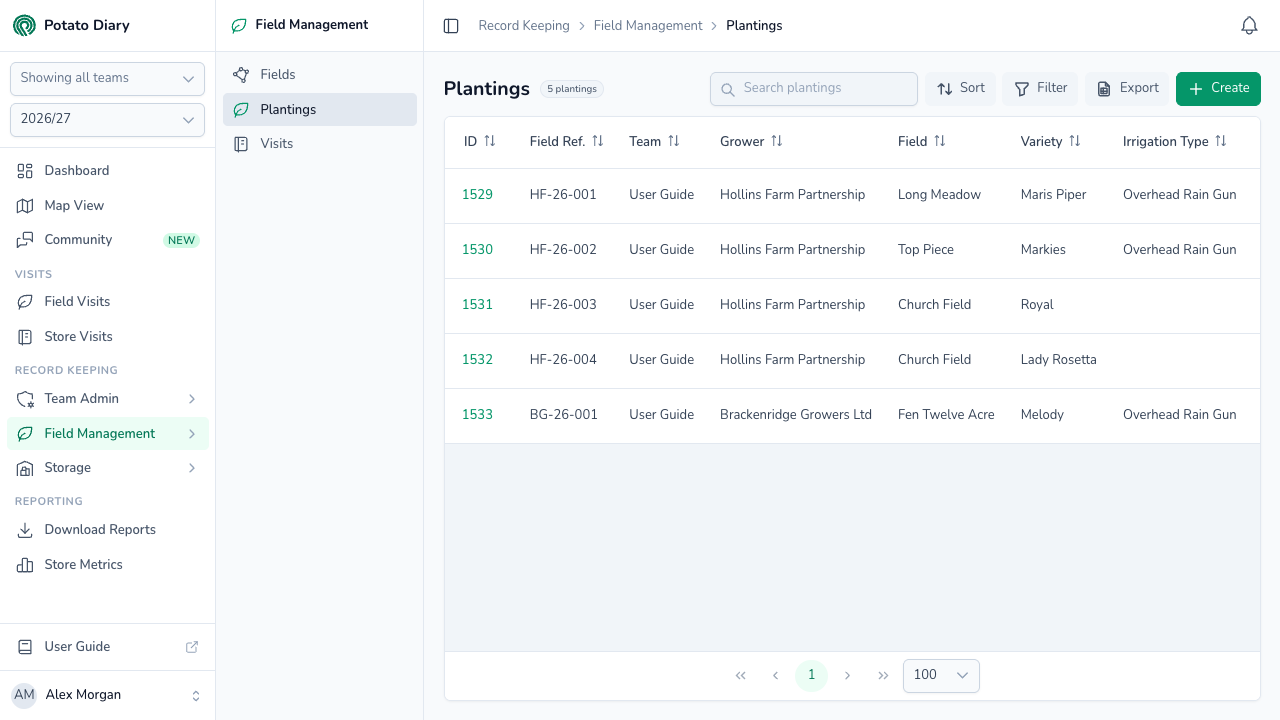
The page title shows how many plantings match. Along the top of the list are:
- Search plantings: type to narrow the list.
- Sort: sort by ID, Field Ref., any of the area columns, Est Yield, Team, Grower, Field, Variety or Irrigation Type.
- Filter: opens a Filters panel where you can choose Grower, Variety, Irrigation and Market sector. Click Apply.
- Export: downloads the table as a CSV file.
- Create: adds a new planting.
WARNING
Export only includes the rows on the current page of the table. The table shows up to 100 rows per page, so if you have more plantings than that, narrow the list with a filter or export each page in turn.
The columns show the planting's ID, your team's reference, the team, grower, field, variety, irrigation type and season, then the Gross Area, GPS Area and Planted Area in hectares, the Est Yield (t/Ha) and the Est Tonnage.
Step 2 — Click Create
In the top-right of the page, click Create. The Create A Planting dialog opens with four tabs: Crop Details, Field History, Fertiliser and Key Dates. When you edit a saved planting there's a fifth tab, Activity.
Step 3 — Fill in the Crop Details tab
Crop Details holds the only required fields. The other tabs can be filled in now or later.
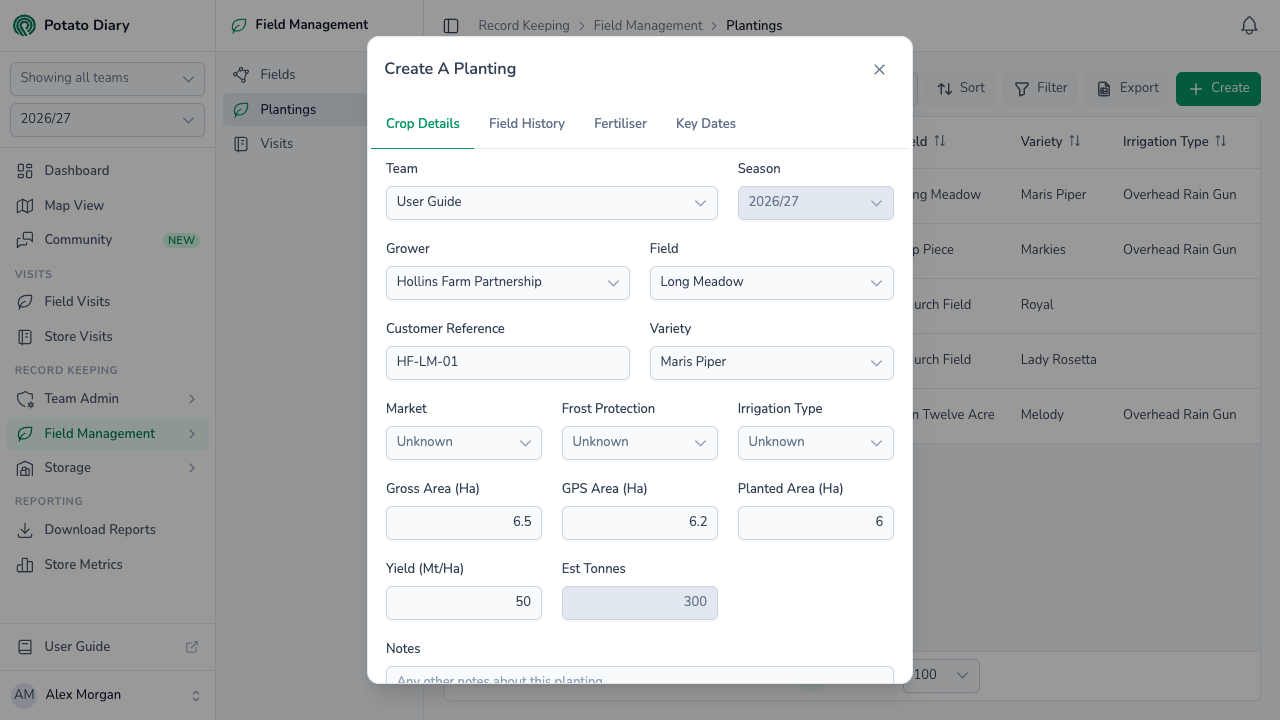
| Field | What to enter |
|---|---|
| Team | Starts as your main team. Change it before filling anything else in, because the lists below depend on it. You can't change it after the planting is saved. |
| Season | Set to the season you've picked in the sidebar and can't be changed here. |
| Grower | Required. The company growing the crop. Only growers linked to the team for this season are listed. |
| Field | Required. Only the chosen grower's fields for this season are listed. |
| Customer Reference | Filled in from the field's reference when you pick the field. Change it if you need to. It must be unique within the team for the season. |
| Variety | Required. Only varieties linked to your team are listed. Link the variety to your team first if it isn't there. |
| Market | The market sector the crop is grown for. |
| Frost Protection | The type of fleece used, if any. |
| Irrigation Type | The irrigation method used. |
| Gross Area (Ha) / GPS Area (Ha) / Planted Area (Ha) | Three measures of area. Planted Area is the one used for the tonnage estimate. |
| Yield (Mt/Ha) | Estimated yield per hectare. Filled in from the variety's default yield for your team when you pick the variety. |
| Est Tonnes | Worked out for you: Planted Area × Yield. If you know the tonnes lifted, type them here instead and Yield (Mt/Ha) is set to the tonnage divided by the Planted Area. Only the yield is saved. You need a Planted Area before you can type a tonnage. |
| Notes | Anything else about the planting. |
Market, Frost Protection and Irrigation Type may already be filled in with your team's defaults.
Field History tab
Records what the field was used for before this crop.
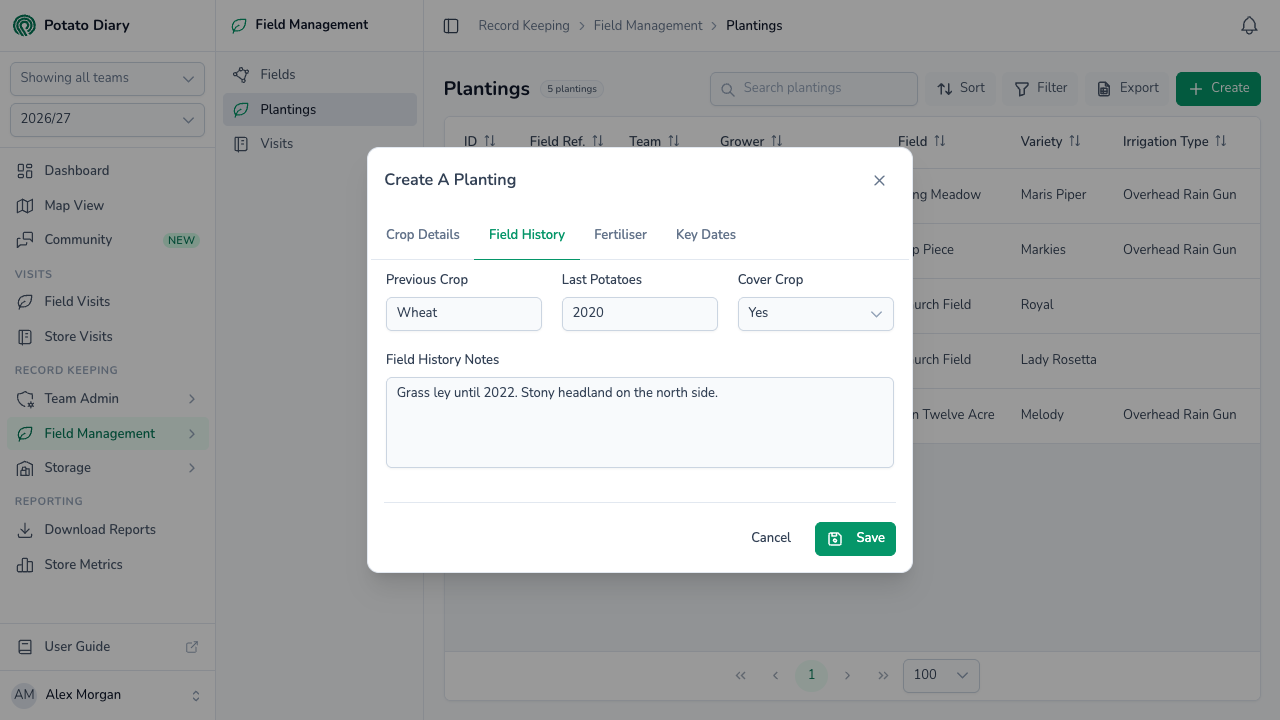
| Field | What to enter |
|---|---|
| Previous Crop | The crop grown before this one. Type your own or pick a suggestion, such as Wheat or Oilseed Rape. |
| Last Potatoes | The year potatoes were last grown in this field, as four digits (for example 2019). |
| Cover Crop | Whether a cover crop was grown: Yes, No or Unknown. |
| Field History Notes | Anything else about the field's recent history. |
Fertiliser tab
Records the fertiliser used on the crop.
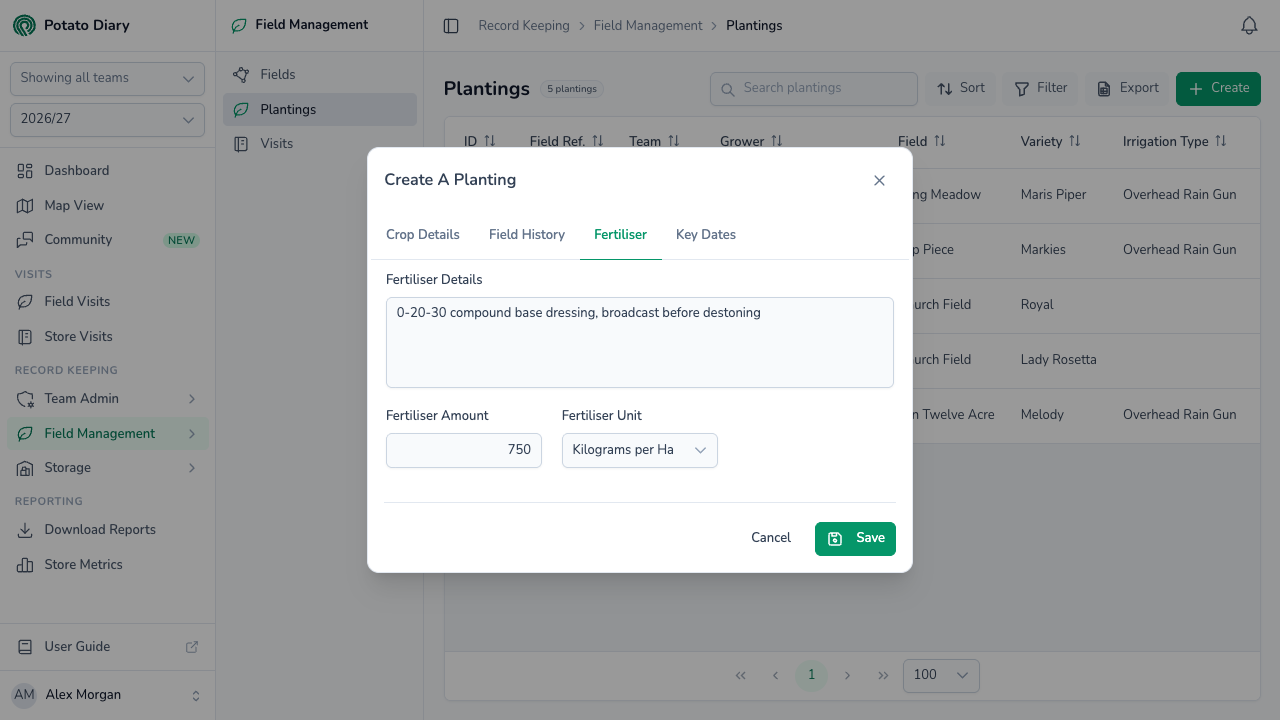
| Field | What to enter |
|---|---|
| Fertiliser Details | Notes on the product, blend or anything else about the fertiliser used. |
| Fertiliser Amount | The rate applied, as a number. |
| Fertiliser Unit | Litres per Ha or Kilograms per Ha. You must choose a unit if you've entered an amount. |
Key Dates tab
Records when the crop reached each stage. There are four sections: Planting Dates, Emergence Dates, Desiccation Dates (when haulm destruction was carried out) and Harvest Dates.
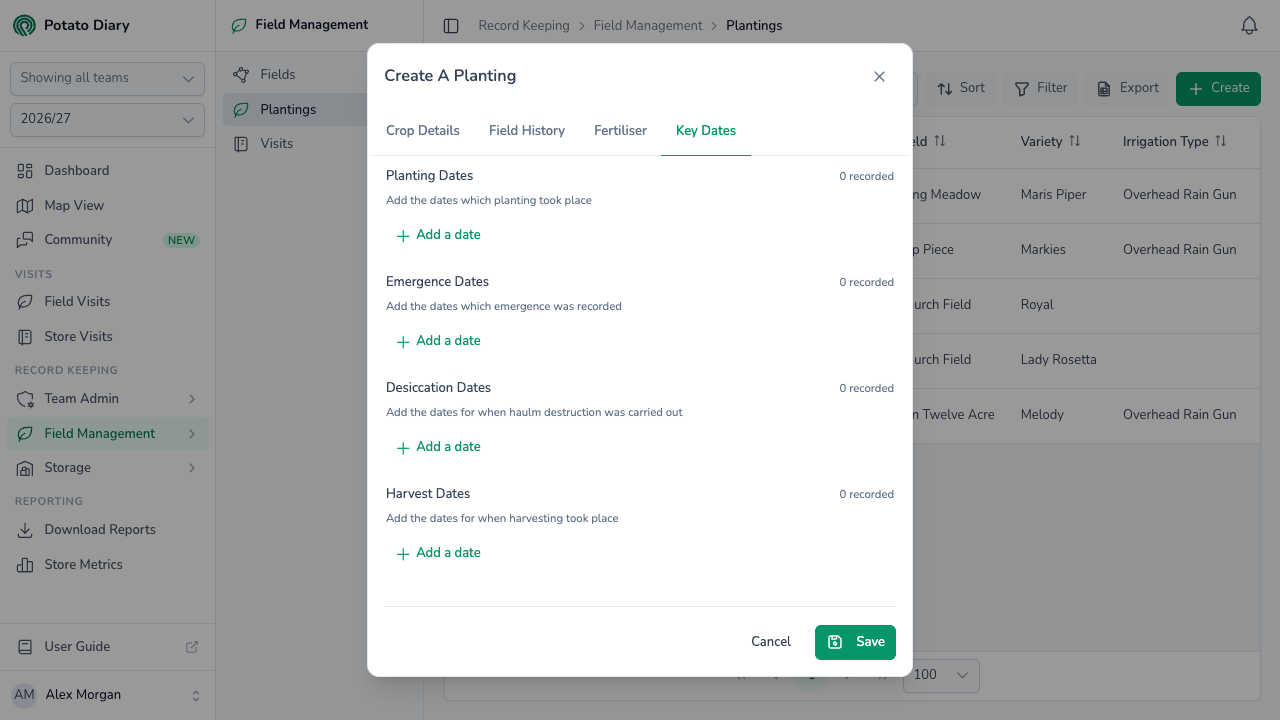
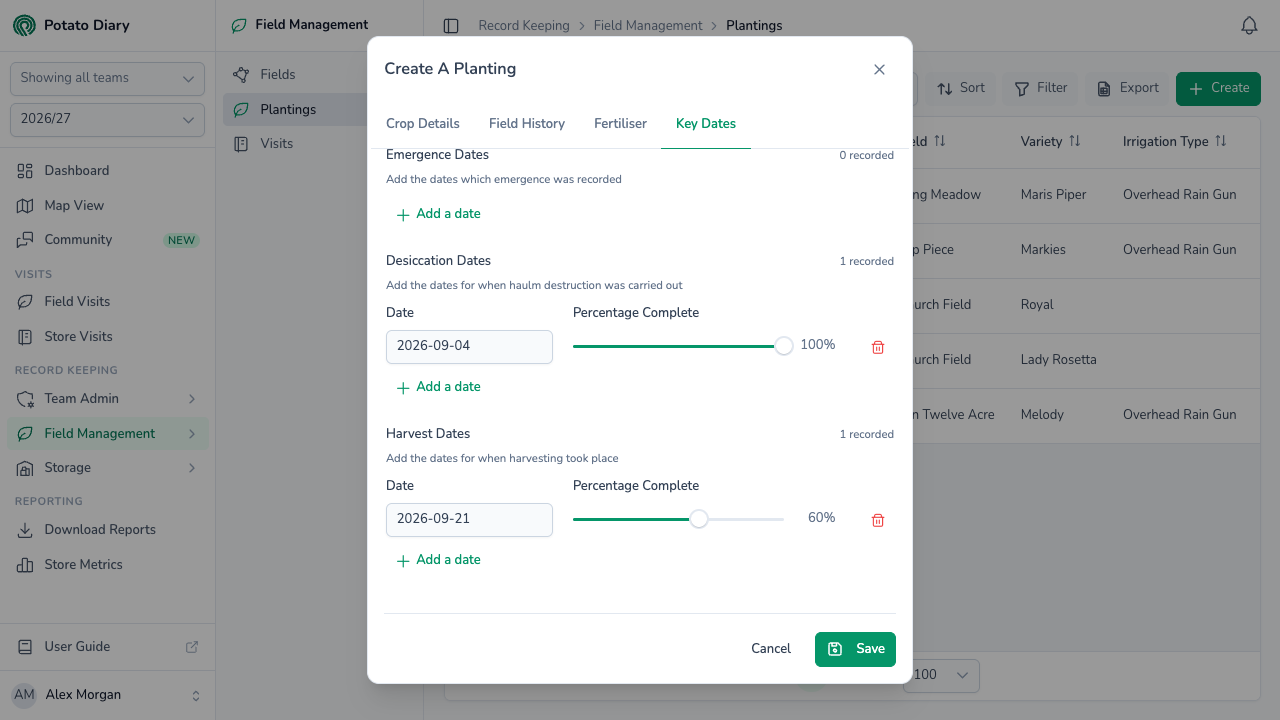
In each section, click Add a date to add a row. Each row has a Date, which starts as today, and a Percentage Complete slider, which moves in steps of 5%. The count in the corner of each section (for example 1 recorded) updates as you add or remove rows.
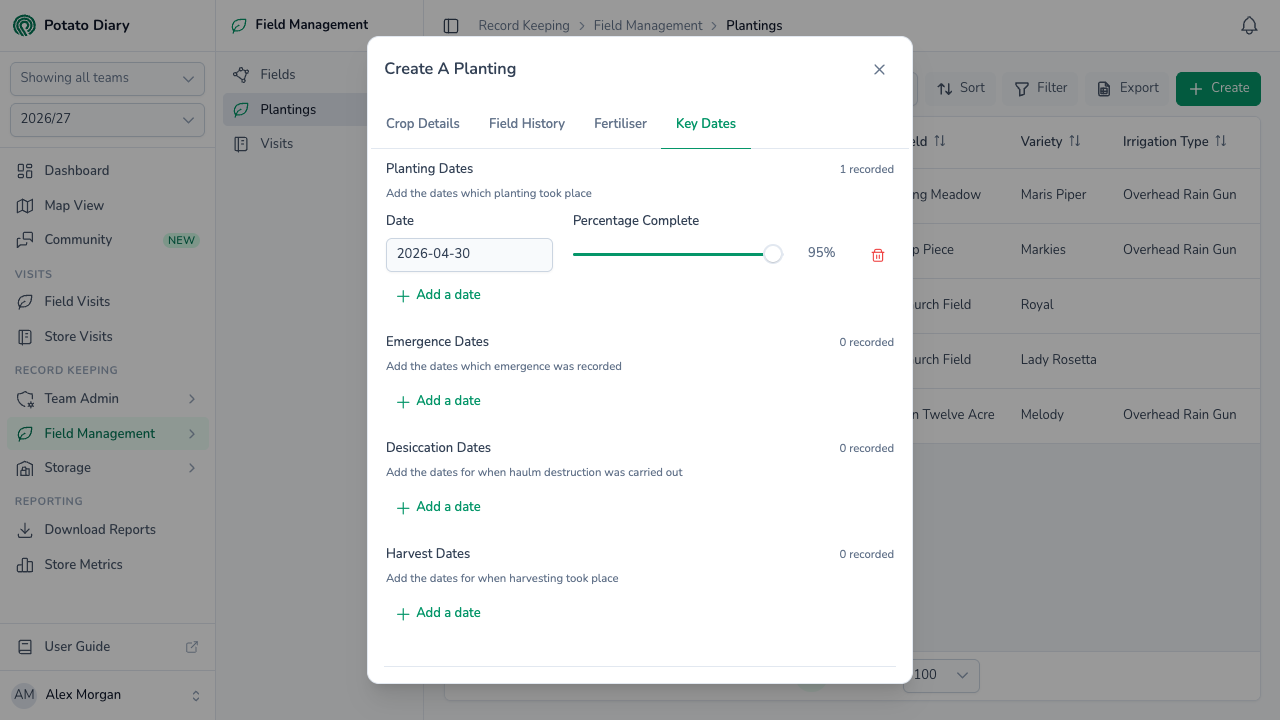
To remove a row, click its red bin icon. A row that hasn't been saved yet disappears straight away. A saved row is greyed out and removed when you save the planting. Until then, click the restore icon that replaces the bin to keep it.
TIP
Add several rows when a stage happened over several days. Each row's percentage is how far through the stage the crop was by that date. If half the field was planted on day 1 and the rest on day 2, record 50% against day 1 and 100% against day 2.
Activity tab
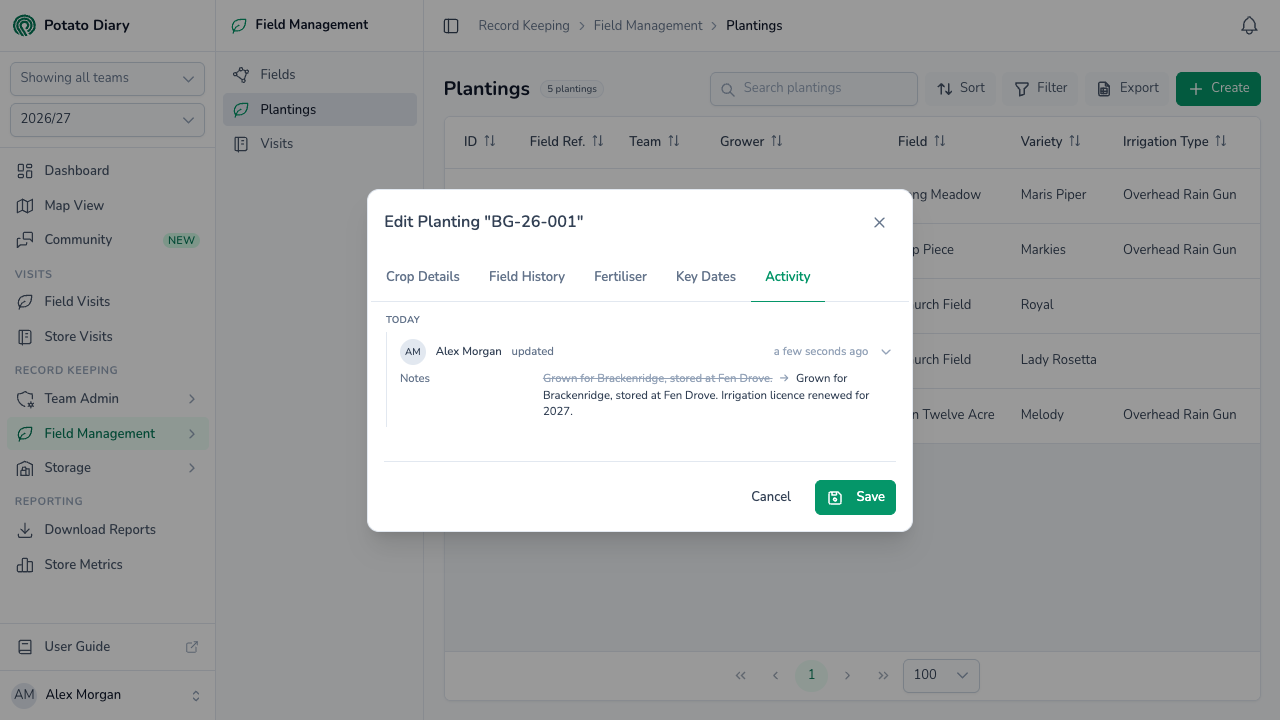
When you edit a saved planting, the Activity tab lists the changes made to it, newest first and grouped by day. Each entry shows who made the change and when. Click the arrow on an entry to see each changed value, old and new. A planting with no changes yet shows No activity recorded yet.
Step 4 — Click Save
The planting is saved and can be picked anywhere else in Potato Diary that asks for a planting.
INFO
You can't add or change plantings in a season that has closed. If the season you've picked has closed, saving fails and asks you to switch to the current season.
Editing or deleting a planting
Click the planting's ID in the list to open its menu:
- View Field: opens the field's page.
- Edit: opens the planting in the same dialog, titled Edit Planting followed by its reference.
- Copy: always greyed out.
- Delete: deletes the planting, after you confirm in the Delete Planting dialog. There's no undo.
You can also edit or delete a planting from the Plantings option in the field menu, or from the field's Plantings tab.
What's next
- Recording a visit — Log your first visit now that the planting exists.
- The Seed tab — Record the seed stocks and seed treatments used on the planting.