
Appearance
Recording a visit
A planting visit is what someone records when they walk a planting: ground cover, leading tuber size, soil temperature, photos, comments, the actions taken or needed, and any issues found. Visit measurements feed the ground cover and leading tuber charts on the field's Field Details tab.
You can also record a visit to a field before anything is planted in it, such as a walk round to check for compaction or stones. This is a pre-planting visit. It keeps the date, comments, actions, issues and photos, but not the crop measurements, because there's no crop yet to measure.
This guide covers the Visits table under Field Management. The same visits also appear as cards under Visits › Field Visits in the sidebar, where people can comment on and like them. See Field Visits and Store Visits.
Step 1 — Open the Visits list
In the sidebar, under Record Keeping, click Field Management, then click Visits in the section panel. The Planting Visits page opens.
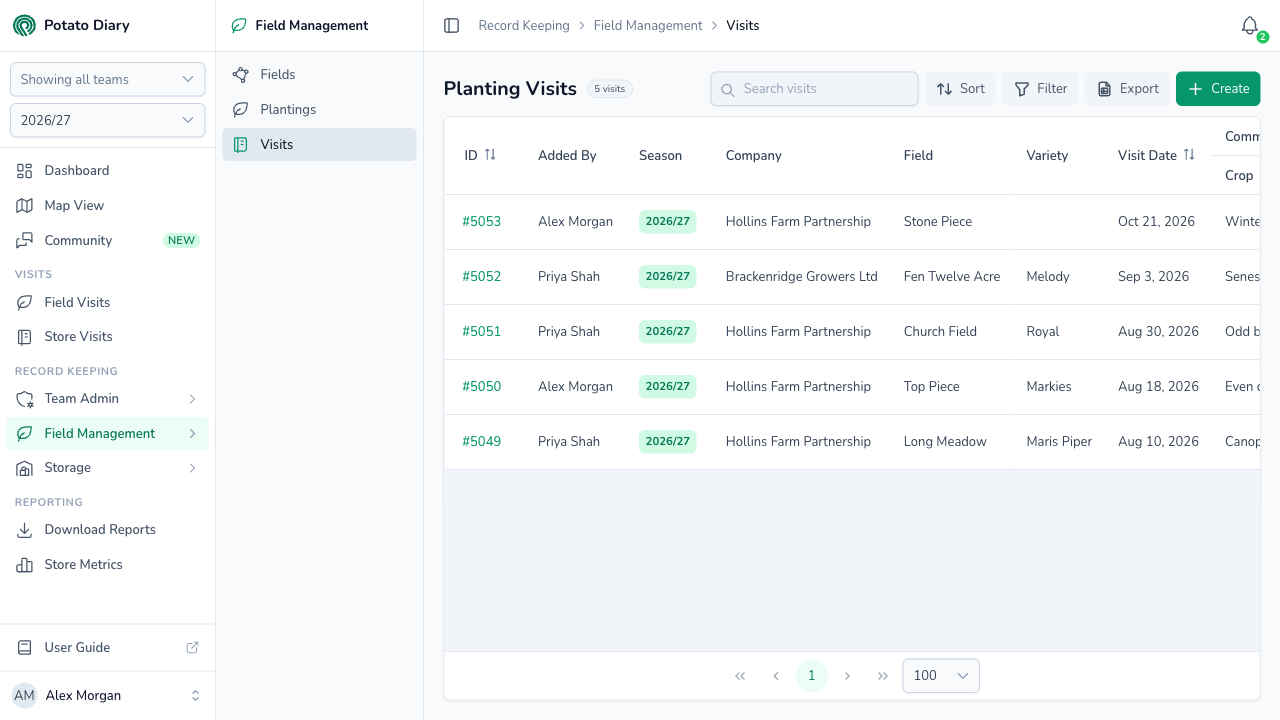
The page title shows how many visits match. Along the top of the list are:
- Search visits: type to narrow the list.
- Sort: sort by ID, Visit Date or Team.
- Filter: opens a Filters panel where you can choose Grower, Variety and Issue. Click Apply.
- Export: downloads the rows on the current page of the table as a CSV file.
- Create: adds a new visit.
The columns show the visit's ID, who added it, the season, the Company (the grower), the field, variety and visit date, then the visit's Crop and Actions comments. A pre-planting visit has no variety, so its Variety cell is empty.
TIP
Field walkers usually record visits in the mobile app while they're in the field. The website form below records the same things, and is useful for adding or tidying up visits afterwards.
Step 2 — Click Create
In the top-right of the page, click Create. The Create A Visit dialog opens.
The left-hand side holds the basics:
| Field | What to enter |
|---|---|
| Team | Only shown if you belong to more than one team. You can't change it after the visit is saved. |
| Season | Set to the season you've picked in the sidebar and can't be changed here. |
| Grower | The company whose crop you visited. |
| Field | Required. The field you visited. Only the chosen grower's fields for this season are listed. |
| Planting | Required if the field has plantings this season. Once you've picked a field, only that field's plantings are listed, shown by reference with the variety underneath (for example HF-26-003 over Royal). The field isn't repeated here — it's the one in Field above. See Does the visit need a planting? below. |
| Visit Date | Required. When the visit happened. Starts as today. |
The rest of the form appears once you've picked a Field.
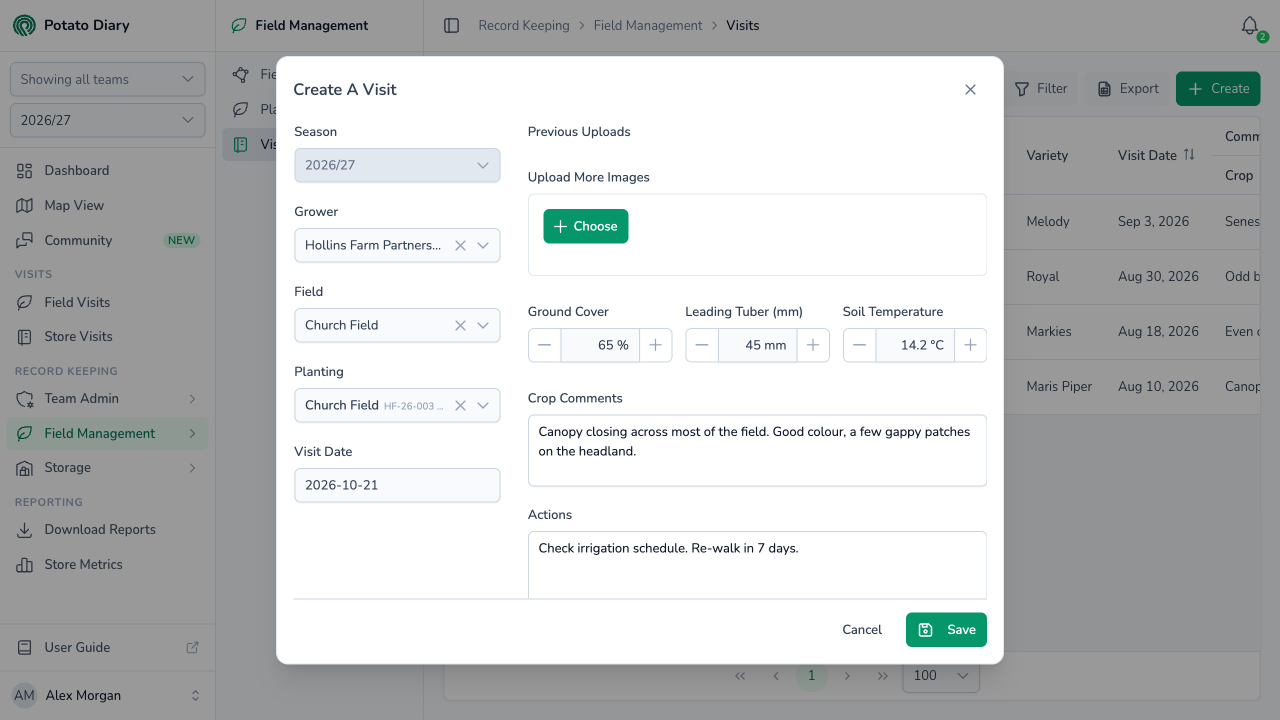
Does the visit need a planting?
That depends on the field you pick:
- The field has plantings this season. You must pick one, so that a visit to a planted field is always a visit to a crop. If you click Save without one, the dialog says Choose which planting this visit is for. If the field has only one planting, it's picked for you. If it has several, choose the one you walked.
- Nothing is planted in the field yet. Planting is greyed out and reads Nothing planted in this field yet. Leave it as it is and the visit is recorded against the field alone.
You can also start with the Planting: choosing one fills in its field.
If a field or planting you expect is missing, check the Grower above. On a new visit, changing the Field clears a planting that isn't in the new field.
Step 3 — Fill in the visit
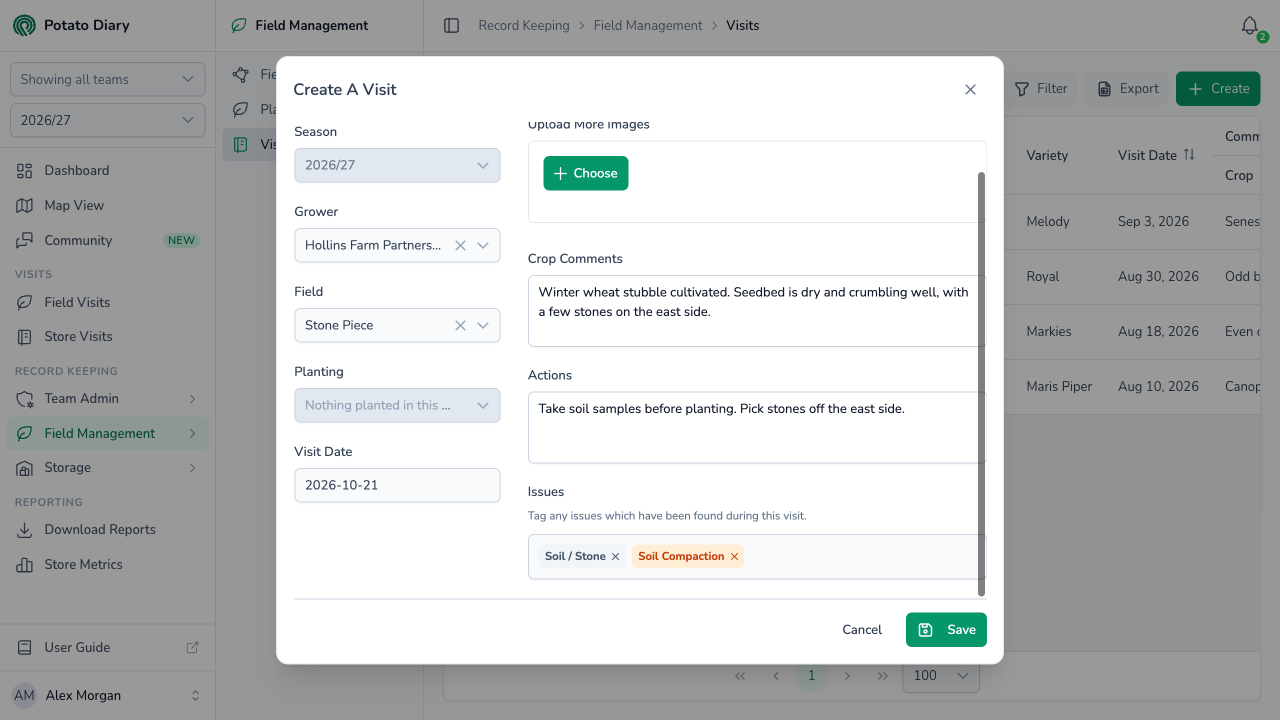
The right-hand side is taller than the dialog: scroll down to reach the comments and the Issues picker.
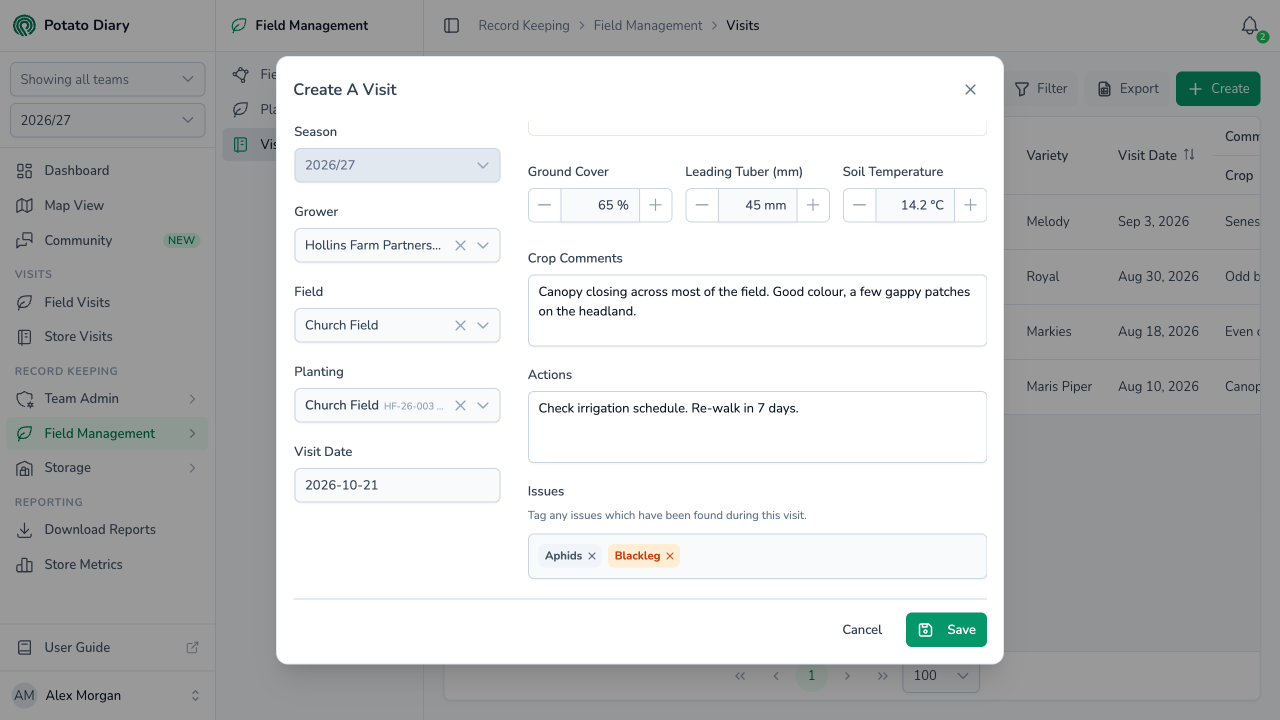
| Field | What to enter |
|---|---|
| Previous Uploads | Photos already saved on this visit. Empty for a new visit. Click a photo to see it full size. |
| Upload More Images | Click Choose to add photos. Images only, up to 5 MB each. Each new photo has a Remove button until you save. |
| Ground Cover | How much of the ground the crop canopy covers, as a percentage. The + and − buttons move in steps of 5%. |
| Leading Tuber (mm) | The size of the largest tuber found, in millimetres, up to 300. The buttons move in steps of 5 mm. |
| Soil Temperature | The soil temperature in °C. The buttons move in steps of 0.1 °C. |
| Crop Comments | How the crop is looking. |
| Actions | What was done, or needs doing, as a result of the visit. |
| Issues | The issues found on this visit. See below. |
Ground Cover, Leading Tuber and Soil Temperature describe a crop, so they only appear once you've picked a planting.
In Crop Comments and Actions, type @ followed by a name to mention someone who has access to the planting. Each person you mention gets a notification, depending on their notification preferences.
Tagging issues
Click the Issues box to open the Tag Issues dialog. Only issues of the in-field type are listed.
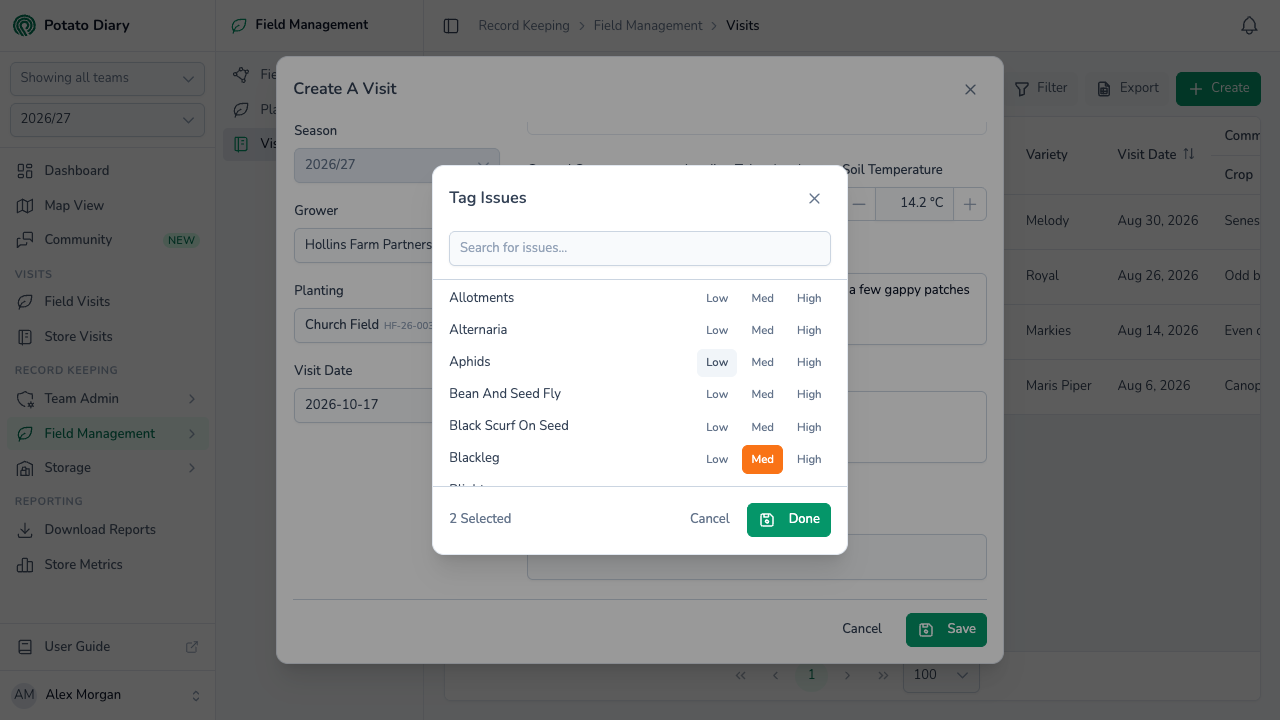
- Type in Search for issues... to find an issue.
- Click Low, Med or High next to it to tag it at that severity. Click the same button again to untag it.
- Click Done.
The tags appear in the Issues box. Click the cross on a tag to remove it.
Visits before planting
With nothing planted in the field there's no crop to measure, so the form has only photos, comments, actions and issues. The mobile app's soil moisture reading is left out of a pre-planting visit too.
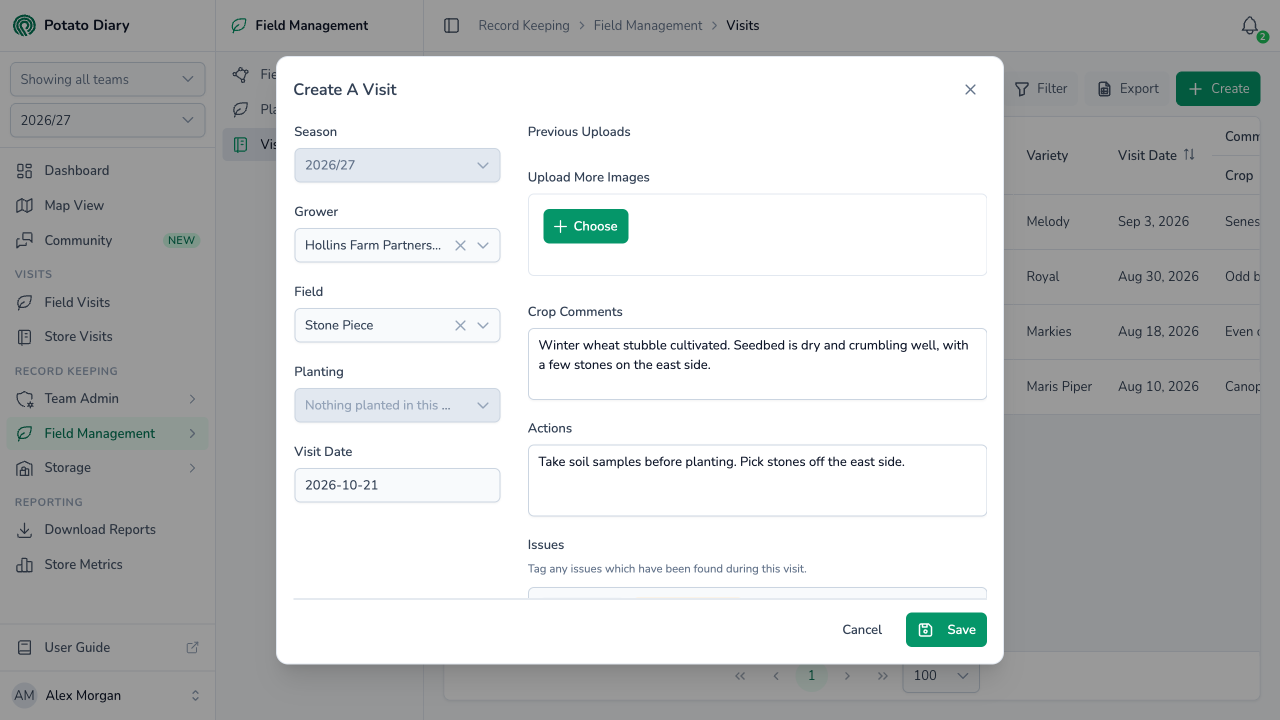
Scroll down for the comments and issues, which work the same way.
WARNING
@ mentions need a planting, because the list of people comes from the planting's users. On a pre-planting visit the list is empty, so you can't mention anyone in its comments or in the discussion on it.
Step 4 — Click Save
A visit to a planting is saved against it, and its measurements show on the field's charts straight away. A pre-planting visit is saved against the field. It has no measurements, so there's nothing for the charts to plot.
INFO
You can't add or change visits in a season that has closed. If the season you've picked has closed, saving fails and asks you to switch to the current season.
Viewing, editing or deleting a visit
Click the visit's ID in the list (for example #123) to open its menu:
- View: opens the visit in a panel on the right, with its photos, the planting's details, the measurements, the comments and a discussion thread. See the visit panel.
- Edit › Edit: opens the visit in the same dialog, titled Edit Visit followed by its ID.
- Edit › Copy: always greyed out.
- Edit › Delete: deletes the visit, after you confirm in the Delete Planting Visit dialog. There's no undo.
WARNING
You can't remove a photo from a visit once it's saved. When you edit a visit, Previous Uploads only shows the saved photos: you can add more, but not take any away.
Editing a pre-planting visit
A pre-planting visit stays with its field after the field is planted. It still shows on the field's Visits tab and under Visits › Field Visits, and you can edit it like any other visit.
When you open it, there is no Planting box, even if the field now has plantings. A note under Field says the visit was recorded before planting. A pre-planting visit stays a pre-planting visit: it records what was in the field at the time, so it can't be given a planting afterwards. You can still change its date, comments, actions, issues and photos, and save it as it is.
TIP
To link something you saw to a crop that was planted afterwards, record a new visit against that planting.
Editing a visit to a planting
A visit to a planting has to keep a planting. On one you're editing, Planting has no cross to clear it, and the visit can't be saved without a planting. You can still change which one: pick another planting, or change the Grower or Field and then pick a planting from the new list. Changing the Grower or Field clears the Planting, so choose one again before you click Save. The visit moves to the new planting's field.
If you click Save with the Planting empty, the dialog says This visit is to a planting, so it needs one. If the plantings haven't finished loading, it says so instead, and you can try again in a moment.
WARNING
A visit to a planting can't be turned into a pre-planting visit, and the other way round. A visit with no planting has no crop measurements, so saving it without one would delete the visit's ground cover, leading tuber size, soil temperature and variety. If it wasn't a visit to a crop after all, delete it and record it again against the field.
What's next
- The Field Details tab — See the visit's measurements on the field's comparison charts.
- Field Visits report — Download visits as an Excel report.
- Field Visits and Store Visits — Read, filter and discuss your team's visits as cards.