
Appearance
Creating a field
Fields are the parcels of land where crops are grown. Each field belongs to a grower and is the parent record for plantings, visits, treatments, seed records and attachments. Set fields up first: every planting has to be linked to a field.
Each field record belongs to one season, so the Fields list shows the fields for the season you've picked in the sidebar.
Step 1 — Open the Fields list
In the sidebar, under Record Keeping, click Field Management. The section panel opens beside the sidebar and the Fields list opens, because it's the first page in the section.
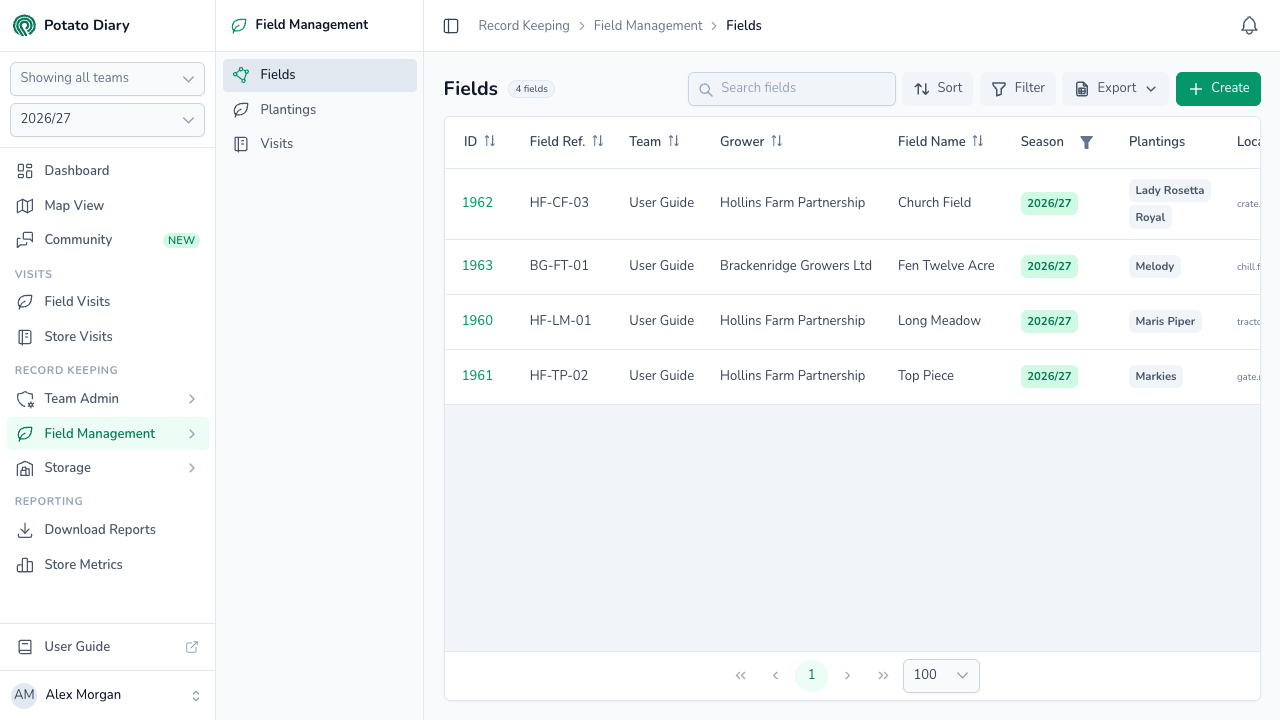
The page title shows how many fields match. Along the top of the list are:
- Search fields: type part of a field's name to narrow the list.
- Sort: sort by ID, Field Ref., Name, Team or Grower. Pick the same option again to reverse the order, and a third time to clear it.
- Filter: opens a Filters panel on the right where you can choose one or more Growers and Varieties. Click Apply. The Filter button shows how many filters are active, and on wide screens each filter also shows as a chip under the page title.
- Export: choose CSV or Shapefile to download every field that matches your search and filters. A Shapefile export leaves out fields with no boundary, and a message tells you how many were skipped.
- Create: adds a new field.
The columns show:
| Column | What it shows |
|---|---|
| ID | Potato Diary's reference for the field. Click it to open the field's menu. |
| Field Ref. | Your team's own reference for the field. |
| Team | The team the field belongs to. |
| Grower | The company that grows the field. |
| Field Name | What the field is called. |
| Season | The field's season. Use the funnel icon in the column header to show fields from other seasons. |
| Plantings | A tag for each variety planted in the field. |
| Location | The nearest place, with the field's What 3 Words address underneath. |
Step 2 — Click Create
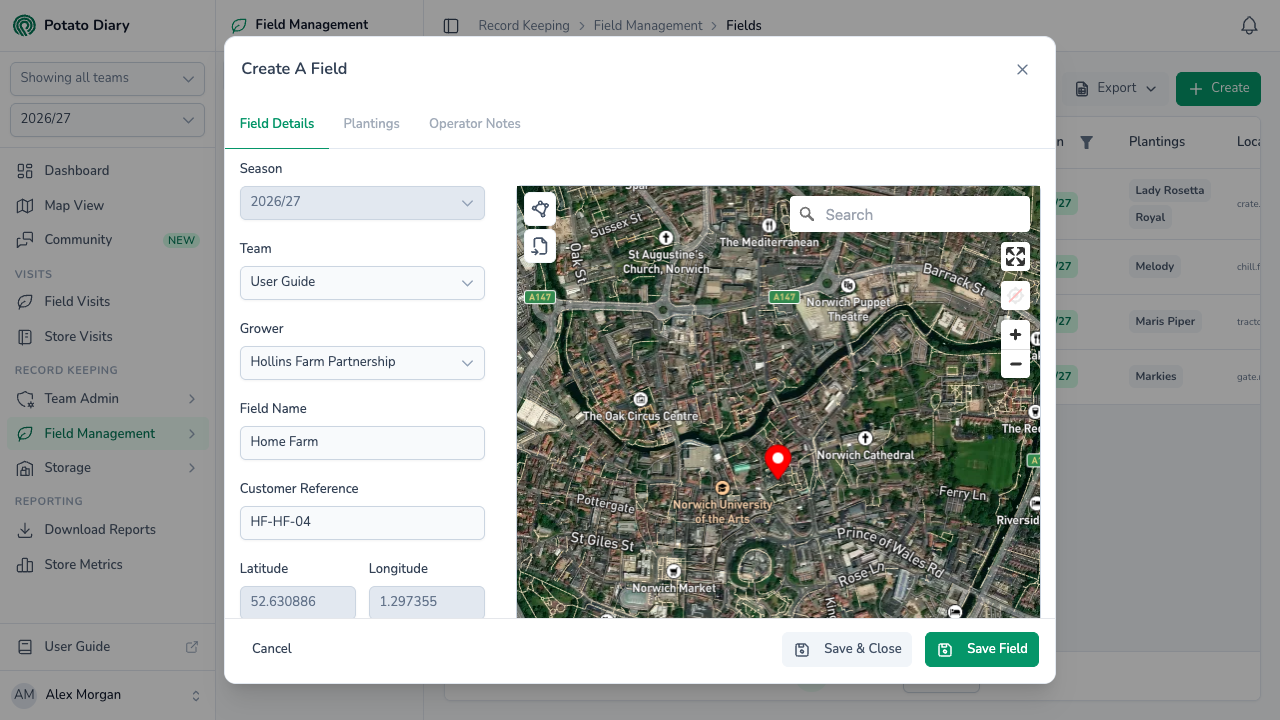
In the top-right of the page, click Create. The Create A Field dialog opens with three tabs: Field Details, Plantings and Operator Notes. The Plantings tab becomes available once you've saved the field. Operator Notes is always greyed out.
Step 3 — Fill in the field details
| Field | What to enter |
|---|---|
| Season | Set to the season you've picked in the sidebar and can't be changed here. To add a field to a different season, switch season in the sidebar first. |
| Team | The team the field belongs to. You can't change it after the field is saved. |
| Grower | Required. The company that grows the field. Only growers linked to the team for this season are listed. If there's only one, it's picked for you. |
| Field Name | Required. A short name, for example Home Farm. |
| Customer Reference | Optional. Your team's own reference for the field. It must be unique within the team for the season. |
| Latitude / Longitude | The field's centre point. You can't type these: they're set by the map. |
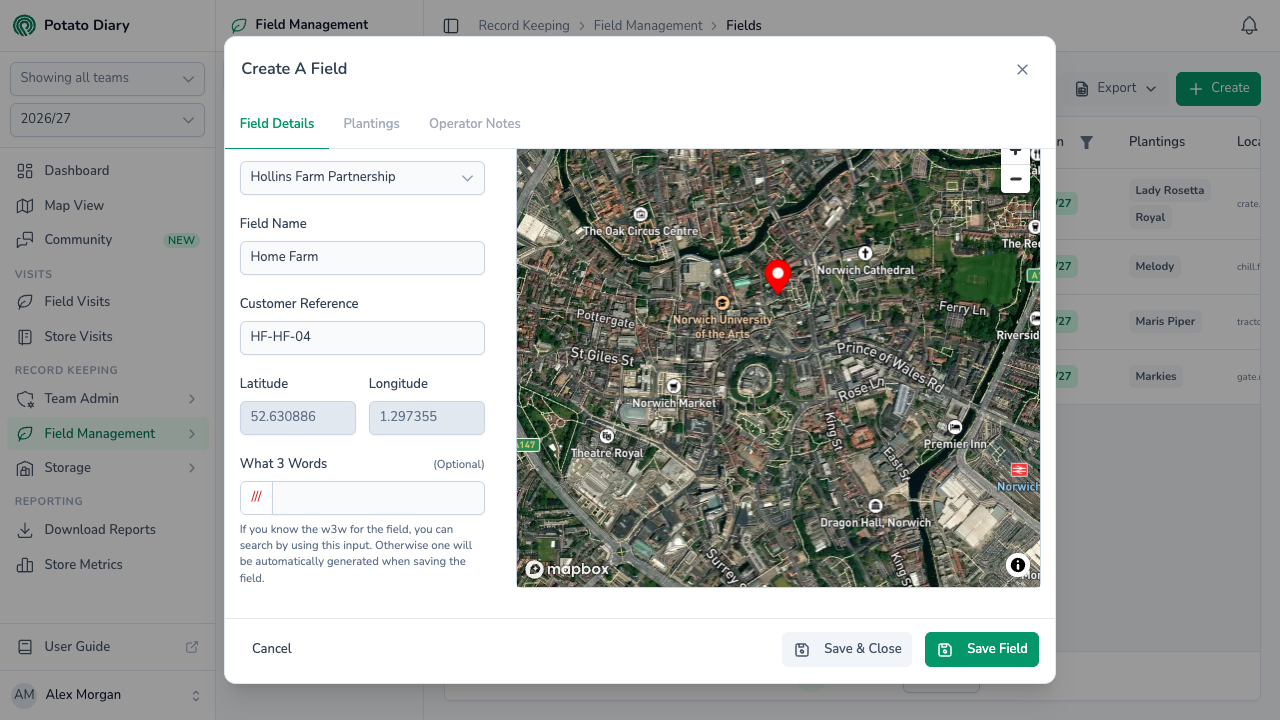
| What 3 Words | Optional. See below. |
Setting the location
The map on the right starts at your current location, if your browser allows it. Click the map to move the red pin to the centre of the field. Latitude and Longitude update to match. You can also search for a place or postcode with the search box in the top-right of the map.
Scroll down the left-hand side to reach What 3 Words. If you know the field's What 3 Words address, type it here and pick the match from the list: the map jumps to that spot. Otherwise leave it blank, and Potato Diary will work one out from the pin when you save.
Drawing a boundary
The buttons down the top-left corner of the map let you draw the field's boundary:
- Click Draw Boundary (the shape icon).
- Click the map to add each corner. A hint in the corner of the map reminds you that you need at least three points.
- To finish, click the first point again, double-click, or click Save Boundary (the tick).
While drawing, Undo Last Point removes the last corner you added, and clicking Draw Boundary again cancels the drawing. Once a boundary exists, Clear Boundary (the red bin) removes it. Save & Close and Save Field are greyed out until you finish or cancel the drawing.
A boundary is optional, but fields without one are left out of a Shapefile export.
Importing a boundary from a shapefile
If you already have the boundary as a shapefile, click Import from shapefile (the last button in the map toolbar). The Import boundary from shapefile dialog opens.
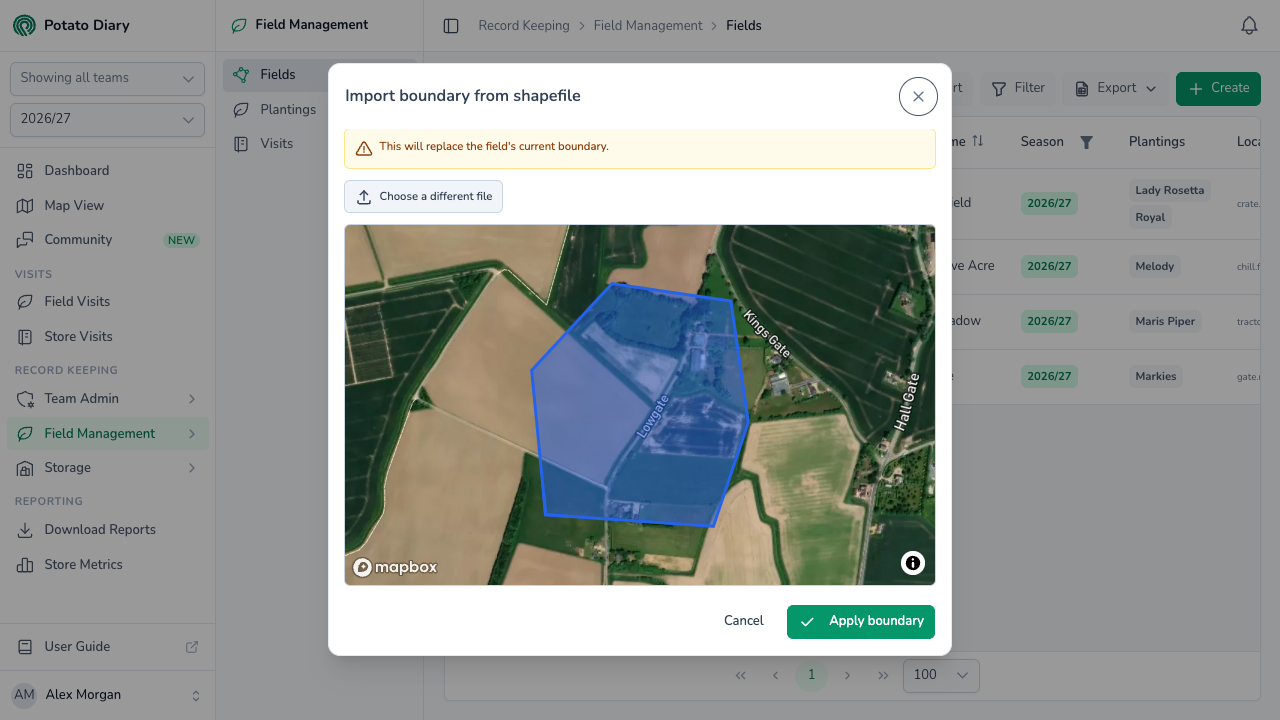
- Click Choose shapefile (.shp) and pick the
.shpfile. - If the file holds more than one boundary, click the one you want on the map.
- Click Apply boundary.
If the field already has a boundary, the dialog warns you that the import will replace it. If the field has no location yet, the centre of the imported boundary is used.
Step 4 — Click Save Field (or Save & Close)
Save & Close saves the field and closes the dialog. Save Field saves it and keeps the dialog open, so you can go straight to the Plantings tab.
The Plantings tab shows a card for each planting in the field. Click Add Planting to open the Create A Planting dialog with this field already picked, or click a card to edit that planting.
INFO
You can't add or change records in a season that has closed. If the season you've picked has closed, saving fails with a message such as The 2024/25 season closed on 31 July 2025. Switch to the current season to record this. Switch to the current season in the sidebar and try again.
The field menu
Click a field's ID in the list to open its menu.
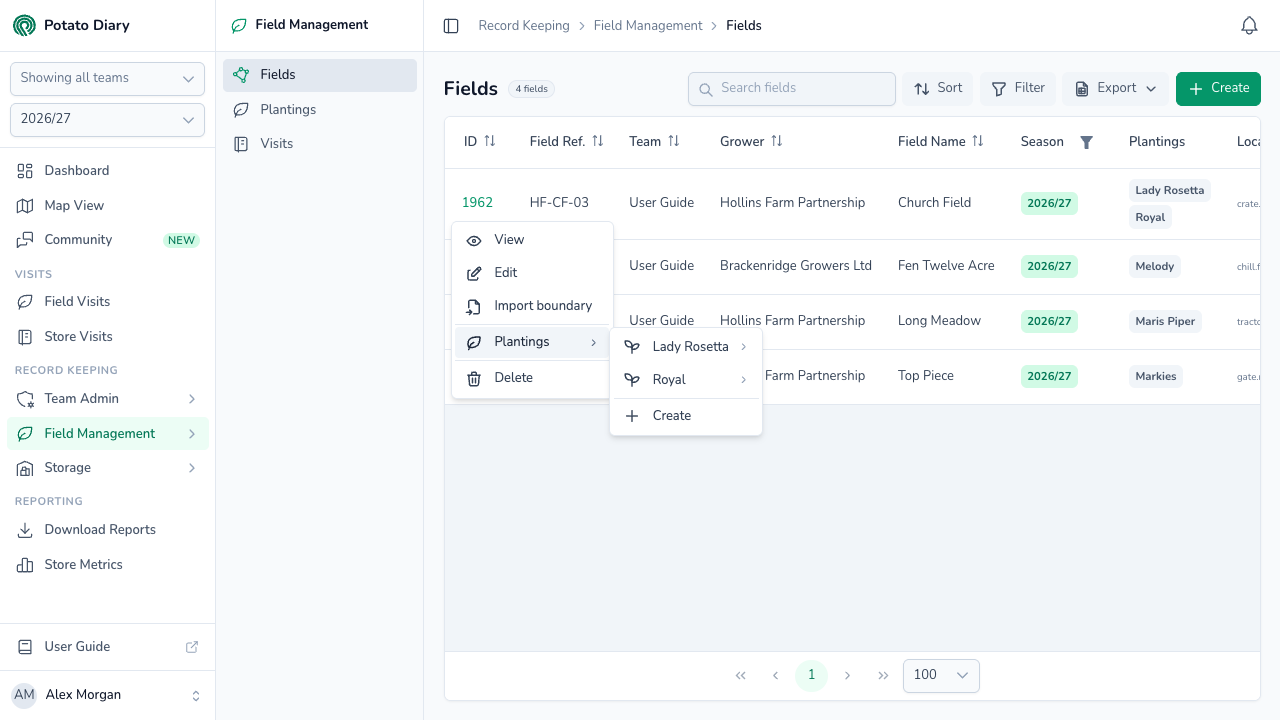
| Option | What it does |
|---|---|
| View | Opens the field's own page. See The Field Details tab. |
| Edit | Opens the field in the same dialog, titled Edit followed by the field's name. |
| Import boundary | Opens the Import boundary from shapefile dialog. The boundary is saved as soon as you click Apply boundary. |
| Plantings | Lists the field's plantings by variety, with Edit and Delete for each. Where a variety has more than one planting, pick the planting reference first. Create at the bottom adds a planting to this field. |
| Delete | Deletes the field, after you confirm in the Delete Field dialog. |
Options you don't have permission to use are greyed out.
WARNING
There's no undo: a deleted field can't be brought back from the app. Deleting a field doesn't delete its plantings, so delete those separately first if you no longer need them.
What's next
- Creating a planting — Record what's growing in the field this season.
- The Field Details tab — See everything recorded against a field on its own page.