
Appearance
Scheduling reports
Any report on the Available reports tab can run on a schedule and be emailed to you with the file attached. Pick Daily, Weekly or Monthly, or use Custom for anything more specific.
Step 1 — Open the schedule dialog
In the left sidebar, open Reporting and click Download Reports. On the report you want, click Schedule.

The dialog has the same filters as the download dialog, plus a frequency picker.
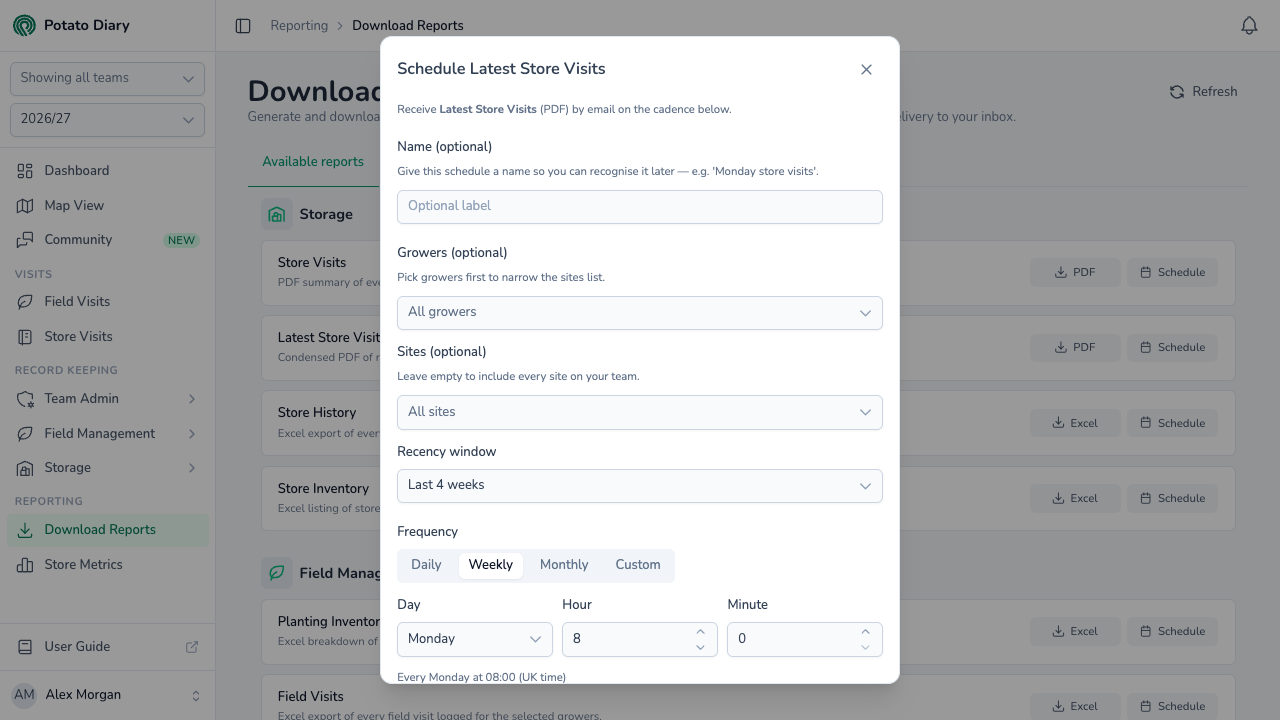
At the top is an optional Name. Give the schedule a label such as Monday store visits so you can recognise it on the Scheduled tab and in the email subject.
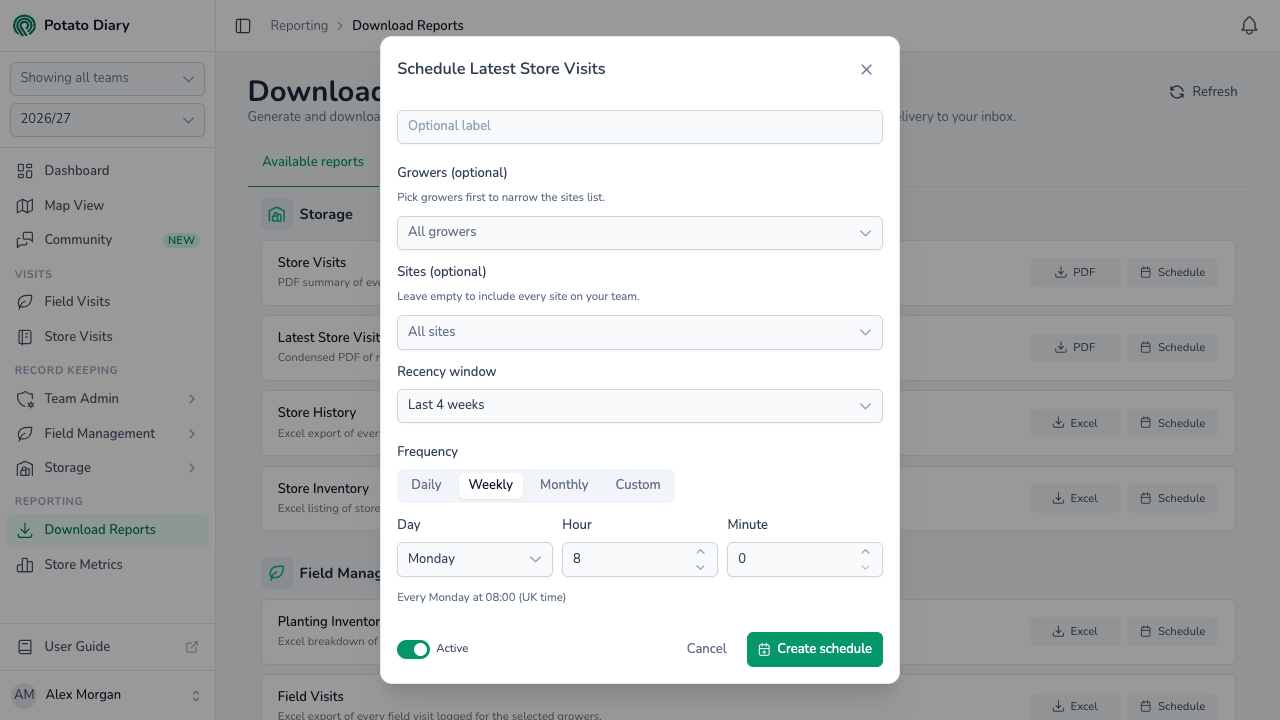
The dialog scrolls. The Active switch, Cancel and Create schedule are at the bottom:
Step 2 — Pick the filters
The filters work the same way as in the download dialog. Whatever you save here is used for every run. You can't change the filters for a single run.
Season and teams are fixed when you save
A schedule keeps the season that was chosen in the sidebar when you created it. When the season changes, the schedule carries on sending the old season's data, and editing it doesn't change that. To follow a new season, delete the schedule and create a new one.
The team picker works the same way: if you had particular teams chosen when you saved, the schedule only covers those teams. Saving an edit stores whichever teams are chosen in the sidebar at that moment.
Step 3 — Pick the frequency
Frequency has four options. New schedules start on Weekly, every Monday at 08:00.

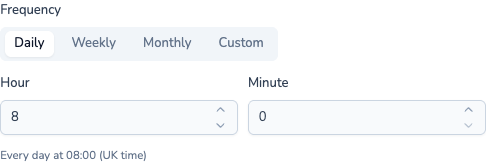
Daily
Pick the Hour and Minute. The report is sent every day at that time.
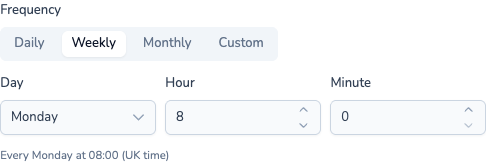
Weekly
Pick the Day of the week, then the hour and minute.
Monthly
Pick the Day of month, from 1 to 28 so that it works in every month, then the hour and minute.
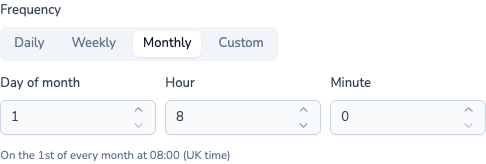
Custom
Enter a standard five-part cron expression, for example 0 8 * * 1-5 for every weekday at 08:00. Use this when none of the presets fit.
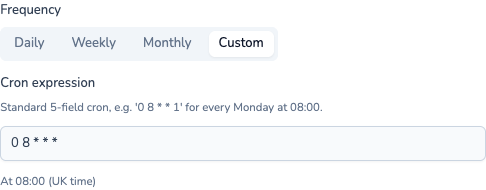
A plain-English summary appears under the picker, for example "Every Monday at 08:00 (UK time)", so you can check the timing before saving.
Times are UK time
Schedule times follow the UK clock. 08:00 means 08:00 in both winter (GMT) and summer (BST).
Step 4 — Save
Click Create schedule. A Schedule saved message appears and the dialog closes.

What the email looks like
When the schedule runs, Potato Diary builds the report and emails it to you with the file attached. The email has an Open Reporting page button, so you can pause or change the schedule.
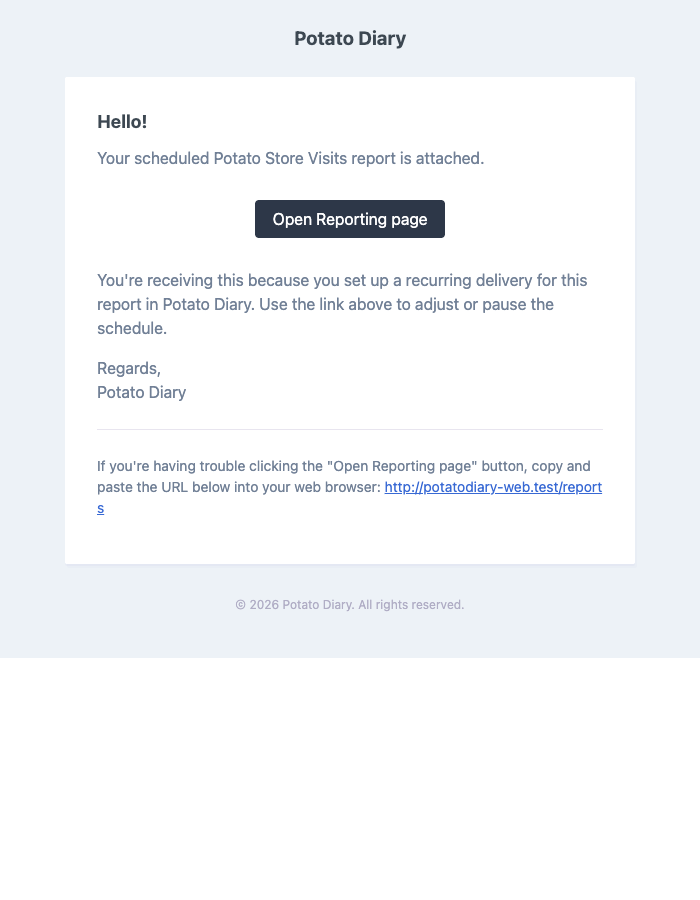
If you named the schedule, the subject uses that name, for example "Your Monday store visits report". If you didn't, it uses the report's internal name rather than the title on the Reporting page: Potato Store Visits, Potato Store History, Planting Visits (for Field Visits) and so on.
If there's nothing to report, for example no stores were visited in the recency window, no email is sent. The reason shows in red on the schedule's row on the Scheduled tab.
Why only email?
You asked for these reports by creating the schedule, so the email ignores your notification preferences and always sends.
Managing your schedules
Open the Scheduled tab to see every schedule you've set up. They're grouped under the same headings as the catalogue: Storage, Field Management and Quality Control.
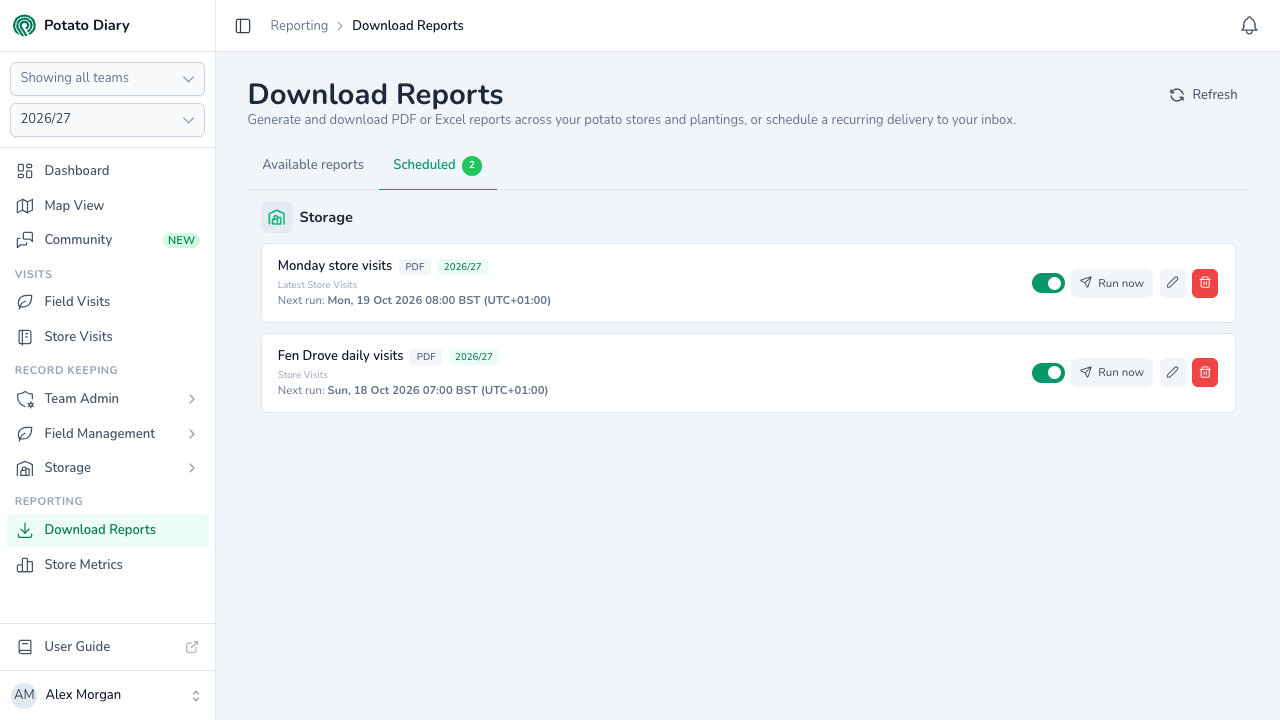
Each row shows:
- The schedule's name, or the report title if you didn't set one. When there's a name, the report title appears underneath it.
- The format, and the season the schedule is fixed to.
- Next run, with the date, time and time zone, for example Mon, 20 Oct 2026 08:00 BST (UTC+01:00).
- Last sent, the time of the most recent run. This updates even when that run failed.
- An error message in red if the last run failed or found nothing to send.
The controls on the right:
| Control | What it does |
|---|---|
| Switch | Pauses the schedule without deleting it. A paused schedule sends nothing until you switch it back on. |
| Run now | Queues the report straight away. The email usually arrives within a minute or two. |
| Pencil | Opens the schedule so you can change the name, filters or timing. Click Save changes when done. The season stays as it was. |
| Bin | Deletes the schedule. You'll be asked to confirm. |

What's next
- Store Visits — The PDF most often scheduled for a Monday morning.
- Managing notification preferences — How Potato Diary's other notifications work. Scheduled reports sit outside them.