
Appearance
Reporting
The Download Reports page is where you download PDF and Excel exports of what your team has recorded: store visits, stock in store, plantings and field visits. You can also schedule any report to arrive in your inbox on a regular cadence.
In the left sidebar, open Reporting and click Download Reports. If you're new to the sidebar, see Getting around.
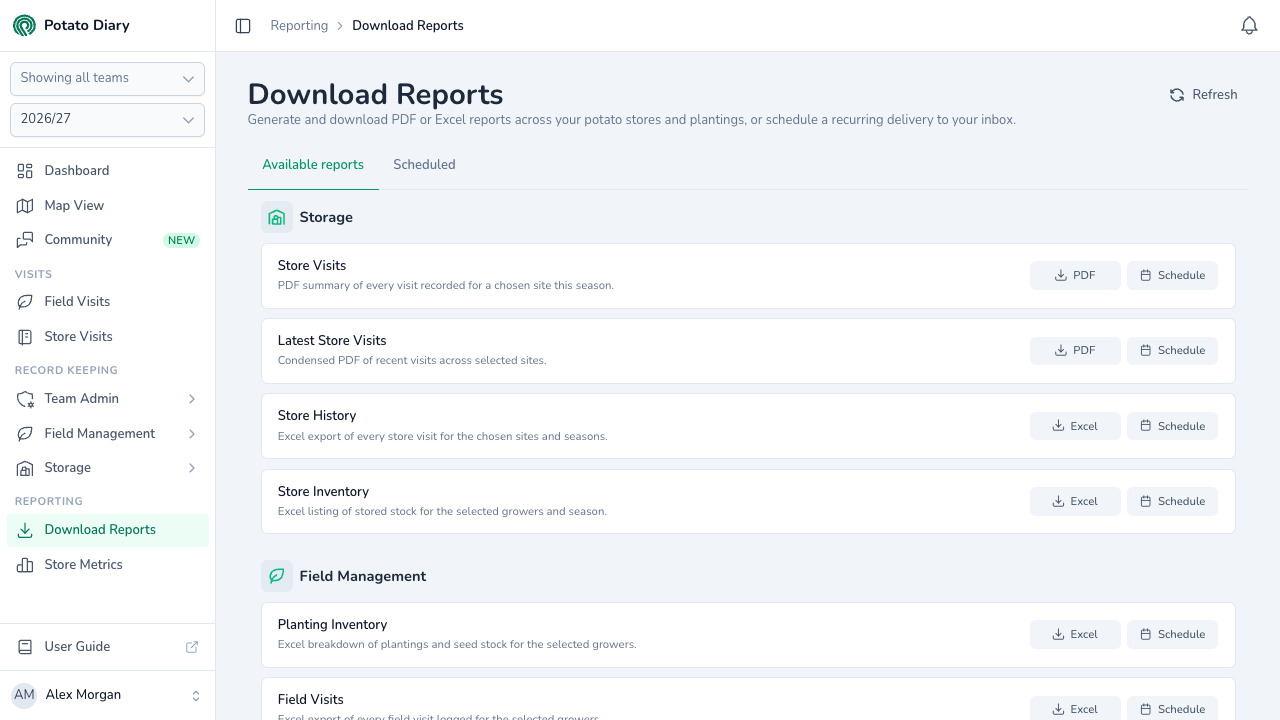
How the page is laid out
The page has two tabs:
- Available reports lists every report you can download. Reports are grouped under Storage, Field Management and Quality Control. A group only appears when that feature is switched on for your team.
- Scheduled lists the recurring deliveries you've set up. A badge shows how many there are.

How a report works
Each row in Available reports has:
- A title and a one-line description.
- A format button, PDF or Excel, which opens the download dialog.
- A Schedule button, which opens the same filters with a frequency picker. See Scheduling reports.

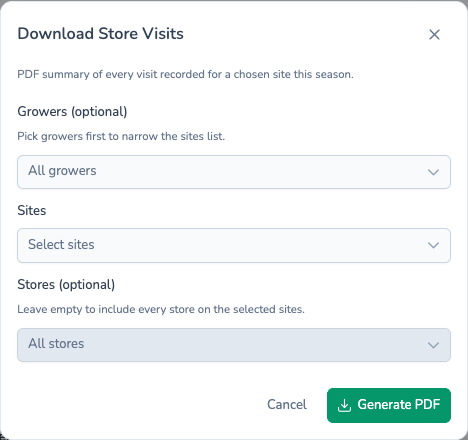
The download dialog shows only the filters that report supports. Fill them in and click Generate PDF or Generate Excel. The file downloads through your browser. If a filter is missing or wrong, the error appears under that field.
If nothing matches your filters, some reports show a No data message ("No records match the selected filters.") instead of downloading a file.
Season and teams
Reports use the season and teams chosen in the pickers at the top of the left sidebar. There is no season picker inside the report dialogs. To report on a different season, or on fewer teams, change the sidebar pickers first. When the team picker shows Showing all teams, reports cover every team you belong to.
Filter patterns you'll see across reports
Most storage reports share the same three filters:
- Growers (optional): leave it empty to include every grower. Picking growers narrows the Sites list.
- Sites: once you pick a site, Growers is disabled, because the sites you chose already decide which growers are included.
- Stores (optional): stays disabled until you pick at least one site. Leave it empty to include every store on the chosen sites.
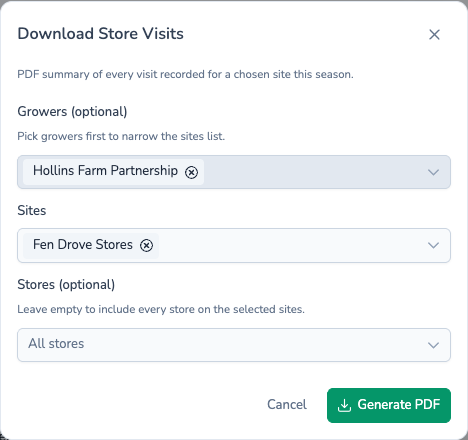
Each box shows up to four choices as chips, then switches to a count such as "5 sites selected".
Available reports
| Report | Group | Format | What you get |
|---|---|---|---|
| Store Visits | Storage | Stock, treatments and every visit for the chosen sites this season, one store per page. | |
| Latest Store Visits | Storage | The three most recent visits per store within a recency window. | |
| Store History | Storage | Excel | One sheet per store, with one row for every visit this season. |
| Store Inventory | Storage | Excel | Every stock in store this season, with tonnage in, out and balance. |
| Planting Inventory | Field Management | Excel | Plantings, seed stock and a per-variety summary. |
| Field Visits | Field Management | Excel | One row per field visit for the chosen growers. |
Some teams see extra reports for the sample types they use, under a Quality Control group. Store History (Detailed), an extended Store History with store set-up, % filled and tagged issues, is shown to super-admins only.
Exports from the Quality Control pages
Results for sample types built for your team aren't in this list. Export those from the sample type's own page, using its Export button. See Quality Control.
Comparing stores
The second item under Reporting in the sidebar, Store Metrics, isn't a download. It's a chart comparing one store's equipment run-times against another store or against all stores. See Exporting store history.
What's next
- Scheduling reports — Get any report emailed to you daily, weekly or monthly.
- Store Visits — The most-used PDF report.
- Store History — Every store visit as a spreadsheet.