
Appearance
Store History report
An Excel workbook of every store visit this season, with one sheet per store and one row per visit. Alongside each visit it shows what was in store at the time and the sprout-treatment position.
Use it when you want the raw figures for a spreadsheet, a pivot table or to send to an agronomist.
Filters
In the left sidebar, open Reporting › Download Reports, then click Excel on the Store History row.
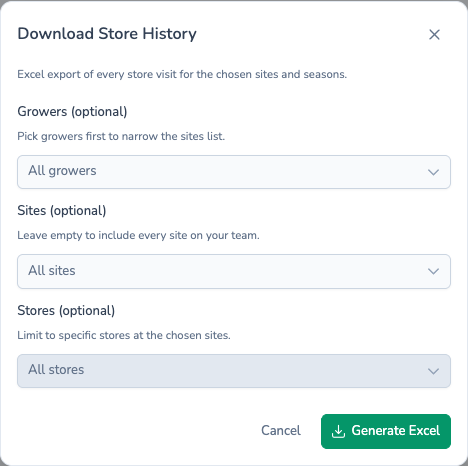
| Field | Required? | If left empty |
|---|---|---|
| Growers (optional) | No | Every grower |
| Sites (optional) | No | Every site |
| Stores (optional) | No | Every store on the chosen sites |
The report covers the season chosen in the sidebar, and only the teams chosen in the sidebar team picker. Although the report's description mentions "seasons", you can only run it for one season at a time from this page.
What's in the file
Each store has its own sheet, named after the store, with the store name as a heading at the top. Sheets are grouped by site, then ordered by store name.
Each row is one visit, oldest first. The columns you'll see are:
| Column | What it shows |
|---|---|
| Variety | The varieties in store on the visit date. |
| By | Who made the visit. |
| Visit date | When the visit happened. |
| Last gas | The end date of the most recent treatment on or before the visit date. |
| Safe movement | The earliest movement date for that treatment. |
| ai to date g | Grams of active ingredient applied so far with the same product. |
| Average | Average crop temperature. Only shown if the store's configuration records it. |
| Set point | The store's set point. Only shown if the store records it. |
| Store Comments | Shaded yellow, amber or red for the most serious store issue on the visit (low, medium or high). |
| Crop Comments | Shaded the same way for crop issues. |
| Actions | Action required or taken. |
The workbook also holds hidden columns for tonnage, minimum and maximum temperature, equipment run hours, air and duct differentials, recirculation times and electricity use. In Excel you can unhide them to see whatever was recorded.
Super-admins also see Store History (Detailed), which adds store set-up details, % filled and tagged issues.
Filename
- One site:
{Site name}-{date}.xlsx, using the site name exactly as it's written. - Anything else:
potato-store-visits-{date}.xlsx.
What's next
- Store Inventory — What's in store now, without the visit history.
- Store Visits — The same season as a printable PDF.
- Scheduling reports — Send a fresh file to your inbox every week.