
Appearance
Potato Store Configuration
A store's configuration decides which readings the visit form asks for when someone records a visit to that store: temperatures, differentials, recirculation, energy use, purging, equipment run times and speeds, and ethylene. Switching on only what you actually record keeps the visit form short and consistent across the team.
Each store has one configuration, called Default, which Potato Diary creates with the store. It starts with every reading switched off.
WARNING
Until you switch some readings on, the visit form for the store only asks for comments, how full the store is, and issues. Set up the configuration before anyone records a visit.
Step 1 — Open the store's menu
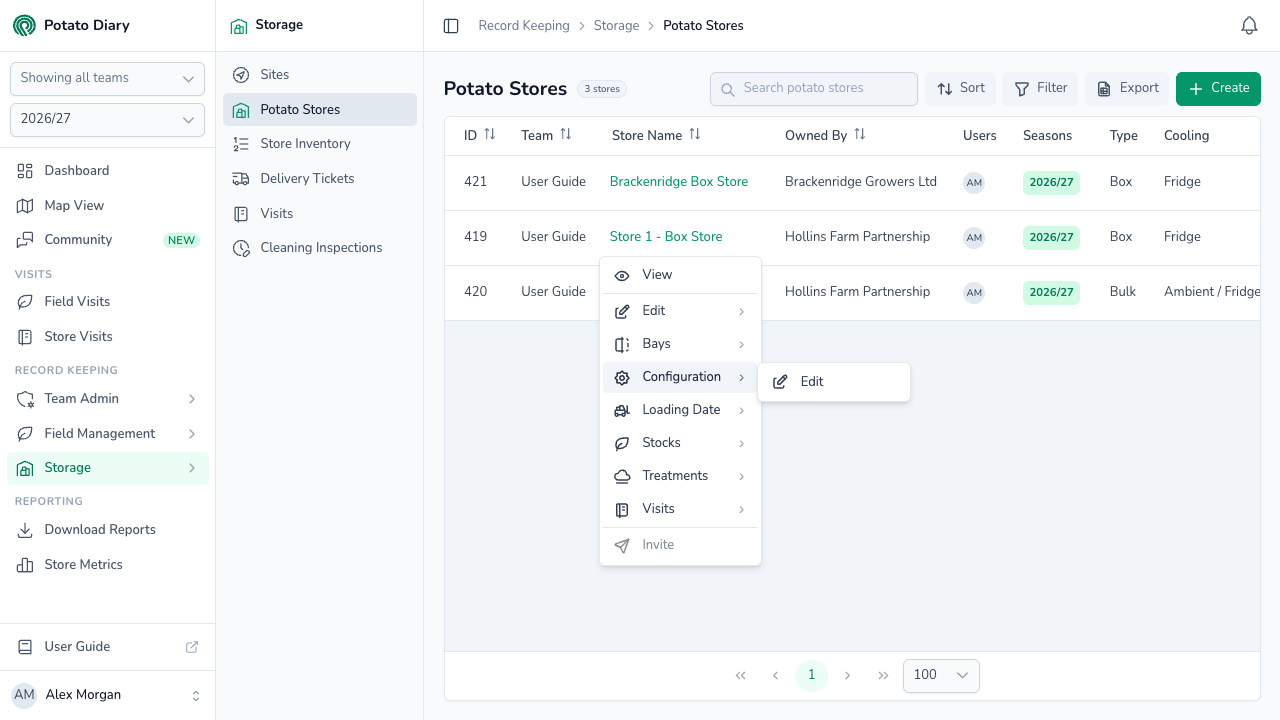
In the sidebar, under Record Keeping, click Storage. The section panel opens beside the sidebar; click Potato Stores, then click the store's name to open its menu.
Step 2 — Click Configuration › Edit
Hover over Configuration to show the submenu, then click Edit.
Step 3 — Switch on the readings you take
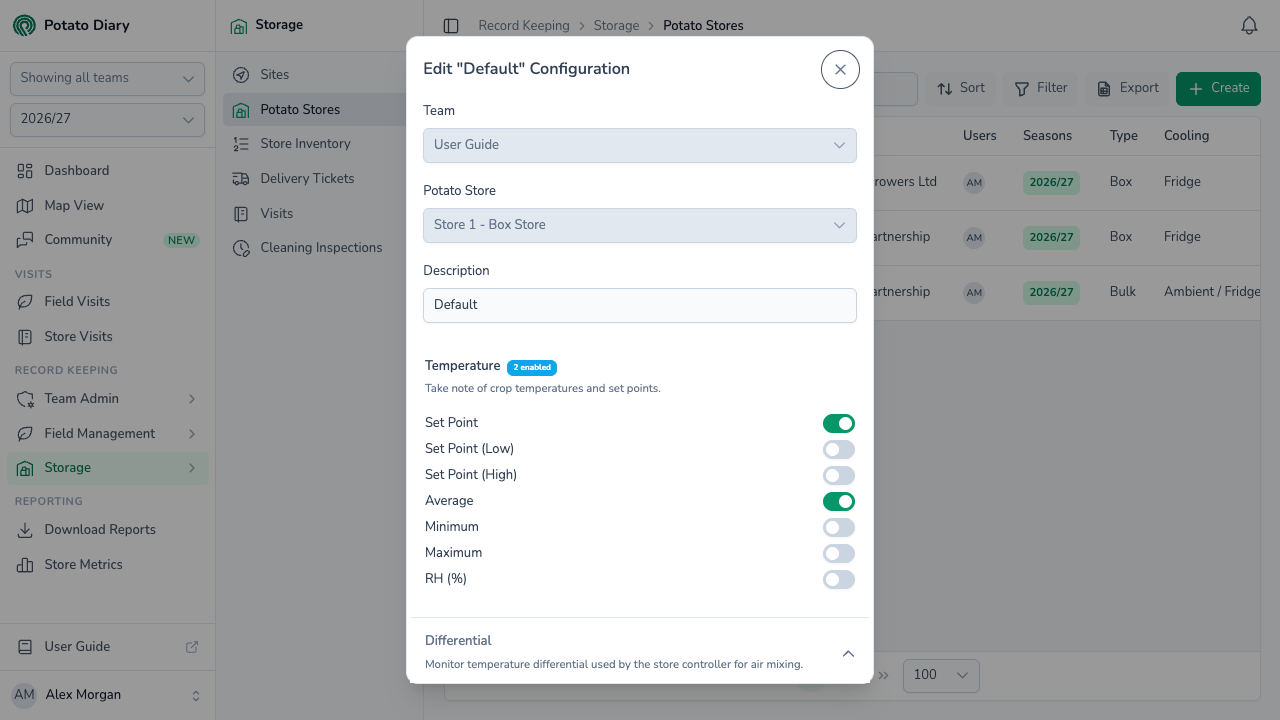
The Edit "Default" Configuration dialog opens. At the top, Team and Potato Store are filled in and locked. Description is the configuration's name.
Below that are eight sections. Sections that already have readings switched on start open; click any other section to open it. Use the switches to turn individual readings on or off. A blue badge next to the section name, such as 2 enabled, shows how many readings are switched on.
| Section | Readings you can switch on |
|---|---|
| Temperature | Set Point, Set Point (Low), Set Point (High), Average, Minimum, Maximum, RH (%) (relative humidity). |
| Differential | Air, Duct, Crop: the temperature differentials the store controller uses for air mixing. |
| Recirculation | Time On, Time Off for air recirculation within the store. |
| Energy (Kwh) | Total, Day-time, Night-time energy use. |
| Purging | Time On, Times Per Day, Set Point, Limit, Deadband for fresh-air purging, plus Last 7 Days Max (ppm) and Last 7 Days Max (%). |
| Run Time | Hours that the Fan, Fridge, Recirculation, Humidifier, Louvres and Roof Fans have been running. |
| Run Speed | The speeds the same equipment is running at. |
| Ethylene | Target (ppm), Current (ppm), Target (%), Current (%) and Ethanol Bottle (%), for stores using ethylene for sprout suppression. |
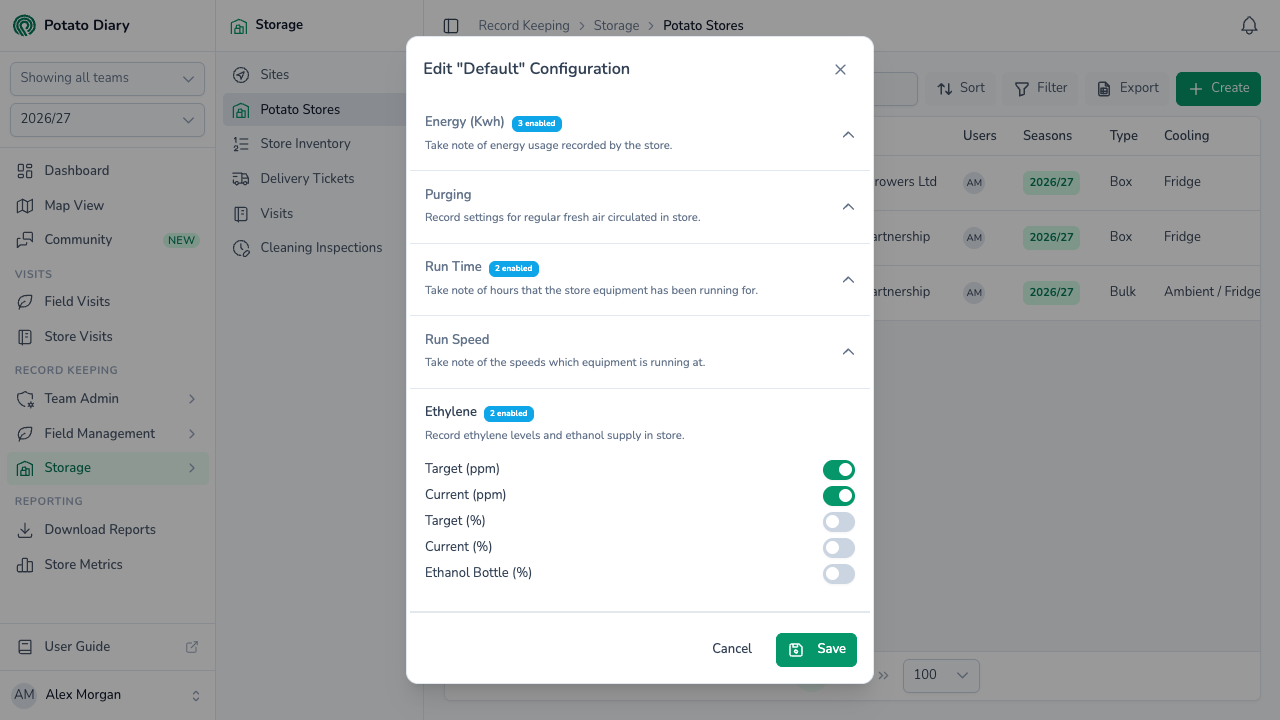
Step 4 — Click Save
The change takes effect straight away. The next time someone records a visit to this store, the visit form shows only the readings you've switched on.
Some readings feed other parts of the store view. Run Time readings drive the runtimes charts, and Energy readings drive the energy charts, on the Details tab. Ethylene readings are also used by the storage risk analysis when it looks at sprout suppression.
TIP
If a store changes how it runs partway through a season, for example you start purging when you weren't before, re-open the configuration and switch the new readings on. Existing visits keep the values they already have.
What's next
- Loading Date — set the date the store started loading, which the runtime and energy charts count from.
- Potato Store Visits — once the configuration is set, you're ready to record visits.