
Appearance
Potato Store Visits
The Potato Store Visits page is a table of every store visit recorded across your team's potato stores, and the place to add a visit from your desk.
The same visits also appear as cards under Visits › Store Visits in the sidebar, where people can comment on and like them. See Field Visits and Store Visits. This guide covers the table under Storage.
TIP
Most visits are entered from the Potato Diary mobile app, where whoever walks the store can record readings, comments and photos as they go. The desktop page is handy for tidying up afterwards, catching up on paper visit sheets, or when a phone isn't to hand.
Opening the page
In the sidebar, under Record Keeping, click Storage. The section panel opens beside the sidebar; click Visits. The page opens with the title Potato Store Visits.
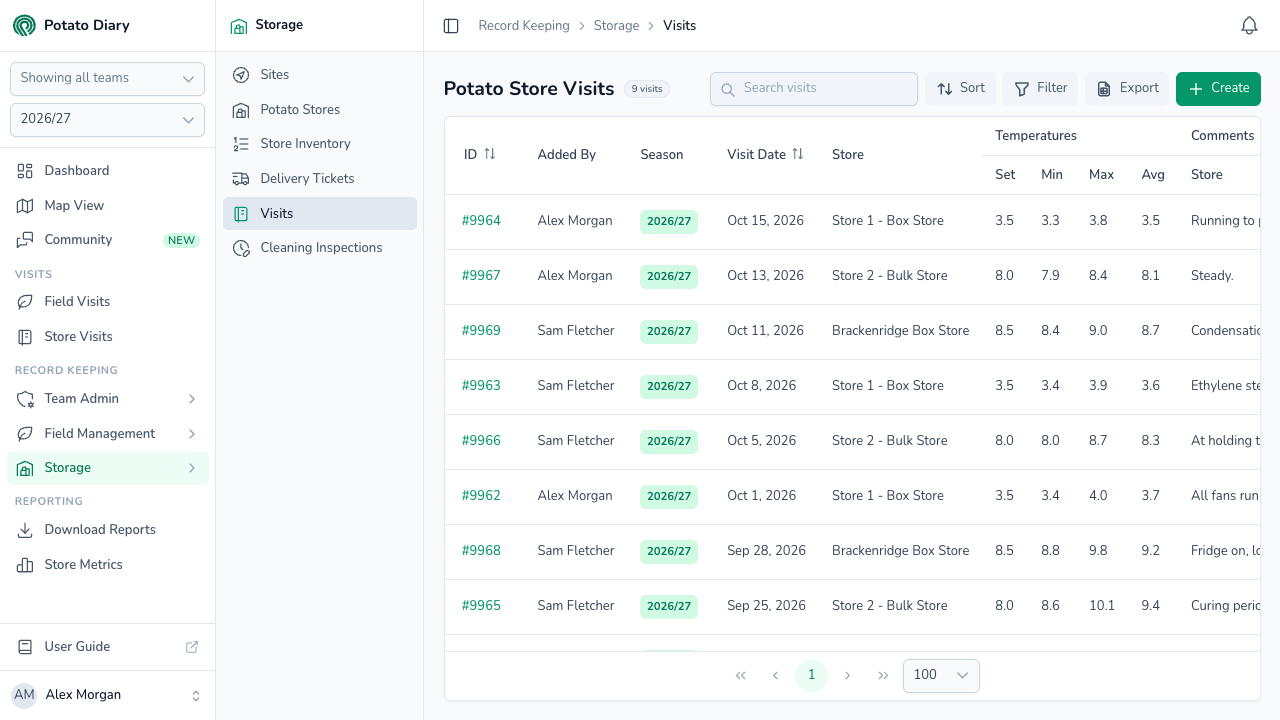
Along the top of the list are a search box, Sort (by ID, Visit Date or Team), Filter (by Store, Grower, Site or Issue), Export and Create. Export downloads the rows on the current page as a CSV file.
Each row is one visit. The columns are always the same, whatever each store's configuration: ID, Added By, Season, Visit Date and Store, then the Temperatures recorded (Set, Min, Max, Avg), then the Comments (Store, Crop, Actions). Readings that weren't taken show as blank.
To change or remove a visit, click its ID, hover over Edit, and choose Edit or Delete. View and Copy are in the menu but don't do anything yet.
Adding a visit
Click + Create at the top right to open the Create A Visit dialog. The same dialog opens from Add Visit on a store's Visits tab, or Visits › Create on a store's menu, with the store already picked.
The dialog starts with just the basics on the left.
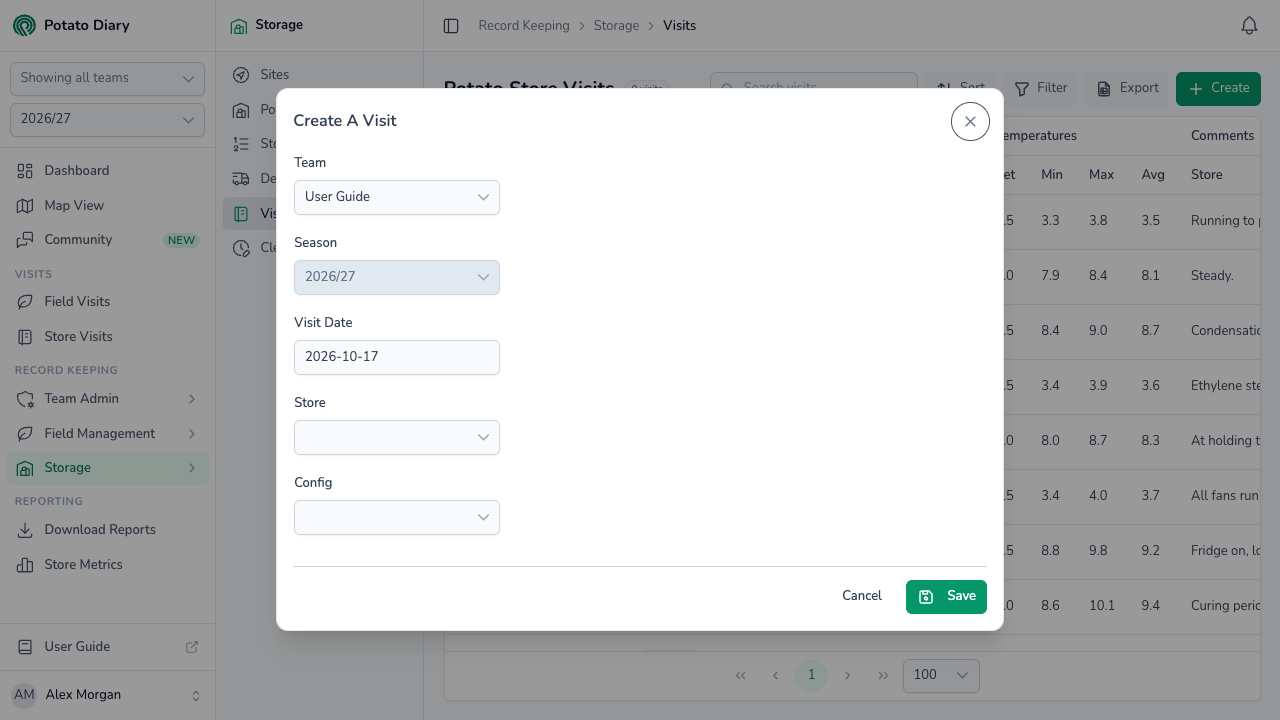
| Field | What to enter |
|---|---|
| Team / Season | Filled in for you. |
| Visit Date | When the visit took place. Defaults to today. |
| Store | The potato store you visited. |
| Config | The store's configuration. Picked for you once you choose the store. |
Once a store is picked, a Previous visit found message shows the date of the store's last visit before this one, if there is one.
The readings
Once the store and its configuration are picked, the right-hand side of the dialog fills with the readings that store's configuration has switched on. Each box shows the reading from the previous visit in grey, so you can see what's changed.
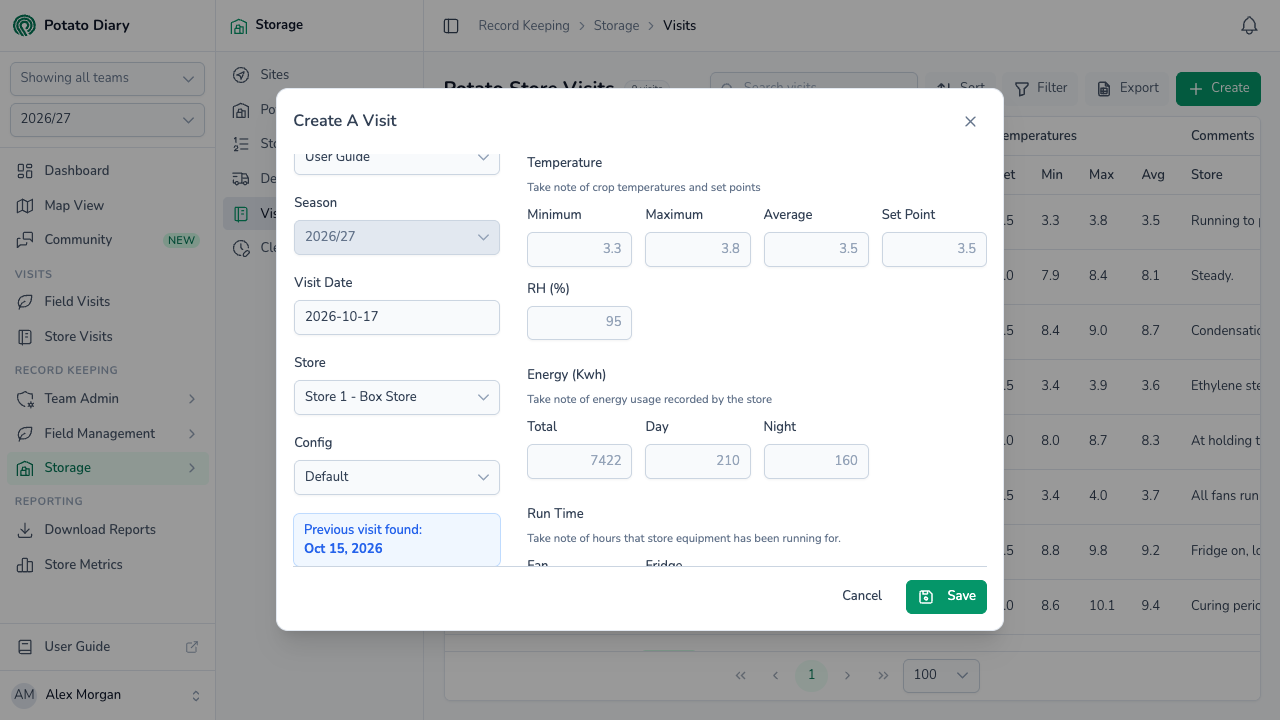
| Section | Readings it can include |
|---|---|
| Temperature | Minimum, Maximum, Average, Set Point, Set Point (Low), Set Point (High), RH (%). |
| Differential | Air, Duct, Crop. |
| Recirculation | Time On, Time Off. |
| Energy (Kwh) | Total, Day, Night. |
| Purging | Time On, Times Per Day, Set Point, Limit, Deadband, Last 7 Days Max (ppm), Last 7 Days Max (%). |
| Run Time | Fan, Fridge, Recirculation, Humidifier, Louvres, Roof Fans. |
| Run Speed (%) | Fan, Fridge, Recirculation, Humidifier, Louvres, Roof Fans. |
| Ethylene | Target (ppm), Current (ppm), Target (%), Current (%), Ethanol Bottle (%). |
Only the sections and readings switched on in the configuration appear. Leave a box empty if you didn't take that reading.
Comments, store fill and issues
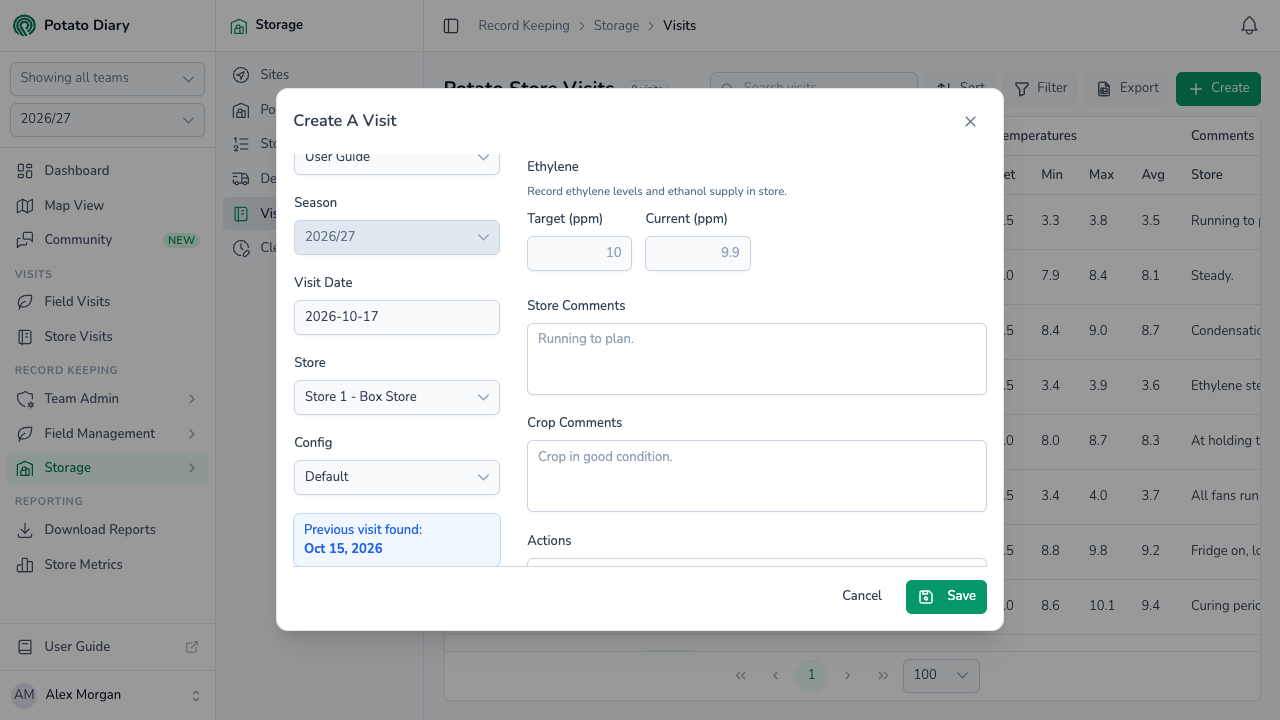
Scroll to the bottom of the right-hand side for the rest of the form.
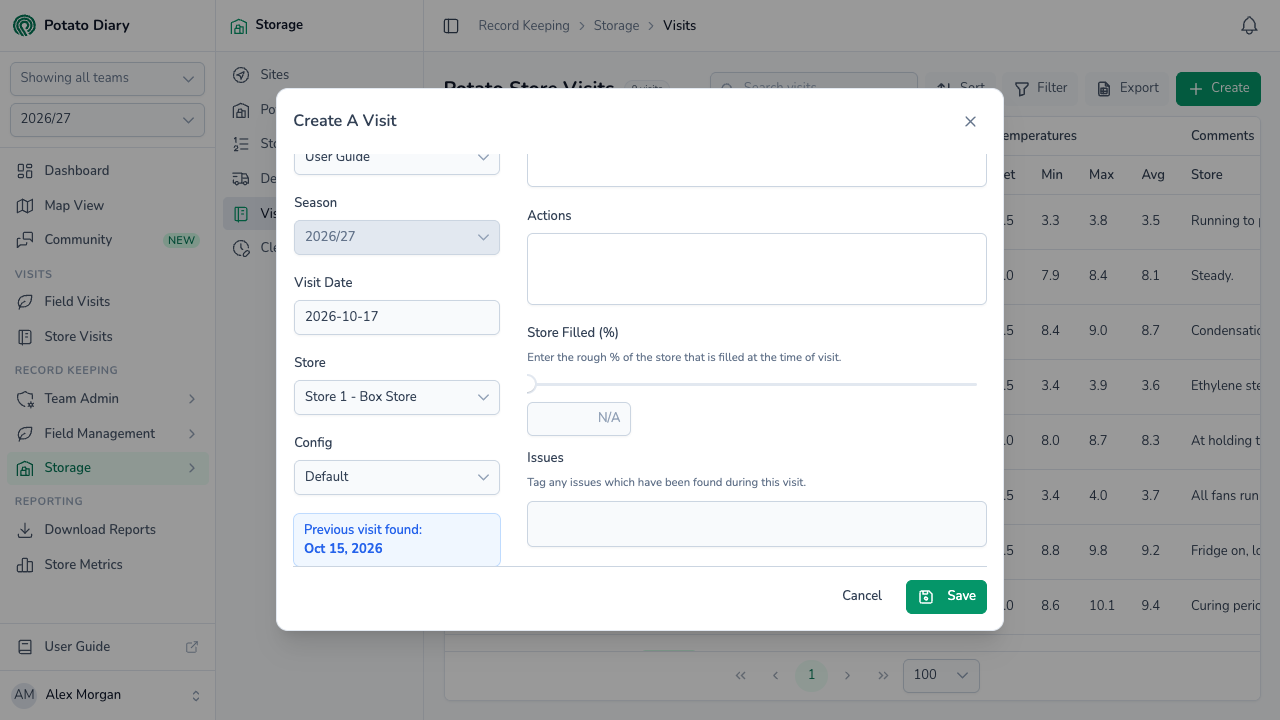
| Field | What to enter |
|---|---|
| Store Comments | Notes about the store itself: what was running, anything unusual. |
| Crop Comments | Notes about the crop: sprouting, condensation, smell, signs of trouble. |
| Actions | What was done, or needs doing, as a result of the visit. |
| Store Filled (%) | Roughly how full the store is. Drag the slider, or type a number. Leave the box showing N/A if it doesn't apply. |
| Issues | Tag any crop or store issues you spotted. |
In any of the three comment boxes, type @ to mention someone who has access to the store. They get a notification that they've been mentioned.
Click Save
The visit is saved against the store. It appears in this list, on the store's Visits tab and under Visits › Store Visits, and feeds the temperature chart on the store's Details tab. Run Time and Energy readings reach the runtimes and energy charts the next morning.
If you can see storage risk, the store is analysed again after the visit, and its visit card shows the store's risk band after that visit.
What's next
- Cleaning Inspections — the pre-load cleaning checklist is recorded separately.
- The Visits tab — see one store's visits as cards.
- Field Visits and Store Visits — every store's visits as cards, with filters and a summary of the top issues.
- Potato Store Configuration — change which readings the visit form asks for.