
Appearance
The Community forum
The Community forum is a place to share what you're seeing this season with growers, storekeepers and agronomists across Potato Diary, not just your own team. You can ask a question, start a discussion, reply to other people's threads and follow the ones you care about. This guide covers how to find your way around the forum, write posts, and choose how you appear and what you hear about.
Who can see the forum
Potato Diary switches the forum on for everyone at once. When it's on, Community appears near the top of the sidebar with a New badge, under Map View. Your team doesn't need a particular module, and there are no forum permissions to set up: every signed-in user can read, post and reply.
WARNING
The forum is shared by every team on Potato Diary. Anything you post can be read by people at other businesses, so leave out anything you wouldn't want them to see. Your team's name is hidden unless you choose to show it (see Your forum profile).
If you can't see Community in the sidebar, the forum isn't switched on yet.
The thread list
Click Community in the sidebar to open the list of threads.
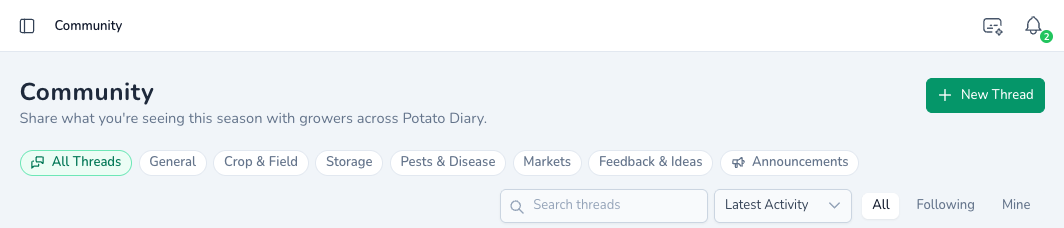
Each row in the list shows the thread's categories and issue tags, its title, the first line of the post, who started it and when, and when the last reply was. The numbers on the right are its replies and likes. If the thread has images, a thumbnail shows the first one.
Pinned threads always sit at the top of the list, whatever order you choose. A Locked thread can still be read, but it takes no new replies.
Narrowing the list
- Categories. Click a category pill to show only threads in that category. You can pick more than one. Click All Threads to clear them. The categories are General, Crop & Field, Storage, Pests & Disease, Markets, Feedback & Ideas and Announcements.
- Search threads. Type a word or two. The search looks through thread titles and the opening posts.
- Sort. Choose Latest Activity (the default: threads with the newest replies first), Newest (the newest threads first) or Most Liked.
- All, Following or Mine. Show every thread, only the threads you follow, or only the threads you started.
The page remembers your filters in its web address, so you can bookmark a filtered list or share the link.
The panel on the right
Beside the list are three cards:
- Following: up to five of the threads you follow, with their reply counts and latest activity. Click one to open it.
- Issue Tags: the issue tags that threads have been tagged with, grouped by issue type. Click a tag to show only threads with that tag. The tags you've picked show above the list. Click a tag there to remove it, or Clear all.
- Your Forum Profile: click Edit Forum Profile to set how you appear on posts.
Reading a thread
Click a thread's title to open it. The opening post comes first, with its images, followed by the replies, oldest first. Long threads show 30 replies at a time. To see the rest, click the button at the bottom of the replies, for example Load 12 more replies.
On the right of the thread are:
- About the Author: the person who started the thread, with any details from their forum profile.
- In This Thread: the people who have replied.
- Related Threads: up to three other threads with the same issue tags.
Click the thumbs-up under a post to like it. Liking a forum post doesn't send its author a notification.
Every author's name is followed by whichever details they've added to their forum profile, such as their job title and region. Potato Diary's own staff have a green Staff badge next to their name.
Starting a thread
Step 1 — Click New Thread
At the top right of the Community page, click New Thread.
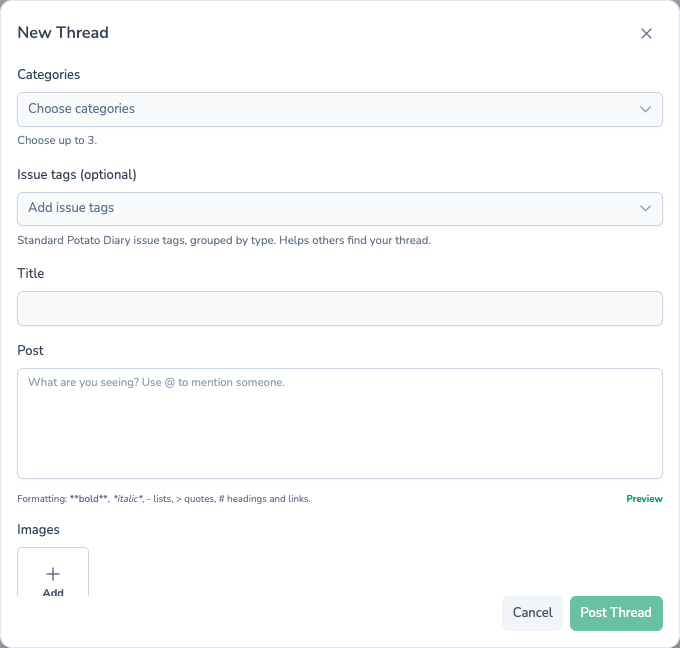
Step 2 — Fill in the thread
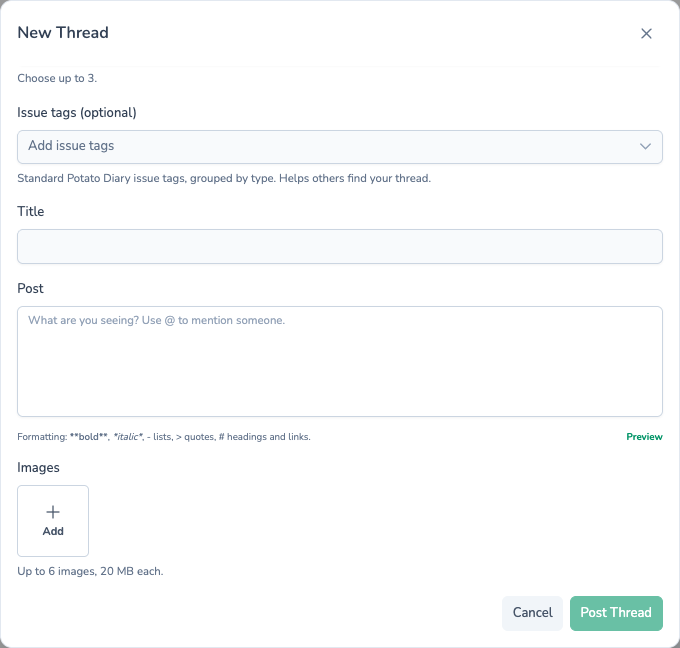
| Field | What to enter |
|---|---|
| Categories | Required. Pick between one and three categories that fit your thread. |
| Issue tags (optional) | Up to five of Potato Diary's standard issue tags, such as a pest or disease, grouped by issue type. Type in the box to search. Tags help other people find your thread, and they drive the Related Threads card. |
| Title | Required. Up to 150 characters. |
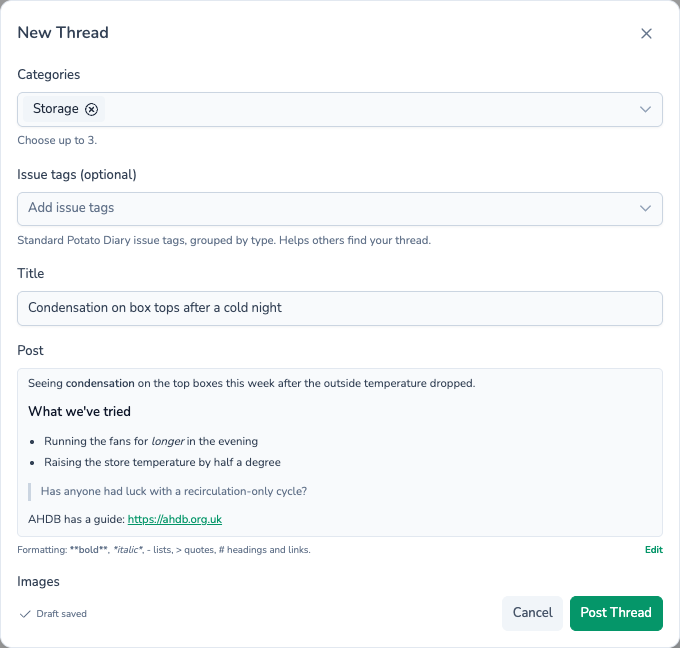
| Post | Required. What you want to say, up to 10,000 characters. You can format it (see Formatting your post) and mention people (see Mentioning someone). |
| Images | Optional. Click Add to attach up to six photos. See Adding images. |
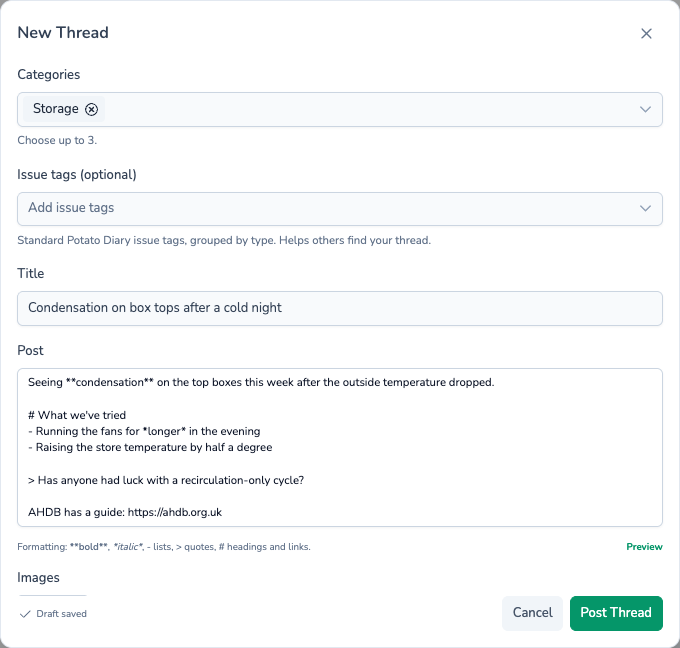
Step 3 — Click Post Thread
Post Thread stays greyed out until you've picked a category and filled in the title and post. Once you click it, a Thread posted. message appears and the new thread opens.
You automatically follow any thread you start, so you'll hear about replies to it.
Your draft is saved as you type
While you write, Potato Diary saves your title, post, categories and issue tags in your browser, and Draft saved shows at the bottom of the dialog. If you close the dialog or the page, your draft is waiting the next time you click New Thread, with a Draft restored from… message. Click Discard draft in that message to start again.
WARNING
Drafts are kept in the browser you wrote them in, so they don't follow you to another computer or the mobile app. Images aren't saved in drafts. You'll need to add them again.
Replying to a thread
Scroll to the bottom of a thread, or click Reply under the opening post to jump there.
- Type your reply in the Your reply box, up to 5,000 characters.
- Optionally, click Add Images to attach up to four photos.
- Click Post Reply.
Under the reply box, Potato Diary tells you how many people following the thread will be notified. Your reply is saved as a draft while you type, just like a new thread, with a Discard draft link above the box.
You follow a thread automatically once you reply to it.
Quoting a reply
To respond to a particular reply, click Quote under it. A Quoting… strip with the start of that reply appears above your reply box. Click the cross on the strip to remove the quote. Once posted, the quote shows at the top of your reply, and clicking it jumps to the original.
Locked threads
When a thread is locked, a This thread is locked. banner replaces the reply box and no one can reply. Its authors can't edit or delete their posts in it either.
Formatting your post
The line under the post box lists the formatting you can use. Type it as shown:
| Type this | To get |
|---|---|
**bold** | bold text |
*italic* | italic text |
- at the start of a line | a bulleted list (1. gives a numbered list) |
> at the start of a line | a quote, shown with a grey bar down the left |
# at the start of a line | a heading. All headings show at the same small size, however many # you use. |
a web address, or [words](https://…) | a link. Links open in a new tab. Only http, https and mailto links work. |
A single line break stays a line break, so you don't need to leave a blank line between lines. Anything else, such as tables, code or HTML, shows exactly as you typed it.
To check how your post will look, click Preview at the right of that line. Click Edit to go back to writing.
Adding images
You can add up to six images to a thread and up to four to a reply. Each image can be up to 20 MB, in JPG, PNG, GIF, WebP or HEIC format. Thumbnails of the images you've picked show beside the Add button: click the cross on a thumbnail to remove it. If you pick more images than there's room for, the extras are left out and a message tells you how many.
On a thread, the images show above the post. Click one to see it full size.
Mentioning someone
Type @ in a post or reply, then the start of someone's name, and pick them from the list. Their name is highlighted in green once you post, and they get a mention notification.
WARNING
You can only mention people who are already on the page: when you're starting a thread, the people who started or last replied to the threads in the list you're looking at; when you're replying, the people who have posted or been mentioned in that thread. There's no search of every forum user yet. Typing @ and a name that isn't suggested doesn't notify anyone.
You can mention up to 20 people in one post.
Following a thread
The Follow button at the top of a thread, beside the author, controls whether you hear about new replies. It reads Following, with a bell and tick, when you follow the thread. Click it to switch.
You follow a thread automatically when you start it or reply to it. If you unfollow a thread, replying to it again doesn't follow it again. Click Follow if you change your mind.
Use Following at the top of the Community page to list every thread you follow.
Announcements
The Announcements category is for news from Potato Diary. Only Potato Diary staff can post in it, so you won't see it in the Categories list when you start a thread. When a new announcement is posted, everyone on Potato Diary who has Forum announcements switched on gets a notification about it.
Potato Diary staff also pin important threads to the top of the list, lock threads that are closed to new replies, and can remove posts.
Editing or deleting your own posts
To change your own thread, click the ⋯ button at the top of the opening post and choose Edit or Delete. For one of your replies, click the ⋯ at the top right of the reply.
- Edit reopens the post in a dialog. Change what you need to, including removing or adding images, and click Save Changes. An edited post shows · edited next to its date. Hover over it to see when.
- Delete asks you to confirm. A deleted thread disappears from the forum, with all its replies. A deleted reply leaves a This reply was removed line in its place, so the conversation still makes sense.
You can't edit or delete posts once a thread has been locked, and you can't edit other people's posts.
Your forum profile
Your forum profile sets the details shown next to your name on everything you post. Nothing is shown until you fill it in.
Step 1 — Open the Forum tab
At the bottom of the sidebar, click your name, then choose Settings. In the Account Settings dialog, click the Forum tab. You can also click Edit Forum Profile on the Community page.
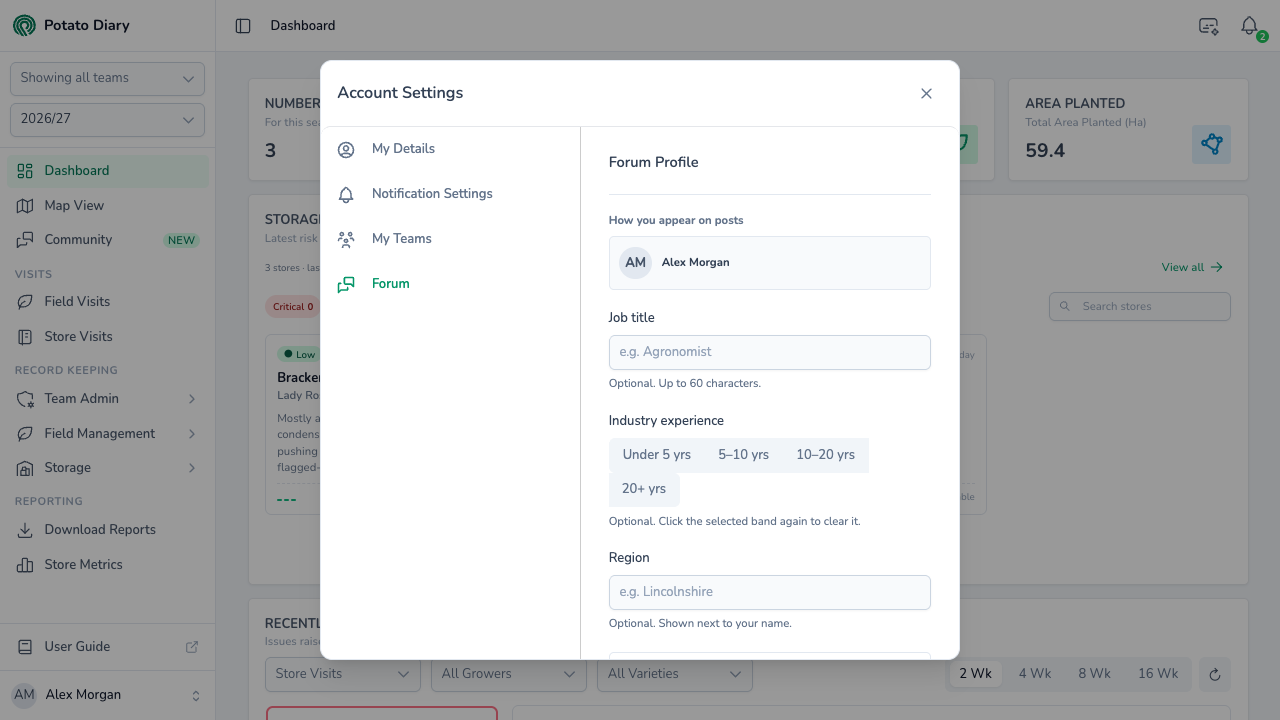
Step 2 — Fill in the details you want to share
Every field is optional. How you appear on posts, at the top, previews your author line as you type.
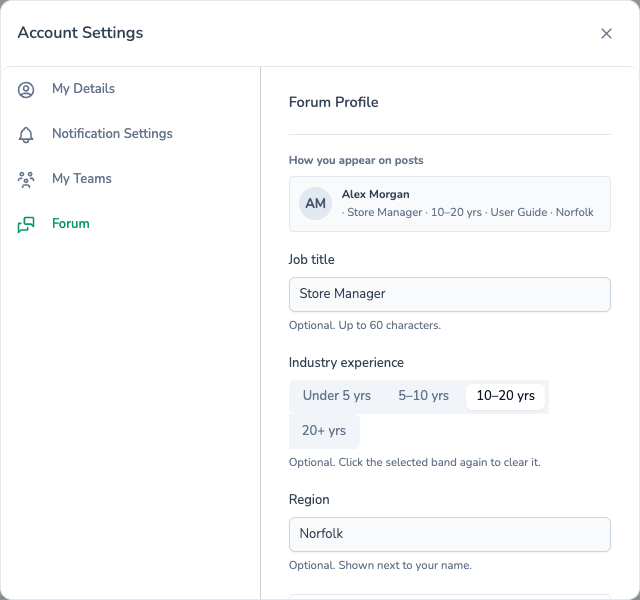
| Field | What it does |
|---|---|
| Job title | For example Agronomist or Store Manager. Up to 60 characters. |
| Industry experience | Pick Under 5 yrs, 5–10 yrs, 10–20 yrs or 20+ yrs. Click the selected band again to clear it. |
| Region | For example Lincolnshire. Up to 60 characters. |
| Show team name on posts | Off by default. Turn it on to show your team's name beside your name. |
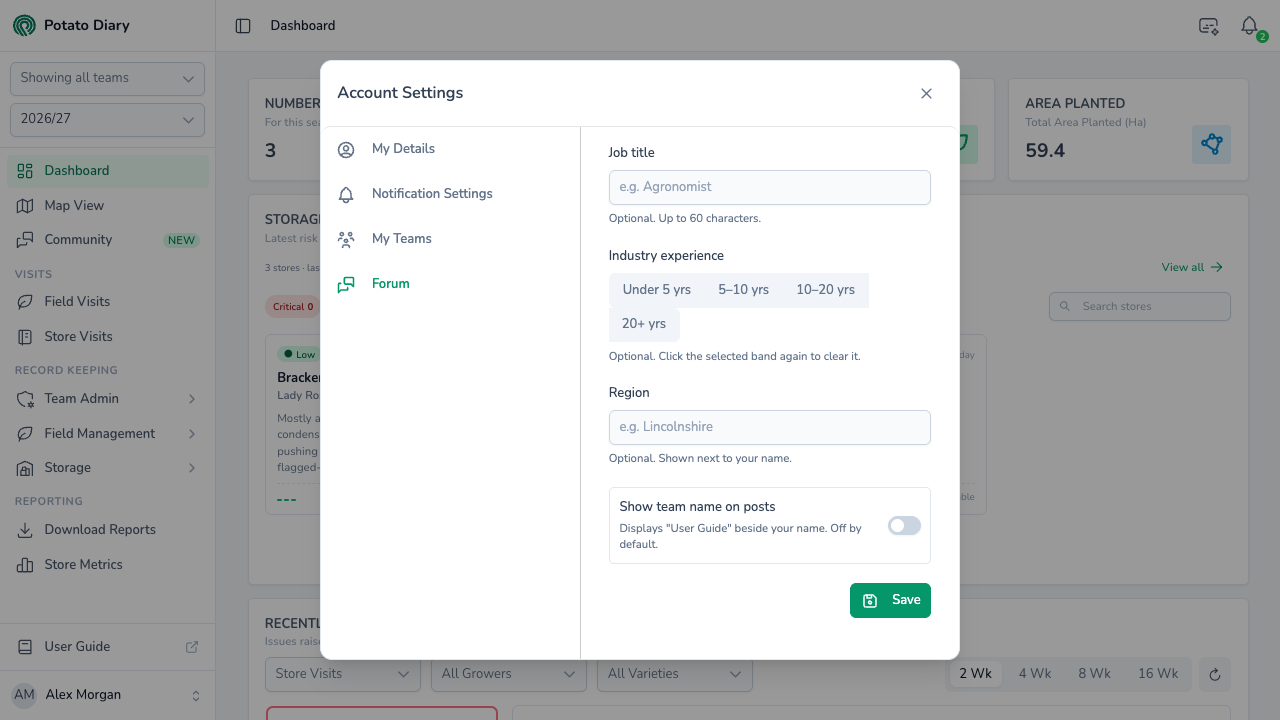
Step 3 — Click Save
A Forum profile saved. message appears. Your new details show on all your posts, old and new.
The team name on a post is the team you were in when you posted it. If you move to another team, your earlier posts keep the old team's name.
Forum notifications
There are three ways the forum can let you know something has happened:
| Notification | When it's sent | Setting that controls it |
|---|---|---|
| A reply | Someone replies to a thread you follow. | Forum replies |
| An announcement | Potato Diary posts a new announcement. | Forum announcements |
| A mention | Someone @-mentions you in a thread or reply. | Mentions |
If someone mentions you in a reply to a thread you follow, you get the mention notification only, not both.
Click a forum notification under the bell to open the thread. For a reply or a mention in a reply, the page scrolls to that reply. To choose whether each one reaches you by email, in the app or as a push notification on your phone, see Managing notification preferences.
INFO
Potato Diary switches on forum push notifications separately from the rest of the forum. If forum notifications don't reach your phone yet, you'll still get them by email and under the bell, if you have those switched on.
What's next
- Ask AI — Ask an AI assistant general questions about potato storage.
- Managing notification preferences — Choose how forum replies, announcements and mentions reach you.
- Updating your profile — Change the name everyone sees on your posts.