
Appearance
Map View
Map View shows your fields on a satellite map, with a list of them down the side. Click a field to see a card with its grower, latest photos, issues, crop details and key dates, and how its timings and yield compare with other crops of the same variety.
Map View is in the sidebar when your team uses Field Management.
Opening Map View
In the sidebar, click Map View, just under Dashboard.
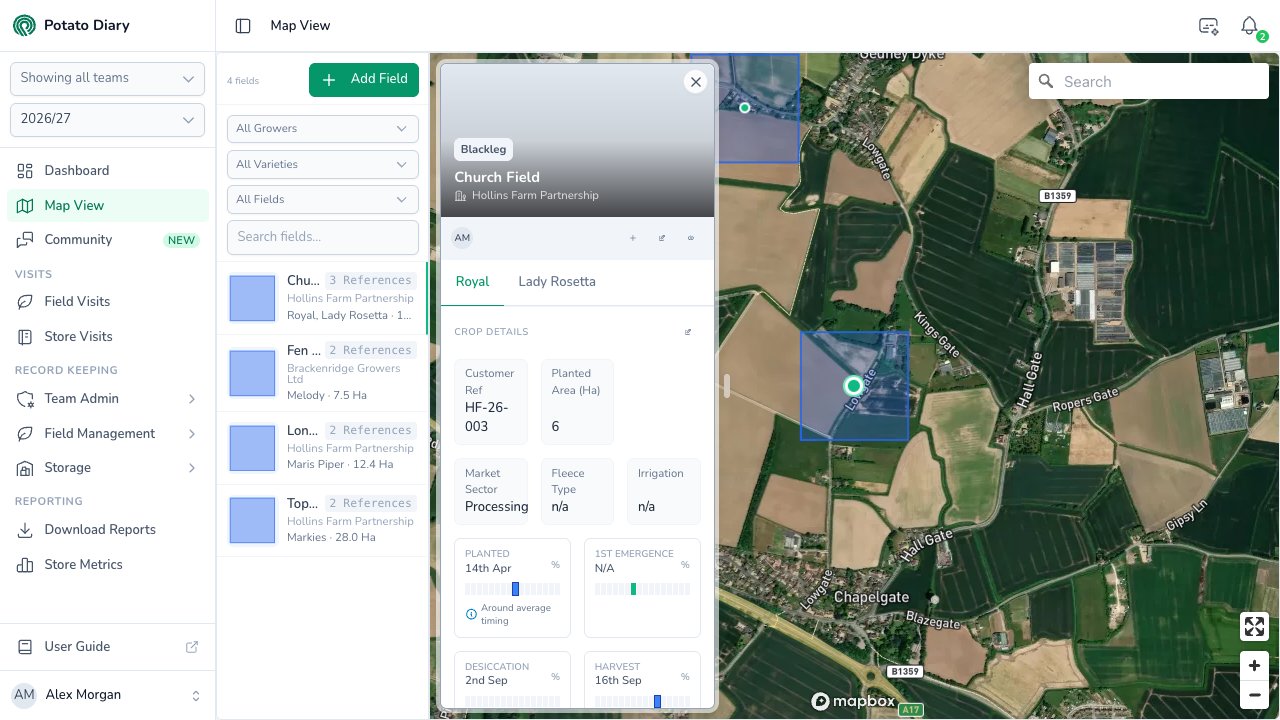
The page has three parts:
- the field list on the left, with filters at the top
- the map, filling the rest of the page
- a field card floating over the left of the map, showing the selected field
When the page opens, the first field in the list is selected and the map zooms to it.
What the team and season pickers change
Map View shows fields from the teams and season picked at the top of the sidebar. See Getting around the app.
- Season picker. The list and map reload with that season's fields, and the first field is selected.
- Team picker. The page reloads with fields from the teams you've ticked, or from all your teams when none are ticked.
You only see fields you have access to.
The field list
The top of the list shows how many fields are listed, for example 4 fields. If you can create fields, Add Field opens the Create A Field dialog. The new field appears in the list when you save.
Each field in the list shows:
- a small picture of the field, or its boundary outline if there's no picture
- the field's name
- its reference. If the field and its plantings have more than one, it says how many, for example 3 References. Hover over it to see them all.
- the grower
- the varieties planted, with the total planted area in hectares
Click a field to select it.
WARNING
Map View only lists fields that have a location. A field saved without one doesn't appear in the list or as a marker, and isn't included in the count. To add a location, edit the field and set the pin on its map. See Setting the location.
Filtering and searching
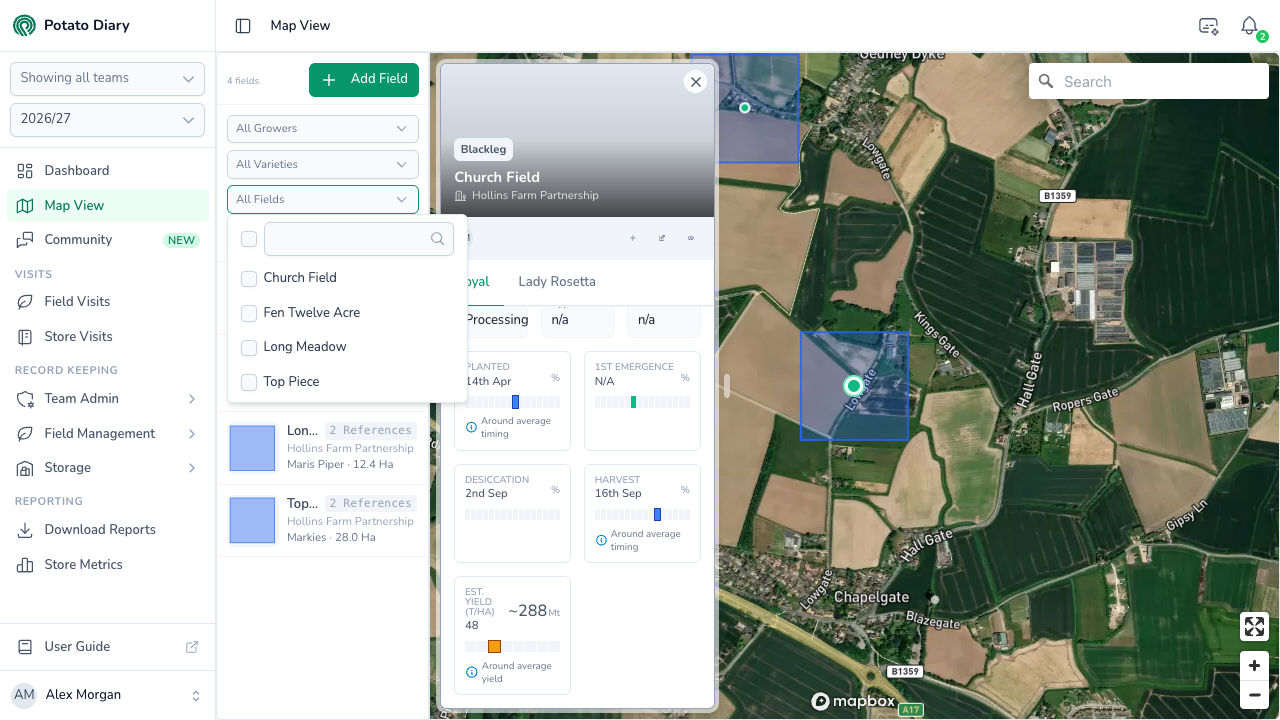
Above the list are four ways to narrow it:
| Filter | What it does |
|---|---|
| All Growers | Show only fields belonging to the growers you tick. |
| All Varieties | Show only fields with a planting of the varieties you tick. |
| All Fields | Pick one or more fields by name. Type in the box at the top of the list to find a field quickly. |
| Search fields… | Type part of a field's name, its reference, the grower, the team, the nearest place or its What 3 Words address. The list updates a moment after you stop typing. |
Each drop-down has a cross to clear it. The filters change both the list and the markers on the map.
The map
The map is a satellite view with road and place names. Each field is a green dot. The selected field's dot is larger, with a ring round it. Fields with a boundary also have their boundary shaded in blue.
- Click a dot to select that field. Clicking inside a boundary doesn't select it; click the dot.
- Hover over a dot to see the field's name.
- Use + and − in the bottom-right to zoom, or scroll. Drag to move around.
- The button above them switches the map to full screen.
- Use Search in the top-right to jump to a place, postcode or address. It searches the UK and Austria. This moves the map only; it doesn't filter your fields.
Map View shows fields only. Potato stores aren't shown on it.
INFO
Field boundaries stay on the map when you use All Fields to pick particular fields, even though the other fields' dots disappear. The All Growers, All Varieties and Search fields… filters hide boundaries as well.
The field card
When you select a field, its card opens over the left of the map, and the address in your browser changes to include the field. You can bookmark that address or send it to a colleague to open Map View on the same field. They'll only see it if they have access to it.
Drag the card's right-hand edge to make it wider or narrower. Click the × in its top-right corner to close it, and click any field to open it again.
The top of the card
The top of the card shows the latest photo from the selected planting's field visits. If there's more than one, thumbnails underneath let you switch between them. Over the photo are:
- the issues tagged on the planting's visits, each shown once and coloured by the highest severity it was tagged at: red for High, amber for Moderate and grey for Low
- the field's name and grower
Below the photo is a bar with the initials of the people who have access to the field, and three buttons:
- Add Planting (the plus): opens the Create A Planting dialog with this field already picked. Only shown if you can create plantings.
- Edit Field (the pencil): opens the field's dialog. See Creating a field.
- View Full Details (the eye): opens the field's page at the Field Details tab.
If you can't edit the field, Edit Field is still shown, but clicking it shows You do not have permission to do that.
Plantings and crop details
Each of the field's plantings has a tab under the bar, named after its variety. The first is selected. Click another tab to see that planting; the photo and issues at the top change to match.
A field with no plantings shows No Plantings, with an Add Planting button if you can create plantings.
Under Crop Details are the planting's Customer Ref, Planted Area (Ha), Market Sector, Fleece Type and Irrigation. n/a means it isn't set. The pencil beside Crop Details opens Edit Planting. As with Edit Field, it's shown to everyone, and you'll see You do not have permission to do that. if you can't edit the planting.
Key dates and yield
Below the crop details are small charts comparing this planting with other plantings of the same variety in the season. If you've ticked teams in the team picker, it's compared with those teams' plantings. If none are ticked, it's compared with every planting of that variety across Potato Diary, not just your own team's. Only percentages are shown, never other growers' fields.
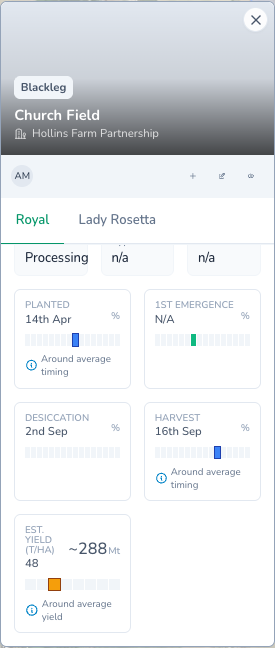
There's a chart for each of Planted, 1st Emergence, Desiccation and Harvest. Each one shows:
- this planting's date, or the first and last dates if there are several, under the title. N/A means none is recorded. 1st Emergence only uses emergence dates recorded at 25% or less.
- a strip of 16 weeks around the usual time for that stage. The darker a week, the more of the variety reached that stage that week: by area for Planted, Desiccation and Harvest, and by number of plantings for 1st Emergence. Weeks with an outline are when this planting's dates fall. Hover over a week to see its dates and the percentage.
- a summary such as Earlier than 60% of crops, Later than 40% of crops or Around average timing, when this planting has a date of that kind.
A chart only appears once at least one planting of the variety has a date of that kind. The dates come from each planting's Key Dates tab.
Est. Yield (t/Ha) appears when the planting has an estimated yield. It shows the yield per hectare, the estimated tonnage (for example ~288 Mt), and a strip of yield bands from Under 40 to Over 70 tonnes per hectare. The darker a band, the more plantings of the variety expect a yield in it. The outlined band is this planting's. The summary reads Higher yield than …, Lower yield than … or Around average yield.
What's next
- Fields — Create fields and set their location and boundary so they appear on the map.
- The Field Details tab — Everything about one field, opened from View Full Details.
- Field Visits and Store Visits — Your team's latest field and store visits as cards.