
Appearance
The Dashboard
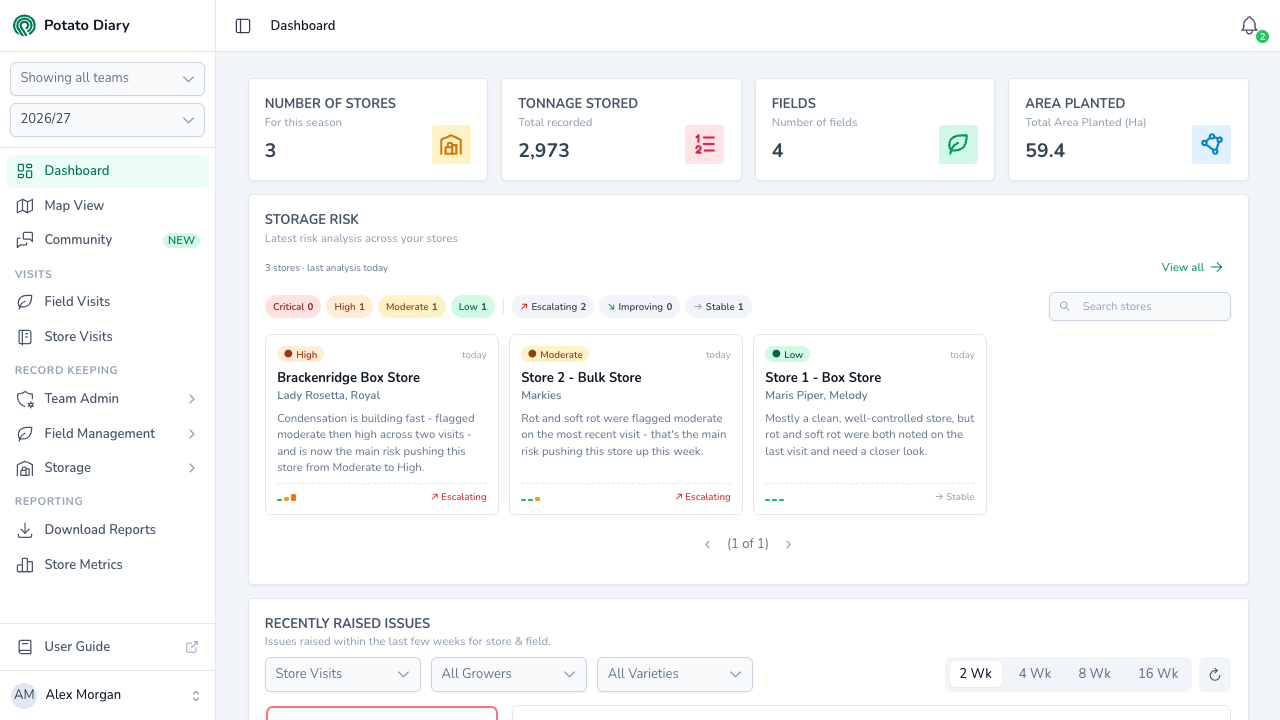
The Dashboard is the first page you see after signing in. It gives a quick read on your season: headline totals, the latest storage risk for each store, recent issues raised on visits, and charts of planted area, stores under gassing restrictions and stock movements.
Opening the Dashboard
In the sidebar, click Dashboard. It's the first page in the list.
What the team and season pickers change
Everything on the Dashboard is worked out for the teams and season picked at the top of the sidebar. See Getting around the app for how the pickers work.
- Season picker. The totals and charts reload for the season you pick.
- Team picker. The page reloads with figures for the teams you've ticked, or for all your teams when none are ticked.
You only ever see figures for records you have access to. Two people in the same team can see different numbers if they have access to different stores or fields.
Which cards you see
The four totals at the top are shown to everyone. The rest depend on your team's features and your permissions:
| Card | Who sees it |
|---|---|
| Storage Risk | Everyone in a team that uses Storage. |
| Recently Raised Issues | People who can view potato stores. |
| Planted Area (Ha) | People who can view plantings. It fills the full width if you can't view potato stores. |
| Stores On Hold | People who can view potato stores. |
| Movement Timeline | People who can view potato stores. |
If a card you expect is missing, ask your team admin.
The four totals
| Card | What it shows |
|---|---|
| Number of Stores | How many potato stores you can see that are in use in this season. Stores that aren't tied to any particular season are counted too. |
| Tonnage Stored | The tonnes currently in store: everything loaded in this season, minus everything moved out, from the stock movements. |
| Fields | How many fields you can see in this season. |
| Area Planted | The total planted area, in hectares, of your plantings in this season. |
Each card shows - while it's loading.
INFO
The Tonnage Stored card is subtitled Total recorded, but the figure is what's left in store after movements out, not the total ever loaded in. For the total loaded in, see the Total Stored line on the Movement Timeline.
Storage Risk
Potato Diary analyses each store after every visit and again overnight, and gives it a risk band: Low, Moderate, High or Critical. The Storage Risk card brings the latest band for every store together in one place.
Under the title, a line such as 3 stores · last analysis today shows how many stores have a band and when the most recent analysis ran. View all opens the Potato Stores list.
Filtering the stores
Along the top of the card are two sets of chips:
- Critical, High, Moderate and Low, each with the number of stores in that band.
- Escalating, Improving and Stable, each with the number of stores whose band has gone up, come down or stayed the same since the previous analysis. A store analysed only once isn't counted in any of these.
Click a chip to show only those stores. Click it again to clear it. You can use one band chip and one trend chip together. The numbers on the chips always count every store, whatever you've filtered.
Type in Search stores to narrow the tiles to stores whose name contains what you type.
The store tiles
Stores are listed worst band first, then by name, twelve to a page. Use the arrows under the tiles to move between pages. Each tile shows:
- the store's band, and how long ago it was analysed, such as today or 7d. Stale appears when the latest analysis is more than 10 days old.
- the store's name and the variety in it. Variety unknown, in red, means Potato Diary couldn't tell which variety is in store.
- a one-line summary of what's driving the band.
- a row of small bars along the bottom, one for each of the store's last 12 analyses this season, oldest on the left. Taller bars mean higher risk, and each is coloured by its band. Hover over a bar to see its band and date.
- the trend since the previous analysis: ↗ Escalating, ↘ Improving or → Stable.
If no store has been analysed yet, the card says Storage risk analysis hasn't run for these teams yet.
Opening a store's risk detail
Click a tile to open the store's full risk analysis in a panel on the right.
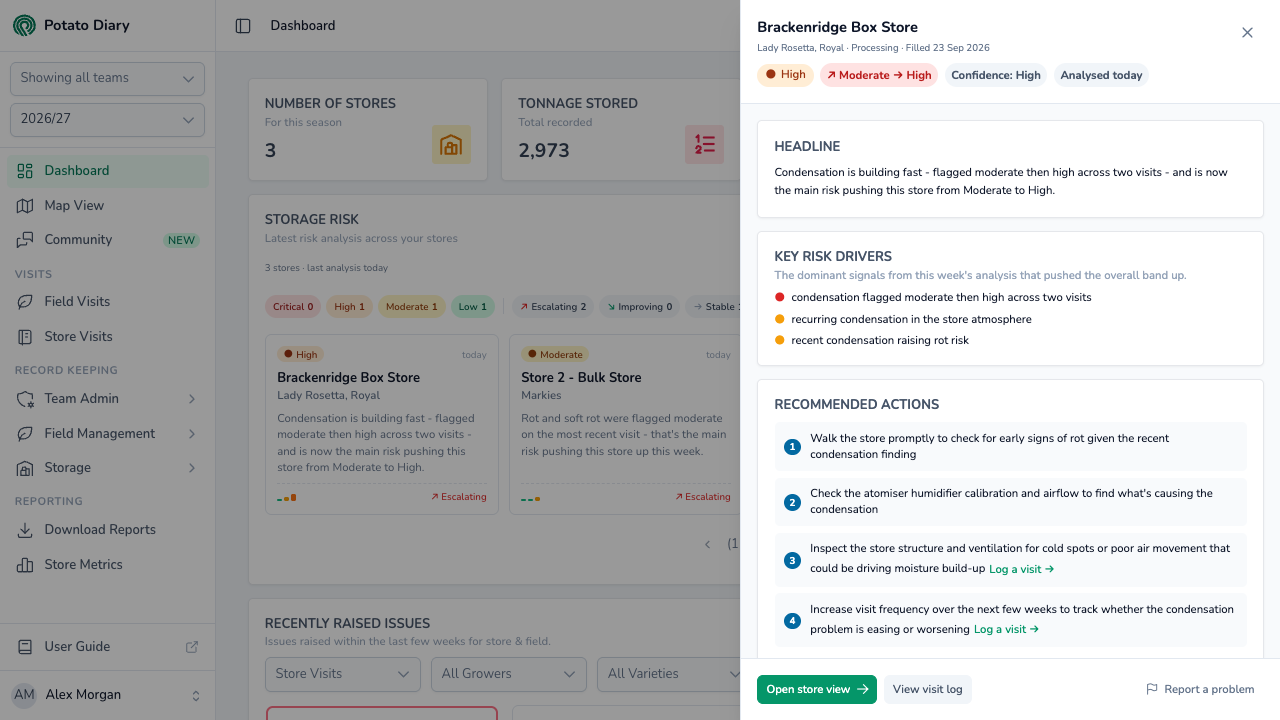
The top of the panel shows the band, the change since the previous analysis (for example ↗ Moderate → High), a Confidence tag and when the store was analysed. Below that are:
- Headline: the one-line summary from the tile.
- Key Risk Drivers: the main things pushing the band up.
- Recommended Actions: what to do next. Some actions include a link to the right page, such as Edit store config.
- Risk Categories: the nine areas that make up the band, each scored out of 10.
- Trajectory: how the store's band has moved across its recent analyses.
- Context: the store's Variety, when it was Filled, its Market sector, Capacity and Latest visit, and when the analysis ran. If no variety is known and you can add stock, Log a variety → opens the stock dialog.
A note at the bottom says whether the written analysis came from AI or straight from your store data. Either way, check it against your own records before acting on it.
The buttons along the bottom are:
- Open store view: opens the store's Details tab.
- View visit log: opens the store's Visits tab.
- Report a problem: tell the Potato Diary team what doesn't look right about this assessment.
The same analysis is shown on the Current Storage Risk card of each store.
Recently Raised Issues
This card lists stores and fields where the latest visit was tagged with an issue in the last few weeks.
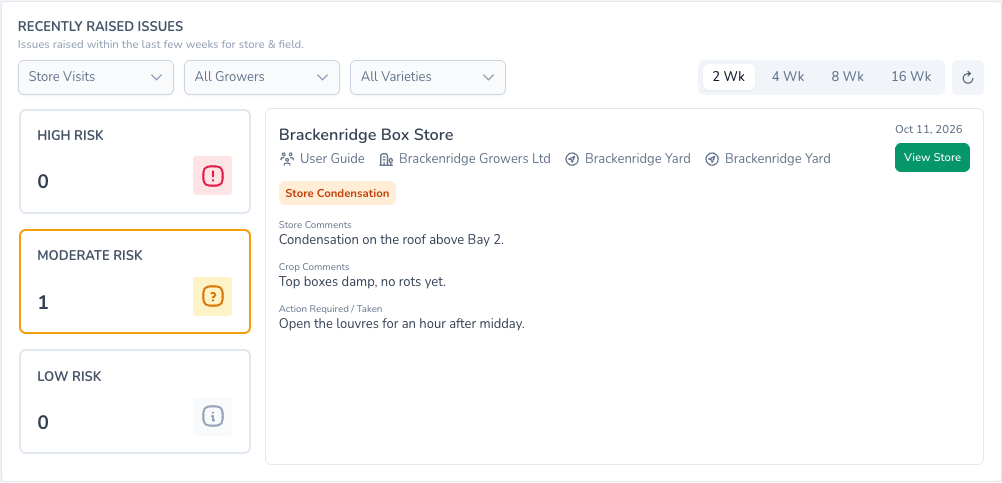
Use the controls along the top to choose what's included:
- Store Visits or Field Visits: whether to look at store visits or field visits.
- All Growers: limit it to one or more growers. For store visits, this means stores holding that grower's stock this season.
- All Varieties: limit it to one or more varieties. For store visits, this means stores holding that variety this season.
- 2 Wk, 4 Wk, 8 Wk or 16 Wk: how far back to look. It starts at 2 weeks.
- The refresh button (the circular arrow): reloads the card.
Only the latest visit to each store or planting counts. If a store had an issue tagged two weeks ago but its latest visit had none, it isn't listed. A field visit recorded before anything was planted has no planting, so it never appears here.
The three counts
Down the left are High Risk, Moderate Risk and Low Risk. Each counts the stores or plantings whose latest visit has at least one issue tagged at that severity. A visit with issues at more than one severity is counted under each.
Click a count to list those visits on the right, newest first. High Risk is selected when the card loads.
WARNING
The card always opens on High Risk, even when it's 0. The list on the right is then blank. Click Moderate Risk or Low Risk to see the other visits.
The visit list
Each visit shows:
- the store or field name, the team, the grower and, for store visits, the site
- for field visits, the variety
- the date of the visit
- the issues tagged on it, coloured by severity: red for High, amber for Moderate and grey for Low
- the visit's Store Comments, Crop Comments and Action Required / Taken, where they were filled in
Click View Store to open the store's Visits tab, or View Field to open the field's Visits tab.
If nothing matches, the card says No Issues Raised.
INFO
The No Issues Raised message always says in the last 2 weeks, even when you've picked 4, 8 or 16 weeks. The search did cover the period you picked.
Planted Area (Ha)
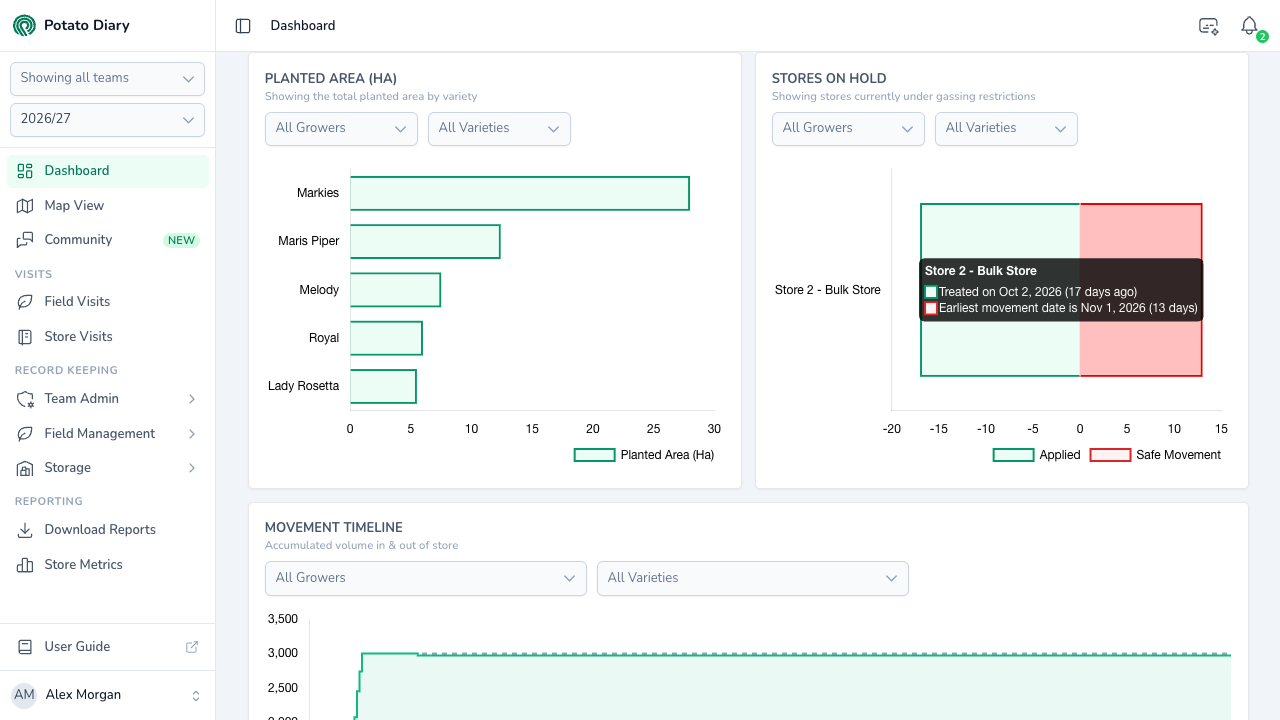
A bar chart of the total planted area for each variety in this season, largest first. Use All Growers and All Varieties to narrow it to particular growers' plantings or particular varieties. The chart reloads as soon as you change either.
Stores On Hold
Shows the stores that can't be moved yet because of a sprout-suppression treatment. A treatment stays here until its Earliest Movement Date has passed.
Each bar is one treatment, labelled with the store's name, measured in days either side of today (the 0 line):
- Applied (green, left of 0): how many days ago the treatment was applied.
- Safe Movement (red, right of 0): how many days are left until the crop can be moved.
Hover over a bar to see the dates, for example Treated on Oct 2, 2026 (17 days ago) and Earliest movement date is Nov 1, 2026 (13 days). Treatments with the longest wait are at the top. A store with more than one treatment still on hold has a bar for each.
Use All Growers and All Varieties to show only stores holding stock from those growers or of those varieties.
Movement Timeline
Plots stock in and out of your stores across the season, from the season's start date to its end date.
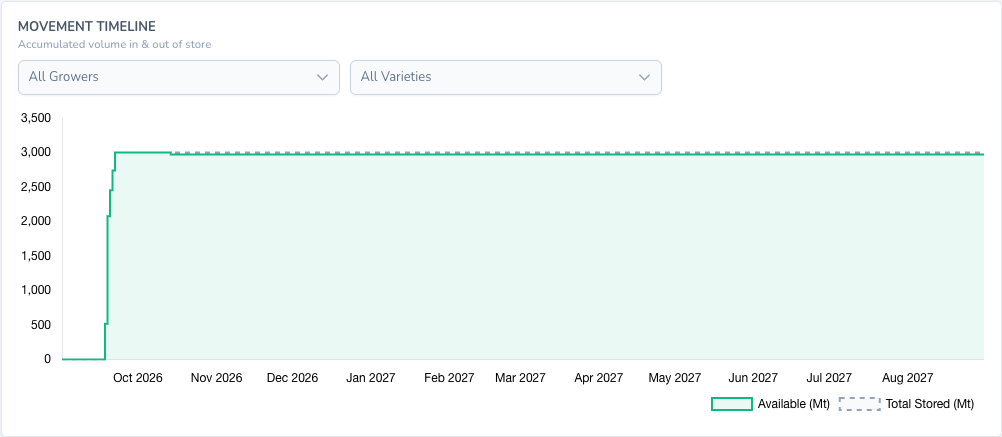
- Total Stored (Mt) (dashed grey line): the running total of everything loaded into store.
- Available (Mt) (solid green line, shaded): what's left in store, after movements out.
The gap between the two lines is what has been moved out so far. Figures are in tonnes, rounded to the nearest tonne, and come from the stock movements on your stores. Hover over the chart to see both figures for a date.
Use All Growers and All Varieties to show only stock from those growers or of those varieties.
What's next
- Map View — See your fields on a satellite map and open each one's crop details.
- The Details tab — One store's risk, temperatures, runtimes and stock in more depth.
- Potato Store Visits — Record store visits and tag the issues that show on the Dashboard.