
Appearance
Exporting store history
There are three ways to get a store's history out of Potato Diary: the Download Report button inside a single store, the Download Reports page for reports across many stores, and the Store Metrics page for comparing stores' runtimes and energy use.
One store: Download Report
Step 1 — Open the store view
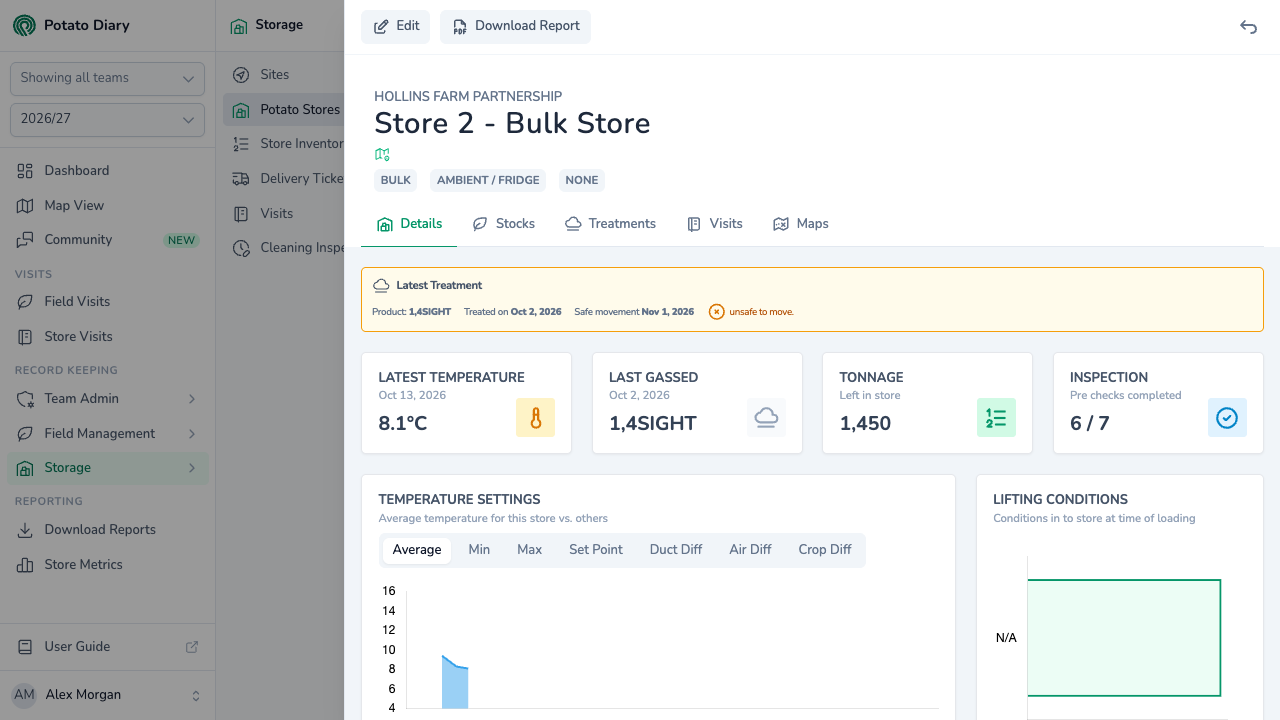
In the sidebar, under Record Keeping, click Storage. The section panel opens beside the sidebar; click Potato Stores. Click the store's name to open its menu, and choose View.
Step 2 — Click Download Report
The button is at the top left of the store view. It downloads a PDF of the store for the season picked in the sidebar, in the same layout as the Store Visits report. It has three sections:
- Store Inventory: the stock in each bay, with its initial loading date.
- Store Treatments: the sprout-suppression treatments applied.
- Visits: every visit, with its comments, issues and crop temperature.
The button shows a spinner while the PDF is being put together. Stores with a lot of history can take a moment.
Many stores: Download Reports
For reports that cover several stores, sites or growers, and for having reports emailed on a schedule, go to the sidebar and, under Reporting, click Download Reports. These reports have their own guides:
- Reporting overview — how the reports page works.
- Store Visits report — a PDF of every visit recorded against the chosen stores this season.
- Latest Store Visits report — a short PDF of recent visits across the chosen sites.
- Store History report — an Excel workbook of store visits across several stores.
- Store Inventory report — an Excel list of the stock held in the chosen stores.
- Scheduling reports — have any of these emailed to you on a regular schedule.
Comparing stores: Store Metrics
The Store Metrics page compares one store's equipment runtimes and energy use with other stores, week by week since loading. In the sidebar, under Reporting, click Store Metrics.
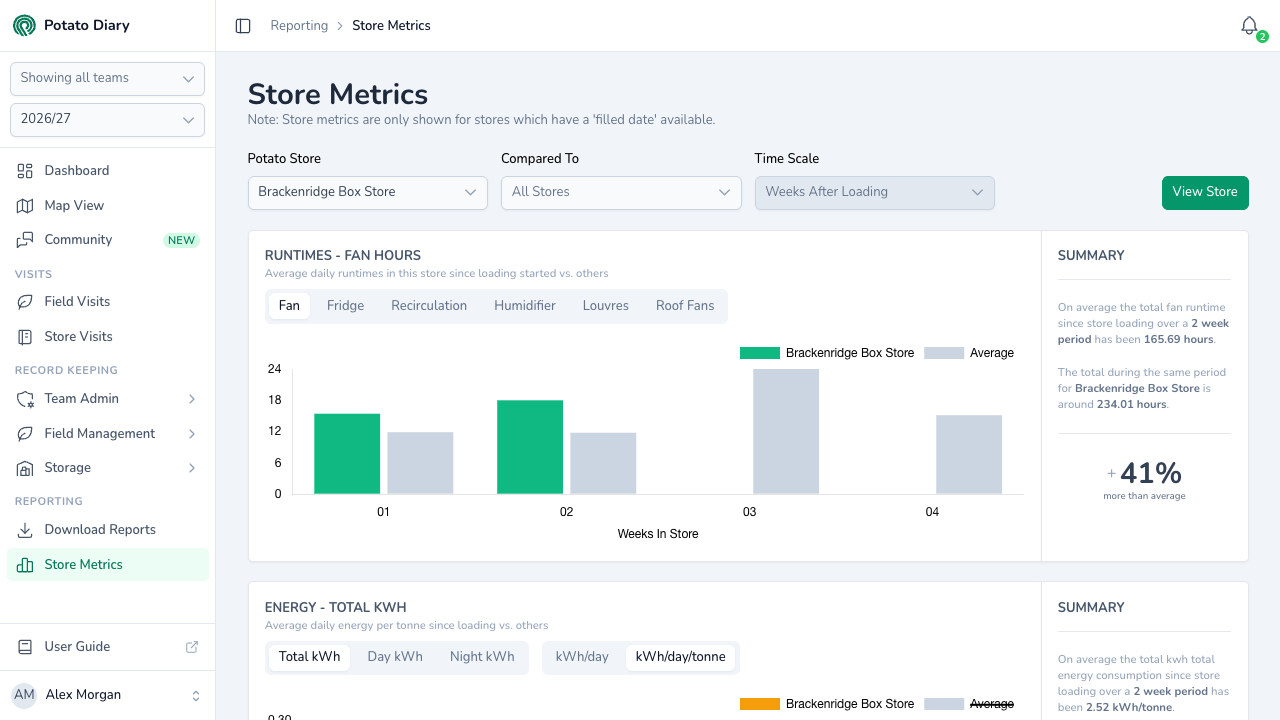
| Field | What it does |
|---|---|
| Potato Store | The store you're looking at. Only stores with a Loading Date this season are listed. |
| Compared To | The stores to compare against. Leave it on All Stores, or pick one or more stores. |
| Time Scale | Always Weeks After Loading. You can't change it. |
| View Store | Opens the chosen store's view in a new browser tab. |
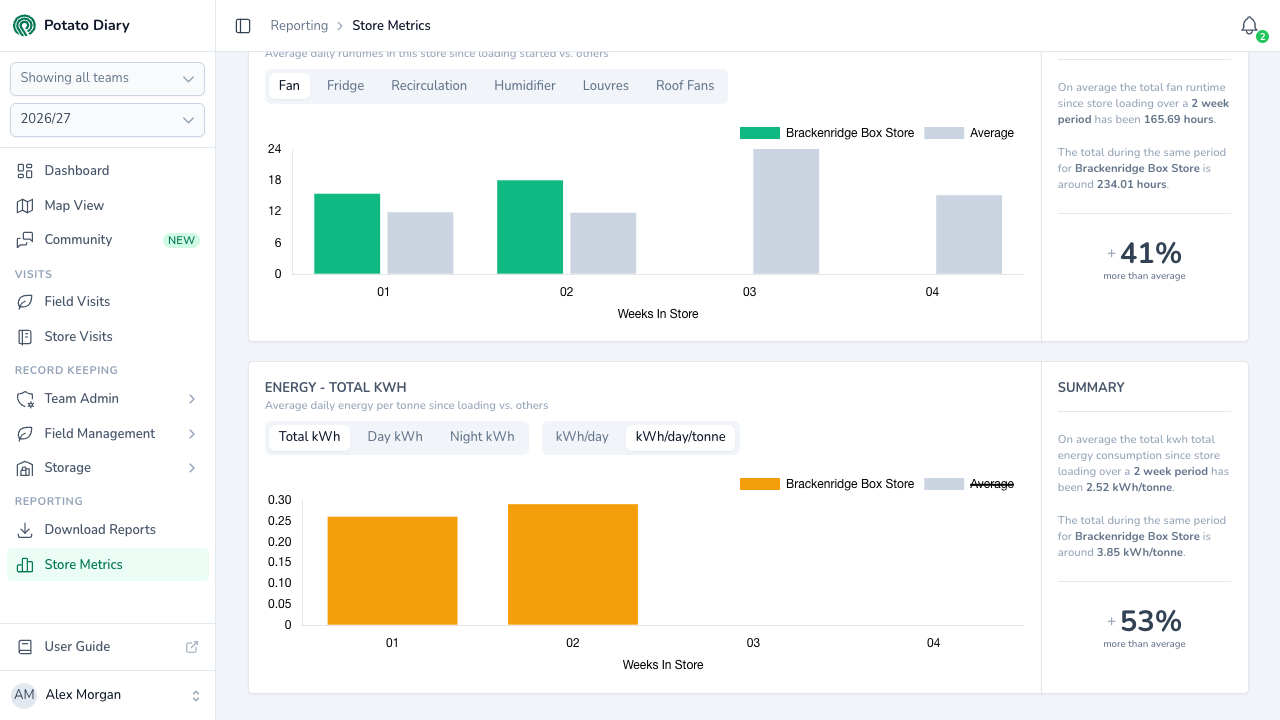
Below the fields are two charts, the same ones you see on a store's Details tab:
- Runtimes: average daily hours for the equipment you pick (Fan, Fridge, Recirculation, Humidifier, Louvres or Roof Fans), with a Summary panel saying how far above or below the average this store is.
- Energy: average daily energy use. Choose Total kWh, Day kWh or Night kWh, and show it as kWh/day or kWh/day/tonne. It has its own Summary panel.
TIP
Runtimes and energy figures come from the Run Time and Energy readings on store visits, so both charts stay empty until those readings are switched on in the store's configuration and recorded on visits. New readings appear on the charts the next morning.
What's next
- Details tab — the same runtimes and energy charts for a single store, alongside its other charts.
- Store Visits report — the same PDF layout as Download Report, across many stores.