
Appearance
Cleaning Inspections
A cleaning inspection is the checklist you run through when preparing a store before it's loaded: has it been swept and washed, has the roof been cleaned, and so on. Inspections are recorded separately from store visits, because they happen once per crop cycle rather than throughout storage.
Step 1 — Open the Cleaning Inspections list
In the sidebar, under Record Keeping, click Storage. The section panel opens beside the sidebar; click Cleaning Inspections.
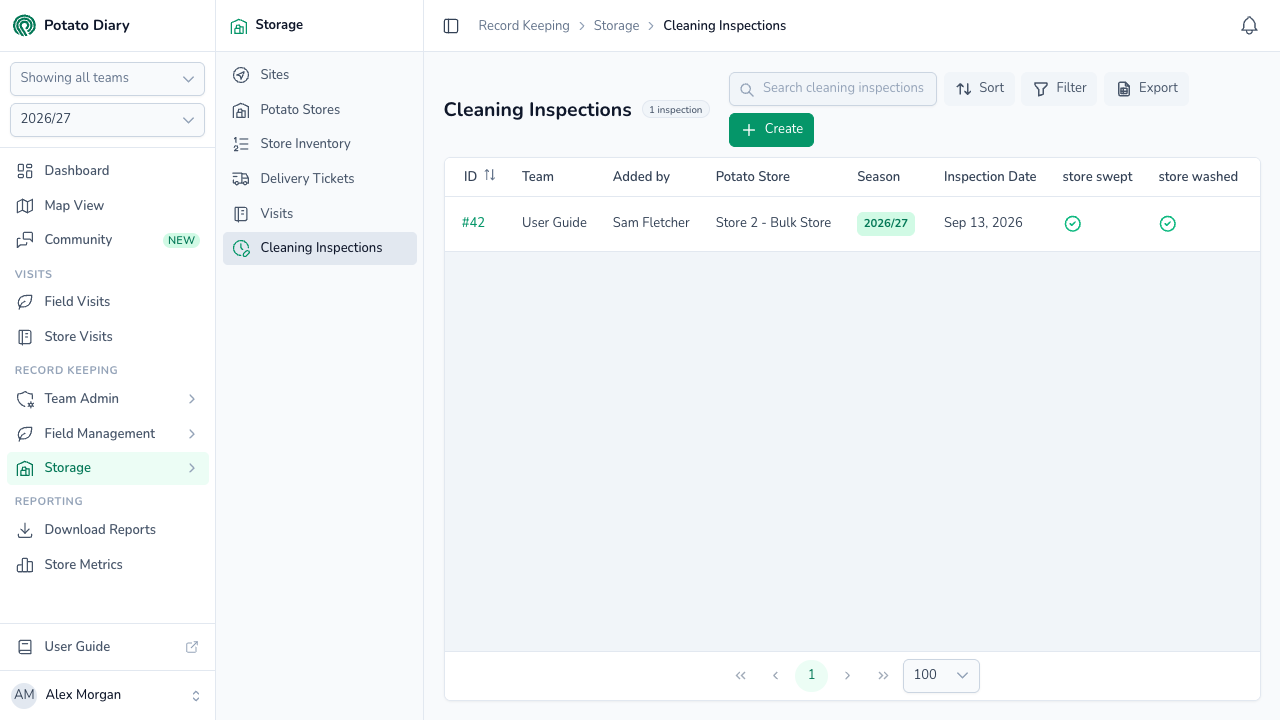
Along the top of the list are a Search cleaning inspections box, Sort (by ID or Team), Filter (by Store), Export and Create. Export downloads the rows on the current page as a CSV file.
The columns show the ID, Team, Added by, Potato Store, Season and Inspection Date, then one column for each of the seven checklist items. Each item shows a green tick for yes, a red cross for no, or a grey dashed circle if it was left as not applicable.
Step 2 — Click Create
At the top right of the page, click the green + Create button.
Step 3 — Fill in the inspection
A Create A Cleaning Inspection dialog opens.
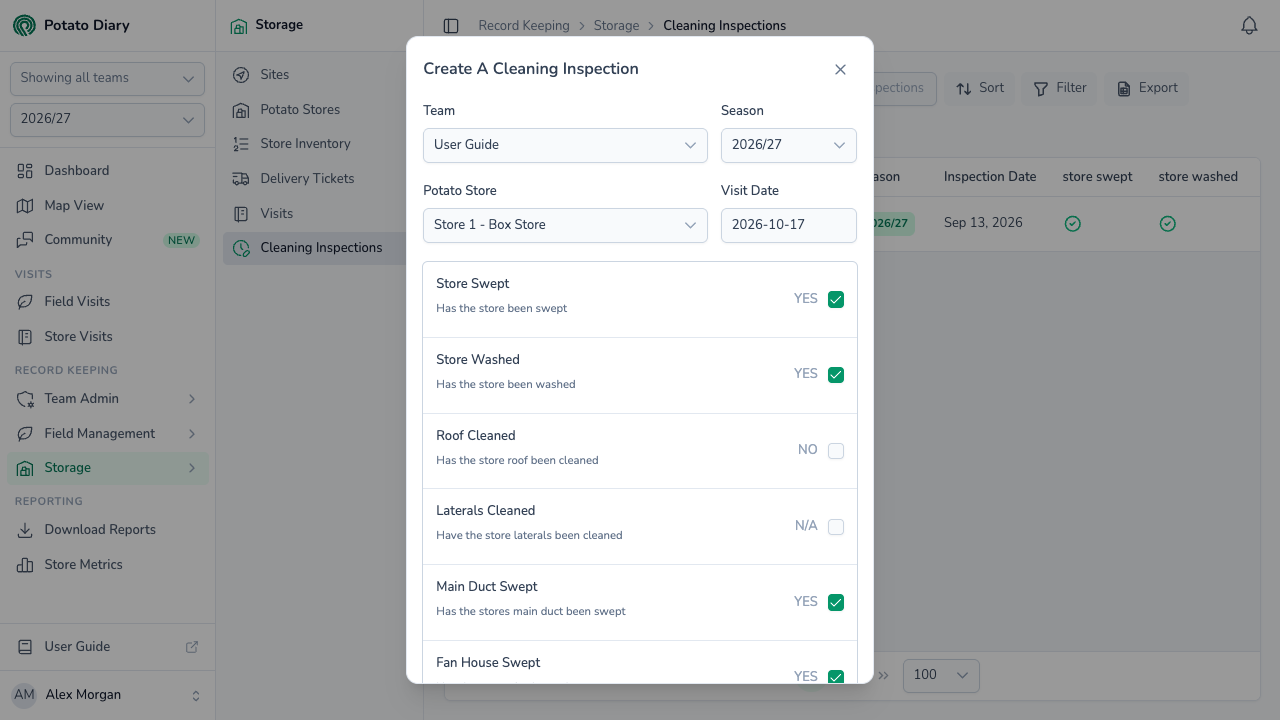
| Field | What to enter |
|---|---|
| Team / Season | Filled in for you. |
| Potato Store | The potato store you inspected. |
| Visit Date | The date of the inspection. Defaults to today. |
Below these is the checklist. Every item starts as N/A. Click an item once to mark it YES, and again to mark it NO.
| Item | The question |
|---|---|
| Store Swept | Has the store been swept? |
| Store Washed | Has the store been washed? |
| Roof Cleaned | Has the store roof been cleaned? |
| Laterals Cleaned | Have the store laterals been cleaned? |
| Main Duct Swept | Has the store's main duct been swept? |
| Fan House Swept | Has the store's fan house been swept? |
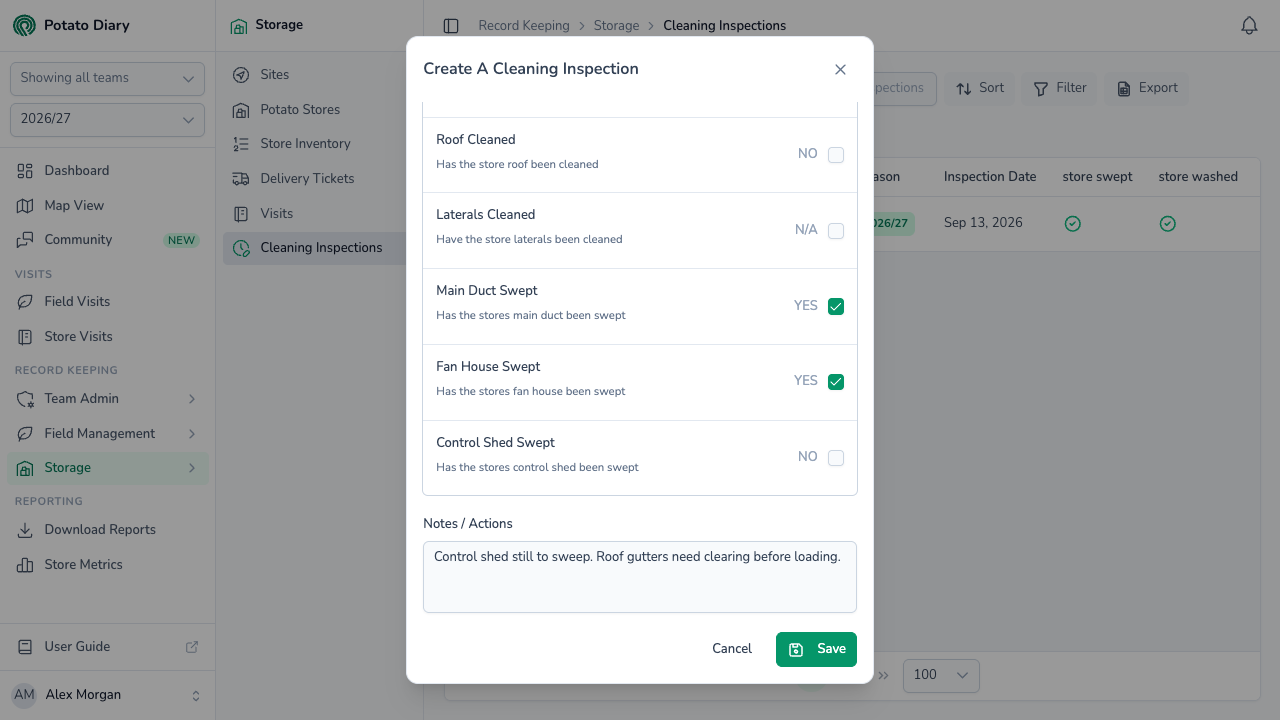
| Control Shed Swept | Has the store's control shed been swept? |
At the bottom, Notes / Actions is a free-text box for anything that still needs doing.
WARNING
Once you've clicked an item, you can't set it back to N/A. If you clicked one by mistake on an item that doesn't apply, click Cancel and start the inspection again.
Step 4 — Click Save
The inspection is added to the list. The Inspection card on the store's Details tab shows the result of the store's latest inspection this season, for example 6 / 7: the items marked YES out of the items that weren't left as N/A.
Editing or deleting an inspection
Click an inspection's ID to open its menu, then hover over Edit and choose Edit or Delete. View and Copy are in the menu but don't do anything yet.
What's next
- Potato Store Configuration — choose which readings you'll take on visits once the store is loaded.
- The Treatments tab — the treatment form has its own Pre-fogging checks completed box for the checks before a treatment.