
Appearance
Store Inventory
The Store Inventory page lists every stock held across your team's potato stores. A stock is one lot of crop in one bay of a store: where it came from, and every load-in and load-out recorded against it. It's also the quickest way to add stock when you're entering a batch of records, because you don't have to open each store first.
Opening the page
In the sidebar, under Record Keeping, click Storage. The section panel opens beside the sidebar; click Store Inventory.
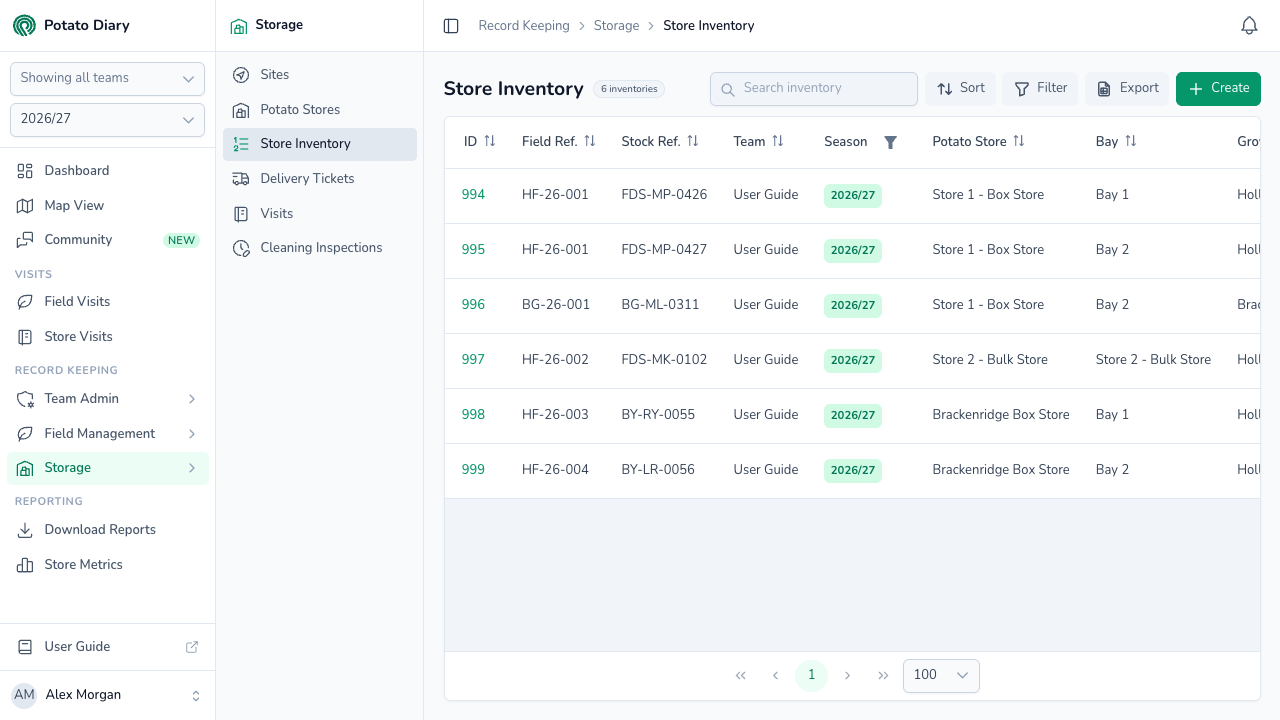
Along the top of the list are:
- Search inventory: type to narrow the list.
- Sort: by ID, Team, Field Ref., Stock Ref., Potato Store, Bay, Grower, Field or Variety.
- Filter: by Store, Grower or Variety. Click Apply. On wide screens, active filters show as chips under the page title.
- Export: downloads the rows on the current page as a CSV file.
- Create: adds a new stock.
The columns show:
| Column | What it shows |
|---|---|
| ID | Potato Diary's reference for the stock. Click it to open the stock's menu: Edit or Delete. (Copy isn't available yet.) |
| Field Ref. | The reference of the planting the stock came from, if it came from one. |
| Stock Ref. | Your customer's own reference for the stock. |
| Team / Season / Potato Store / Bay | Where the stock is held, and for which season. |
| Grower | The company that grew the crop. |
| Field | The field the crop came from. For stock that isn't linked to a planting, this shows the description you gave it, in italics. |
| Variety | The potato variety. |
| Issues | Every issue tagged on any of the stock's movements. |
| In (Mt) / Out (Mt) / Balance (Mt) | The total tonnes loaded in, loaded out, and still in store. |
Adding a stock
Click + Create at the top right to open the Create A Potato Store Inventory dialog. The same dialog opens as Create A Stock from Add Stock on a store's Stocks tab, or from Stocks › Create on a store's menu. Opened from a store, the store is already picked.
The dialog has two tabs: Properties (what the stock is and where it is) and Movements (the load-ins and load-outs).
Properties tab
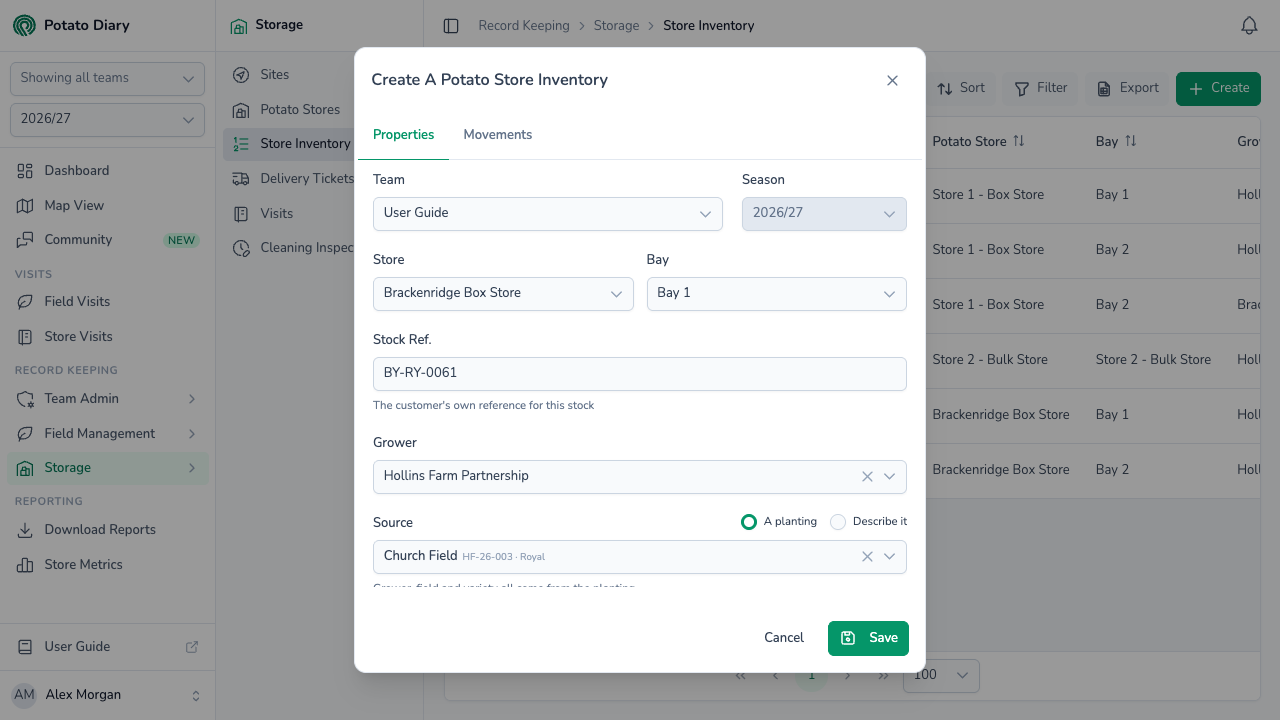
| Field | What to enter |
|---|---|
| Team / Season | Filled in for you. Season can't be changed once it's set. |
| Store | The potato store the stock is in. |
| Bay | Which bay in the store. If the store has only one bay, it's picked for you. |
| Stock Ref. | Optional. Your customer's own reference for this stock. Each reference can only be used once in the same bay in a season. |
| Grower | The company that grew the crop, from your Companies list. |
| Source | Where the crop came from. Choose A planting or Describe it; see below. |
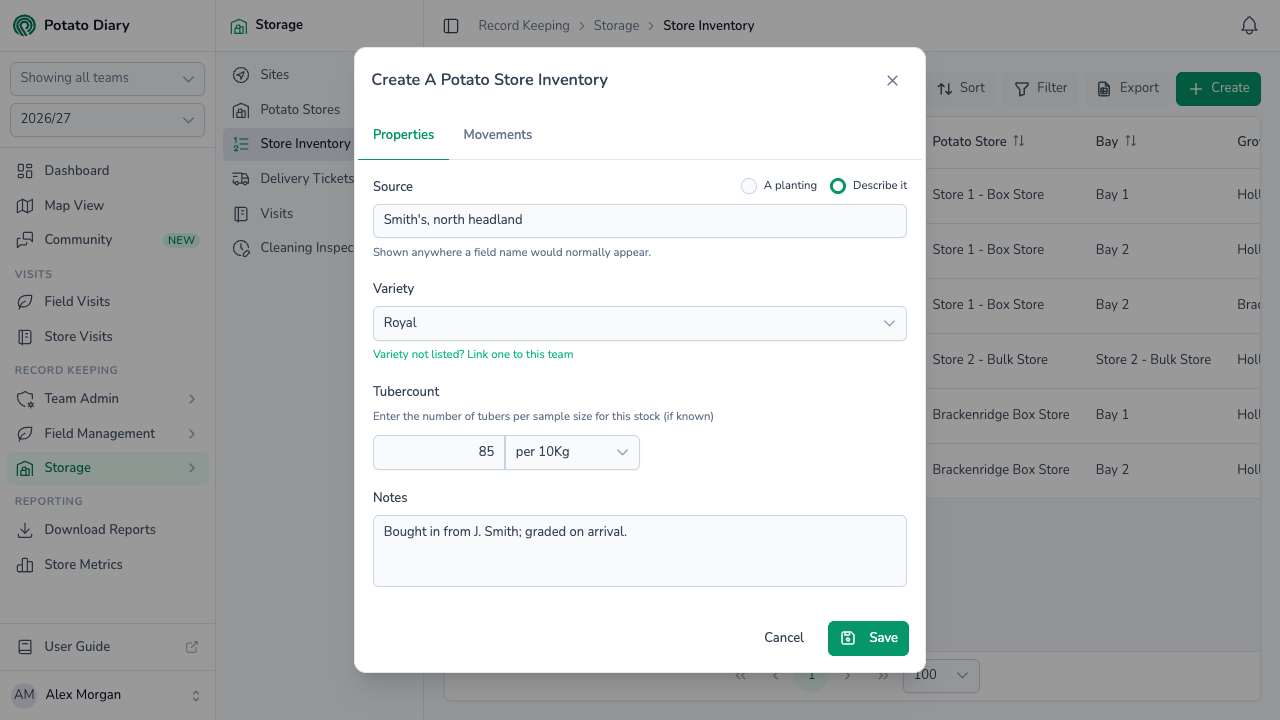
| Variety | The potato variety. |
| Tubercount | Optional. The number of tubers per sample, with the sample size: per 10Kg or per 50Kg. |
| Notes | Optional. Anything else about the stock. |
Source is one choice or the other:
- A planting: pick the planting from the list. Only the chosen grower's plantings are listed. The grower, field and variety all come from the planting, so Variety is filled in and locked, marked From the planting. The list says the planting is optional, but Variety stays locked until you pick one, and a stock without a planting needs a variety. If there's no planting to pick, use Describe it.
- Describe it: for crop that isn't recorded as a planting in Potato Diary, such as bought-in stock. Type a short description, for example Smith's, north headland. It shows wherever a field name would normally appear. You then pick the Grower and Variety yourself; both are required.
With Describe it, if the variety you need isn't in the list, click Variety not listed? Link one to this team under the Variety box. It adds the variety to your team's varieties and picks it, without leaving the dialog. You'll only see the link if you're allowed to add varieties.
Movements tab
The Movements tab lists every load-in and load-out for the stock. Click Add Movement to record one. You can add several before saving.
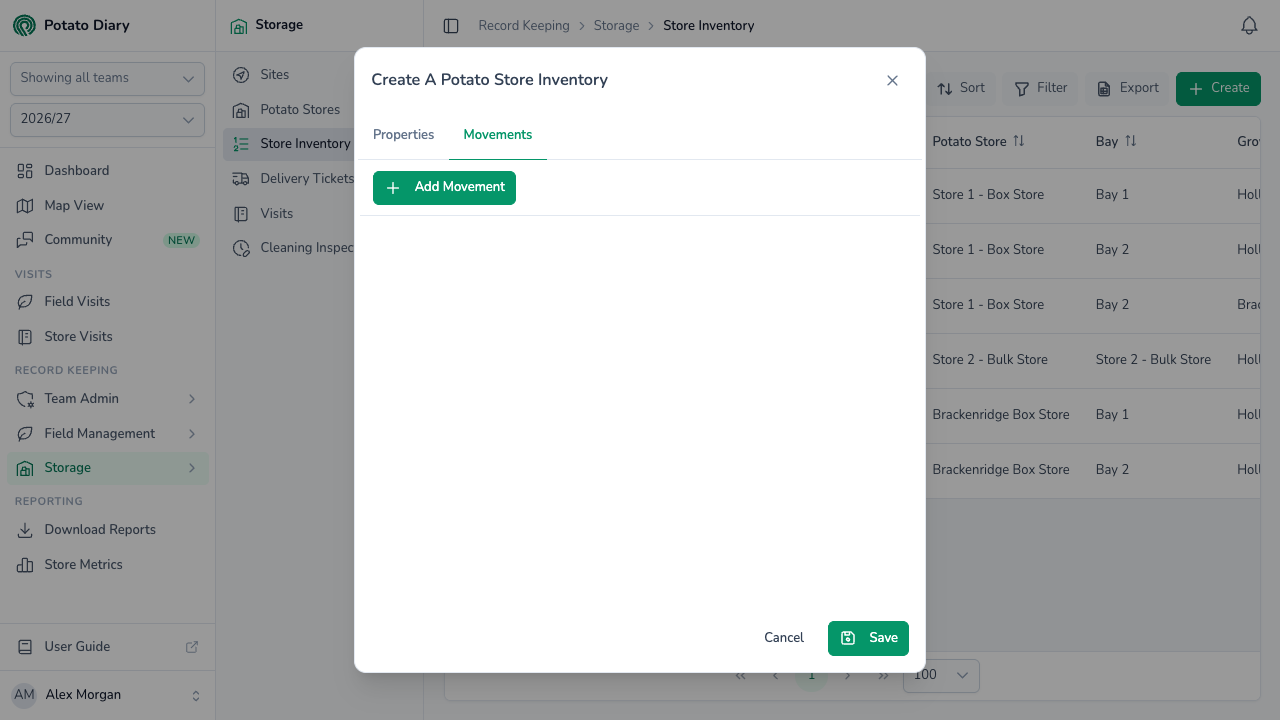
Adding a movement
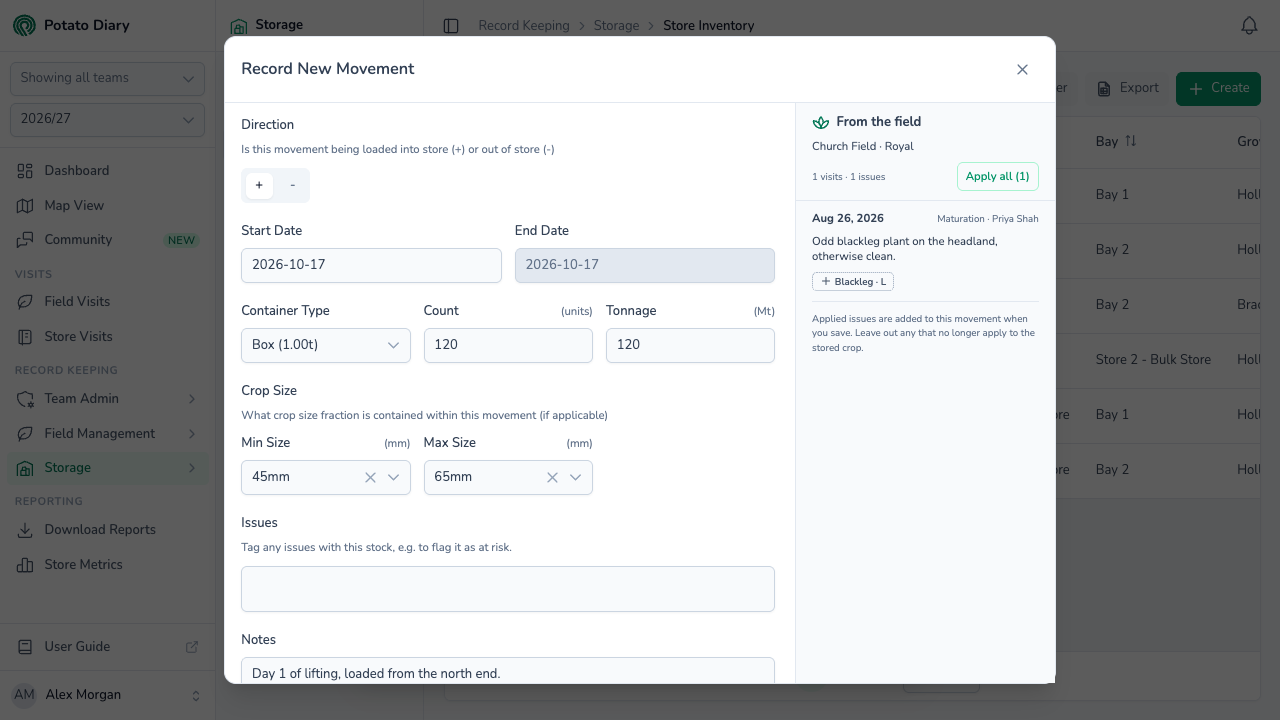
Add Movement opens a Record New Movement dialog. Nothing in it is saved until you click Save on the stock dialog as well.
| Field | What to enter |
|---|---|
| Direction | + for a load-in (crop coming into store), − for a load-out (crop leaving the store). |
| Start Date | The date of the movement. Defaults to today. You can't pick a date after the end of this week. |
| End Date | Always the same as the Start Date. You can't change it. |
| Container Type | The container type used. Starts as the store's container type. |
| Count (units) | How many containers moved. |
| Tonnage (Mt) | The tonnes moved. Filled in for you as Count × the container type's weight. Change it if the real figure was different. |
| Crop Size: Min Size / Max Size (mm) | Optional. The size range in this movement, if the crop was graded. |
| Issues | Optional. Tag any crop, store or in-field issues with this stock, for example to flag it as at risk. |
| Notes | Optional. Anything else about this movement. |
Issues from the field
When the stock comes from a planting, and your team uses Field Management, a From the field panel appears on the right of the movement dialog. It lists the visits to that planting that recorded issues, with each visit's date, crop comments and the issues found, and their severity. It also lists any visits recorded against the same field before it was planted.
- Click an issue to add it to this movement's Issues. A tick shows it's been added.
- Click Apply all to add every issue you haven't added yet.
Leave out any issues that no longer apply to the crop in store, such as ones found on the ground before planting. The issues are added to the movement when you save.
The movements list
Click Save on the movement dialog to add it to the list. Each row shows an In or Out badge, the date, crop size, container, count and tonnage, with the movement's issues as tags underneath. A Total row at the bottom adds up the count and tonnage, counting load-outs as negative.
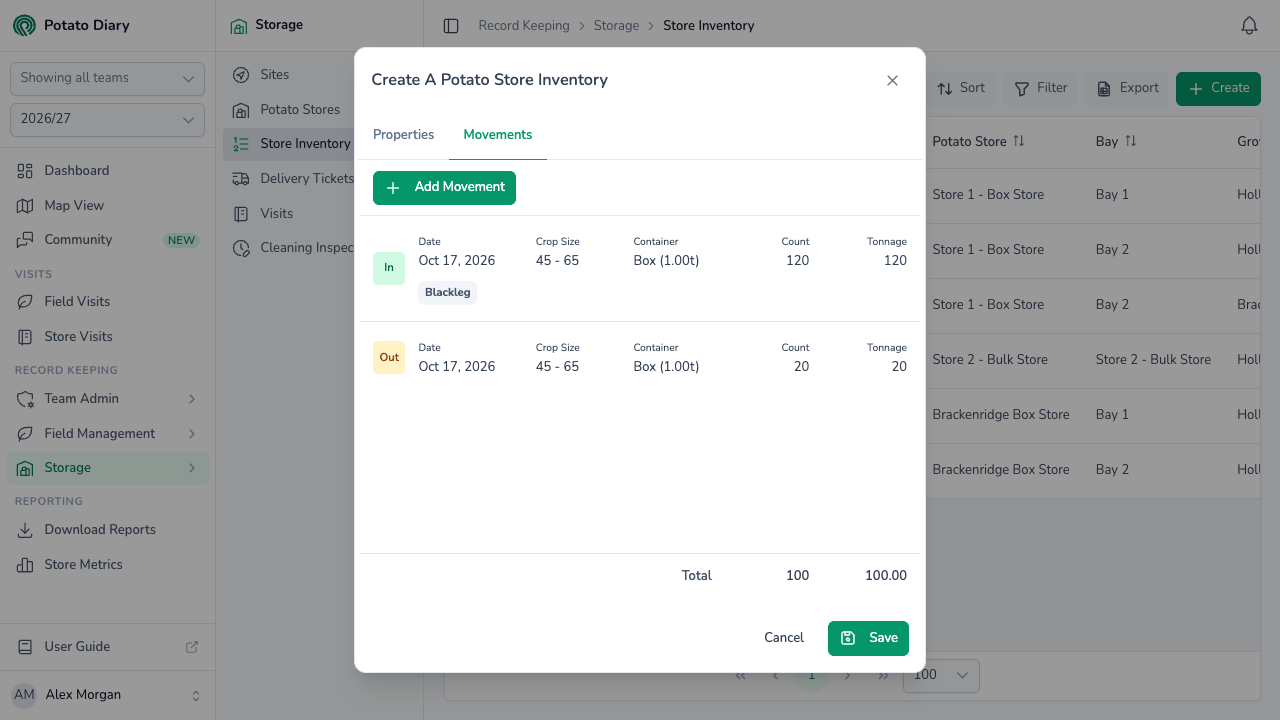
Click a row to change it. The dialog then also has a Delete button, which takes the movement off the list.
Most stocks build up several load-in rows over the harvest, often one per day, so the daily totals stay readable. Load-outs work the same way, with Direction set to −.
TIP
To record load-outs later, open the stock with Edit from its menu, go to the Movements tab and add a movement with Direction set to −.
Movements from delivery tickets
If your team uses Delivery Tickets (under Storage in the sidebar), load-outs created by a delivery ticket also appear in the Movements tab. Opening one shows the message This movement is managed by delivery ticket #N and is read-only here, and every field is locked. To change it, edit the delivery ticket instead. See Delivery Tickets.
Click Save
Click Save on the stock dialog to save the stock and all its movements together. It appears on this page and on the store's Stocks tab.
What's next
- Potato Store Visits — record visits to the store while the crop is in.
- The Stocks tab — see stock in the context of a single store.
- The Treatments tab — record sprout-suppression treatments once crop is in store.