
Appearance
Creating a potato store
Potato stores are the buildings, or sections of buildings, where you store crop. Once a store exists you can set its loading date, choose which readings you take in it, set up its bays, and record stock, visits and treatments against it. Each store belongs to a site, so set the site up first.
Step 1 — Open the Potato Stores list
In the sidebar, under Record Keeping, click Storage. The section panel opens beside the sidebar; click Potato Stores.
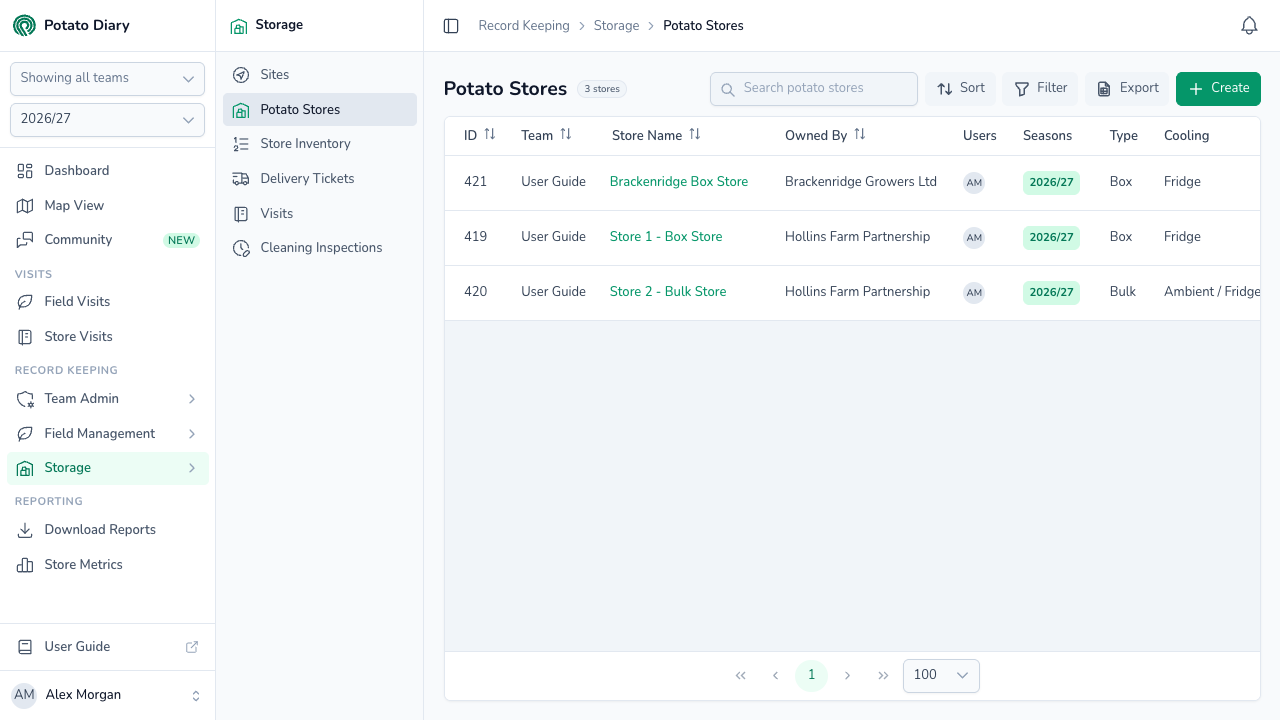
Along the top of the list are:
- Search potato stores: type part of a store's name to narrow the list.
- Sort: by ID, Name, Capacity, Team or Owned By.
- Filter: opens a Filters panel where you can pick a Grower, Site, Store type, Cooling, Humidifier or Container type. Click Apply. On wide screens, active filters show as chips under the page title.
- Export: downloads the rows on the current page as a CSV file.
- Create: adds a new store.
The columns show:
- ID / Team / Store Name — basic identification. Click the store name to open the store's menu.
- Owned By — the company that owns the store.
- Users — the people who have access to the store.
- Seasons — which seasons the store is available in. The season you're viewing is highlighted.
- Type / Cooling / Capacity — the store type, its cooling system and its maximum tonnage.
- Location — the nearest place to the store, with its What3Words address underneath, when one has been recorded.
Step 2 — Click Create
At the top right of the page, click the green + Create button. You'll only see it if you're allowed to create stores.
Step 3 — Fill in the store details
A Create A Potato Store dialog opens.
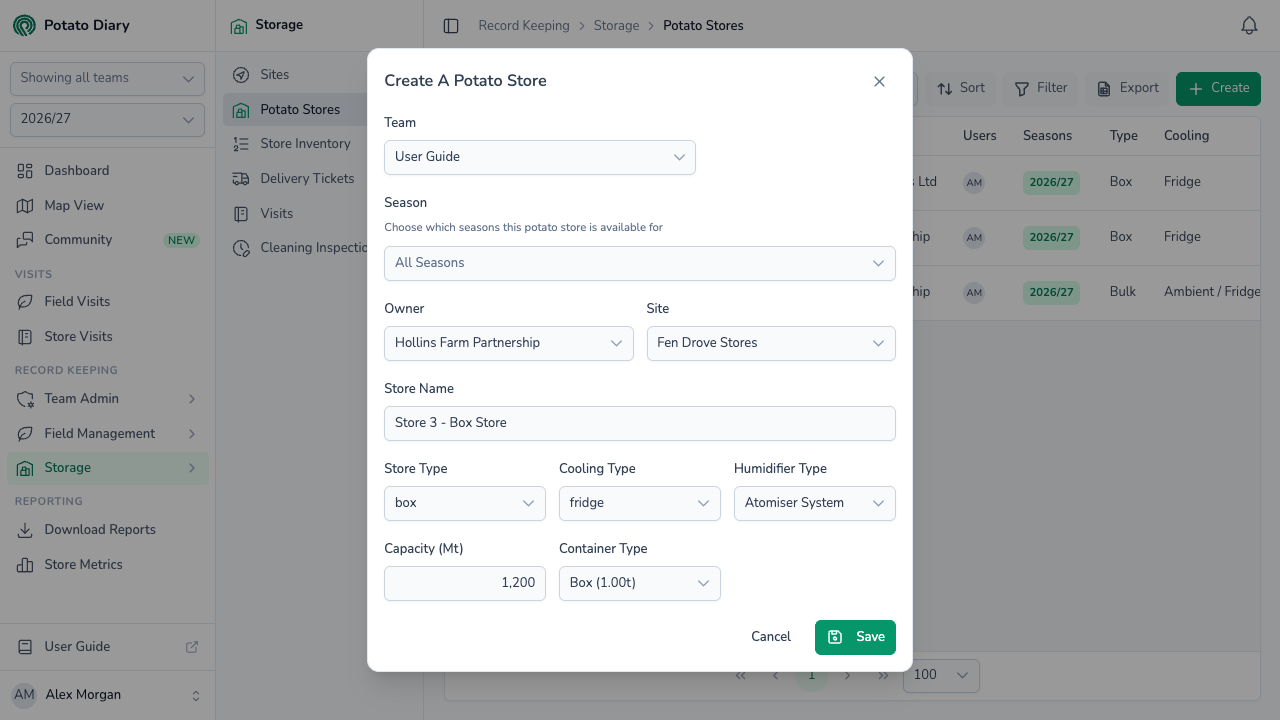
| Field | What to enter |
|---|---|
| Team | The team this store belongs to. You can't change it after the store is saved. |
| Season | Leave it on All Seasons, or pick the seasons the store is available in. |
| Owner | The company that owns the store, from your Companies list. |
| Site | The site the store is on. Only the chosen owner's sites are listed. |
| Store Name | A short label, such as Shed 1 or East Block. |
| Store Type | The kind of store, for example Box or Bulk. |
| Cooling Type | The cooling system installed. |
| Humidifier Type | The humidifier system, if any. |
| Capacity (Mt) | The store's maximum tonnage. |
| Container Type | The container type normally used in this store. New stock movements start with this container type picked. |
Step 4 — Click Save
The store appears in the list. Potato Diary also sets up two things for you:
- One bay, named after the store and with the store's capacity. See Configuring bays.
- A Default configuration with no readings switched on. See Potato Store Configuration.
The store's menu
Click a store's name in the list to open its menu. Most items open a submenu when you hover over them.
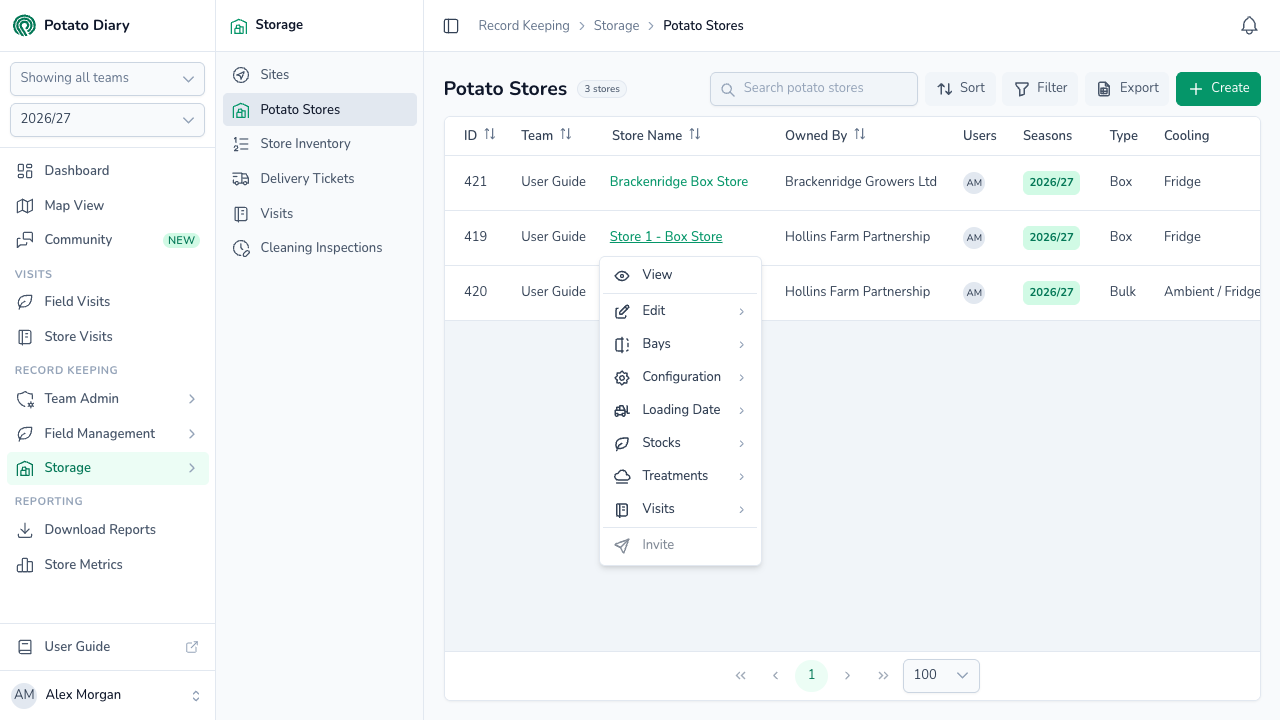
- View — opens the store view, described below.
- Edit › Edit re-opens the dialog above. Edit › Delete removes the store. Copy isn't available yet.
- Bays — lists the store's bays, each with Edit and Delete, then Create. See Configuring bays.
- Configuration › Edit — choose which readings you take. See Potato Store Configuration.
- Loading Date › Edit — record when the store started loading. See Loading Date.
- Stocks, Treatments and Visits — each has View All, which opens that tab of the store view, and Create, which opens the dialog for adding one. See The Stocks tab, The Treatments tab and The Visits tab.
Invite also appears at the bottom of the menu, but it doesn't do anything yet.
The store view
Choosing View opens the store in a panel that slides over the list. Click the arrow at the top right to close it.
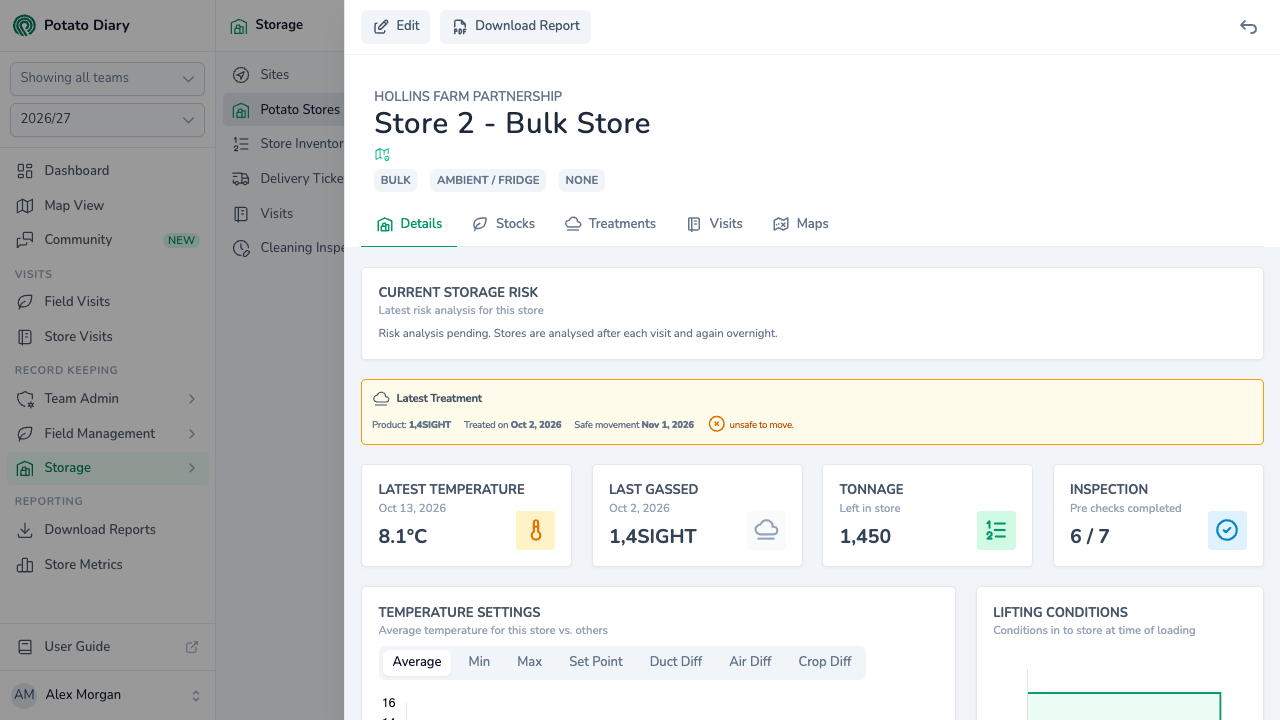
The top of the panel shows the owning company, the store's name, its nearest place (click it to open the store's What3Words address), and tags for the store type, cooling type and humidifier type. If you can see storage risk, a coloured band such as Low or High sits next to the store's name. It shows Stale when the latest analysis is out of date, and doesn't appear until the store has been analysed for the first time. Click it to open the full risk detail.
The tab bar covers:
- Details tab — the store's dashboard: storage risk, latest temperature, last treatment, tonnage, cleaning inspection, and charts.
- Stocks tab — the stock held in the store.
- Treatments tab — sprout-suppression treatments.
- Visits tab — visits to the store, shown as cards.
- Maps tab — uploaded store layout files.
- QC Samples — only shown if your team uses Quality Control. It has a sub-tab for each sample type, listing the samples taken from this store.
At the top left of the panel, Edit re-opens the store's dialog (you'll only see it if you're allowed to edit the store), and Download Report downloads the store's PDF report.
What's next
- Store Inventory — add stock to your new store and record its movements.
- Potato Store Configuration — choose which readings you take in this store before logging your first visit.
- Loading Date — record when the store started loading for the season.