
Appearance
Creating a site
Sites are the places your potato stores sit: usually a farm, a store complex or a yard. Every potato store belongs to a site, so set your sites up before you add stores.
Step 1 — Open the Sites list
In the sidebar, under Record Keeping, click Storage. The section panel opens beside the sidebar and the Sites list opens, because it's the first page in the section.
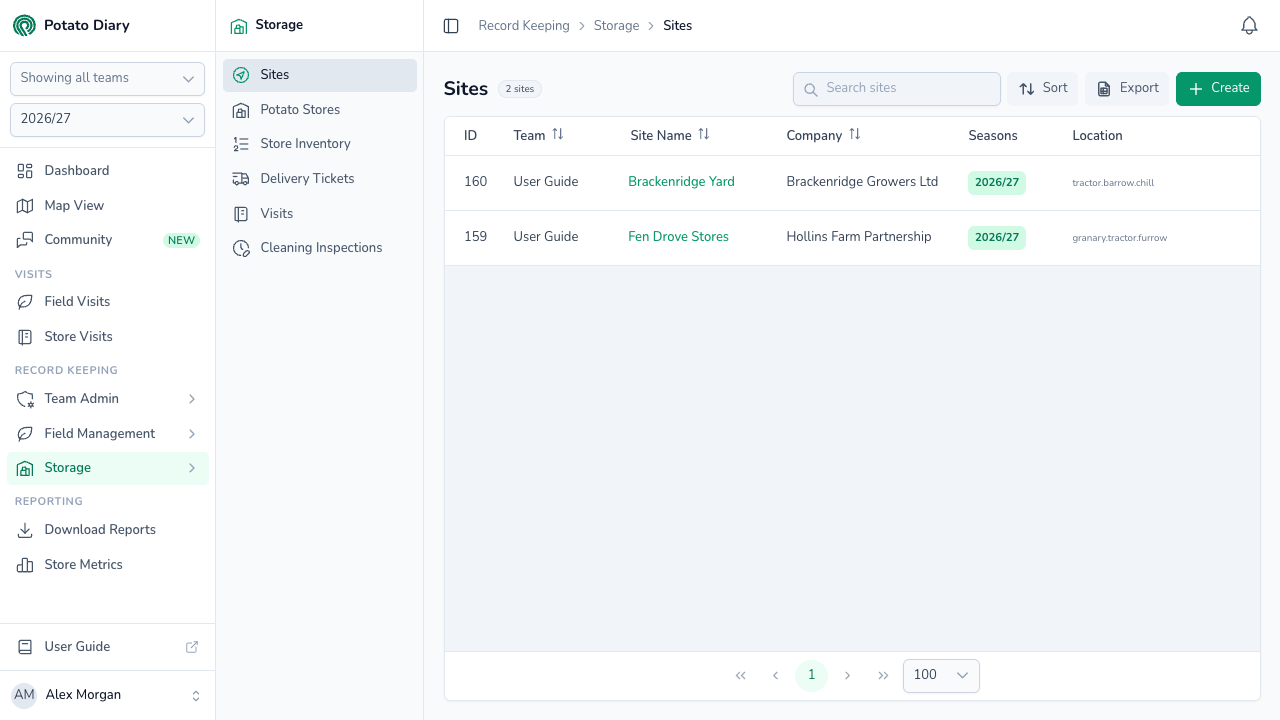
Along the top of the list are a Search sites box, Sort (by ID, Name, Team or Company), Export and Create. Export downloads the rows on the current page as a CSV file.
The list shows sites available in the season picked in the sidebar. The columns show:
- ID — Potato Diary's reference for the site.
- Team — which team the site belongs to.
- Site Name — what the site is called. Click it to open the site's menu.
- Company — the company that owns the site, from your Companies list.
- Seasons — the seasons the site is available in. All Seasons means every season.
- Location — the nearest place to the site, with its What3Words address underneath.
Step 2 — Click Create
At the top right of the page, click the green + Create button. You'll only see it if you're allowed to create sites.
Step 3 — Fill in the site details
A Create A Site dialog opens, with a satellite map on the right.
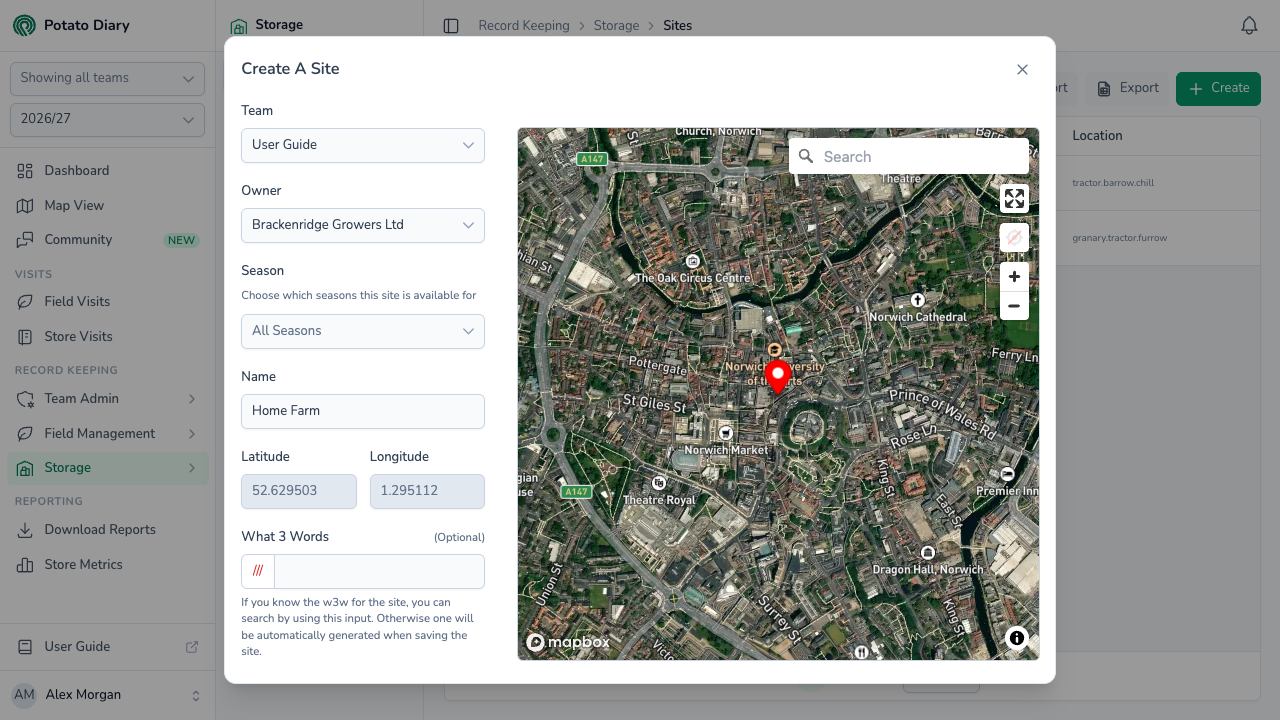
| Field | What to enter |
|---|---|
| Team | The team this site belongs to. You can't change it after the site is saved. |
| Owner | The company that owns the site, from your Companies list. Set the company up first if it isn't there. |
| Season | Leave it on All Seasons to make the site available in every season, or pick the seasons it applies to. |
| Name | A short label, such as Home Farm or East Yard. This is what you'll pick from when you create a potato store. |
| Latitude / Longitude | Filled in for you when you set the location on the map. You can't type in these boxes. |
| What 3 Words | Optional. Start typing a What3Words address and pick a match to move the map and the pin there. |
To set the location, click the map where the site is. A red pin drops there and the latitude and longitude update. You can also search for a place with the search box on the map, or use the locate button to centre the map on where you are, then click to place the pin.
Step 4 — Click Save
The site appears in the list and is ready to pick when you create a potato store. If you didn't enter a What3Words address, Potato Diary looks one up from the coordinates after you save.
Editing or deleting a site
Click a site's name in the list to open its menu, then choose Edit or Delete. Copy is in the menu but isn't available yet.
What's next
- Creating a potato store — every store has to be linked to a site, so this is the next step.