
Appearance
The Stocks tab
The Stocks tab on a potato store lists the stock held in that store for the season picked in the sidebar. They're the same records you see on the Store Inventory page, limited to one store.
Opening the tab
In the sidebar, under Record Keeping, click Storage. The section panel opens beside the sidebar; click Potato Stores. Click a store's name to open its menu, then choose Stocks › View All. You can also choose View and click the Stocks tab, or go straight to the form with Stocks › Create.
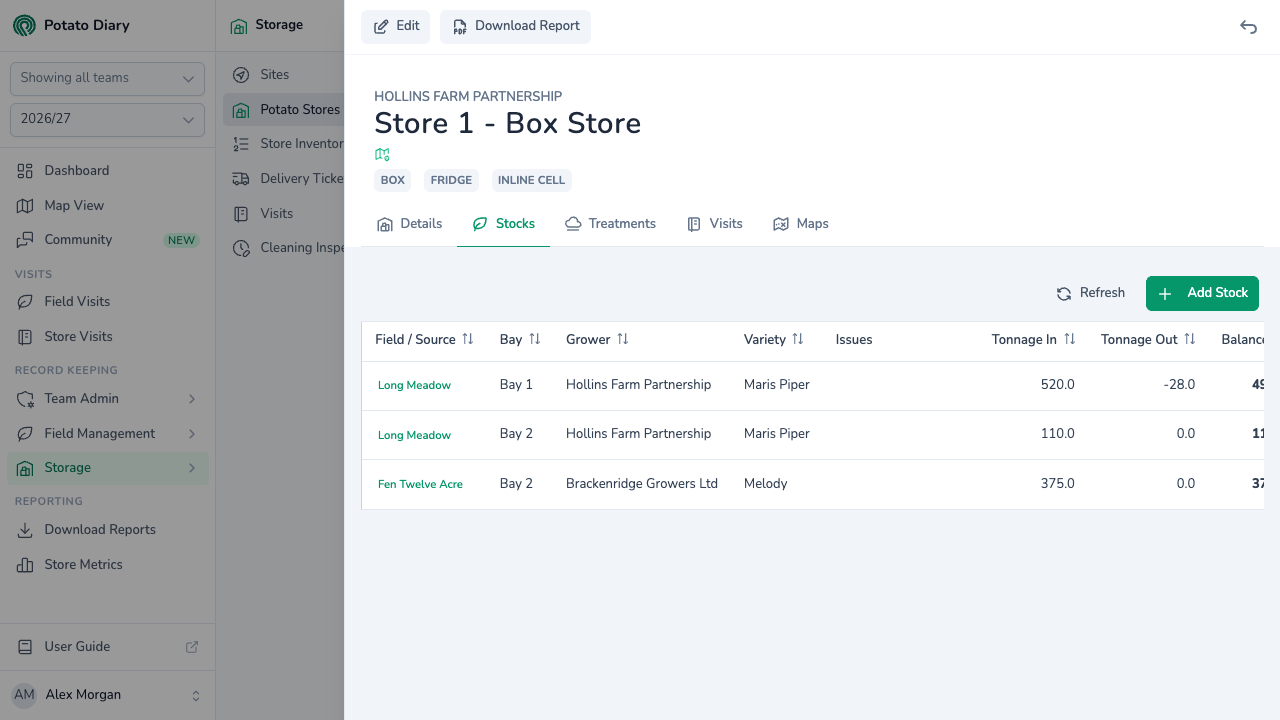
What's in the tab
Each row is one stock, with these columns:
| Column | What it shows |
|---|---|
| Field / Source | The field the crop came from. For stock that isn't linked to a planting, the description you gave it, in italics. Click it to open the stock's menu. |
| Bay | The bay the stock is in. |
| Grower | The company that grew the crop. |
| Variety | The potato variety. |
| Issues | Every issue tagged on any of the stock's movements. |
| Tonnage In / Tonnage Out / Balance | The tonnes loaded in, loaded out, and still in store. |
The stock's menu has:
- View Field — opens the field the crop came from. Greyed out for stock that isn't linked to a planting.
- Edit — opens the stock dialog, where you can also add movements.
- Delete — removes the stock.
Copy is in the menu but doesn't do anything yet.
If the store has no stock yet, the tab shows No Stocks instead.
Adding a stock
Click Add Stock at the top right of the tab (or Refresh to reload the list). The Create A Stock dialog opens with this store already picked, and the bay too if the store has only one. The rest of the dialog is described in Store Inventory.
What's next
- The Treatments tab — record sprout-suppression treatments once the crop is in store.
- Store Inventory — the full walkthrough of the stock dialog, including movements and issues from the field.