
Appearance
The Treatments tab
The Treatments tab on a potato store records the sprout-suppression treatments applied in that store: which product, how much, to which bays, and in what conditions. Each treatment is linked to a sprout product, which supplies the MAPP number, dose unit and the minimum intervals before the crop can be treated again or moved.
Step 1 — Open the store's Treatments tab
In the sidebar, under Record Keeping, click Storage. The section panel opens beside the sidebar; click Potato Stores. Click the store's name to open its menu, then choose Treatments › View All. You can also choose View and click the Treatments tab, or go straight to the form with Treatments › Create.
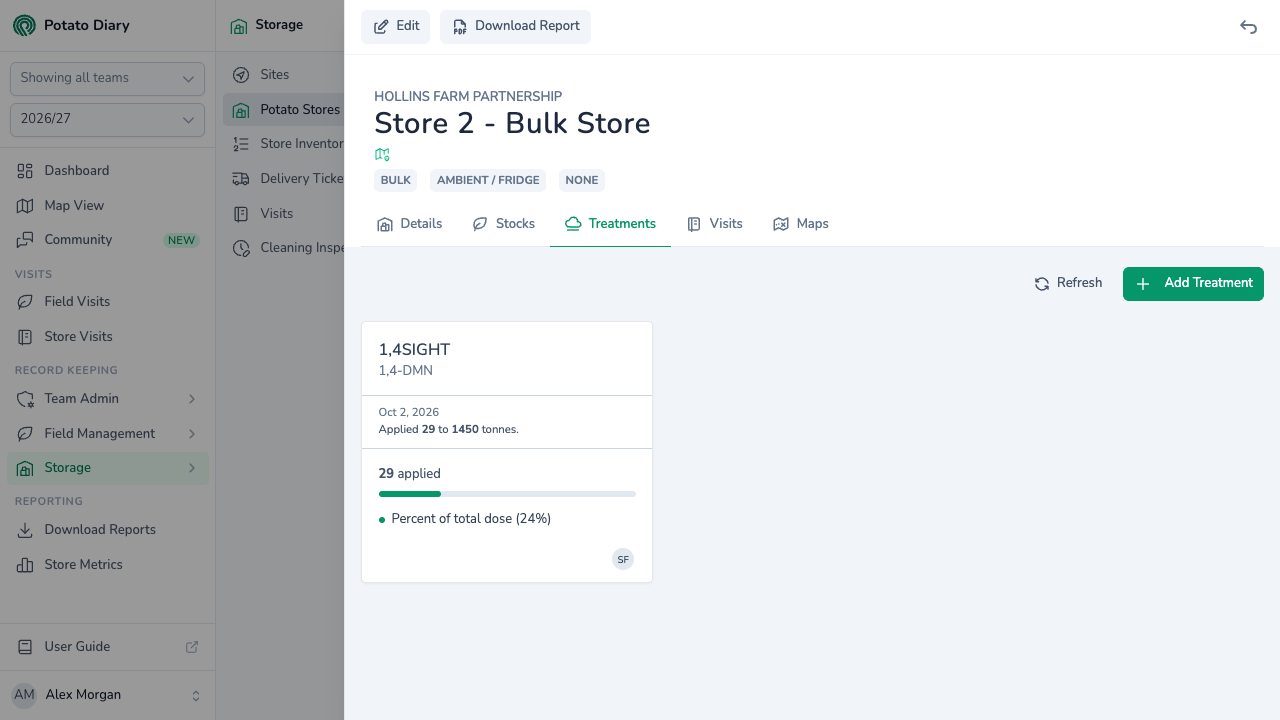
Treatments for the season picked in the sidebar are grouped into one card per product. Each card shows:
- the product name and its active ingredient
- one line per treatment, with its date and Applied X to Y tonnes. A paperclip and a number show how many files are attached. Click a line to edit that treatment.
- the total applied so far this season
- a Percent of total dose bar, showing the total against the product's maximum total dose
If there are no treatments yet, the tab shows No Treatments instead.
Step 2 — Click Add Treatment
Click Add Treatment at the top right of the tab. A Create A Treatment dialog opens.
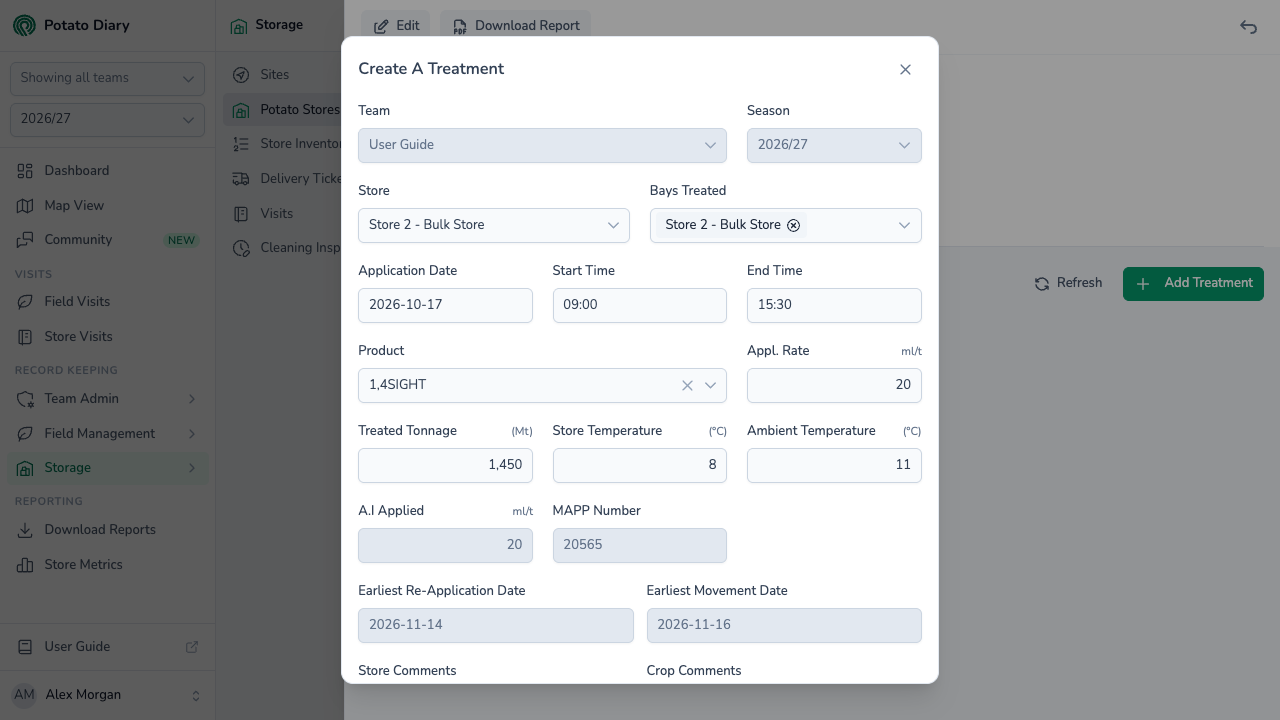
Step 3 — Fill in the treatment
| Field | What to enter |
|---|---|
| Team / Season | Filled in for you. |
| Store | Filled in with the store you started from. Changing it reloads the Bays list for the new store. |
| Bays Treated | The bays the product reached. Every bay in the store starts selected; remove any that weren't treated. |
| Application Date | The date the product was applied. Defaults to today. |
| Start Time / End Time | When the application started and finished. |
| Product | The sprout product used. Picking it fills in MAPP Number, sets Appl. Rate to the product's maximum dose, and shows the dose unit next to Appl. Rate and A.I Applied. |
| Appl. Rate | The application rate, in the product's dose unit. Required. |
| Treated Tonnage (Mt) | How many tonnes were treated. Required. |
| Store Temperature (°C) | The temperature in store at the time. Required. |
| Ambient Temperature (°C) | The outside temperature at the time. |
| A.I Applied | The active ingredient applied. Worked out from the product's active ingredient percentage and the application rate. You can't type in it. |
| MAPP Number | The product's MAPP registration number, from the sprout product. You can't type in it. |
| Earliest Re-Application Date | The application date plus the product's Min. Application Interval: the soonest you can apply the product again. You can't type in it. |
| Earliest Movement Date | The application date plus the product's Min. Movement Interval: the soonest the crop can be moved. You can't type in it. |
| Store Comments / Crop Comments | Notes about how the treatment went. |
| Files | Optional. Attach spray records, certificates or photos. See below. |
| Pre-fogging checks completed | Tick this once the checks before fogging have been done. |
The two earliest dates in the dialog are a preview. When you save, Potato Diary works them out again from the treatment's date and the product's intervals, and saves its own figures, so what you see on the saved treatment is always calculated the same way. If they look wrong, fix the intervals on the sprout product; treatments saved after that pick up the change.
Attaching files
Under Files, click Add files, or drag files onto the box. You can attach PDF, Word, Excel, CSV or image files, up to 20 MB each. Each file is listed with its name and size, and a bin button to take it off before you save.
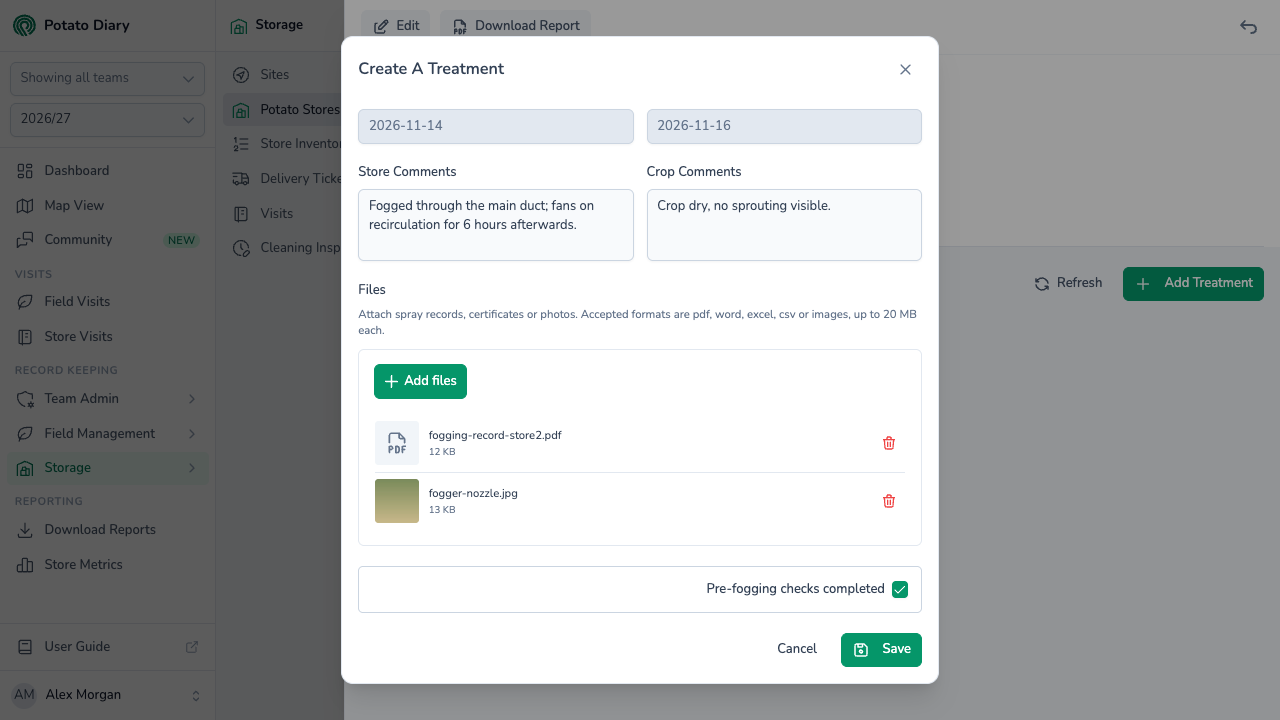
When you edit a treatment, its saved files are listed above Add files. Click a file's name to open it in a new tab. Click the bin button to remove a file when you save; it's crossed out until then, and you can click the undo button to keep it after all.
Step 4 — Click Save
The treatment appears on the Treatments tab. It also shows on the store's Details tab, in the Last Gassed card. Once the store has a visit dated on or after the treatment, the Latest Treatment banner shows it too, with its safe-movement date.
TIP
The Percent of total dose bar is a guide only. Potato Diary doesn't stop you saving a treatment that takes the total past the product's maximum, so keep an eye on it.
What's next
- The Visits tab — visits recorded after a treatment show it, with whether the crop was safe to move.
- Exporting store history — treatments are part of the store's PDF report.
- Sprout Products — set the doses and intervals the treatment form uses.