
Appearance
Delivery Tickets
A delivery ticket records one load of potatoes leaving the farm: who it went to, who hauled it, and which stock it came out of. Each line on the ticket takes crop out of a stock, so saving a ticket also records the load-out in Store Inventory for you. There's no need to enter the load-out twice.
Who can use delivery tickets
Delivery tickets are an extra module. You'll only see Delivery Tickets in the sidebar if:
- your team has the deliveries feature switched on, and
- you've been given the Delivery tickets role, which lets you view, create, edit and delete tickets.
The Team Admin role doesn't include delivery tickets. Only Potato Diary administrators can switch the feature on and assign the Delivery tickets role, so contact support if your team needs either.
Opening the page
In the sidebar, under Record Keeping, click Storage. The section panel opens beside the sidebar; click Delivery Tickets.
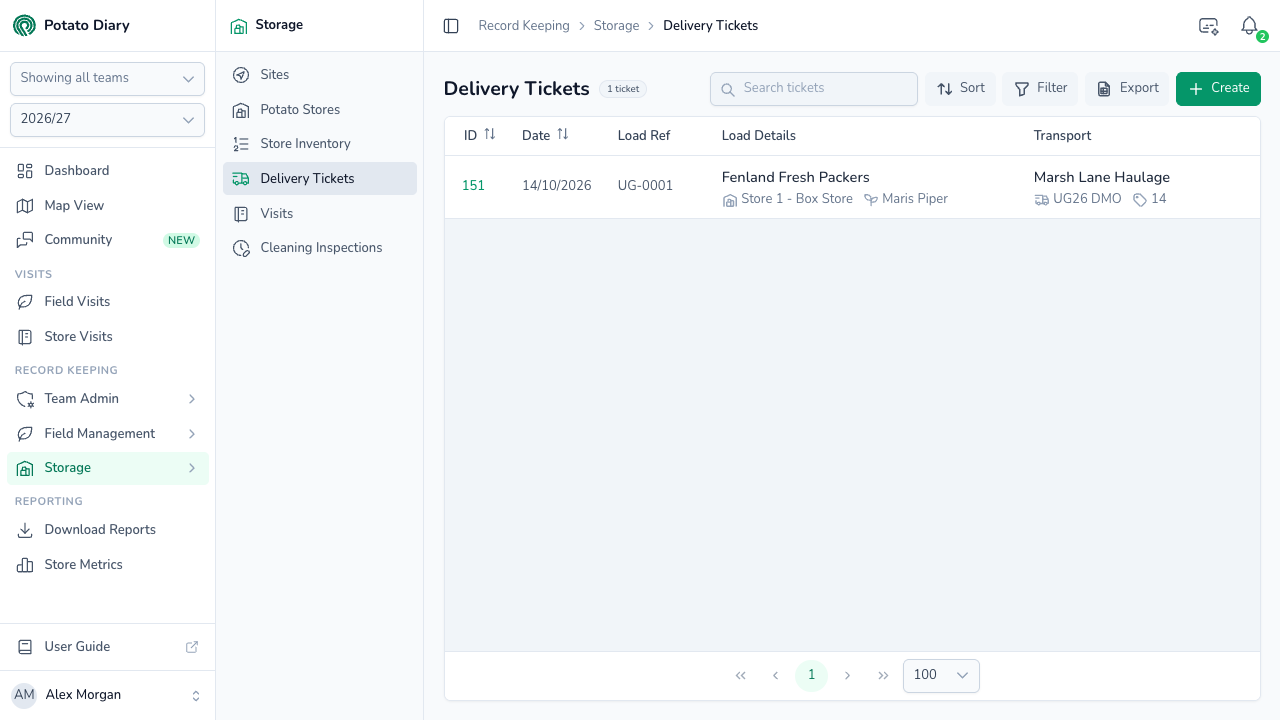
The page lists the tickets for the season picked in the sidebar, newest first. Along the top are:
- Search tickets: type to search by customer, load reference, haulier, lorry registration or bulker number.
- Sort: by ID or Date.
- Filter: by Store or Variety. Click Apply. A ticket is shown if any of its lines matches. On wide screens, active filters show as chips under the page title.
- Export: downloads the rows on the current page as a CSV file.
- Create: adds a new ticket. You'll only see it if you're allowed to create tickets.
The columns show:
| Column | What it shows |
|---|---|
| ID | Potato Diary's number for the ticket. Click it to open the ticket's menu. |
| Date | The date the load left the farm. |
| Load Ref | Your reference for the load. |
| Load Details | Who the load was delivered to, with a Washed tag if it was washed. Underneath are the stores and varieties on the ticket's lines. |
| Transport | The haulier, with the lorry registration and bulker number underneath. |
| Approx (Mt) | The total approximate tonnes across the ticket's lines. |
| Paid (Mt) | The total actual tonnes, entered as Actual (Mt) on the ticket. |
| £/t | The average price per tonne, weighted by the actual tonnes. Shows - until a price and actual tonnage are entered. |
| £ Total | The value of the load: actual tonnes × price per tonne, added up across the lines. |
On a laptop screen, scroll the table sideways to see the tonnage and price columns.
INFO
The CSV export only includes the ID, Date, Load Ref, tonnage and price columns. The customer, haulier, lorry, bulker, stores and varieties aren't in the file, and the date comes out as a full timestamp, for example 2026-10-14T00:00:00.000000Z.
Step 1 — Click Create
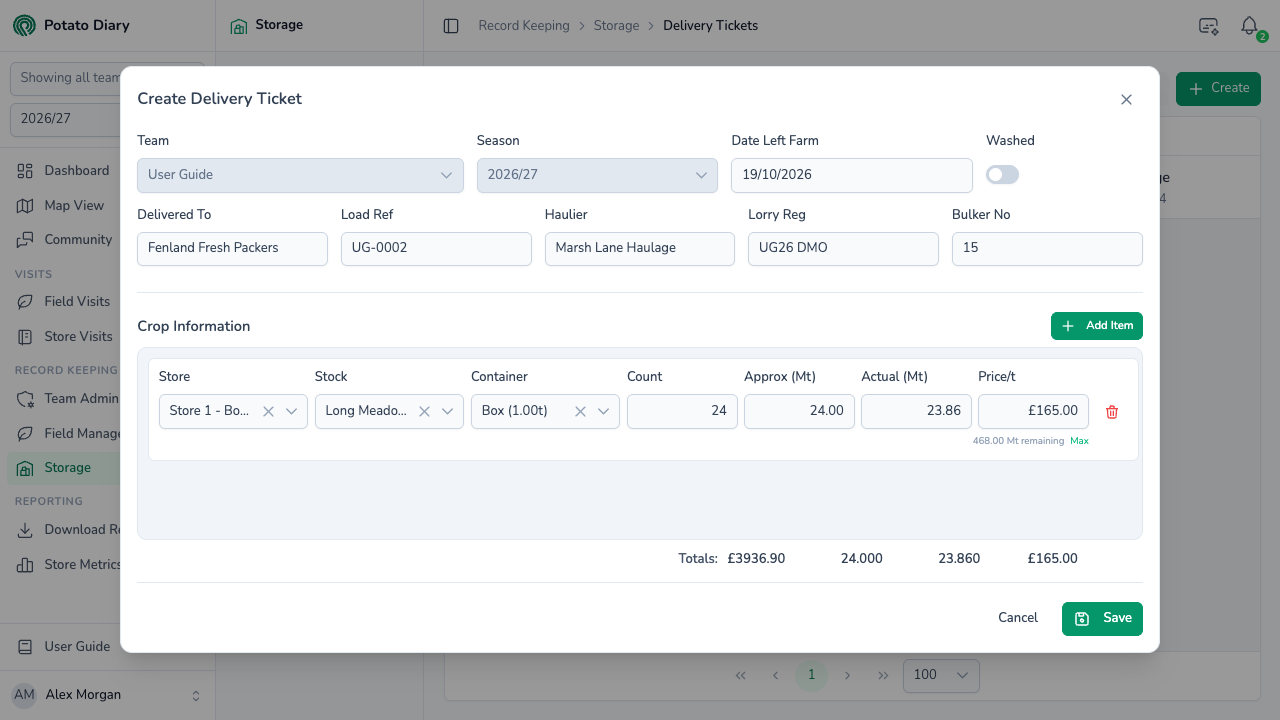
Click + Create at the top right. The Create Delivery Ticket dialog opens with one empty line ready to fill in.
Step 2 — Fill in the load details
The top of the dialog describes the load as a whole.
| Field | What to enter |
|---|---|
| Team | Filled in for you. If you belong to more than one team, you can change it until you pick a store on one of the lines. You can't change it once the ticket is saved. |
| Season | The season picked in the sidebar. You can't change it. |
| Date Left Farm | The day the load left. Defaults to today. |
| Washed | Switch on if the load was washed. The ticket then shows a Washed tag in the list. |
| Delivered To | The customer the load went to. As you type, it suggests customer names already used on your team's tickets. Required. |
| Load Ref | Your reference for the load. Required. Each reference can only be used once for the same customer in a season. |
| Haulier | Optional. The haulage firm. Suggests hauliers already used on your team's tickets. |
| Lorry Reg | Optional. The lorry's registration. |
| Bulker No | Optional. The bulker or trailer number. |
Delivered To and Haulier are free text: picking a suggestion just saves typing. They aren't linked to your Companies list.
Step 3 — Add the crop lines
Under Crop Information, each line is one stock going out on this load. A load made up from two bays, or two stores, needs two lines. Click Add Item to add another line, or the red bin button at the end of a line to remove it.
| Field | What to enter |
|---|---|
| Store | The potato store the crop is leaving. |
| Stock | The stock it's coming out of, shown as the field (or the stock's description) and variety, for example Long Meadow / Maris Piper. Pick a store first. |
| Container | The container type used. |
| Count | How many containers went out. |
| Approx (Mt) | The approximate tonnes going out. Filled in for you as Count × the container type's weight. Change it if you know better. This is the figure taken off the stock. |
| Actual (Mt) | Optional. The weighed or paid tonnage, once you know it. |
| Price/t | Optional. The price per tonne, in pounds. |
Every line needs a Store, Stock, Container, Count and Approx (Mt).
On a new line, Approx (Mt) is worked out again whenever you change Count or Container. On a line that's already been saved, it isn't: change Approx (Mt) yourself.
WARNING
The Stock list only shows the field and variety, not the bay or your stock reference, so two stocks of the same crop in different bays look identical. For example, Long Meadow / Maris Piper can appear twice in the same store, once for Bay 1 and once for Bay 2. To check you have the right bay, pick one and click Max (see below): it fills in everything left in that stock, which you can match against each stock's Balance (Mt) in Store Inventory. Then put your real tonnage back in. The list also only loads the first 50 stocks in a store.
How much is left in the stock
Once you pick a stock, a line under the row shows how much would be left in it after this line, for example 468.00 Mt remaining. It counts everything loaded in, less every load-out already recorded against the stock and the other lines on this ticket that use it. Click Max to fill in Approx (Mt) with everything that's left.
If a line takes more than the stock holds, Approx (Mt) turns red and the message changes to, for example, ⚠ 8.00 Mt over available.

WARNING
The over-available message is only a warning. Potato Diary still lets you save the ticket, and the stock's balance in Store Inventory goes negative.
Totals
The Totals row under the lines adds up the ticket: the total value in pounds, then the total Approx (Mt), the total Actual (Mt), and the average price per tonne.
Step 4 — Click Save
Click Save. The ticket appears in the list, and its load-outs appear on each stock straight away.
If anything's missing, a message appears under the field, and an Error message at the bottom right says how many problems there are. Messages for the crop lines use technical names: potato_store_id is the Store, potato_store_inventory_id is the Stock, container_type_id is the Container, and approx_tonnage is Approx (Mt).
What a ticket does to your stock
Each line on a saved ticket creates a load-out movement on the stock it names, so the stock's Out (Mt) and Balance (Mt) in Store Inventory, and the store's Stocks tab, take the load into account. The movement uses:
- the ticket's Date Left Farm as its date
- the line's Container and Count
- the line's Approx (Mt) as its tonnage. Actual (Mt) doesn't change the stock.
The ticket stays in charge of these movements:
- Edit the ticket and its load-outs change to match: a new date, count or tonnage, or a different stock.
- Remove a line and its load-out is removed from the stock.
- Delete the ticket and all its load-outs are removed, putting the crop back on the stocks' balances.
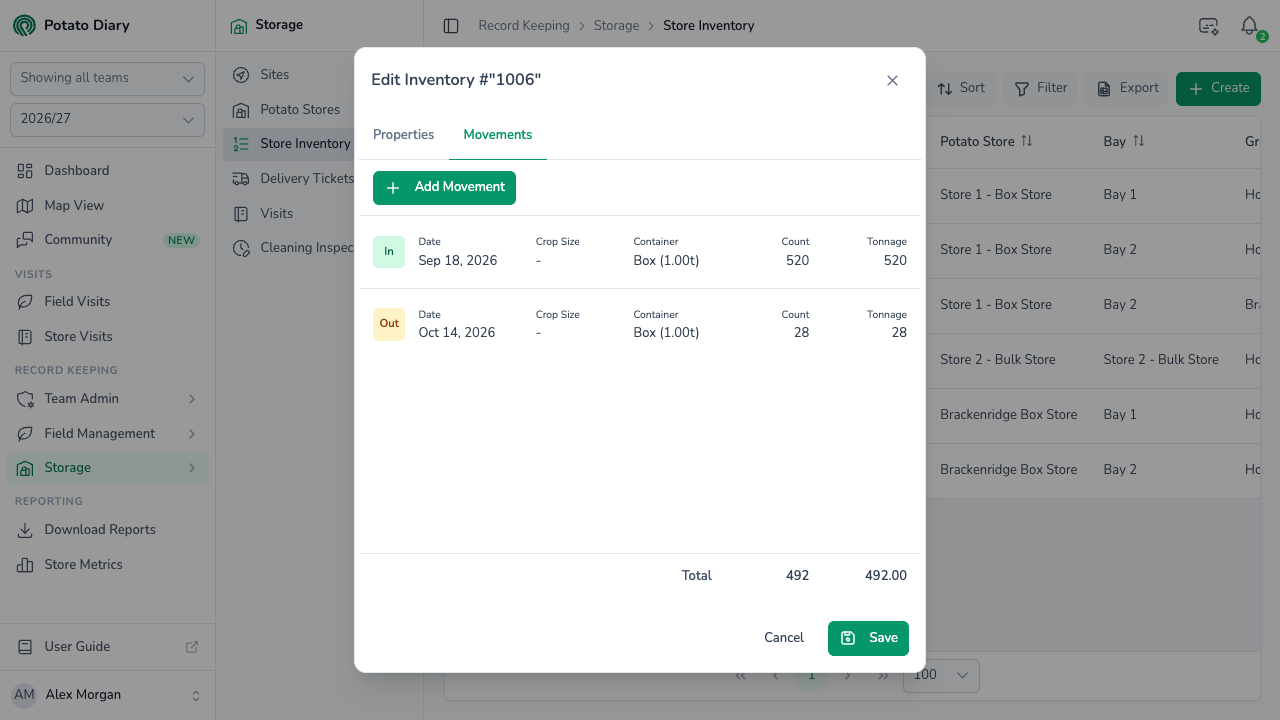
To see the load-out, open the stock from Store Inventory with Edit and go to the Movements tab. It's listed as an Out row, like any other load-out.
Click the row and the movement opens with the message This movement is managed by delivery ticket #151 and is read-only here. Edit it from the delivery ticket. Every field is locked, and there's no Delete or Save button. Change it from the ticket instead.
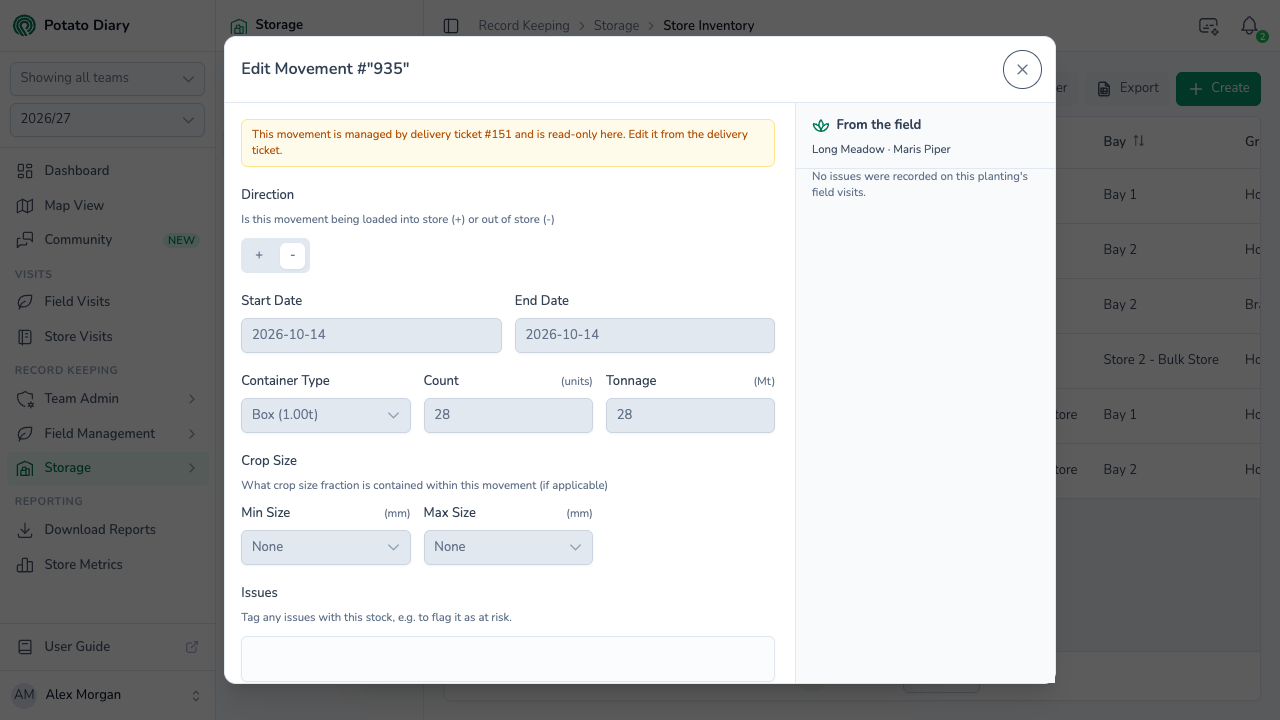
In the Movements list, nothing marks a ticket's load-out as different from one entered by hand. You only see the message when you open it.
Editing, copying or deleting a ticket
Click a ticket's ID to open its menu.
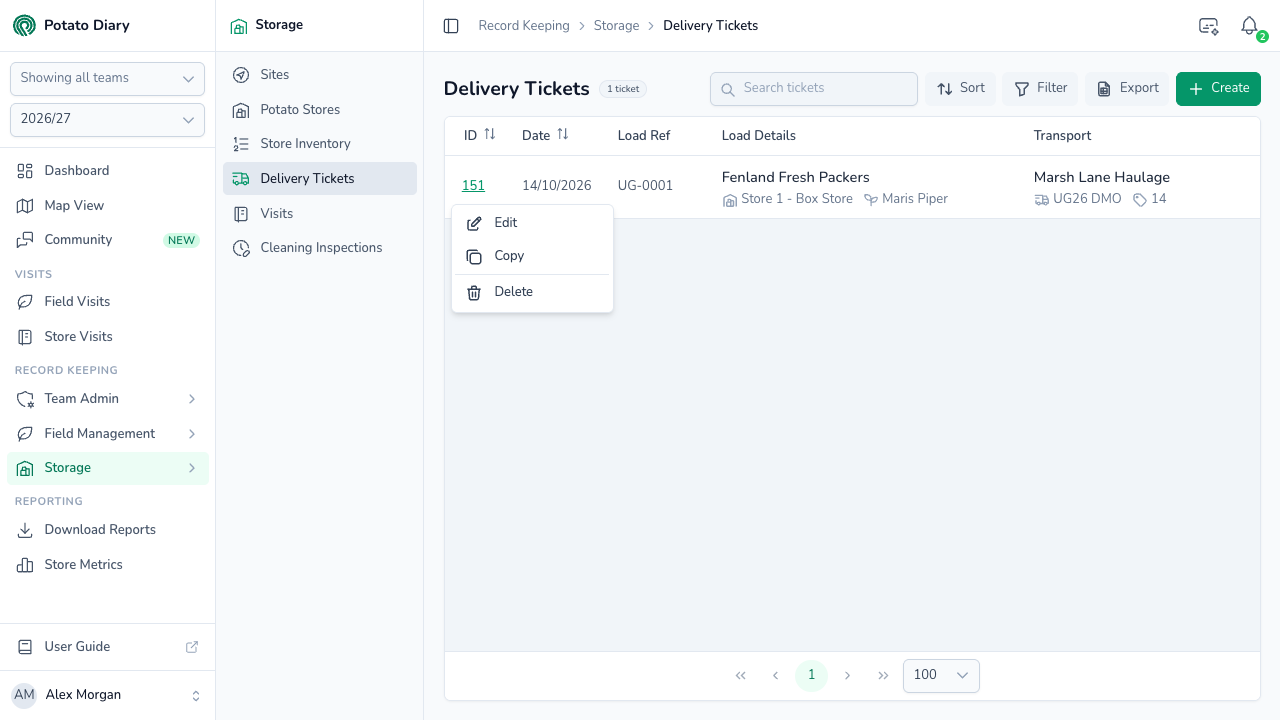
- Edit: opens the ticket as Edit Delivery Ticket #151. Change anything except the team and season, then click Save. While you edit, the remaining figure under each line ignores this ticket's own load-outs, so you can see how much you could send.
- Copy: opens a new ticket, Copy of Delivery Ticket #151, with the same date, washed setting, customer, haulier and lines. Load Ref, Lorry Reg and Bulker No are cleared, because they belong to one physical load. Fill in a new Load Ref before you save. Saving the copy creates new load-outs on the stocks, so change the lines to match the new load.
- Delete: asks Are you sure you want to delete delivery ticket #151? Click Delete to confirm. This can't be undone, and the ticket's load-outs are removed from the stocks.
Options you're not allowed to use are greyed out.
There's no PDF or printable version of a ticket.
What's next
- Potato Store Visits — record visits to the store while the crop is in.
- Store Inventory — check the stocks' balances after a load goes out.
- The Stocks tab — see a single store's stock, including what's gone out.