
Appearance
The Maps tab
The Maps tab on a potato store holds reference files for the store's layout, typically a floor plan showing where each bay sits, the lateral runs and the cooling layout. Maps are uploaded files, kept for the season they were added in.
Opening the tab
In the sidebar, under Record Keeping, click Storage. The section panel opens beside the sidebar; click Potato Stores. Click a store's name to open its menu, choose View, then click the Maps tab.
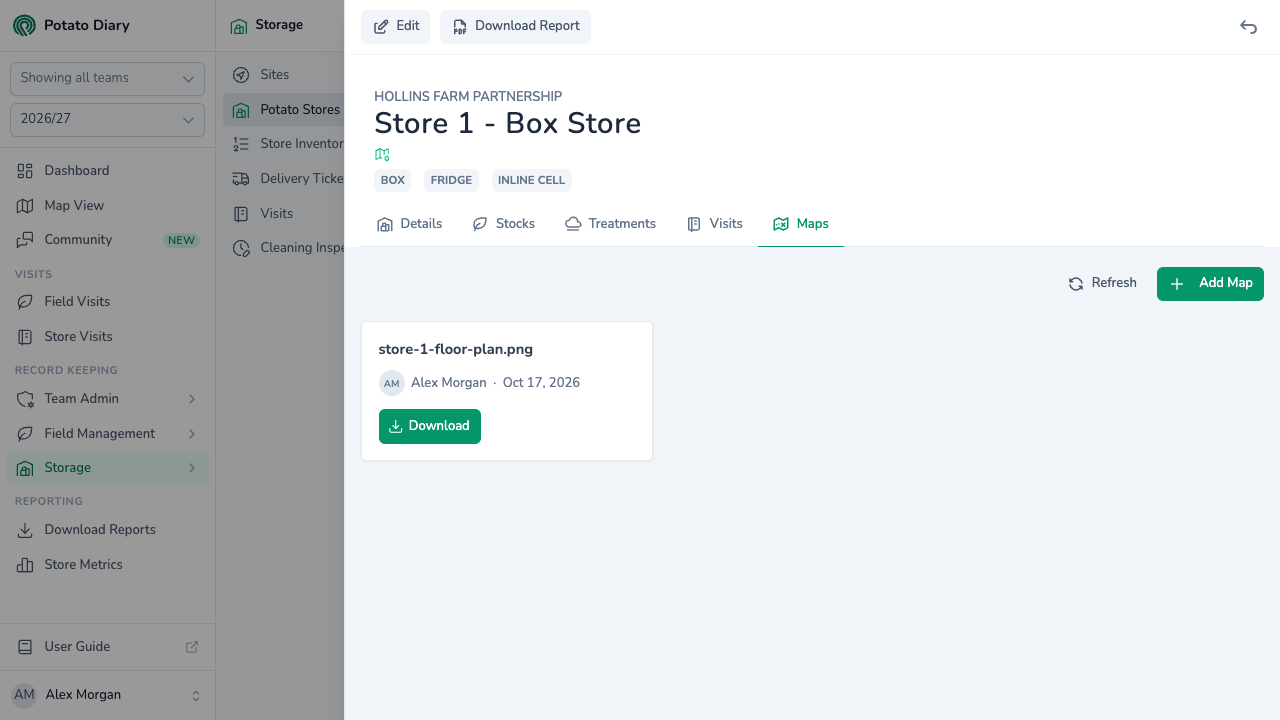
Each map shows as a card with the file name, who uploaded it and when, and a Download button for the original file. If there are none for the season picked in the sidebar, the tab shows No Store Maps.
Uploading a map
Click Add Map at the top right of the tab to open the Create A Potato Store Map dialog.
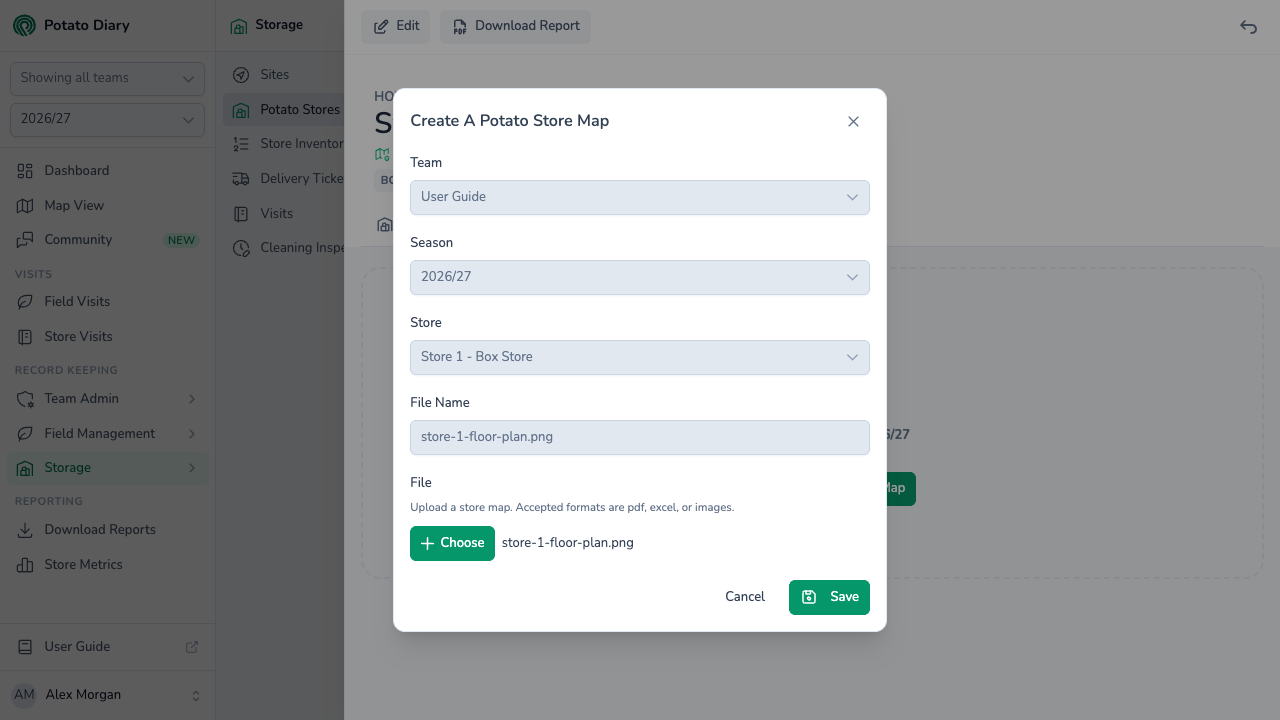
| Field | What to enter |
|---|---|
| Team / Season / Store | Filled in and locked. |
| File Name | Filled in for you from the name of the file you choose. You can't change it here, so rename the file on your computer first if you want a different name. |
| File | Click Choose and pick the file. PDF, Excel, CSV and image files are accepted, up to 5 MB. |
Click Save. The map appears on the Maps tab.
What's next
- QC Samples tab — guide coming soon.
- Configuring bays — set up the named bays the map shows.
- The Stocks tab — record what's in each bay.