
Appearance
The Details tab
The Details tab is the dashboard for one potato store. It opens first when you view a store and gives a quick read on its current state: storage risk, latest temperature, last treatment, tonnage in store and the latest cleaning inspection, followed by charts of temperatures, lifting conditions, runtimes, energy use and stock movements.
Opening the tab
In the sidebar, under Record Keeping, click Storage. The section panel opens beside the sidebar; click Potato Stores. Click a store's name to open its menu and choose View. The Details tab is selected.
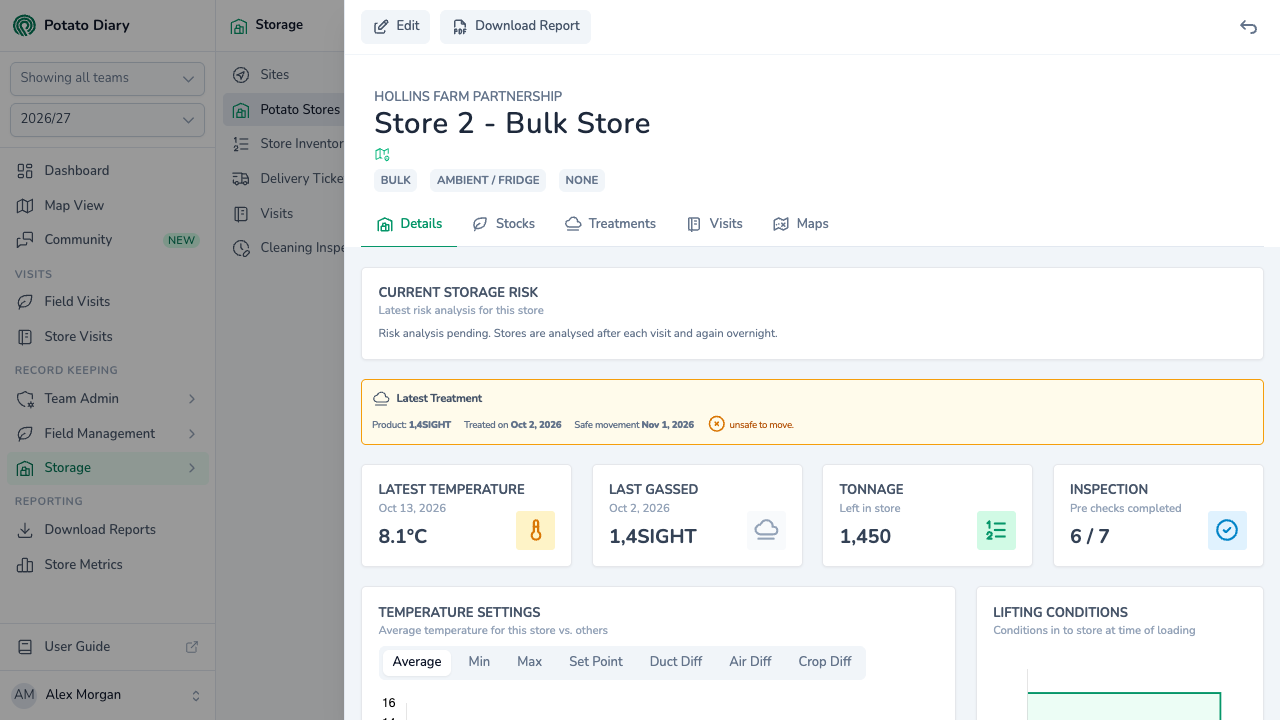
The buttons at the top left of the store view are:
- Edit — re-opens the store's dialog. See Creating a potato store. You'll only see it if you're allowed to edit the store.
- Download Report — downloads the store's PDF report. See Exporting store history.
Current Storage Risk
If you can see storage risk, a Current Storage Risk card sits at the top of the tab. Potato Diary analyses each store after every visit and again overnight, and gives it a band: Low, Moderate, High or Critical. The same band shows as a coloured chip next to the store's name at the top of the store view.
The card shows:
- the band, with Stale next to it when the latest analysis is out of date
- how the band has changed since the previous analysis, for example Moderate → High
- a Confidence tag and when the store was analysed, for example Analysed 2 days ago
- a one-line summary, and up to three of the main reasons behind the band
Click View full risk detail to open the full analysis in a panel, or See trajectory to jump to how the risk has changed over time. If the store hasn't been analysed yet, the card says Risk analysis pending. Stores are analysed after each visit and again overnight.
See Storage risk for what each band means and what moves a store between them.
Latest Treatment banner
When the store's latest visit was on or after a sprout-suppression treatment, a Latest Treatment banner shows that treatment: the product, the date it was applied (Treated on), and the Safe movement date worked out from the product's minimum movement interval. It's green and says safe to move once that date has passed, or amber and says unsafe to move until then.
Summary cards
Four cards sit under the banner:
- Latest Temperature — the average temperature from the most recent visit that recorded one, with the visit's date. N/A if there isn't one.
- Last Gassed — the product used in the most recent treatment, with the date it was applied.
- Tonnage — the tonnes left in store, from the stock movements.
- Inspection — the result of the latest cleaning inspection, for example 6 / 7: the checklist items marked yes out of those that apply.
Temperature Settings chart
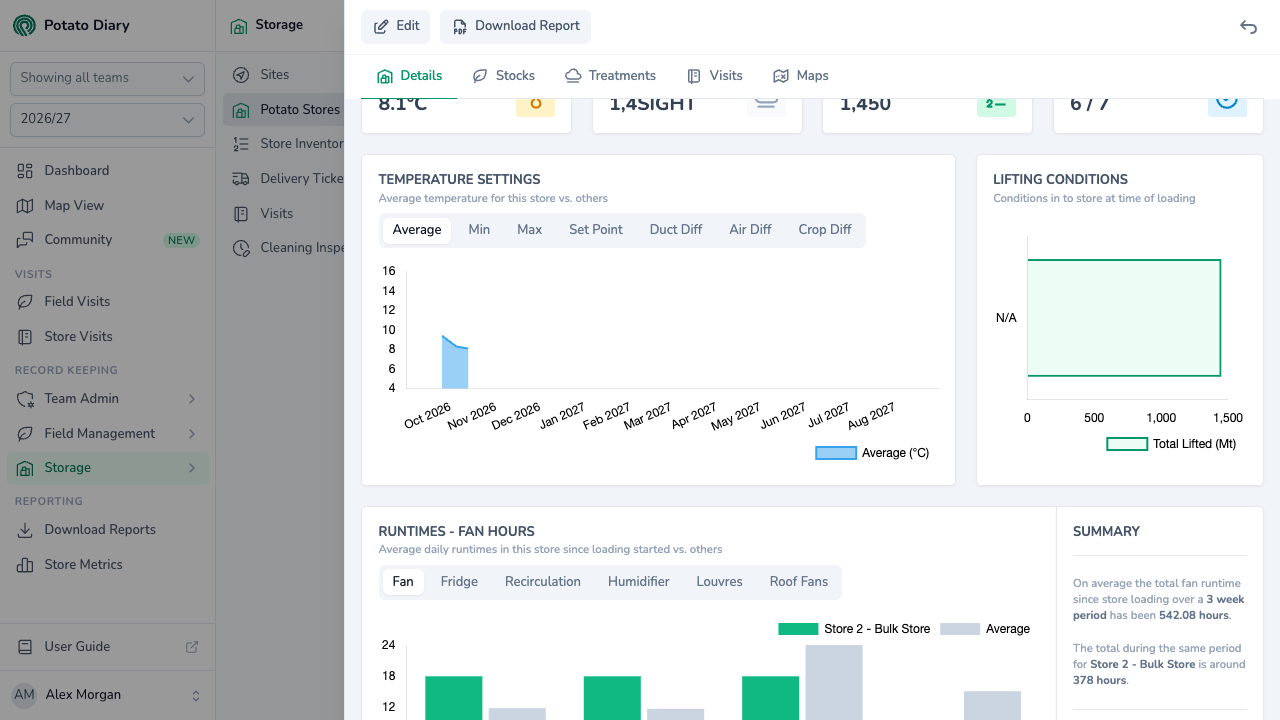
Plots this store's temperature readings from visits across the season, against other stores. Use the options at the top of the chart to switch between Average, Min, Max, Set Point, Duct Diff, Air Diff and Crop Diff.
Lifting Conditions chart
Shows how many tonnes were loaded into the store in each weather condition, using the weather recorded at the time of each load-in. Loads with no weather recorded show as N/A. It helps you spot crop that went in during wet or warm conditions, which often leads to storage problems later.
Runtimes chart
The Runtimes chart plots this store's average daily hours for one type of equipment, week by week since the store's loading date, next to the average for other stores. Use the options at the top of the chart to switch between Fan, Fridge, Recirculation, Humidifier, Louvres and Roof Fans; the chart title changes to match, for example Runtimes - Fan Hours.
The Summary panel beside it gives the total hours for this store and the average over the same weeks, and how far above or below the average this store is as a percentage.
The figures come from the Run Time readings on visits, and are worked out overnight. The chart stays empty for this store until it has a loading date and visits with Run Time readings.
Energy chart
The Energy chart works the same way for energy use. Pick Total kWh, Day kWh or Night kWh, and show it as kWh/day or kWh/day/tonne (per tonne in store). It has its own Summary panel comparing this store with the average.
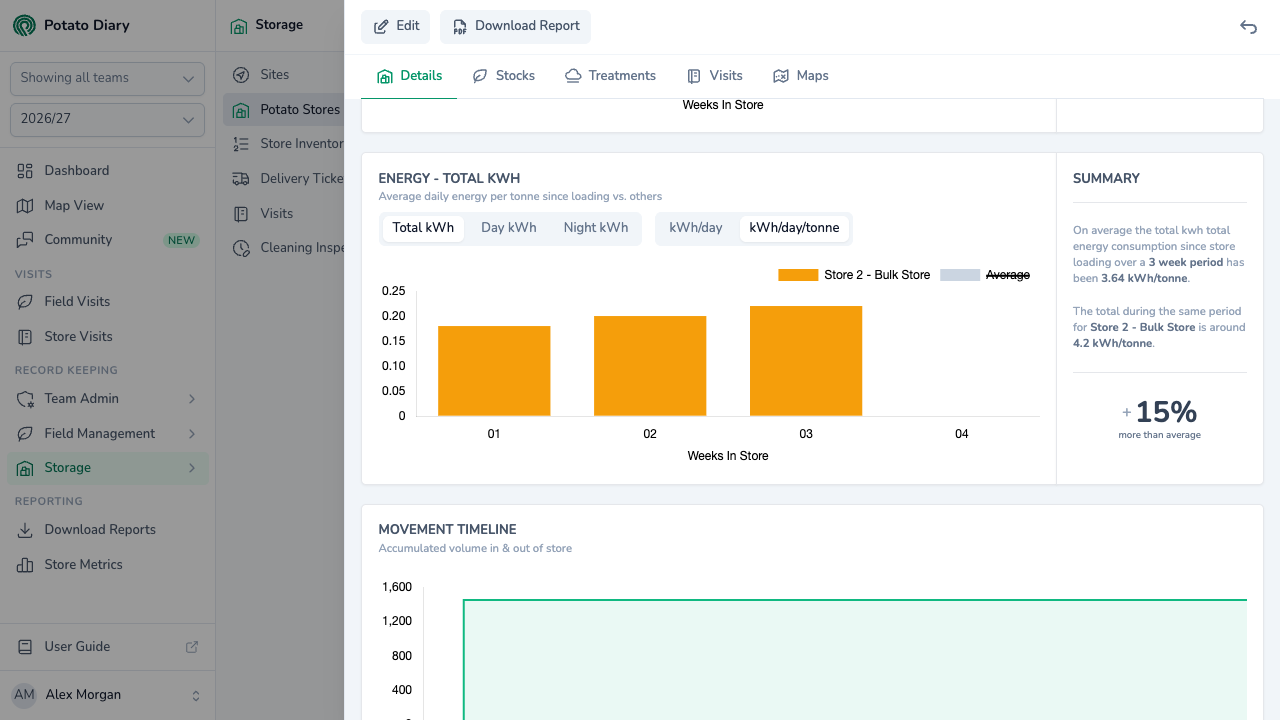
The figures come from the Energy readings on visits, and need a loading date in the same way as runtimes.
Movement Timeline chart
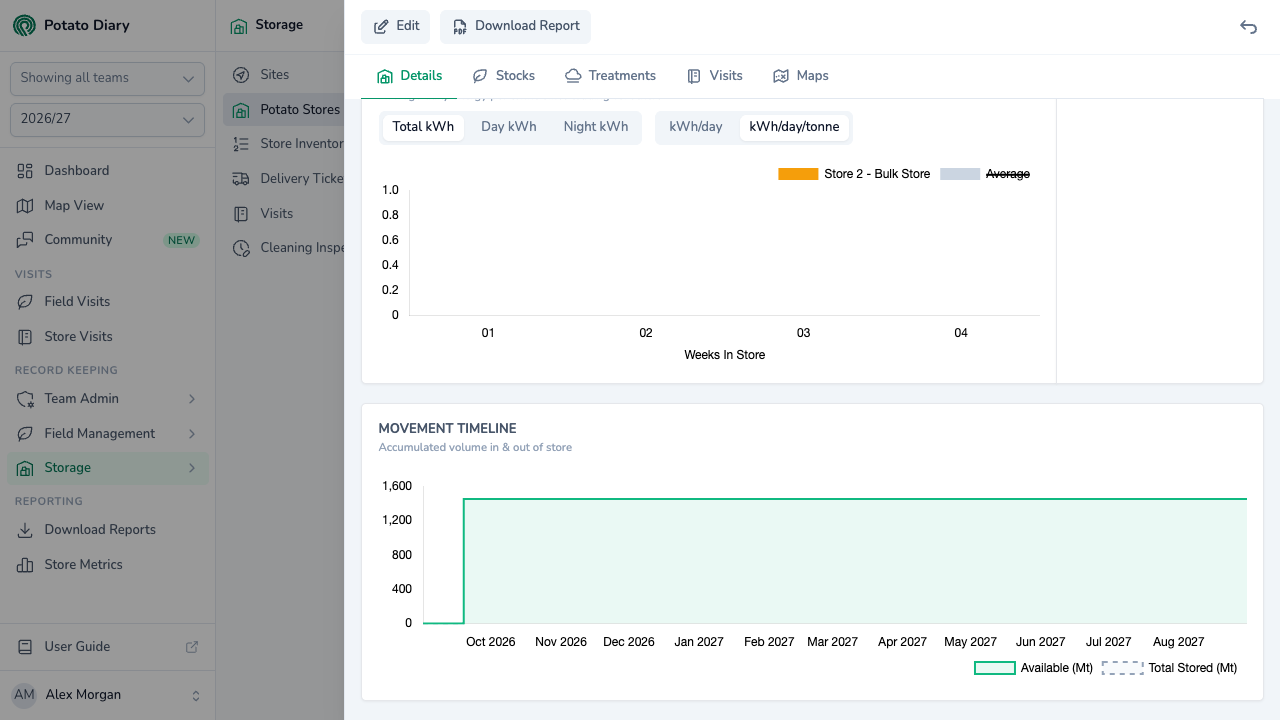
Plots the crop in store over the season: Available (Mt), what's in store after load-outs, and Total Stored (Mt), everything loaded in to date. It shows how the load-in and load-out pattern played out.
What's next
- The Stocks tab — record load-ins and load-outs to keep the Tonnage card and the Movement Timeline up to date.
- The Visits tab — visits feed the Latest Temperature card, the charts and the storage risk analysis.
- Potato Store Configuration — switch on the Run Time and Energy readings the charts need.