
Appearance
Exporting a stock map PDF
A stock map PDF puts a store's map on one A4 landscape page, with a table of the stock in it, ready to pin up in the store, print for the loading crew, or send to a buyer.
The PDF always shows the last saved version of the stock map, not changes you haven't saved yet.
Opening the preview
Open the store's stock map and click Export PDF at the top right. On Store Maps, you can also click ⋯ on a filled card and then Export PDF.
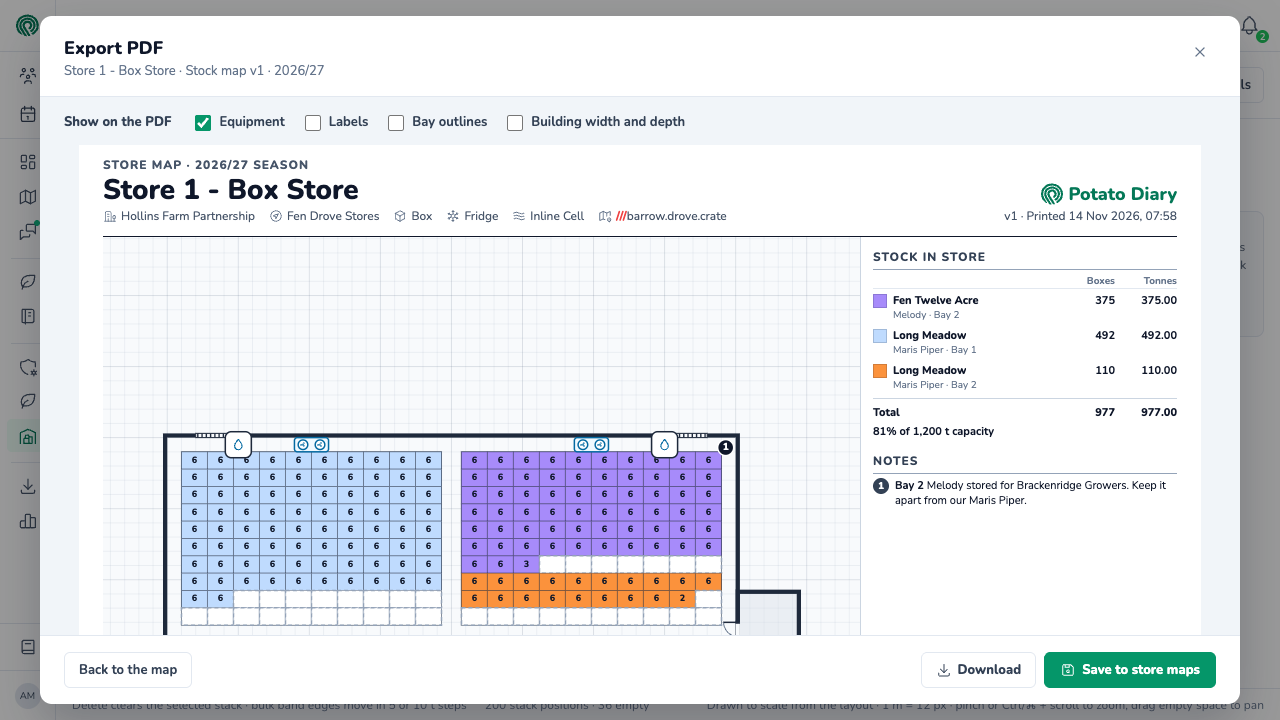
Under Show on the PDF, pick what to print on the plan:
| Switch | What it adds |
|---|---|
| Equipment | Doors, fridge units, fans and the rest, with a key. On to start with. |
| Labels | The names of the box areas, bulk areas and rooms. Labels you added in the layout always print. |
| Bay outlines | A line round each bay, with its name. |
| Building width and depth | The measurements along the walls. |
These switches are separate from the Display switches on the map, so you can print something different from what you look at on screen.
Downloading or saving the PDF
- Download saves the PDF to your computer, named after the store, the map version and the time, such as Store 1 - Box Store stock map v1 · 12 Nov, 21:01.
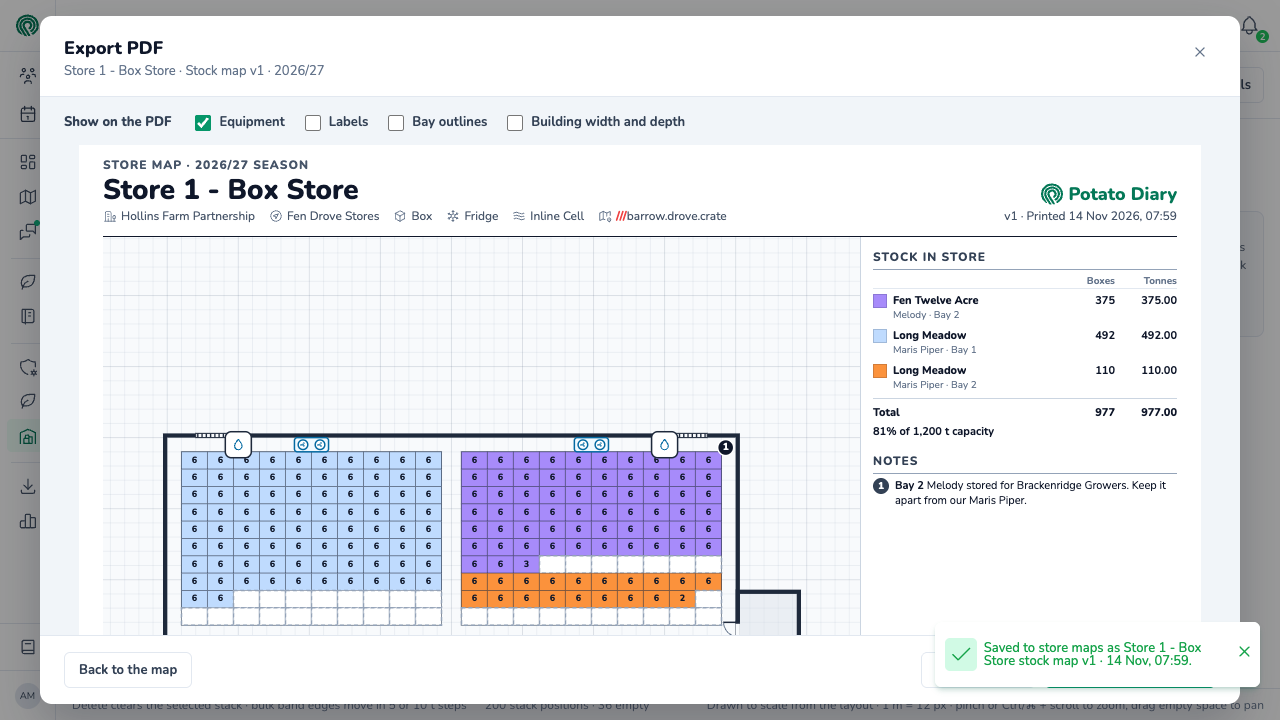
- Save to store maps adds the PDF to the store's Maps tab, where everyone on the team can open it, including in the mobile app. Each save adds a new file; earlier ones stay until someone deletes them.
Filled cards on Store Maps have a download button too, which downloads the PDF straight away without the preview.
What's on the PDF
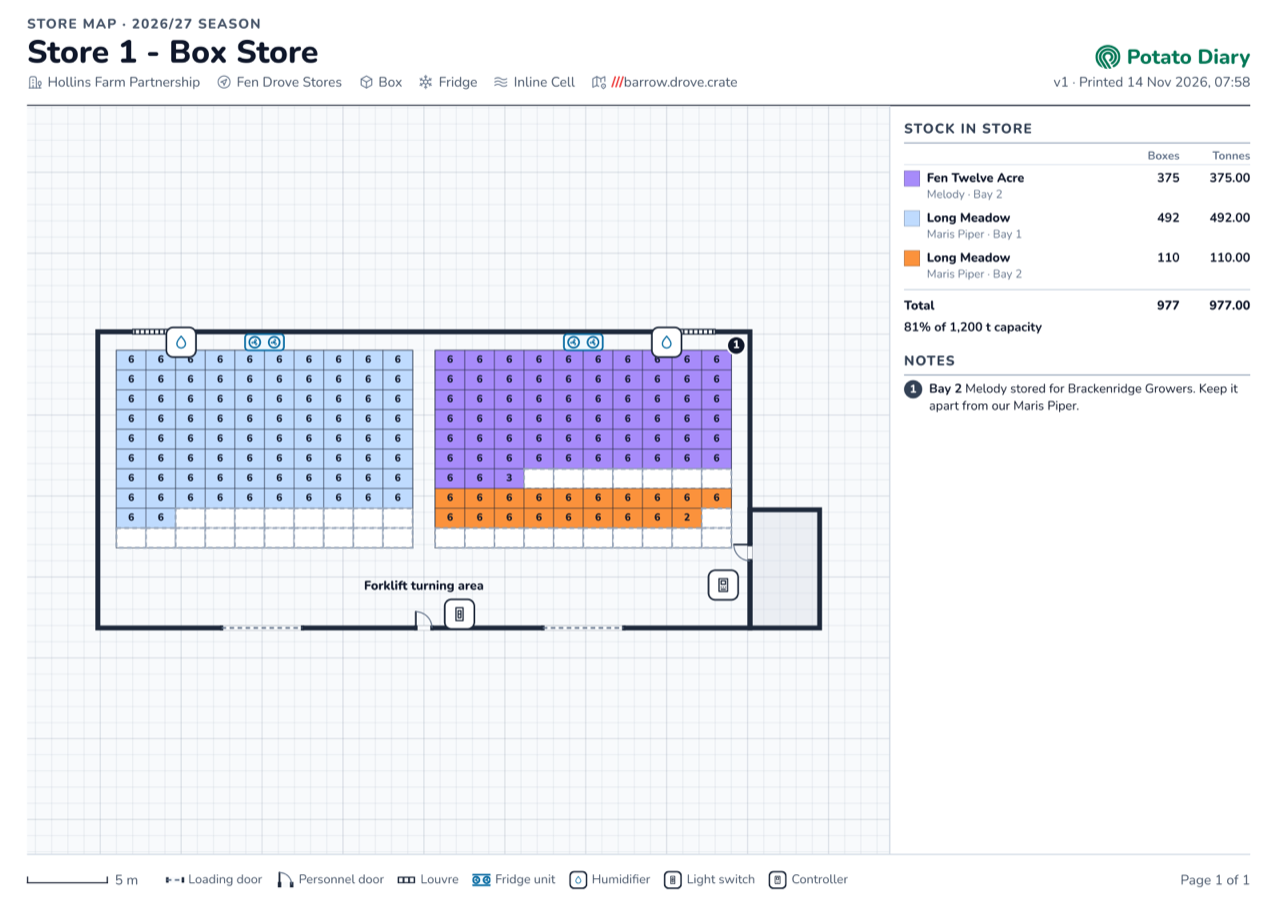
- The header: the season, the store's name, and its company, site, store type, cooling, humidifier and what3words address. On the right are the map version and when it was printed.
- The plan, drawn to scale, with every stack's box count or every bulk area's bands in the stocks' colours. The whole plan is always on page 1.
- Stock In Store: each stock on the map, with its Boxes and Tonnes, then the totals and how full the store is. Stock still waiting to be placed isn't included. The PDF shows what's on the map, so it doesn't take off expected loss: for Est. Available, see Store Inventory.
- Notes: only the notes ticked Show on PDF in the layout editor, numbered to match the numbers on the plan.
- The footer: a scale bar, the equipment key, and the page number.
When the key has too many stocks or notes for page 1, it carries on over the next pages.
When you can't export
The buttons are greyed out, and the preview says why, when:
- This store has no saved stock map for this season yet. Fill the map and save a version first.
- The layout has changed since this map was saved. Open the stock map, confirm the move onto the new layout, and save a version.
Save to store maps also needs permission to add maps to the store and to change the stock map, and can't add to a closed season. It's greyed out while a move onto a new layout is waiting for Confirm, and while you have unsaved changes on the map: save them first, so the PDF matches the records.
What's next
- Maps tab — where saved stock map PDFs and other uploaded files are kept.
- Store Maps — every store's map in one place.