
Appearance
Store Maps
Store Maps draws each of your potato stores to scale and shows where every stock sits in it this season: which box stacks hold which crop, and how many tonnes are heaped in each bulk area.
A store map has two parts:
- The layout is the plan of the store: its walls, the box areas where stacks go, the bulk areas where crop is heaped, the bays, and equipment such as doors, fridge units and fans. You draw it once. It belongs to the store, so it carries over from season to season, and you only change it when the store changes.
- The stock map shows this season's stock on the layout. It starts from the stock logged for the store in Store Inventory: you place each stock on the stacks or bulk areas it's in. Each season has its own stock map, and every save keeps a new version.
The stock map doesn't replace Store Inventory. Store Inventory is still the record of what came in and went out. The map adds where it is, and when you take stock off the map or put more on, it offers to record the movement for you.
Opening Store Maps
In the sidebar, under Record Keeping, click Storage. The section panel opens beside the sidebar; click Store Maps.
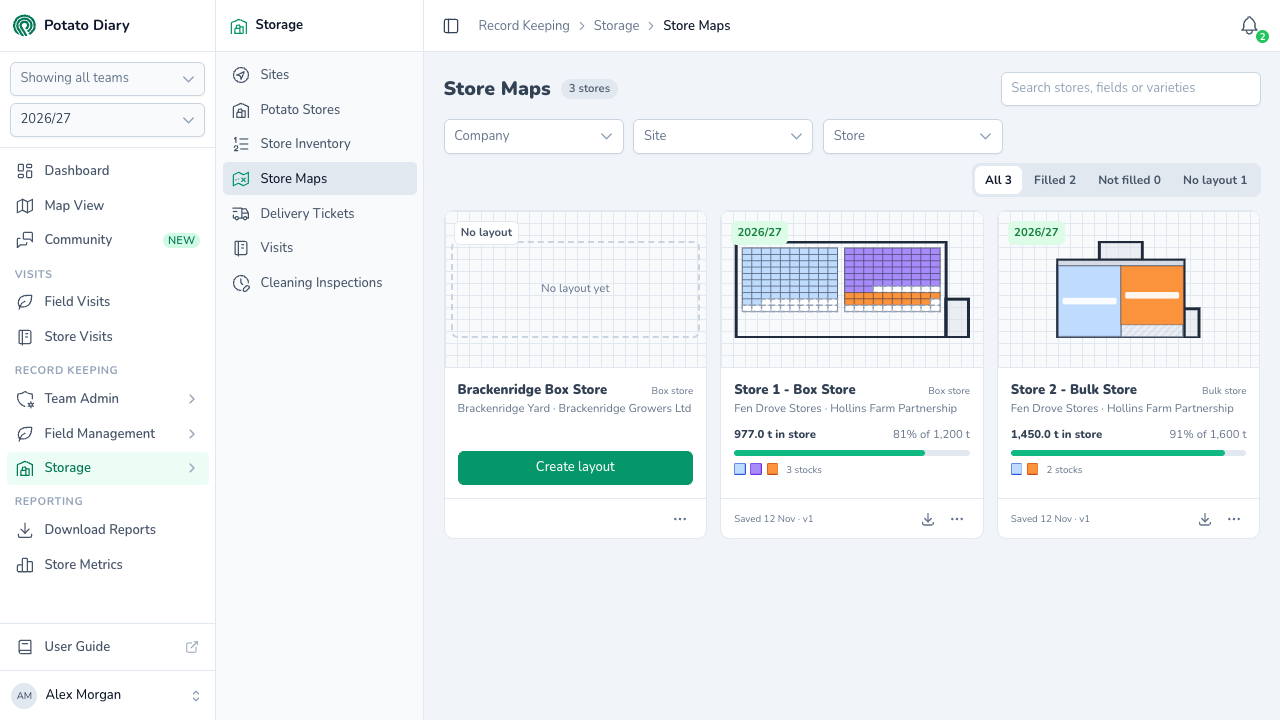
You can also get here from a store's Maps tab: click Store Maps at the top right of the tab to open this page with just that store showing.
The page shows one card for each store you can see, for the season picked in the sidebar. Pick another season in the sidebar to see that season's maps.
Reading a card
Each card has a small plan of the store, coloured with its stock, and a chip that tells you where the store is up to:
| Chip | What it means | Card's button |
|---|---|---|
| The season, such as 2026/27, in green | The stock map for this season has stock on it. The card is Filled. | None. Click the plan to open the stock map. |
| Not filled for 2026/27, in amber | The store has a layout, but nothing is on this season's stock map yet. | Fill for 2026/27 opens the stock map. |
| No layout | Nobody has drawn the store yet. | Create layout opens the layout editor, if you can edit the store. |
Under the plan are the store's name, whether it's a Box store or a Bulk store, and its site and company. A filled card also shows:
- The tonnes on the map, and how full the store is as a share of its capacity. The bar turns amber, with over capacity, when the map holds more than the store's capacity.
- A coloured square for each stock on the map, and how many stocks there are. Hover over a square to see the stock's field and variety.
- When the map was last saved and its version, such as Saved 12 Nov · v1.
- A download button for the stock map PDF. See Exporting a stock map PDF.
If files have been uploaded to the store's Maps tab, the card also says how many, for example 2 uploaded maps.
Finding a store
Along the top of the page are:
- Search stores, fields or varieties: type a store, site or company name, or a field or variety. When the match is a stock logged in the store, the card names it, for example Fen Twelve Acre · Melody · 375 boxes.
- Company, Site and Store: narrow the cards to one company, site or store. Picking a store also picks its site and company. Clear removes them all.
- All, Filled, Not filled and No layout: show only the cards with that status. Each one shows how many stores it would show.
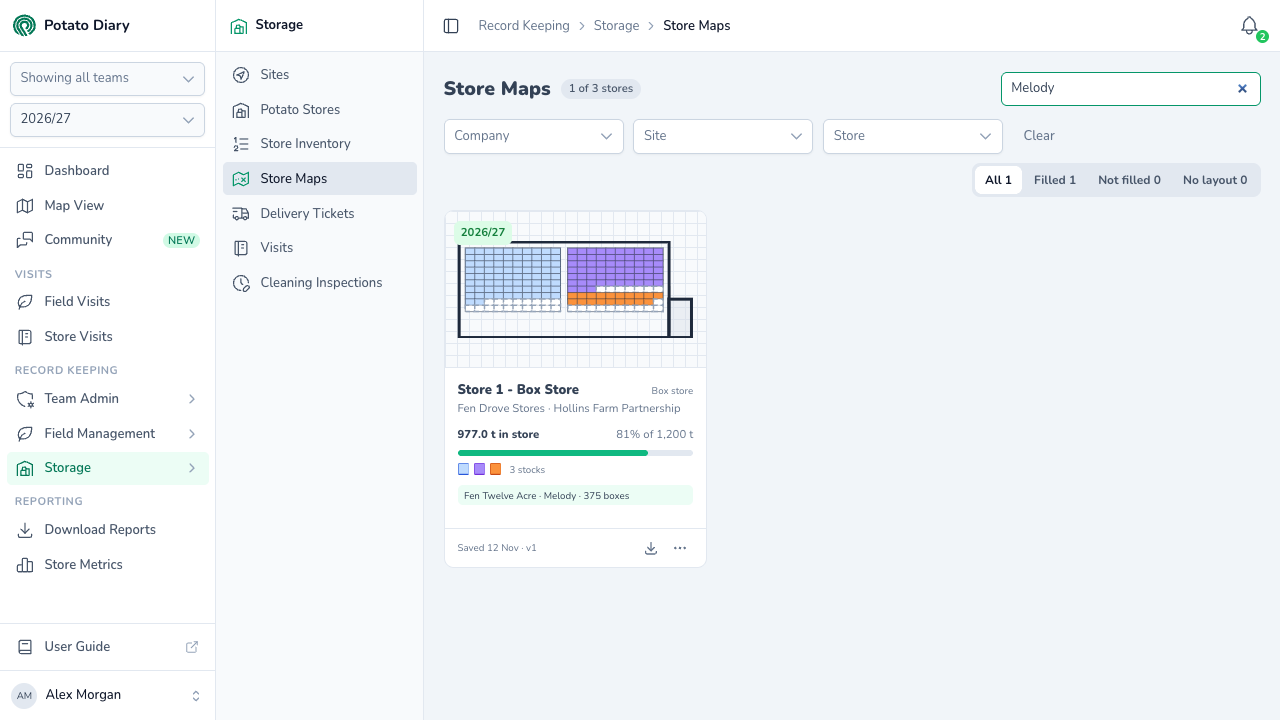
The card menu
Click ⋯ at the bottom right of a card to see what you can do with that store:
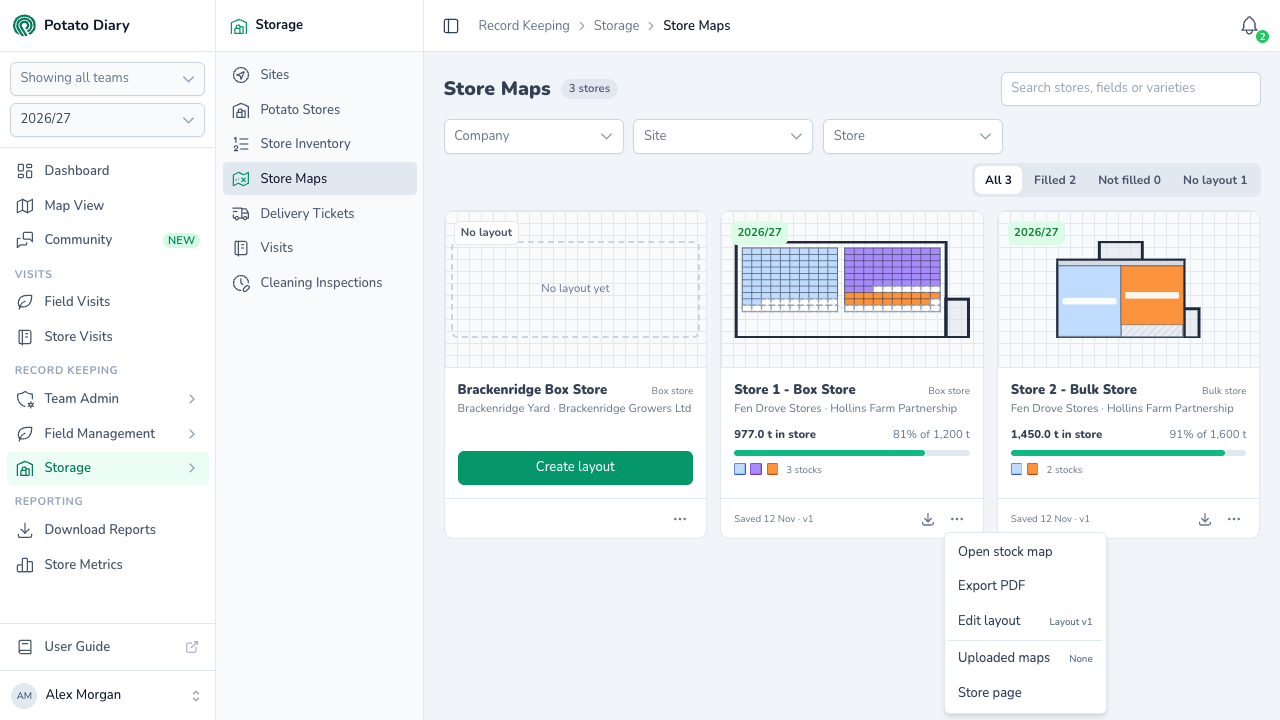
| Option | What it does |
|---|---|
| Open stock map / Fill for 2026/27 | Opens this season's stock map. Only shows once the store has a layout. |
| Export PDF | Opens the stock map's PDF preview. Only on a filled card. |
| Create layout, Edit layout or View layout | Opens the layout editor. You see View layout if you can look at the store but not change it. The hint on the right says which layout version the store is on. |
| Uploaded maps | Opens the store's Maps tab, with the number of files on it. |
| Store page | Opens the store's page. |
Getting a store onto a map
- Draw the store's layout: its walls, box or bulk areas, bays and equipment.
- Fill the stock map for the season by placing each stock where it is.
- Keep the map up to date as stock comes in and goes out, and record those movements from the map.
- Export a PDF to print, send, or save to the store's Maps tab.
Who can do what
- To see a store's map, you need access to the store. To see its stock map, you also need access to its stock.
- To draw or change a layout, you need to be able to edit the store. Adding a bay from the layout editor also needs permission to create bays.
- To change a stock map, you need to be able to edit some of the stock in the store, or add new stock to it. You can only change the stock you can edit.
If a button you expect isn't there, ask a team admin to check your access on Team Users.
What's next
- Drawing a store layout — draw a store's walls, box and bulk areas, bays and equipment.
- Store Inventory — where the stock on the map is logged.