
Appearance
Keeping a stock map up to date
Once a stock map is filled, keep it in step with the store as crop comes in, goes out, or moves between bays. Changes on the map can be recorded in Store Inventory as you save, so you don't have to enter them twice.
When stock comes in
Log the stock in Potato Diary first: in Store Inventory, on the store's Stocks tab, or with Add stock under Stock in store on the map. Add stock opens the stock form with this store and season already picked.
The new stock appears under Stock to place on the map. More boxes logged in for a stock already on the map show there too, as the number still to place. Place them and save a version.
When stock goes out
When boxes leave the store, take them off the map and let the save record the movement.
Click Clear stacks (the eraser) in the tools at the top.
Click a stack to empty it, or drag across several. Undo puts them back.
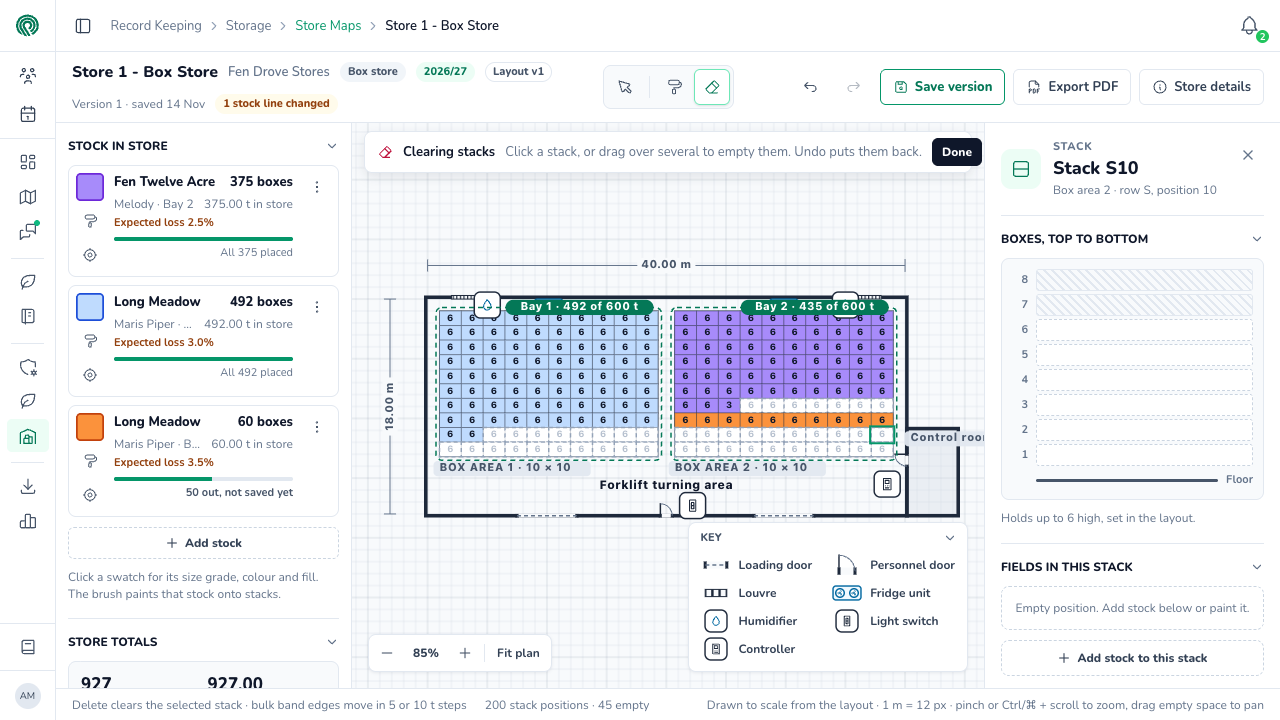
Click Save version. The dialog lists the stock that came off, marked Delivered, with how many were on the map at the last version and how many are on it now, such as 110 → 60 on map.
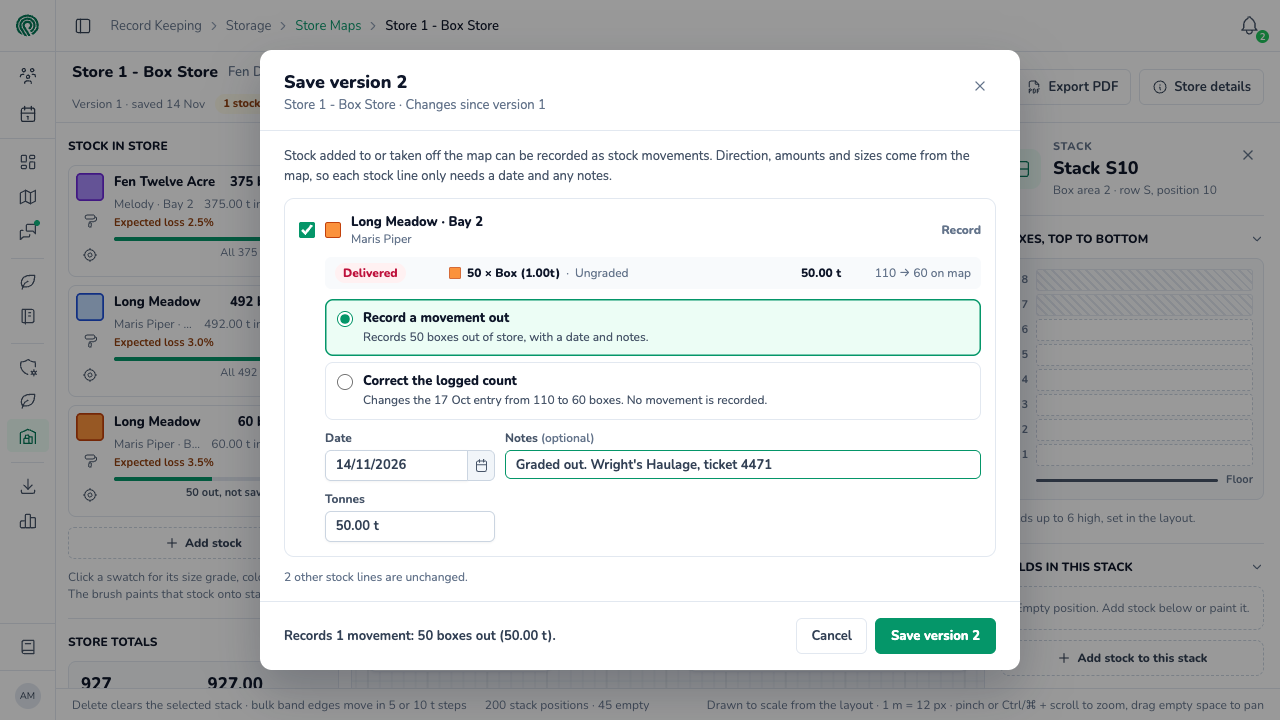
Leave the stock ticked, and choose how to update Potato Diary:
- Record a movement out: records the boxes as a delivery. Fill in the Date, any Notes (the haulier, destination or ticket number), and the Tonnes that went out. Tonnes starts at the boxes × the stock's weight per box as recorded going in; change it to the weighed figure if you have one.
- Correct the logged count: use this when the boxes never came in, for example a miscount at loading. It changes the stock's latest intake to match the map, and records no movement. It's greyed out, with the reason, when that intake came from a delivery ticket or is smaller than what came off.
Click the dialog's save button, such as Save version 2. The message says how many movements were recorded.
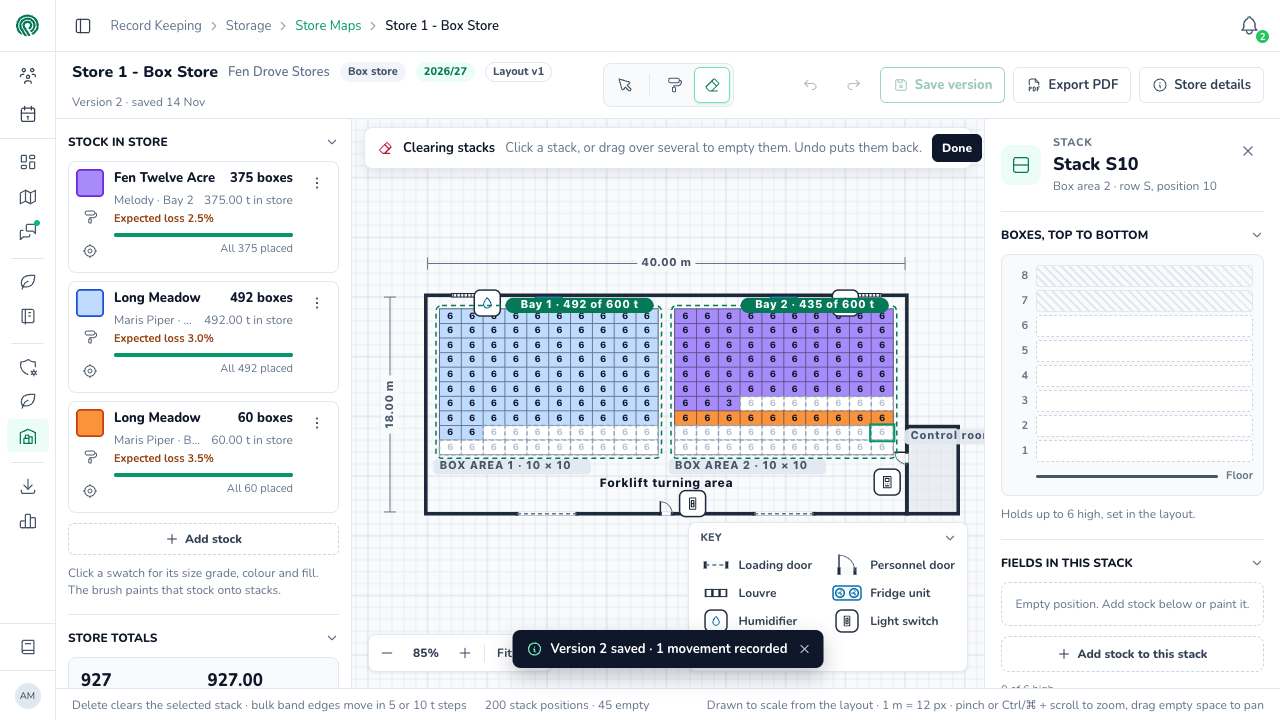
Putting stock on the map works the same way: the dialog offers Record a movement in for boxes on the map that aren't logged yet.
For loads leaving with a delivery ticket, use Delivery Tickets instead. The ticket books the stock out, and the stock's line under Stock in store then says how many boxes to take off the map. Clear them and save; there's nothing more to record.
Saving changes as map only
Untick a stock in the Save version dialog to save the change on the map without touching Potato Diary. The label on the right changes to Map only.
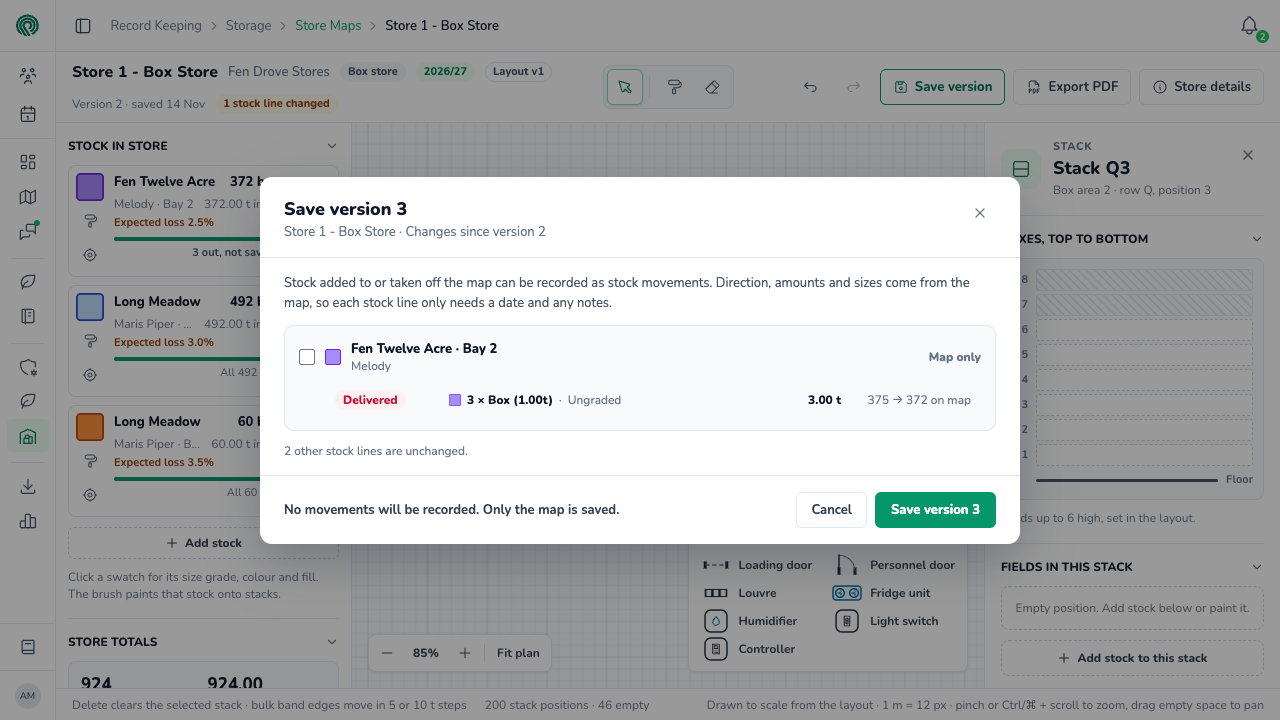
Use it when you know the map is right but aren't ready to record the movement, for example while you wait for a weighbridge ticket.
After saving, the stock gets its own card in the list on the left, headed Records differ (or To place or check when there's also stock to place), until you sort it out. Its line under Stock in store says the same, such as 3 off the map, not logged out.
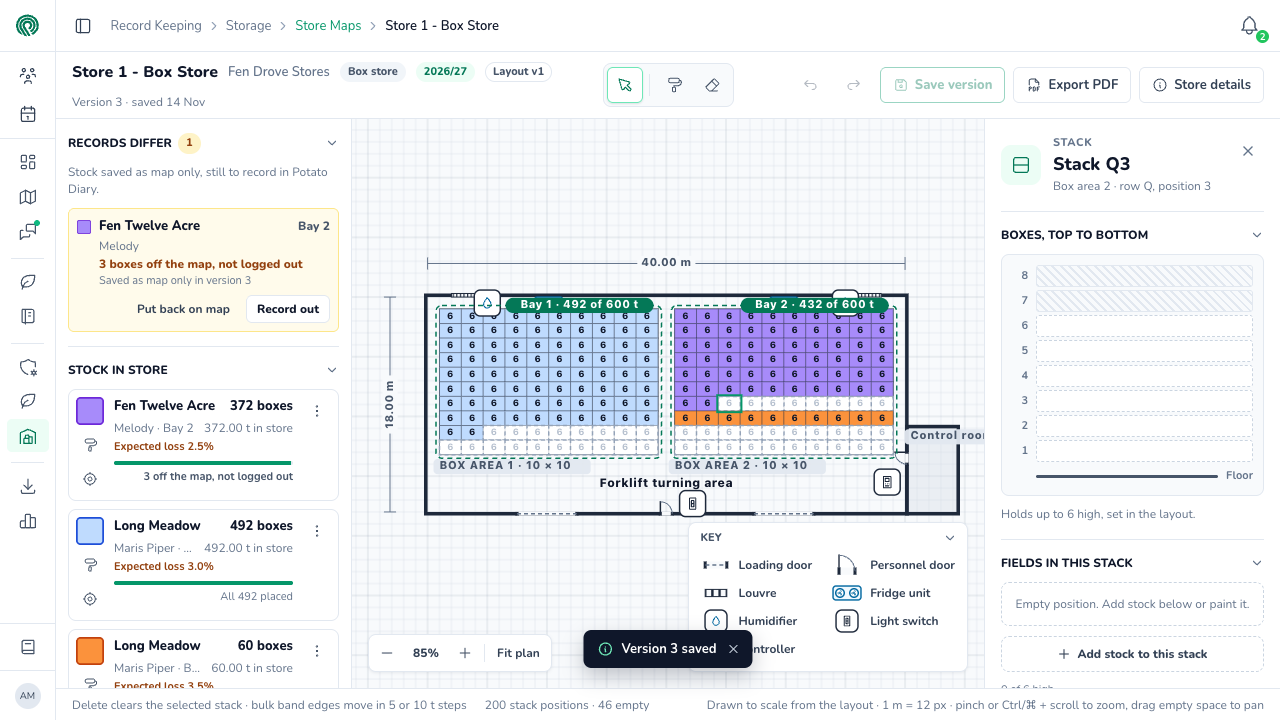
On the card:
- Record out (or Record in) opens a dialog to record the movement now, with its date, notes and tonnes.
- Put back on map (or Remove from map) undoes the change on the map, so it matches the records again.
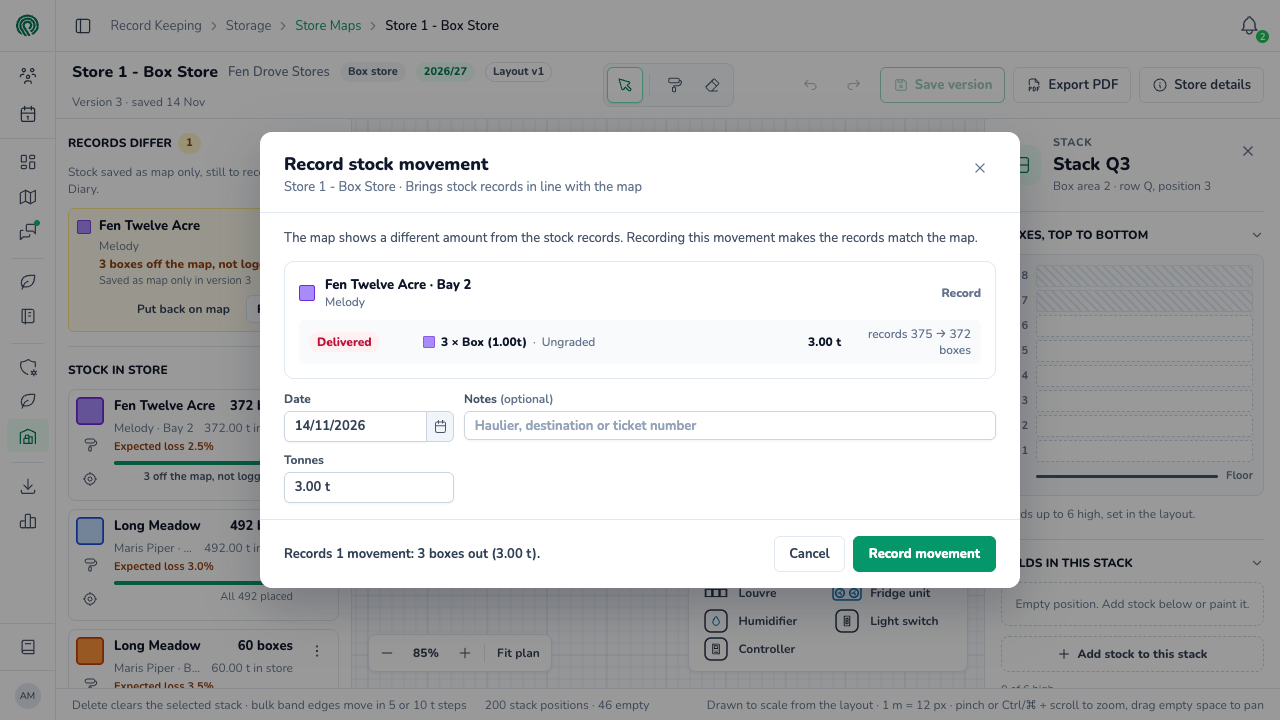
Record movement writes to Potato Diary straight away. You don't need to save a version afterwards.
When the map and the records don't match
If a stock you can edit is partly on the map but has fewer boxes there than are logged, or more was logged since the last version, its card under Stock to place has Map is right beside Place. Click it when the map is the true picture. The dialog asks what happened to the difference:
- The logged count was wrong: corrects the logged count to match the map. Click Correct the count.
- Boxes have left the store: records a movement out. Click Record movement.
For bulk stock, the choices are The logged amount was wrong (click Correct the amount) and Crop has left the store. For box stock logged in tonnes with no box count, the first choice reads The estimate was wrong.
Like Record movement, this writes to Potato Diary straight away.
Moving stock between bays
To move stock to another bay, take it off the stacks in one bay and place it in the other. When you save, the dialog offers to move the stock's entry to the new bay, or to split it if only part of it moved.
A split is recorded in Store Inventory as a pair of Move rows: one out of the stock in the old bay and one into the stock in the new bay. A move changes each stock's Into Store, not Delivered, and the store's total stays the same.
A stock's menu
Click ⋮ on a stock under Stock in store for everything you can do with it:
| Option | What it does |
|---|---|
| Paint stacks with this | Picks the paint brush with this stock. |
| Colour, fill and size grade… | Changes how the stock looks on the map. |
| Add size grade | Splits the stock into another size grade with the same colour. |
| Place / Add to Bulk area 1 / Map is right | Shown while some of the stock is still to place. |
| Edit Stock In Bay 2 | Opens the stock's form, the same one as in Store Inventory. Unsaved changes on the map are kept. |
To bring a stock that has all gone to 0 In Store, add a loss in the stock's form. This replaces Close out, which has been removed from the map's menu. See Recording waste or loss. Waste, loss and regrades are recorded there, not on the map.
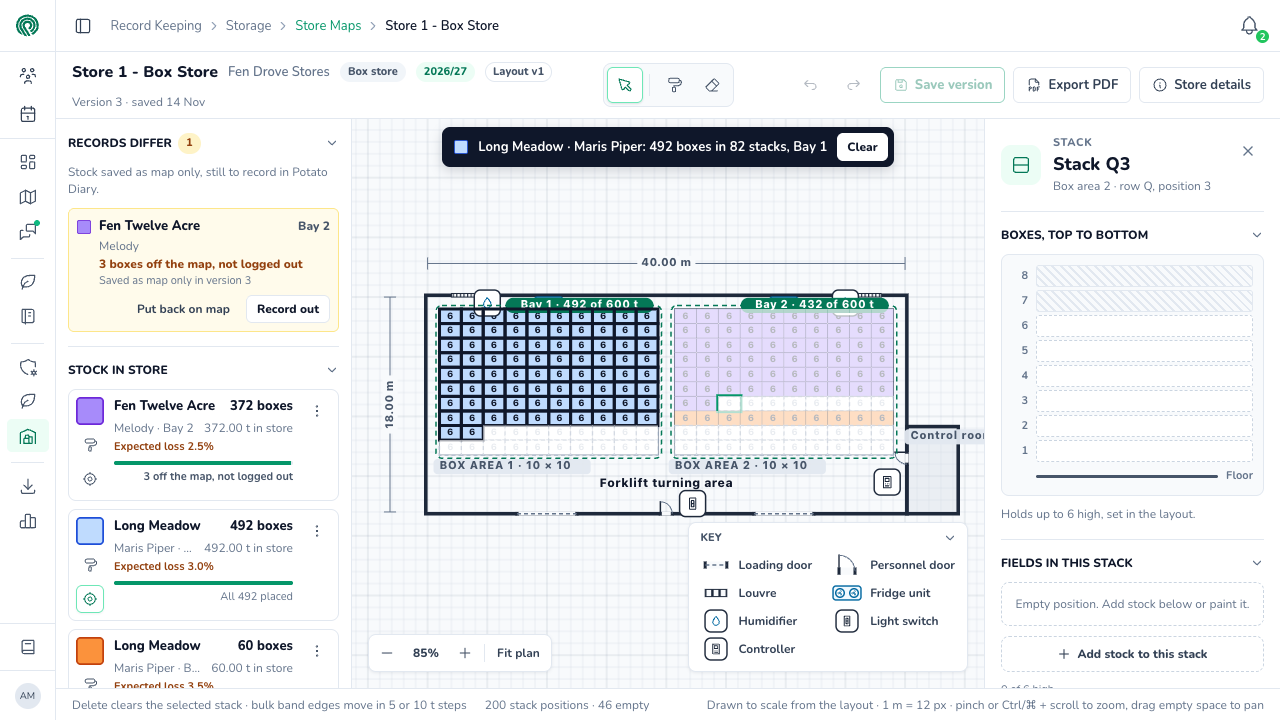
To find a stock on a busy map, click the target button under its name. Its stacks stand out, and a note over the plan says how many boxes it has in how many stacks. Click Clear to go back.
Stockfeed on the map
Stockfeed is crop kept as feed, with no size (see Stockfeed). On the map, a stock's stockfeed boxes are a part of their own, labelled Stockfeed, so they're never drawn as one of the stock's sizes. Stockfeed has no size grade: the map says Stockfeed has no size grade. if you try to give it one. A delivery, a move to another bay or a correction recorded from the map for that part is recorded as stockfeed.
Needs checking
When a stock changes in Store Inventory in a way the map can't follow by itself, it's listed under Needs checking: for example, it's been regraded, split, switched between boxes and bulk, moved to another bay, or deleted. Each card says what changed, and offers the fix, such as Move to the new grade, Remove from map for a deleted stock, or Show on map to find it.
Differences in quantity aren't listed here. They show under Stock to place instead.
Stock in a deleted bay
If a bay is deleted while stock is still logged in it, the stock is listed under In a deleted bay. Click Restore the bay to bring the bay back, or Move to another bay to move each stock out. Restoring a bay needs permission to delete bays.
When the layout changes
When someone saves a new version of the store's layout, the stock map moves onto it the next time it's opened. A card over the plan says what the change does to the stock:
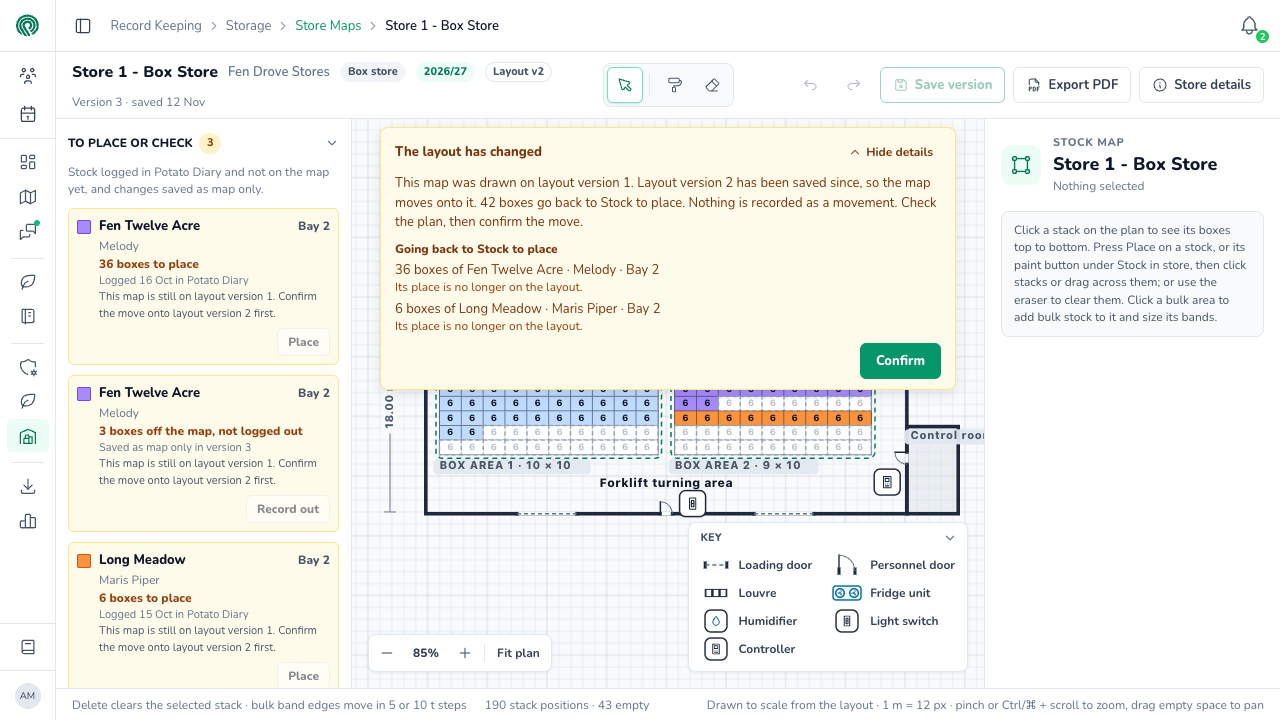
Stock whose stacks or bulk space have gone goes back to Stock to place, and nothing is recorded as a movement for it. Stock in an area that's changed bay goes on that bay's line, and saving the map offers to move its entry there. Check the plan, then click Confirm. The map is locked until someone confirms, and the move is only kept when you then save a version. Until then, the map's PDF can't be exported.
What's next
- Exporting a stock map PDF — print or share the map.
- Store Inventory — where the movements recorded from the map are listed.