
Appearance
Filling a stock map
A stock map shows where each stock sits in a store this season: which stacks hold which crop in a box store, and how many tonnes of each stock are heaped in each bulk area of a bulk store. It's drawn on the store's layout, so draw that first.
Each season has its own stock map. You fill it from the stock already logged for the store in Store Inventory, so log the stock before you start.
Opening a stock map
Open Store Maps. On a store that isn't filled yet, click Fill for 2026/27 (your season shows in place of 2026/27). On a filled store, click its plan, or click ⋯ and then Open stock map. Straight after saving a layout, the layout editor's Fill for 2026/27 button opens it too.
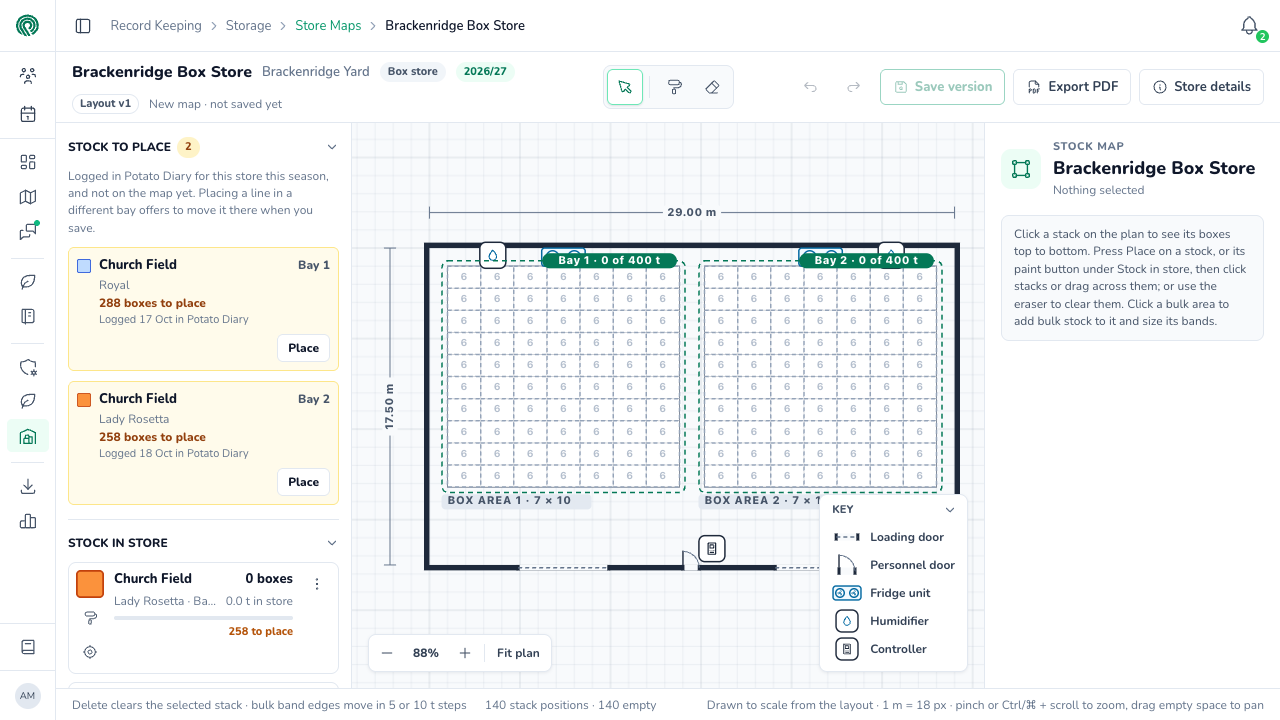
The screen has three parts:
- Along the top are the store's name, whether it's a box or bulk store, the season, the layout version, and the map's version, such as New map · not saved yet or Version 1 · saved 12 Nov. The tools in the middle are Select, the paint brush and Clear stacks. On the right are undo and redo, Save version, Export PDF and Store details.
- On the left, from the top:
- Stock to place: stock logged in Potato Diary for this store this season that isn't on the map yet.
- Stock in store: every stock on the map or still to place, with its tonnes in store, how much of it is placed and, when the stock has one, its Expected loss as set on the stock in Store Inventory.
- Store totals: the boxes and tonnes on the map, and how full the store is.
- Notes: the notes written on the layout.
- Display: switches for the equipment, labels, bay outlines and measurements. They only change what you see, not the layout or the PDF.
- In the middle is the plan, and on the right are the details of whatever you've clicked on the plan.
Each stock gets its own colour on the map.
Placing box stock
Each card under Stock to place shows the stock's field, variety and bay, how many boxes are still to place, and when it was logged.
- Click Place on the card. A bar opens over the plan, saying how many boxes are left to place.
- Click a stack to fill it, or drag across a row of stacks to fill them all. Each stack fills up to its height, set in the layout. To stack lower, pick a height from Stack up to in the bar.
- Keep going until the bar says every box is placed, or click Done to stop.
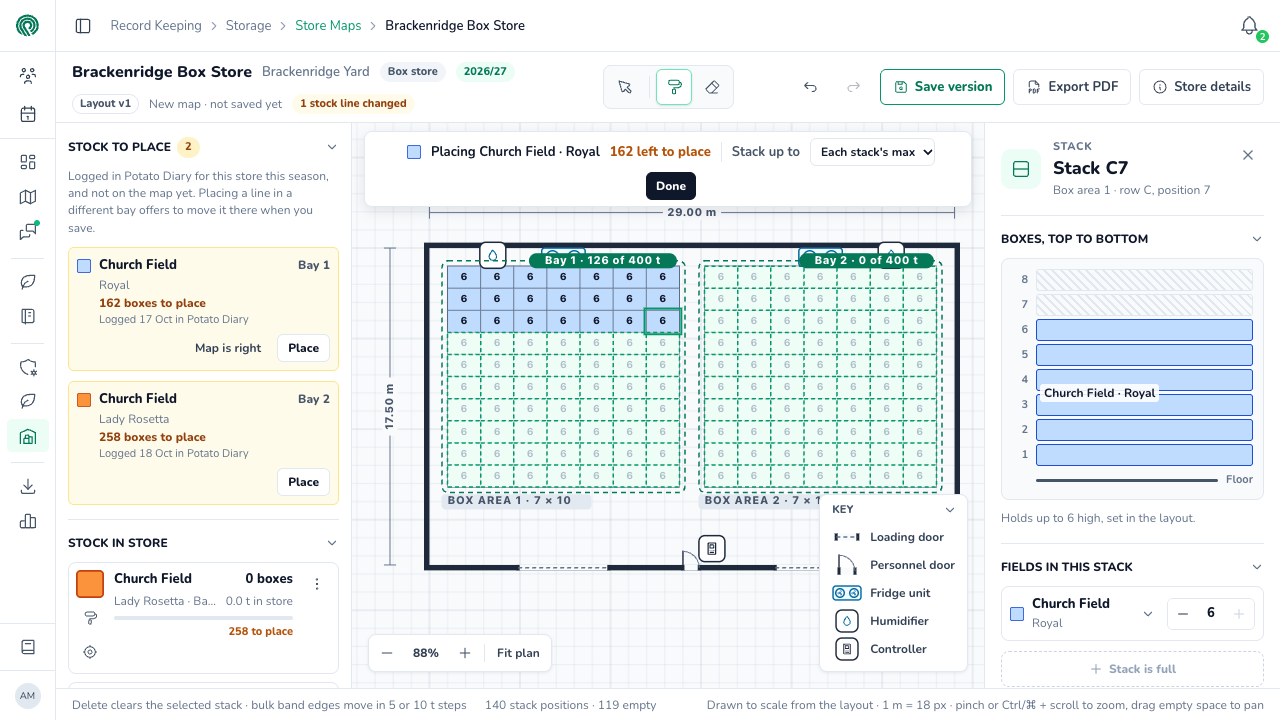
Place from the back wall forwards, as the store was loaded, so the map matches what's in front of you.
If you place a stock in a bay other than the one it's logged in, Potato Diary offers to move it to that bay when you save.
Checking a stack
Click a stack to see it on the right. Boxes, top to bottom shows each box in the stack, and Fields in this stack lists what's in it, with − and + to take a box off or add one, and Add stock to this stack to put another stock on top. A stack can hold more than one stock.
Stacks are named by row and position: Stack C7 is in row C, seventh from the left. Rows are lettered from the top of each box area as drawn on the plan, and the letters carry on from one box area into the next.
Colours, fills and size grades
Click a stock's coloured square under Stock in store to change how it looks on the map:
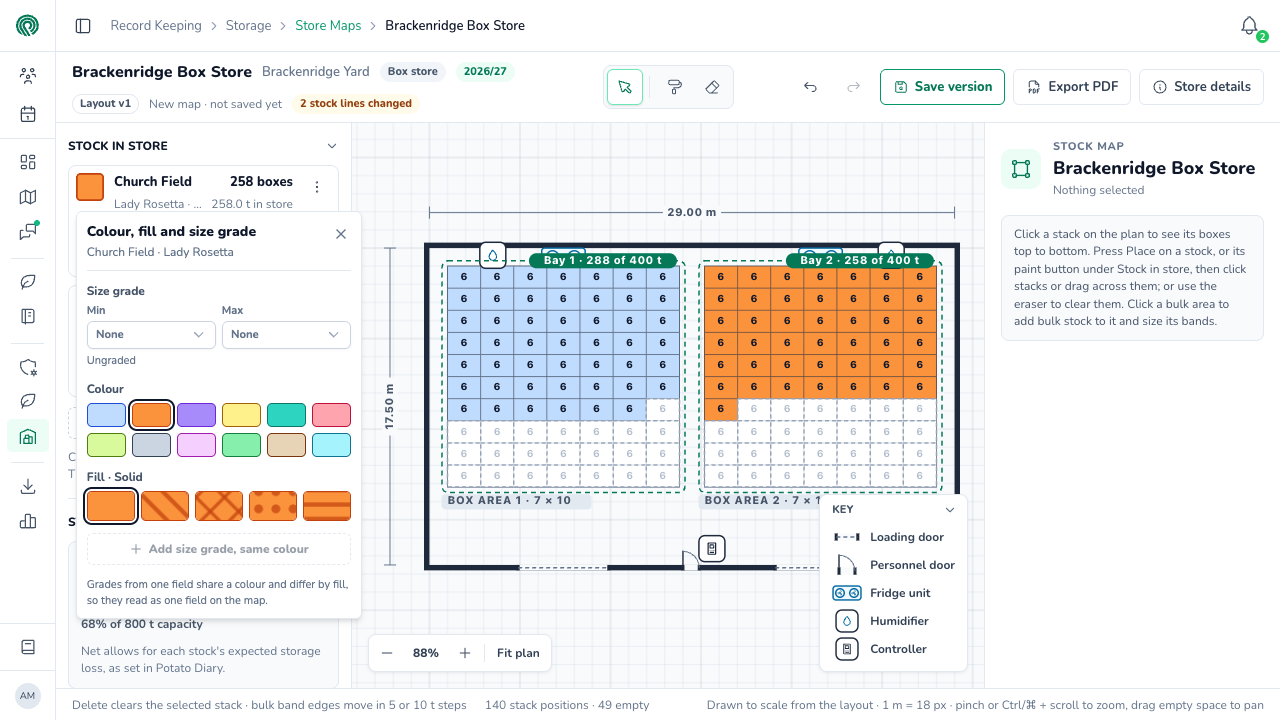
- Size grade: the smallest and largest tuber size, in millimetres, if the stock has been graded.
- Colour and Fill: change them if two stocks are hard to tell apart. Potato Diary warns you when two stocks have the same colour and fill.
- Add size grade, same colour: split a stock into size grades. The grades share the stock's colour and differ by fill, so they still read as one field on the map. Give the stock a size grade first.
The paint brush beside each stock paints that stock onto stacks, like Place, and is handy for adding a few more boxes of something already on the map.
Placing bulk stock
In a bulk store, each card under Stock to place has Add to Bulk area 1, or whichever area is in the stock's bay. Click it to add the stock to that area, up to the space left. It's greyed out when the area is full. The arrow beside it adds the stock to an area in another bay.
Click a bulk area on the plan to see what's in it:
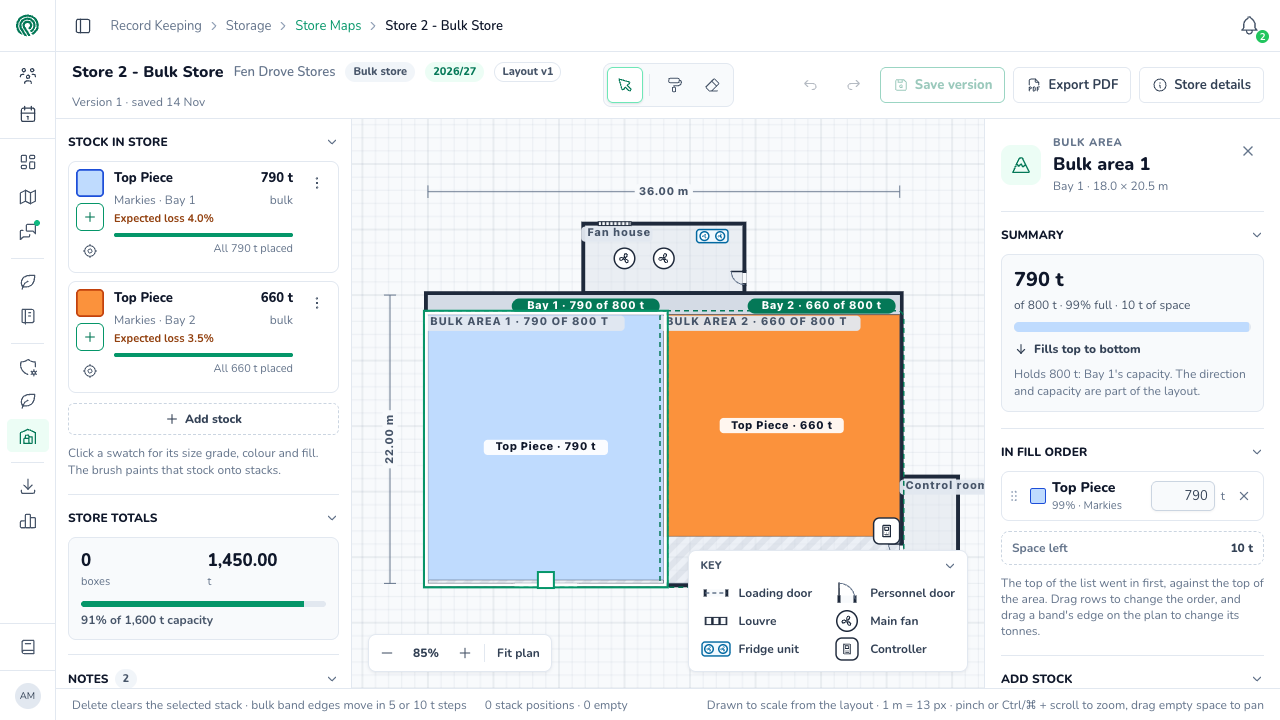
- Summary shows the tonnes in the area, how full it is, and the space left. The capacity and fill direction come from the layout.
- In fill order lists each stock in the area as a band, in the order it went in, against the side the area fills from. Type a stock's tonnes in its box, drag a band up or down the list to change the order, or click × to take it out.
- Add stock adds another stock to the area, up to the space left.
You can also drag the edge between two bands on the plan to change how many tonnes each holds.
Saving the map
Nothing on the map is kept until you save a version.
Click Save version at the top right.
Read the dialog. It lists every stock that has changed on the map since the last version, such as the three stocks placed on this box store's first map.
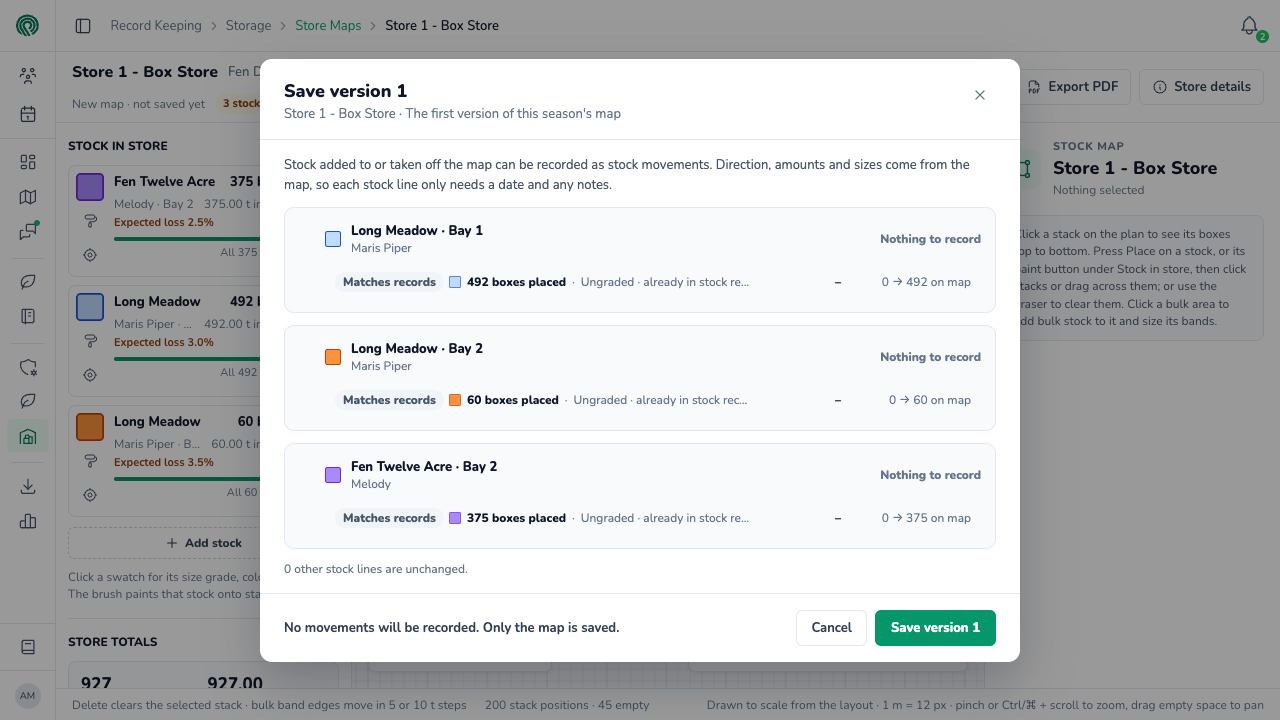
When you've placed exactly what's logged, each stock says Matches records and Nothing to record. When the map and the records differ, the dialog offers to record the difference. See Keeping a stock map up to date.
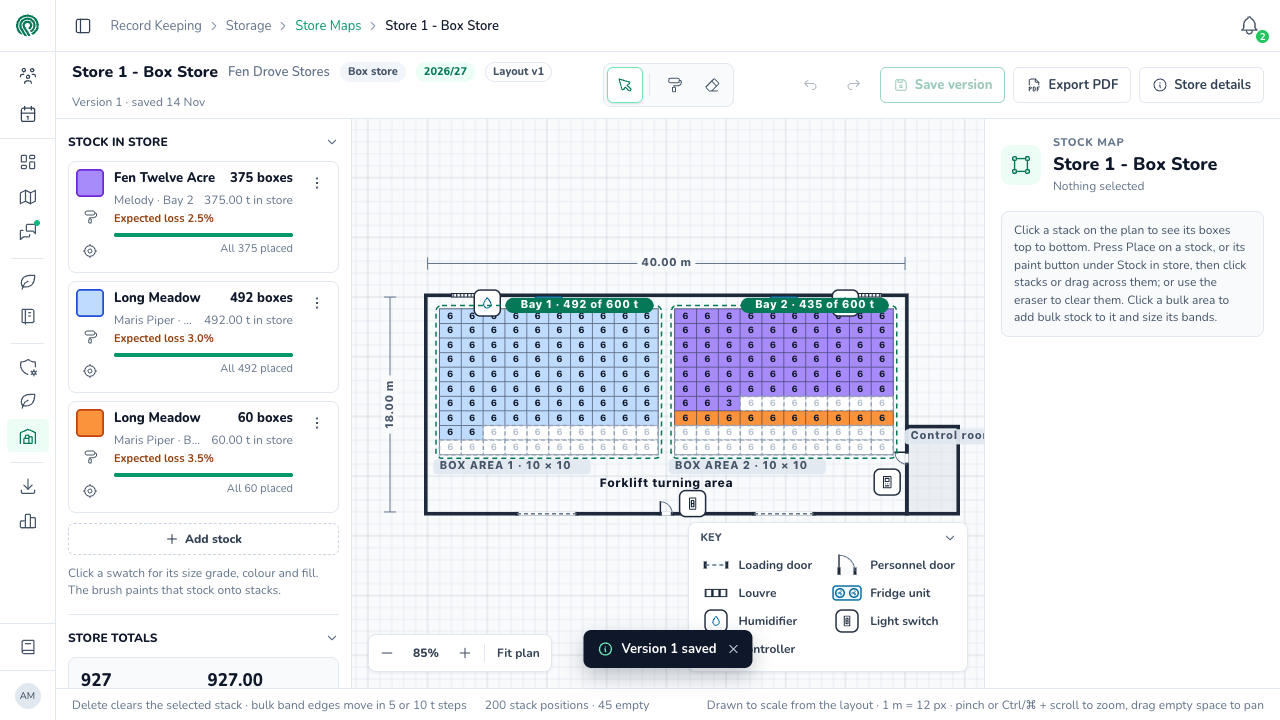
Click Save version 1. The header changes to Version 1 · saved with today's date, and the store's card on Store Maps shows as filled.
Store totals
Store totals on the left adds up the map: the boxes and the tonnes on it. The bar shows how full the store is against its capacity. The map shows what's in the store, so it doesn't take off expected loss: for Est. Available, see Store Inventory.
Store details
Store details at the top right shows the store's owner, site, store type, container type, capacity and bays as set in Potato Diary, the layout and map versions, and how many files are on the store's Maps tab. Open store page opens the store in a new tab, so the map keeps any changes you haven't saved.
When the map is read-only
The tools and Save version are hidden, and you can only look at the map, when:
- The season is closed.
- You can't edit any of the stock in the store, and can't add stock to it.
If you leave the map, switch store or change season with unsaved changes, Potato Diary asks before throwing them away.
What's next
- Keeping a stock map up to date — record stock coming in and going out from the map.
- Exporting a stock map PDF — print or share the map.